Migrate MEGA to Koofr — Transfer Files with RcloneView

Move a MEGA account's files into Koofr with a previewed, verifiable cloud-to-cloud job instead of a manual download and re-upload.
Moving years of files out of MEGA usually means downloading to a laptop and uploading again, which doubles the work and breaks on every network hiccup. RcloneView lets you connect MEGA and Koofr side by side and run the transfer as a single job. RcloneView mounts AND syncs 90+ providers from one window, on Windows, macOS, and Linux.
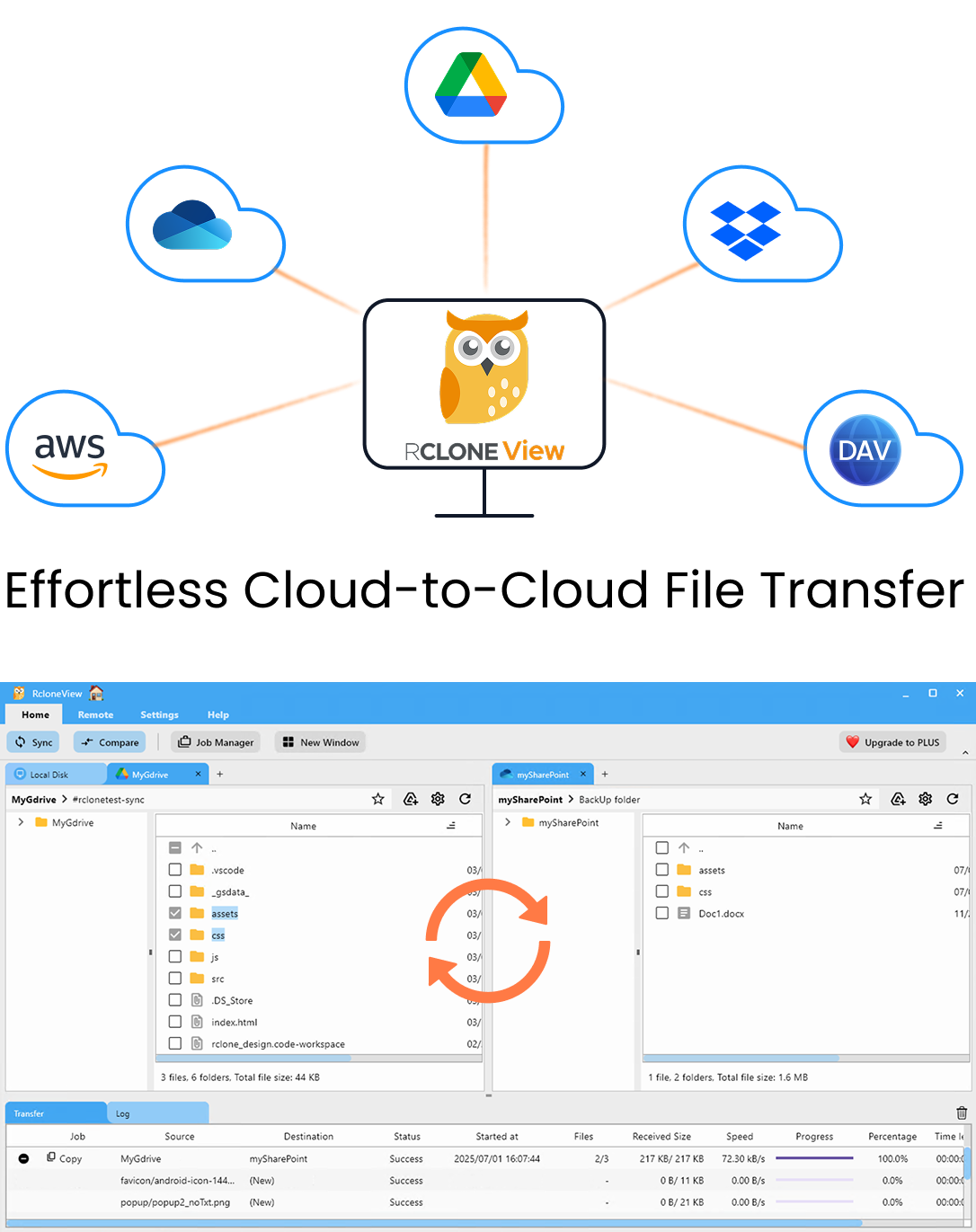
Manage & Sync All Clouds in One Place
RcloneView is a cross-platform GUI for rclone. Compare folders, transfer or sync files, and automate multi-cloud workflows with a clean, visual interface.
- One-click jobs: Copy · Sync · Compare
- Schedulers & history for reliable automation
- Works with Google Drive, OneDrive, Dropbox, S3, WebDAV, SFTP and more
Free core features. Plus automations available.
Connect Both Remotes
Open the Remote tab and click New Remote. MEGA uses credential entry: enter your account email and password. Koofr is added the same way from the provider list. Once both appear in Remote Manager, open them in two Explorer panels so you can see the source and destination together.
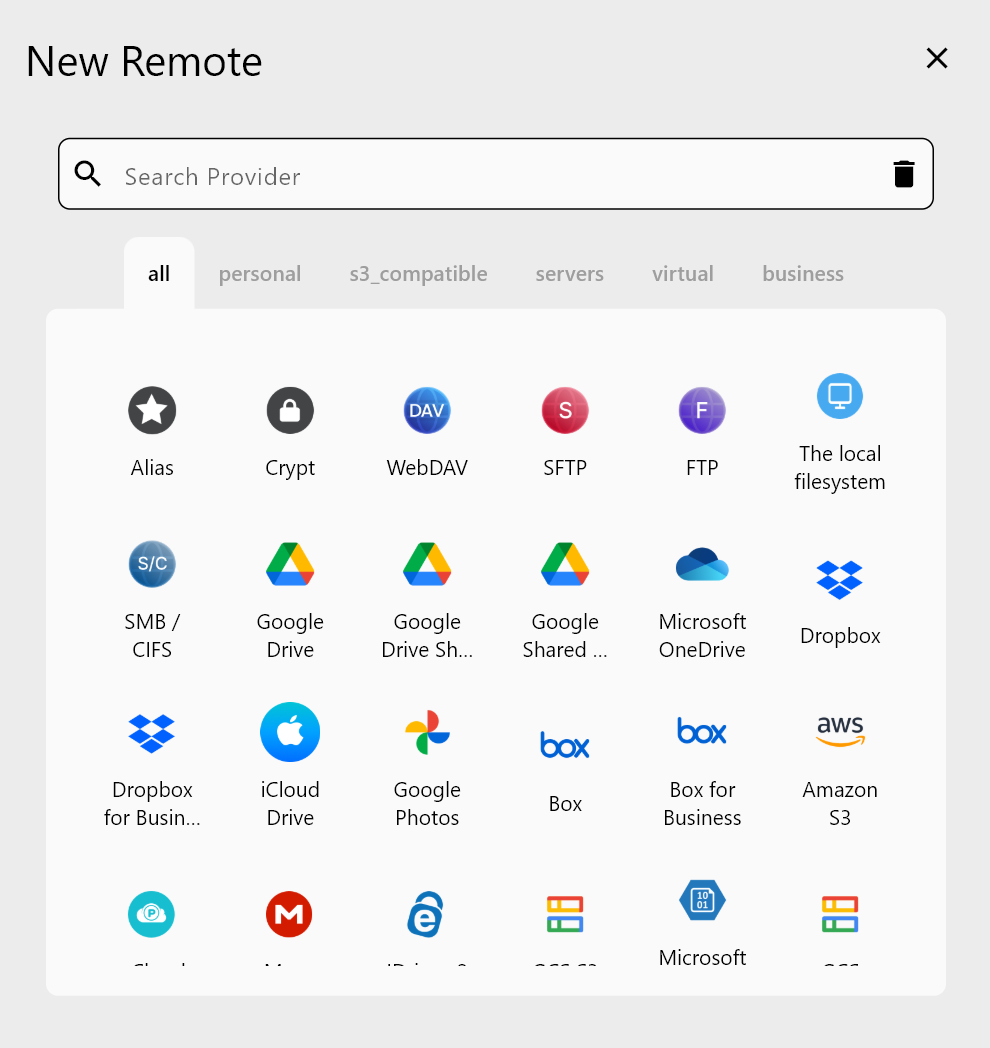
Browse the MEGA tree first. Decide whether you are moving everything or only certain folders, since a narrower scope keeps the first run fast and easy to check.
Preview, Then Transfer
You can drag folders from the MEGA panel to the Koofr panel; dragging between different remotes performs a copy, so the original MEGA files stay untouched. For a larger move, create a Sync or Copy job instead. Run a Dry Run first: it lists the files that would be copied, so you can catch a wrong destination path before anything is written.
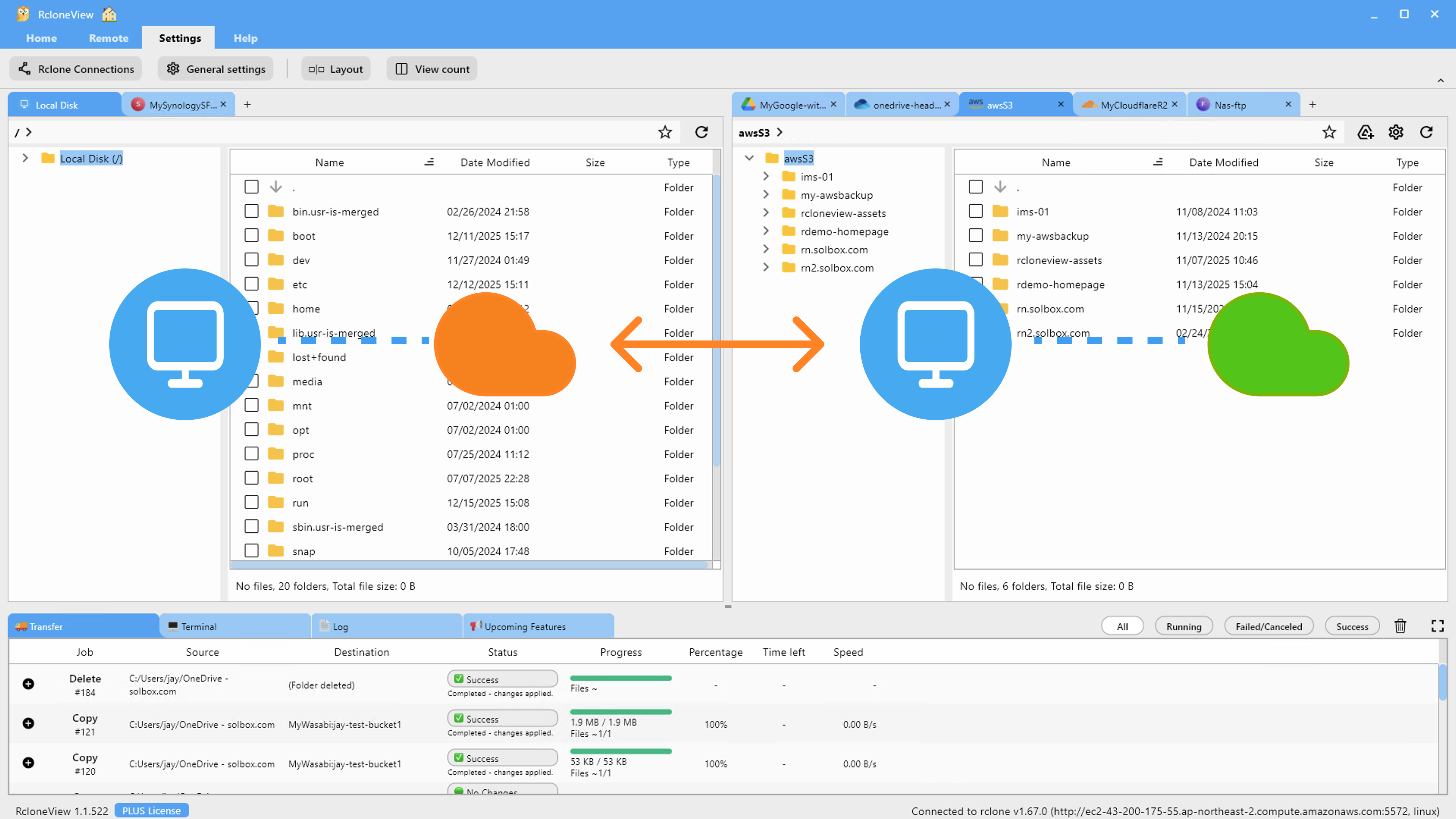
In the job's Advanced Settings you can tune concurrent file transfers. If either service starts slowing down or returning errors, lower the number of equality checkers and transfers and let the retry setting handle transient failures.
Monitor and Verify
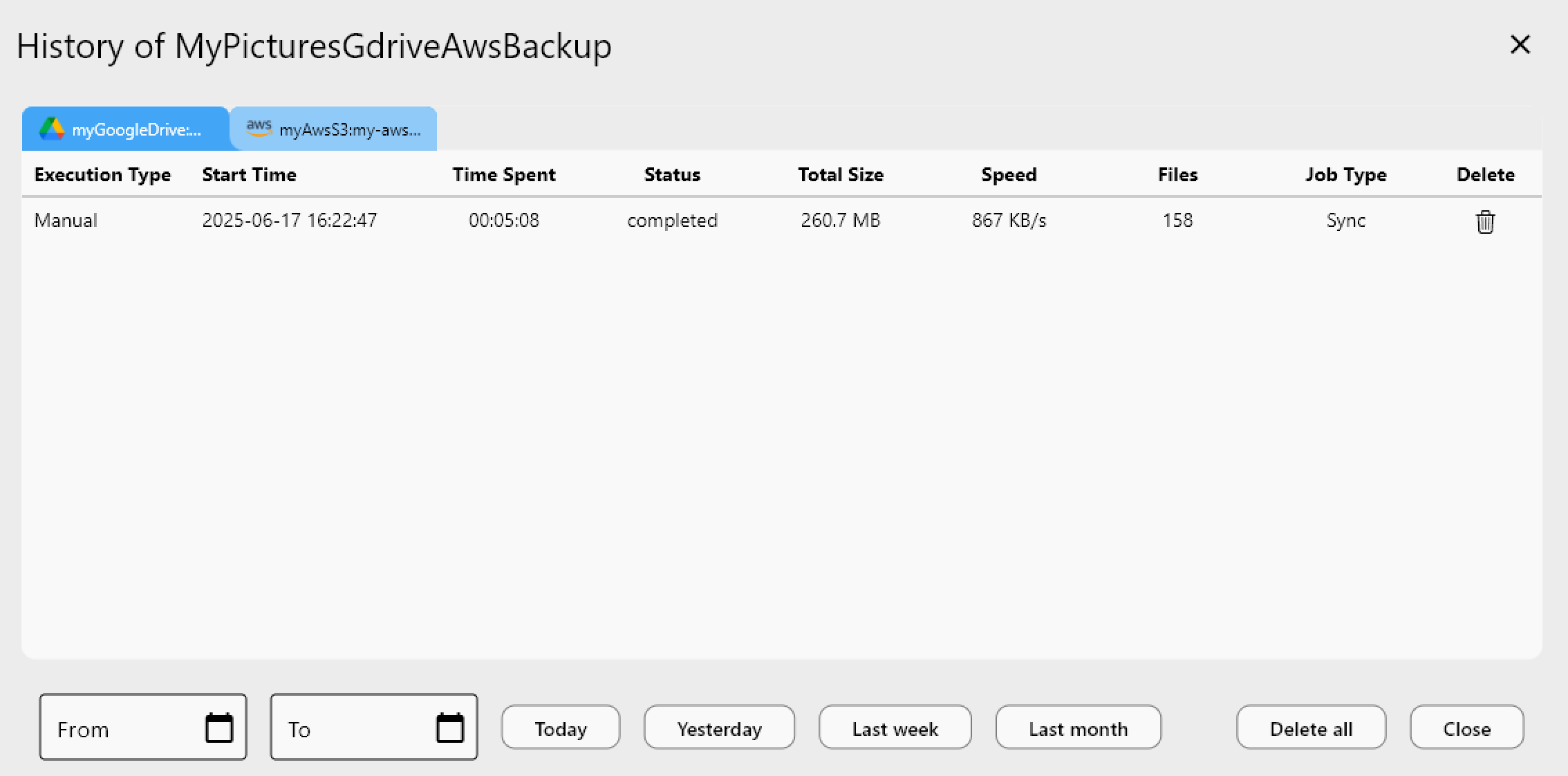
Watch progress in the Transferring tab, which shows speed, file count, and size. After the job finishes, open Job History to confirm the status and total transferred.
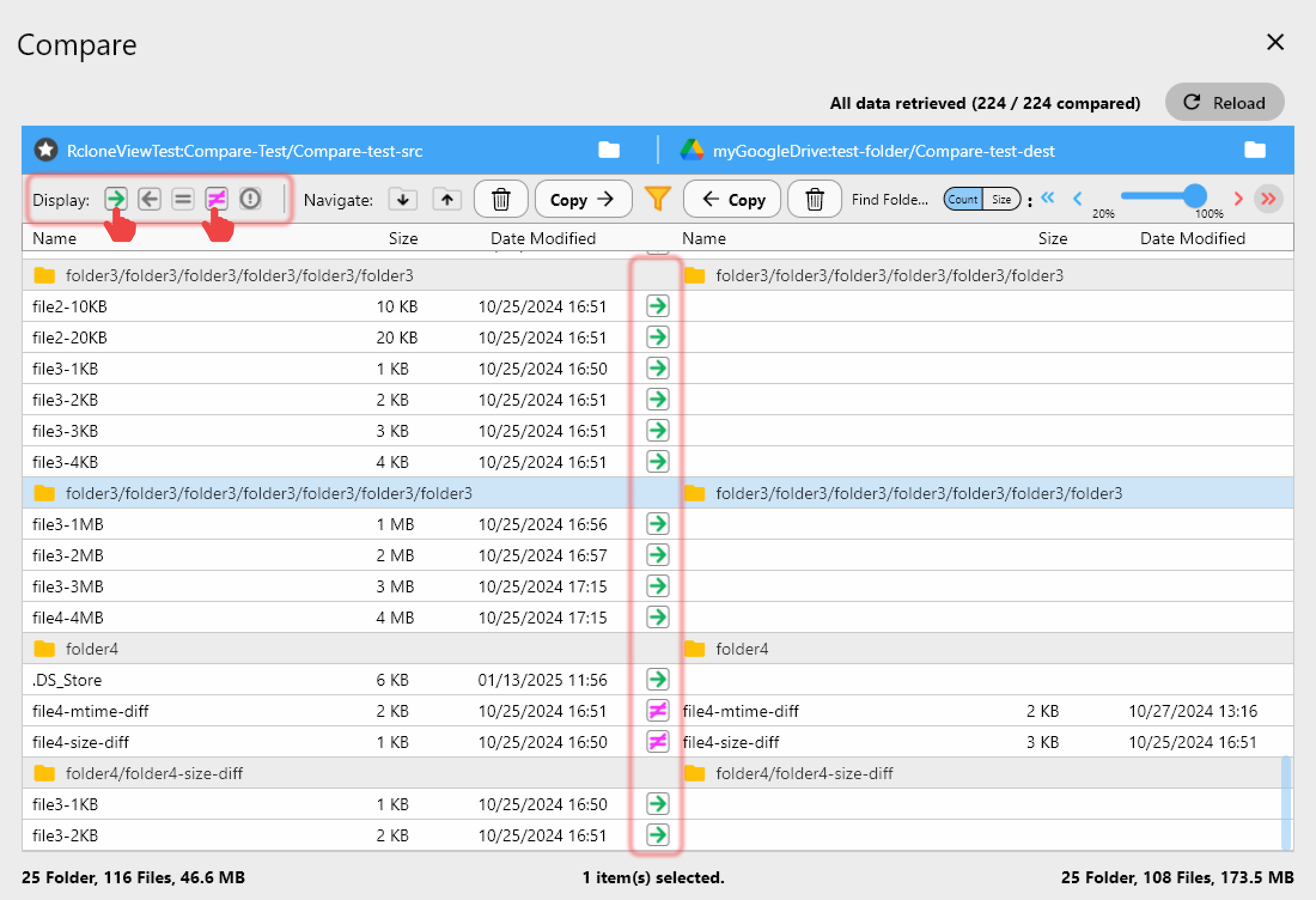
Finally, use Folder Compare with MEGA on the left and Koofr on the right. Filter for left-only and different files to find anything that did not arrive, and copy those across directly from the comparison view.
Getting Started
- Download RcloneView from rcloneview.com.
- Add your MEGA and Koofr remotes from the Remote tab.
- Create a Copy or Sync job and run a Dry Run to preview it.
- Run the job, then verify the result with Folder Compare before retiring anything on MEGA.
Keep the MEGA copy until the comparison comes back clean, so the original data stays available while you verify.
Related Guides:
Supported Cloud Providers