Fix Slow Cloud Transfers — Speed Up Sync and Copy in RcloneView
Diagnose slow transfers and unlock maximum throughput with RcloneView's performance optimization tools and advanced tuning options.
Cloud transfers that crawl to a halt can destroy productivity and waste time. Whether you're syncing gigabytes to object storage or copying files between cloud providers, slow transfers indicate configuration issues, network constraints, or suboptimal settings. RcloneView provides visibility and control to diagnose problems and boost speeds to your network's true potential.

Manage & Sync All Clouds in One Place
RcloneView is a cross-platform GUI for rclone. Compare folders, transfer or sync files, and automate multi-cloud workflows with a clean, visual interface.
- One-click jobs: Copy · Sync · Compare
- Schedulers & history for reliable automation
- Works with Google Drive, OneDrive, Dropbox, S3, WebDAV, SFTP and more
Free core features. Plus automations available.
Common Causes of Slow Cloud Transfers
Understanding what slows transfers is the first step toward fixing them:
- Insufficient parallel streams — Single-threaded transfers underutilize bandwidth
- Connection timeouts — Remote servers disconnect due to network latency
- Chunk size mismatch — Default settings may not match your network characteristics
- Bandwidth throttling — ISP or cloud provider rate limiting
- Network congestion — Competing traffic saturating your connection
- API rate limits — Cloud provider quotas on requests per second
RcloneView surfaces all these metrics, helping you pinpoint the bottleneck quickly.
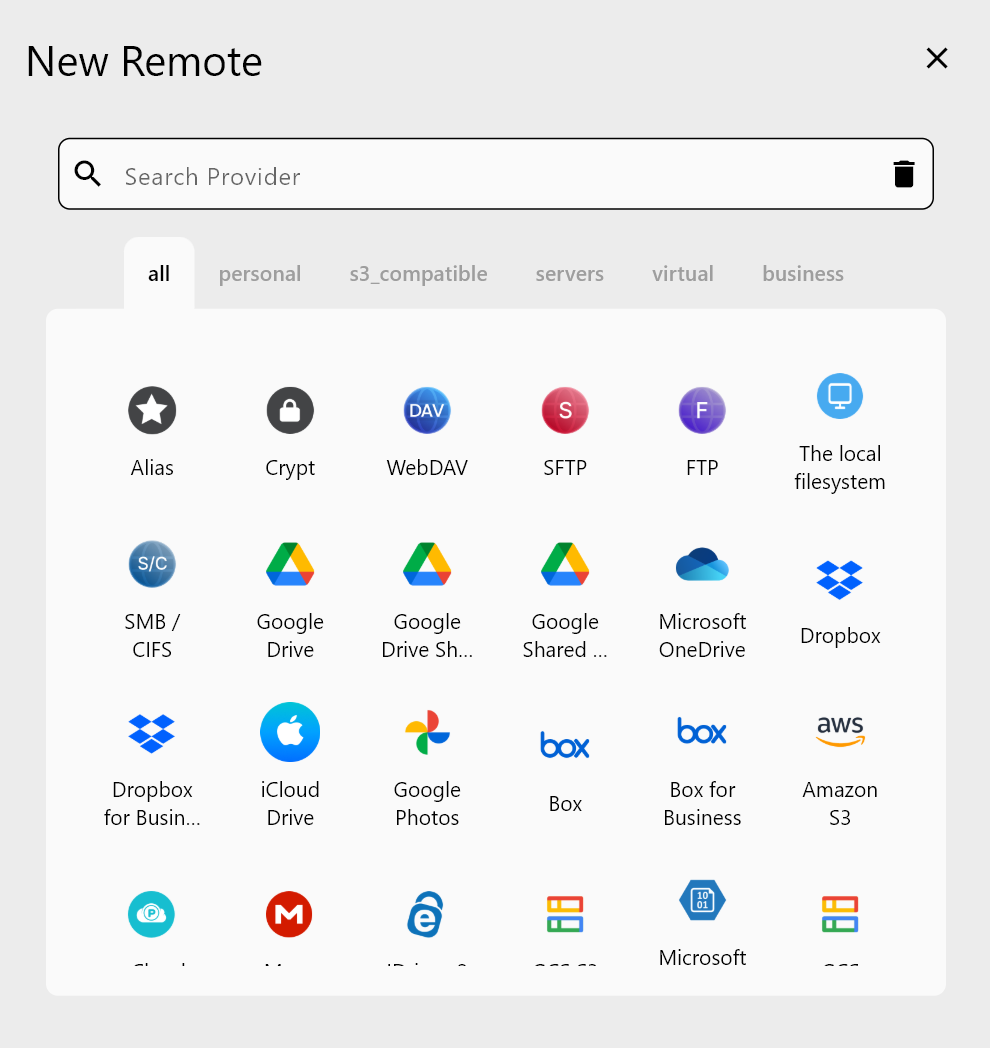
Optimizing Parallel Streams in RcloneView
The single most effective optimization is increasing parallel connections:
- Open your sync job configuration in RcloneView
- Navigate to Advanced Performance Settings
- Increase Parallel Streams (start with 4, try up to 16 for most connections)
- Set Chunk Size to 32 MB or 64 MB for large files
- Adjust Connection Timeout to 60 seconds or higher
- Enable Resume on Failure to recover from interruptions
Test incrementally—increase parallel streams by 2-4 at a time and observe throughput. Too many streams can degrade performance if your network can't sustain them.
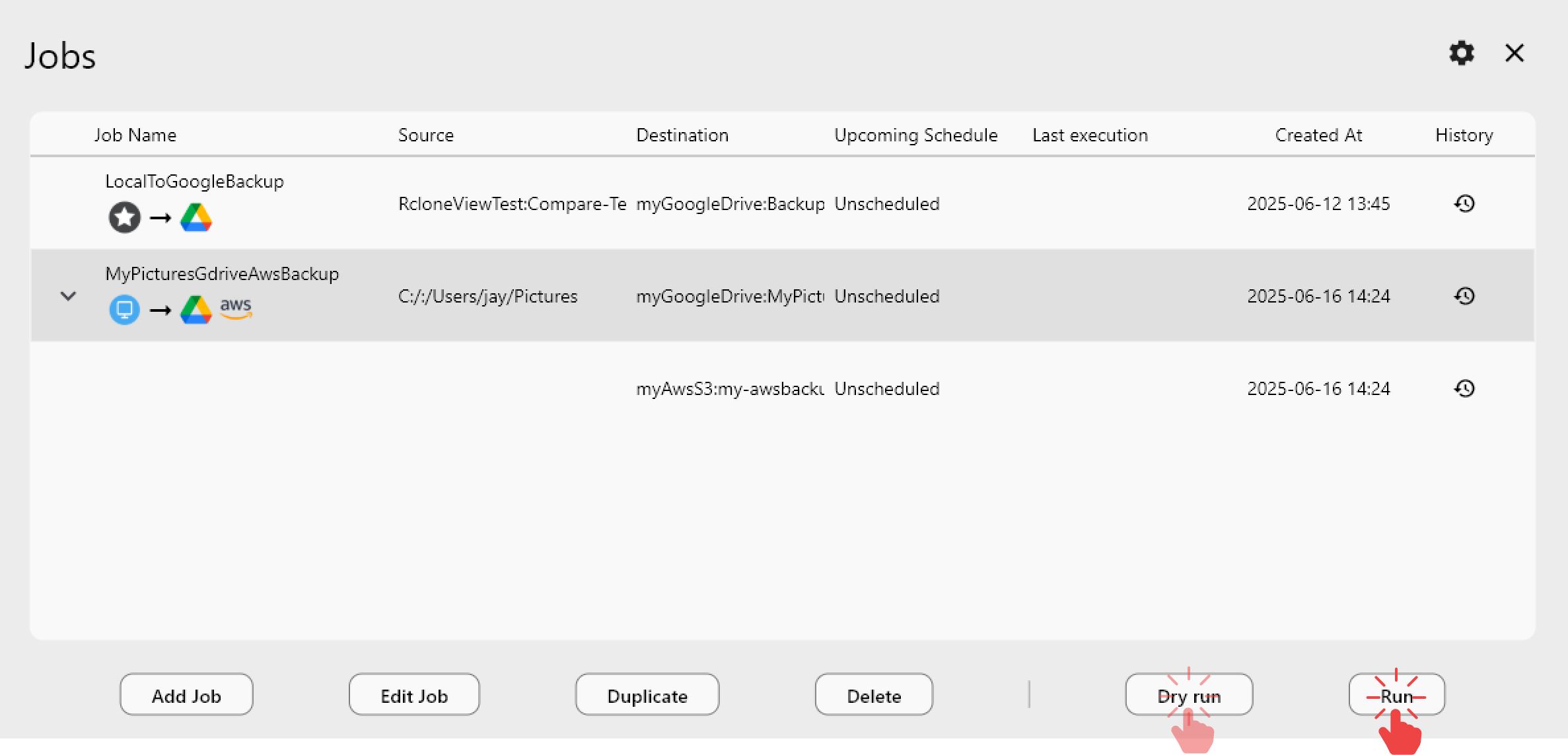
Diagnosing Network and API Bottlenecks
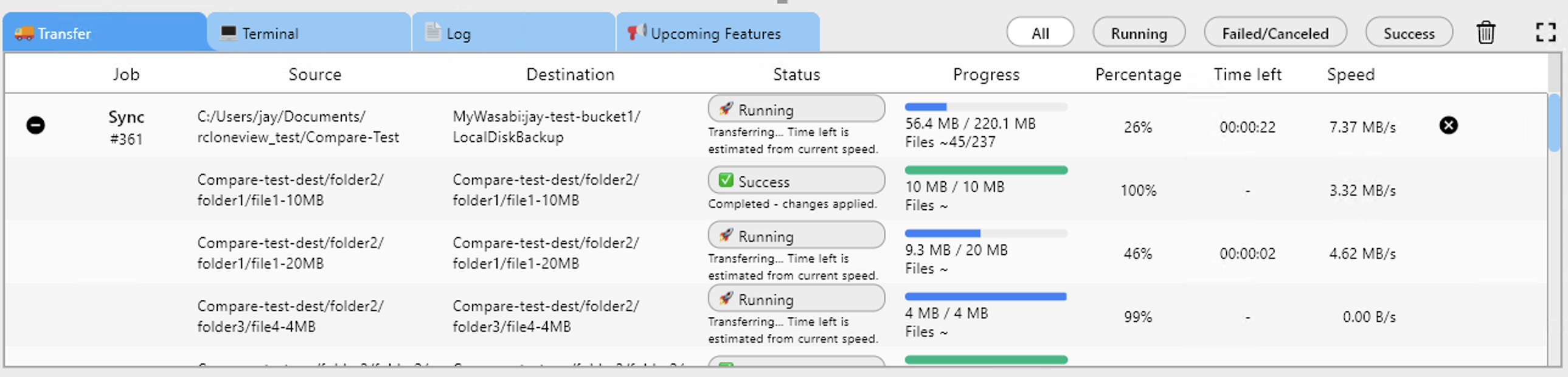
RcloneView's monitoring tools reveal what's constraining your transfers:
- Transfer speed graph — Visualizes throughput over time, showing slowdowns
- Error logs — Captures timeout and API errors indicating what's failing
- Connection health — Displays active connections and their individual speeds
- Bandwidth utilization — Shows actual vs. available bandwidth usage
Low connection count + high errors usually points to timeout issues. Low connection count + stable performance suggests API rate limits. Uneven connection speeds reveal network congestion.
Advanced Tuning Strategies
For maximum speed, apply these professional-grade optimizations:
- Increase connection timeout to 120 seconds for slow/distant servers
- Reduce bandwidth per connection to prevent overwhelming the remote API
- Use checksum verification only after transfer completes, not during
- Run transfers during off-peak hours to avoid network congestion
- Schedule multiple smaller transfers rather than one massive transfer
- Monitor and cap concurrent jobs to prevent overwhelming your network
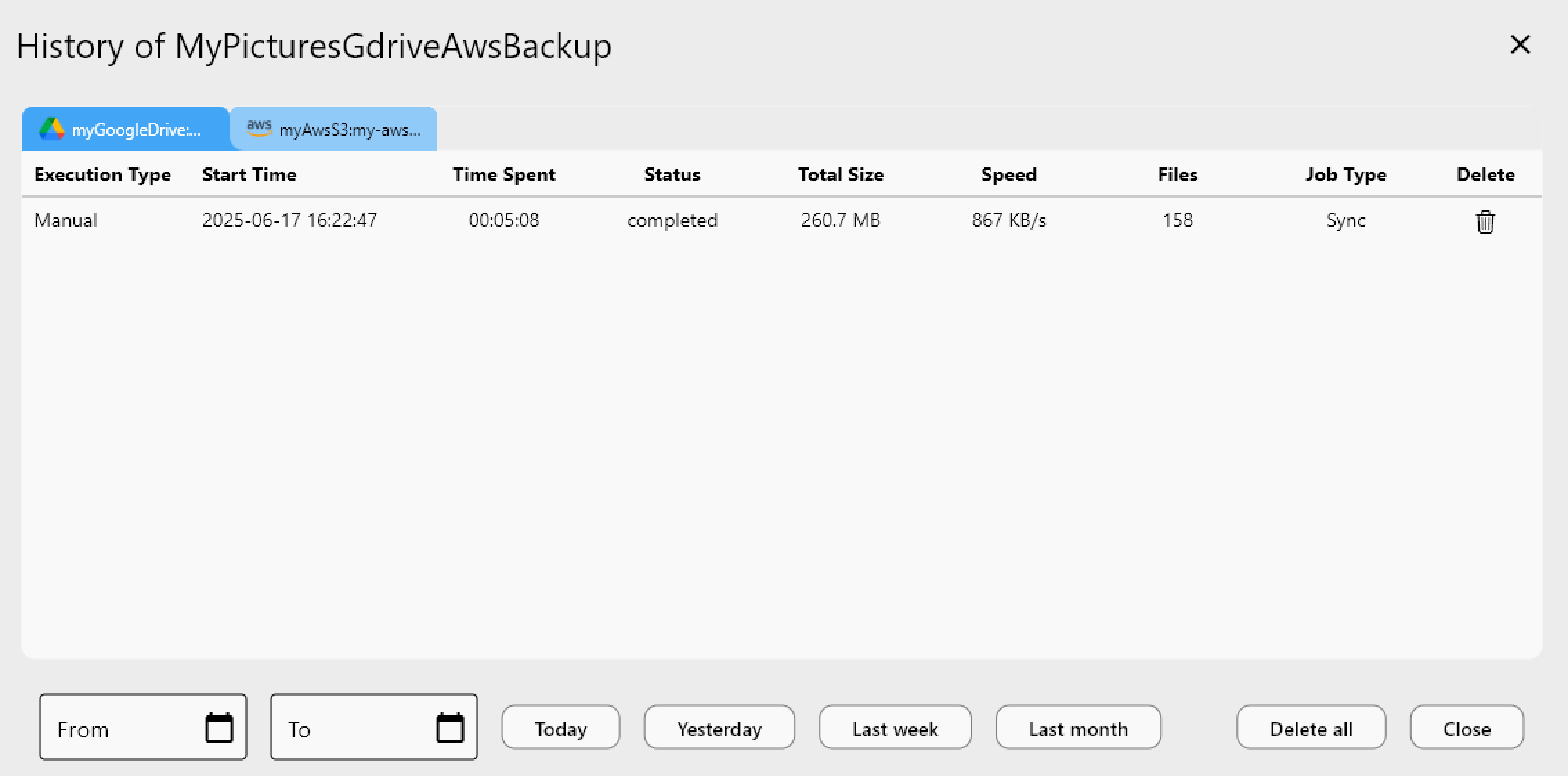
View completed transfer history in RcloneView to identify patterns—transfers at certain times may consistently underperform.
Getting Started
- Download RcloneView from rcloneview.com.
- Identify your slow transfer job and open its advanced settings.
- Start with parallel streams = 4, then incrementally increase.
- Monitor the transfer speed graph for improvements.
- Test different chunk sizes and timeout values.
- Document settings that work best for each cloud provider.
Transform your cloud transfers from sluggish to lightning-fast with RcloneView's optimization suite.
Related Guides:
- Multi-Threaded Transfers & Parallel Streams in RcloneView
- Resume Failed Cloud Transfers with RcloneView
- Fix Cloud Sync Stuck or Hanging with RcloneView
Supported Cloud Providers





























