Manage Cloudinary Storage — Sync and Backup Files with RcloneView

Cloudinary holds your production image and video assets — RcloneView lets you back them up to Amazon S3, Google Drive, or any other cloud without writing a single script.
Cloudinary has become the go-to platform for developers and creative teams managing large libraries of images, videos, and rich media files. But storing everything in Cloudinary alone creates a single point of failure: accidental bulk deletion, account issues, or API outages can make your entire media library inaccessible in minutes. RcloneView, built on rclone's Cloudinary backend, gives you a visual interface to browse, sync, and back up your Cloudinary account to any other supported cloud storage — keeping a verified copy where you control it.

Manage & Sync All Clouds in One Place
RcloneView is a cross-platform GUI for rclone. Compare folders, transfer or sync files, and automate multi-cloud workflows with a clean, visual interface.
- One-click jobs: Copy · Sync · Compare
- Schedulers & history for reliable automation
- Works with Google Drive, OneDrive, Dropbox, S3, WebDAV, SFTP and more
Free core features. Plus automations available.
Connecting Cloudinary to RcloneView
Open RcloneView and navigate to the Remote tab, then click New Remote. Select Cloudinary from the provider list and enter your credentials to complete setup. Once connected, your Cloudinary storage appears as a browsable remote in the explorer panel — use the folder tree on the left to navigate your media library, and the file list on the right to inspect individual assets with name, size, and modification date.
The thumbnail view is particularly useful for Cloudinary content: switch to thumbnail mode in the file list to get a visual grid of your images instead of plain filenames, making it easy to confirm you're looking at the right folder before triggering any operation.

Backing Up Cloudinary Assets to Another Cloud
With Cloudinary open in one explorer panel and a destination like Amazon S3, Backblaze B2, or Google Drive open in the other, start a sync job via Home tab > Sync. The 4-step wizard lets you configure exactly what transfers:
- Select your Cloudinary folder as the source and your backup cloud as the destination
- Use predefined file filters in Step 3 (Image, Video) to target specific media types and skip unneeded files
- Set a maximum file age to run incremental syncs that only capture newly updated assets
Always run a Dry Run first — it previews exactly which files will be transferred or skipped without touching anything. For a large Cloudinary library, this catches filter misconfiguration before it causes missed backups.
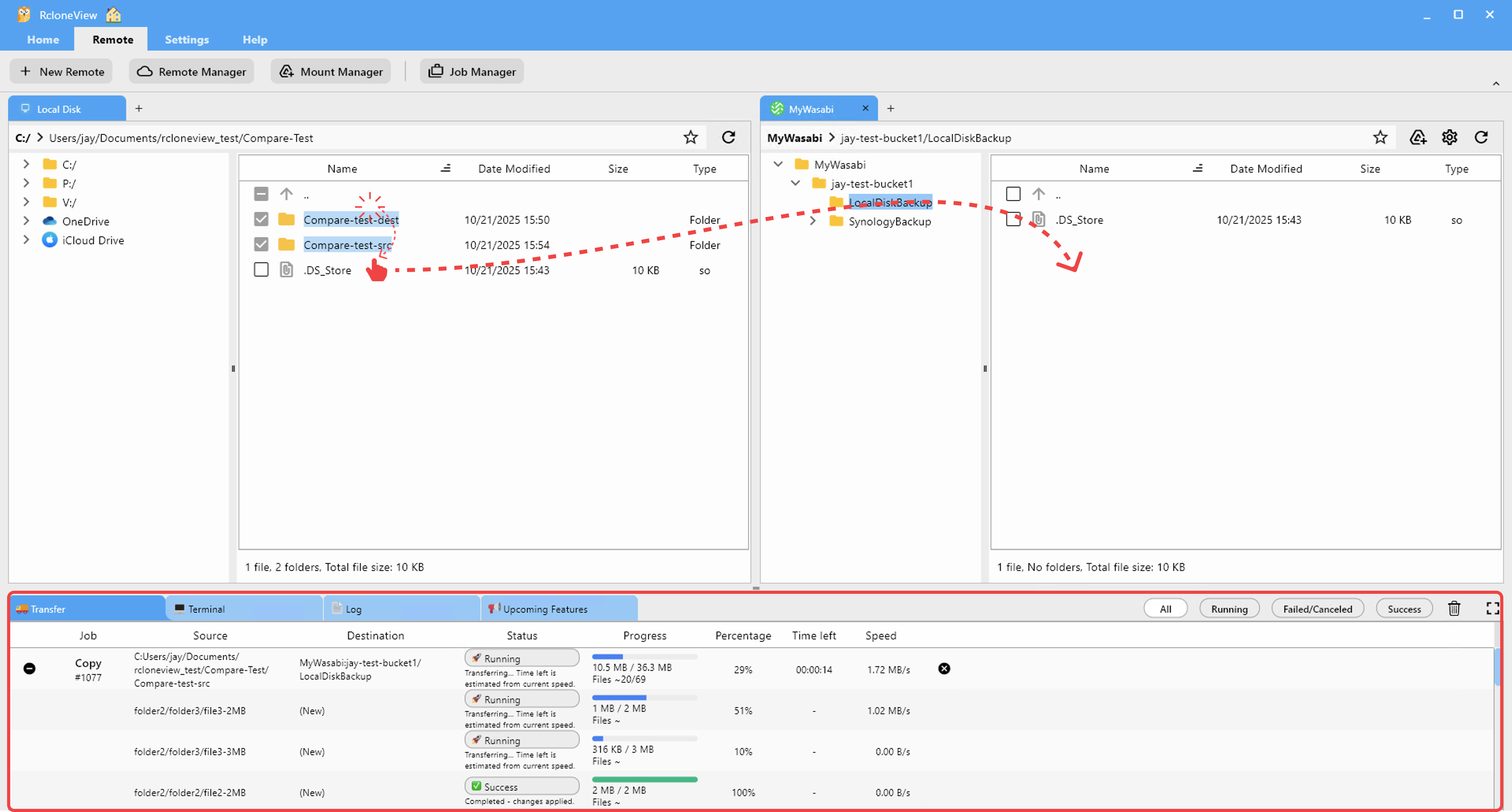
Scheduling Automated Cloudinary Backups
For ongoing asset protection, RcloneView PLUS adds crontab-style scheduling to the sync wizard's Step 4. A nightly sync at 2 AM picks up the day's newly uploaded assets while keeping bandwidth usage off peak hours. Use the Simulate schedule preview to verify the next execution times before saving — no surprises when the first scheduled run fires.
Once running, job completion notifications alert you with status, transferred file count, and data volume. For teams with dozens of active Cloudinary transformations and uploads per day, this passive alerting means you know the backup ran correctly without logging in to check.

Verifying Backup Completeness
Use the Folder Compare feature (Home tab > Compare) to diff your Cloudinary source against the backup destination at any time. RcloneView shows left-only, right-only, same, and different files side by side — you can identify gaps in coverage at a glance and copy missing files directly from the comparison view without setting up a new job. For high-stakes media assets, enabling checksums in the sync job's Advanced Settings verifies file contents beyond just size matching, confirming each file arrived intact.

Getting Started
- Download RcloneView from rcloneview.com.
- Add Cloudinary as a remote via Remote tab > New Remote and complete the configuration.
- Add your backup destination (Amazon S3, Backblaze B2, Google Drive) as a second remote.
- Create a sync job from Cloudinary to the destination, run a Dry Run, then enable PLUS scheduling for automated daily backups.
Cloudinary holds your most visible production assets — keeping a synchronized copy in a second cloud turns a single point of failure into a reliable, auditable backup you fully control.
Related Guides:
- Manage Digital Assets Across Multiple Clouds with RcloneView
- Manage Amazon S3 Storage — Sync and Backup Files with RcloneView
- Backup Google Photos to External Drive or NAS with RcloneView
Supported Cloud Providers





























