How to Back Up Google Photos to an External Drive or NAS — Google Takeout + RcloneView
Since March 31, 2025, Google Photos only lets third-party apps — rclone and RcloneView included — see the photos they uploaded themselves. The reliable way to get your existing library out is Google Takeout, and RcloneView takes it from there.
Google Photos holds years of irreplaceable photos and videos, but storage quotas, account lockouts, and policy changes can all cut you off from them. Many guides — including an earlier version of this one — told you to connect Google Photos to a sync tool and download everything. That no longer works: Google closed that door in 2025.
This guide shows the path that works today. Export your library with Google Takeout straight into Google Drive, let RcloneView copy the export to an external drive, a NAS, or another cloud, and use RcloneView Mobile so new photos skip Google Photos as the middleman from now on.

Manage & Sync All Clouds in One Place
RcloneView is a cross-platform GUI for rclone. Compare folders, transfer or sync files, and automate multi-cloud workflows with a clean, visual interface.
- One-click jobs: Copy · Sync · Compare
- Schedulers & history for reliable automation
- Works with Google Drive, OneDrive, Dropbox, S3, WebDAV, SFTP and more
Free core features. Plus automations available.
What Changed: Google Photos API Restrictions (2025)
On March 31, 2025 Google removed the full-library scopes from the Photos Library API. In Google's own words, third-party apps "can now only list, search, and retrieve albums and media items that were created by your app." Shared-album calls return 403 PERMISSION_DENIED.
What this means when you add a Google Photos remote in RcloneView:
- The remote looks almost empty. It shows only photos that were uploaded through RcloneView or rclone. Phone uploads, web uploads, and everything else in your library are invisible to the API, so a Copy job reports "no changes" or copies zero files.
- This is not a connection problem. RcloneView 1.6 and later explains the restriction inside the app when you open a Google Photos remote, instead of showing what looks like an empty account.
- Shared albums are not accessible at all.
- You need your own OAuth client ID. rclone's shared Google Photos client ID is being retired during 2026. When a connection cannot be made, the RcloneView connection wizard walks you through creating one.
Google's supported way to export an existing library is Google Takeout — so that is where the backup starts.
Step 1: Export Your Library with Google Takeout
- Open takeout.google.com and sign in with the account that owns the photos.
- Click Deselect all, then tick Google Photos only. Use All photo albums included to limit the export to specific albums or years if you want to split a large library into batches.
- Under Destination, choose Add to Drive. Google places the export in a
Takeoutfolder in your Google Drive, which RcloneView can reach directly. Dropbox, OneDrive, and Box are also offered — RcloneView supports all three — and Send download link via email works if you prefer to copy from your computer. - Pick the archive type (
.zip) and size (1 GB to 50 GB). Larger archives mean fewer files to handle. - Click Create export. Google emails you when it is ready; a large library can take hours or even days.
Good to know before you start:
- Each photo and video arrives at original quality together with a
.jsonmetadata file that holds the capture date, description, and location. - An export added to Google Drive counts toward your Google storage until you delete it, so make sure Drive has room — or export in batches.
- Takeout is a one-time export with no incremental mode. Step 4 covers how to keep future photos backed up without repeating it.
Step 2: Add Google Drive in RcloneView
- Open RcloneView and click Add Remote in the Remote Manager.
- Choose Google Drive and complete the browser-based OAuth login.
- Open the remote in the Explorer and navigate to the
Takeoutfolder. Each export is a separate.zipfile (or several, for larger libraries).
Step 3: Copy the Export to Your Backup Destination
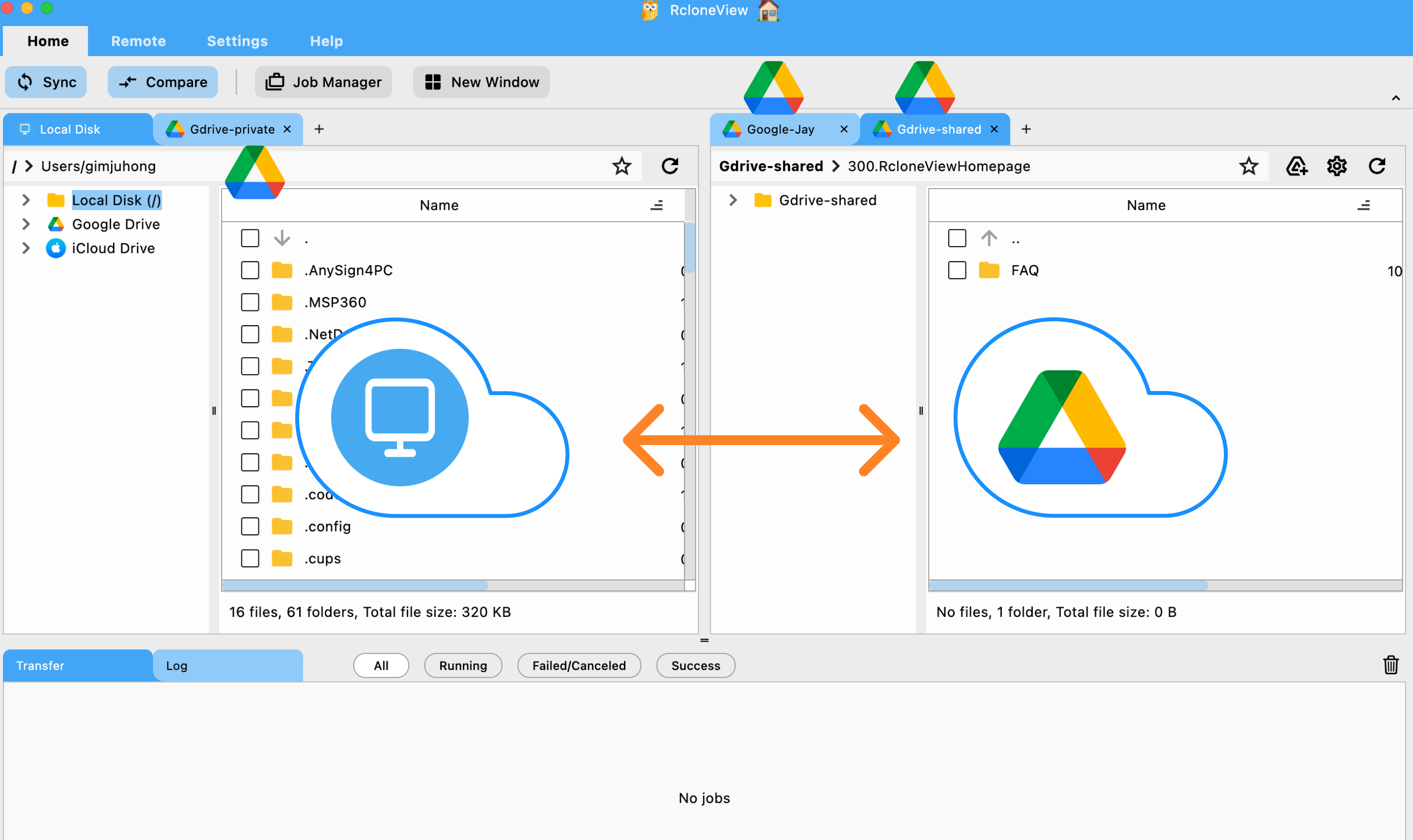
RcloneView copies the archives exactly as they are — it does not extract them — so you unzip once on the destination machine after the copy finishes.
External hard drive
- Connect the drive and note its path (
E:\on Windows,/Volumes/...on macOS,/media/...on Linux). - Create a Copy job: Source = the
Takeoutfolder on your Google Drive remote, Destination = a folder on the drive. - Run the job, then extract the archives on the drive.
Use Copy, not Sync: a Copy job never deletes anything on the destination.
Synology NAS
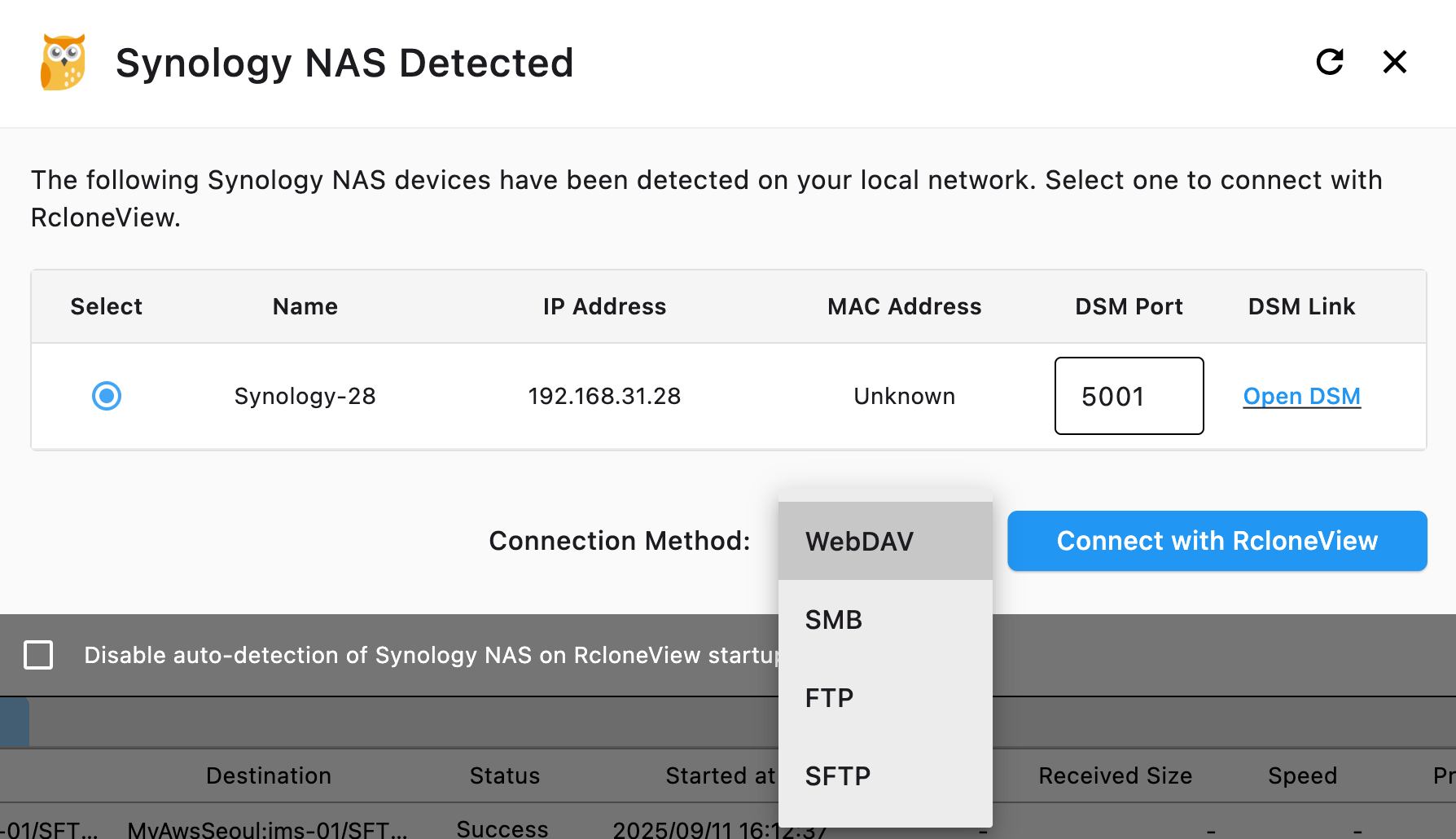
RcloneView detects Synology NAS devices on your network automatically, so the NAS appears in the Local tab without any configuration.
- Create a Copy job with the
Takeoutfolder as the source and a shared folder on the NAS (for example/photos/google-takeout) as the destination. - Run it, then extract the archives on the NAS.
Another cloud
Prefer an off-site copy? Point the Copy job at any other remote — Amazon S3, Backblaze B2, Wasabi, OneDrive, and so on. RcloneView moves the data cloud-to-cloud through its rclone engine; the archives do not have to pass through your computer's storage.
Verify and clean up
- Use Folder Comparison to confirm that every archive arrived with the same size.
- Check Job History for the transfer log.
- Once the copy is verified, delete the
Takeoutfolder from Google Drive to reclaim the storage it occupies.

Step 4: Keep New Photos Backed Up with RcloneView Mobile
Takeout cannot run incrementally, so repeating it every month is not a plan. For the photos you take from now on, take Google Photos out of the loop:
- RcloneView Mobile (Android and iOS) backs up your phone's photos and videos directly to your own cloud — the same remotes you use in RcloneView on the desktop, with no server in between. Photo backup is included with RcloneView Plus. Get it from the download page.
- On the desktop, a scheduled Copy job (a PLUS feature, see Job Scheduling) then mirrors that cloud folder to your NAS or external drive — daily, weekly, whenever you like.

Your phone, your cloud, and your NAS stay in step without Google Photos deciding what you can download.
What the Google Photos Remote Is Still Good For
The remote is not useless — it just works in the other direction:
- Uploading. A Copy job from your NAS or computer into the remote's
uploadfolder or an album adds those photos to your Google Photos library, where the Google Photos app shows them like any other upload. - Reading back what RcloneView uploaded. Anything that went in through RcloneView can be listed and copied out again.
- Caveats. Downloads through the API are not at original resolution and lose EXIF location data, so treat Google Photos as a convenient viewer, not as the archive. And you still need your own OAuth client ID.
Getting Started
- Export your Google Photos library with Google Takeout, delivered to Google Drive.
- Download RcloneView from rcloneview.com (Windows, macOS, Linux) and add Google Drive as a remote.
- Create a Copy job from the
Takeoutfolder to your external drive, NAS, or another cloud, then extract the archives there. - Verify the copy with Folder Comparison and delete the export from Drive.
- Install RcloneView Mobile so new photos go straight to your own cloud, and schedule a desktop job to mirror them to the NAS.
Your photos are irreplaceable. One export plus one scheduled job gives you a copy that no policy change can take away.
Related Guides:
- Fix Google Photos Sync Errors in RcloneView
- Add Remote via Browse-based Log-in (OAuth)
- Browse & Manage Remotes
- Compare Folder Contents
- Create Sync Jobs
- Job Scheduling
- Synology NAS Auto Detection and Connection
Supported Cloud Providers





























