Manage Zoho WorkDrive — Sync and Backup Business Files with RcloneView
Team collaboration requires reliable file management. Zoho WorkDrive stores your business documents—now synchronize and backup them across your entire cloud ecosystem with RcloneView.
Zoho WorkDrive is a powerful team file management platform built into the Zoho suite. With RcloneView, you can seamlessly integrate WorkDrive with your other cloud accounts, enabling automated backups, multi-cloud redundancy, and intelligent file organization across providers.

Manage & Sync All Clouds in One Place
RcloneView is a cross-platform GUI for rclone. Compare folders, transfer or sync files, and automate multi-cloud workflows with a clean, visual interface.
- One-click jobs: Copy · Sync · Compare
- Schedulers & history for reliable automation
- Works with Google Drive, OneDrive, Dropbox, S3, WebDAV, SFTP and more
Free core features. Plus automations available.
Connect Zoho WorkDrive to RcloneView
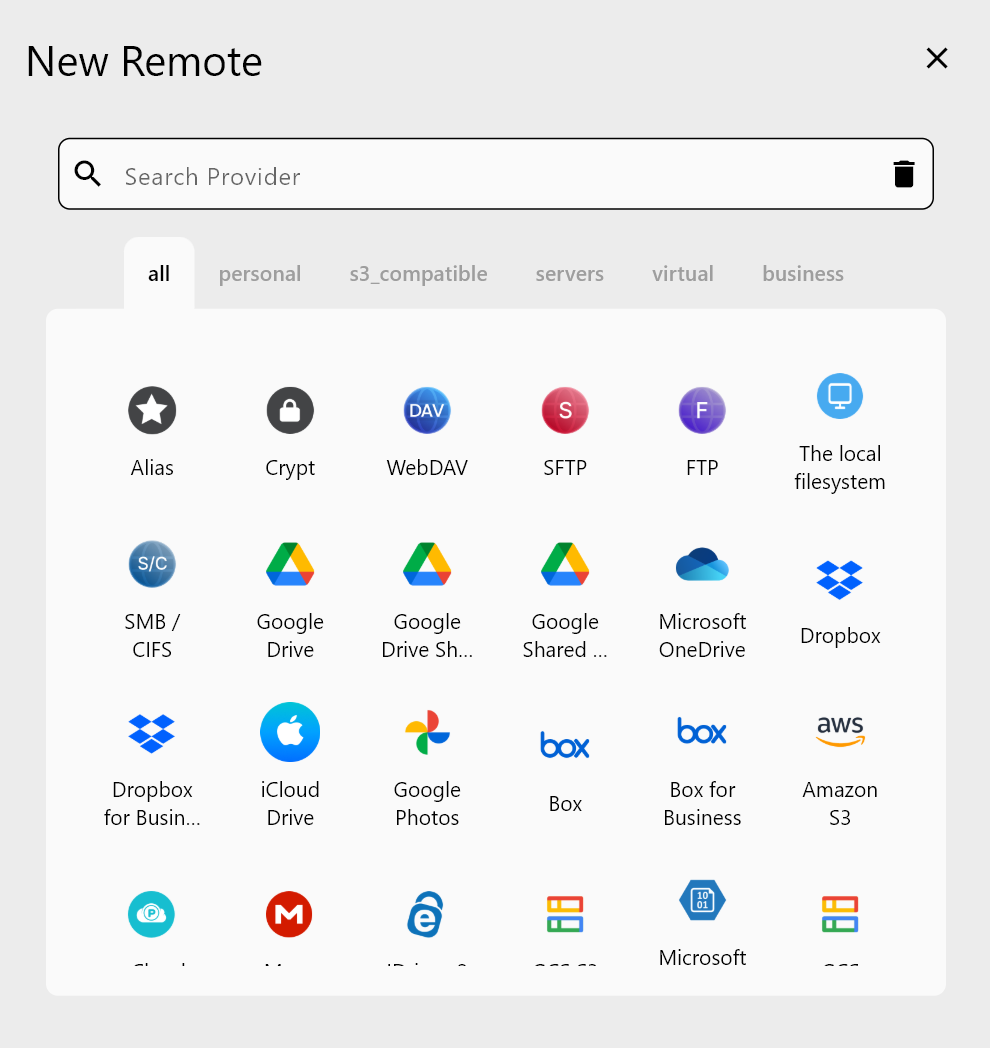
Setting up Zoho WorkDrive in RcloneView takes just a few clicks. RcloneView uses OAuth authentication to securely access your Zoho WorkDrive.
- Open RcloneView and select Add Remote
- Choose Zoho WorkDrive from the provider list
- Click Authenticate with Zoho to grant access
- Complete the OAuth flow on Zoho's secure login page
- Authorize RcloneView to access your WorkDrive files
- Verify your connection in RcloneView
Sync WorkDrive to Google Drive or OneDrive
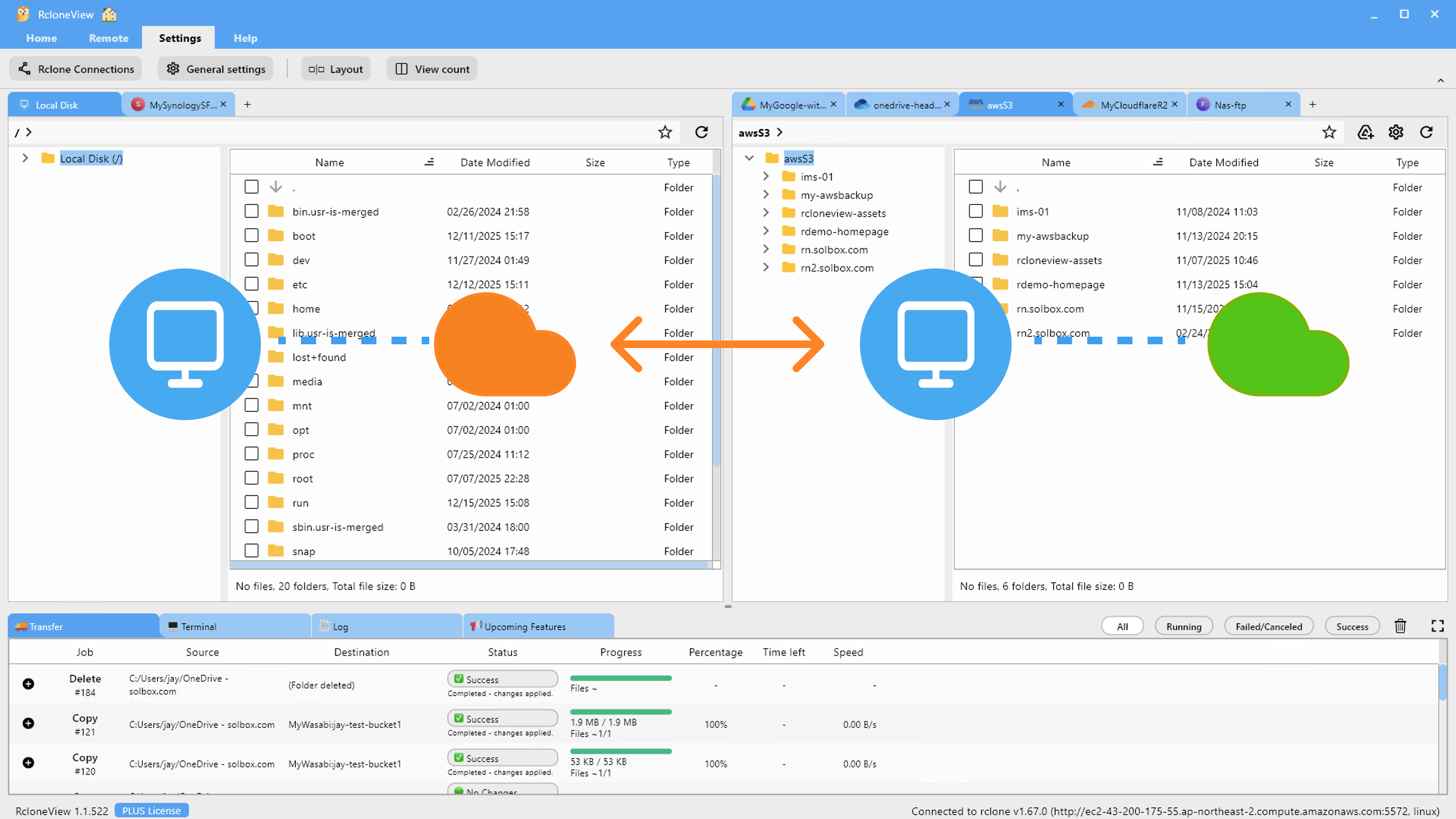
Once connected, create instant cloud-to-cloud jobs to safeguard your team's work.
Popular workflows:
- Backup to Google Drive: Mirror WorkDrive folders to Google Drive for team accessibility
- Archive to S3: Move completed projects to AWS S3 for long-term archival
- OneDrive redundancy: Keep a synchronized copy across your Microsoft ecosystem
Schedule Regular Team File Backups
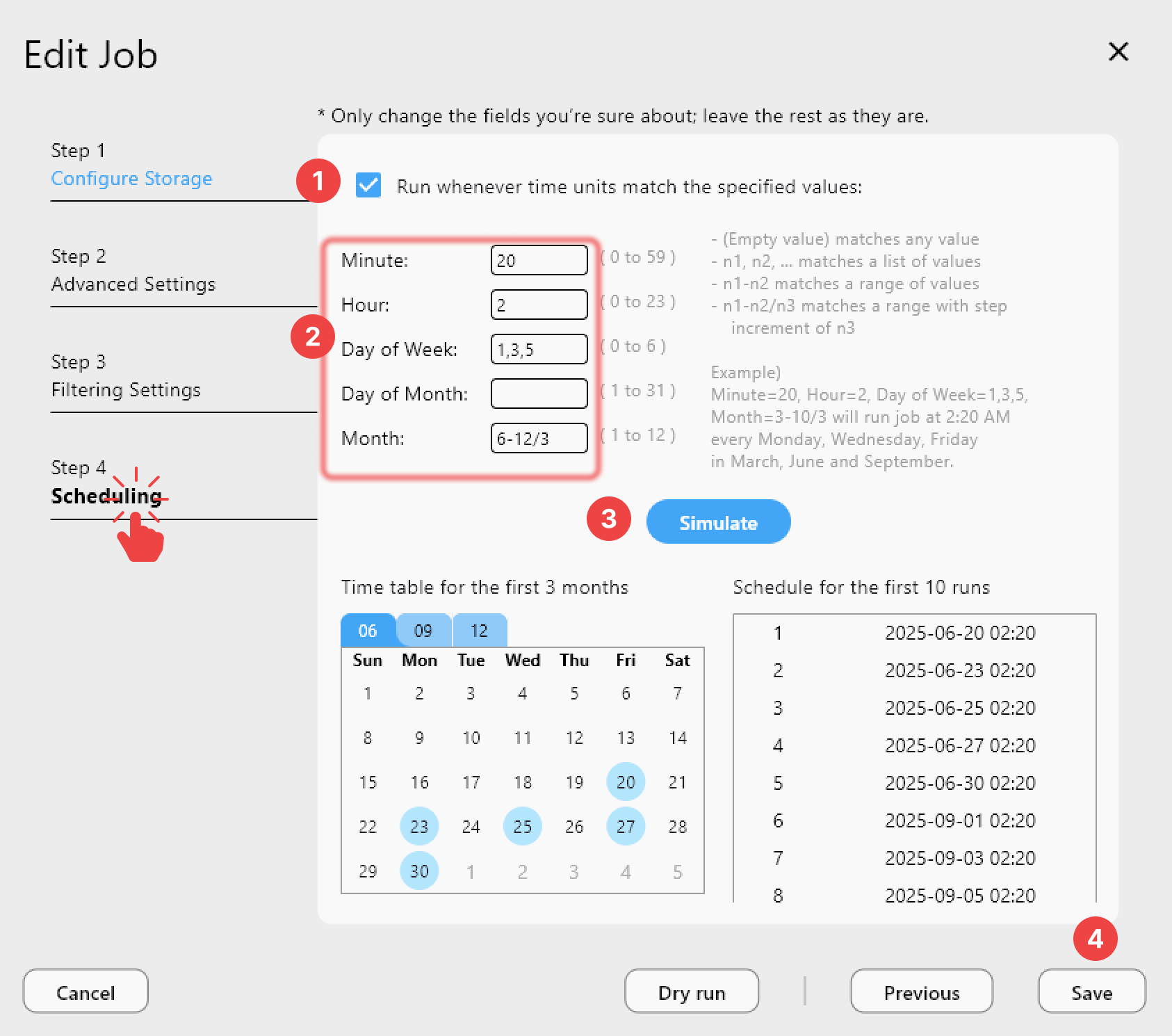
RcloneView's scheduling engine ensures your WorkDrive data is always protected. Set backups to run daily, weekly, or on-demand.
Getting Started
- Download RcloneView from rcloneview.com.
- Ensure you have an active Zoho account with WorkDrive enabled.
- Add Zoho WorkDrive as a remote using OAuth authentication.
- Create a sync or backup job to another cloud destination.
- Schedule the job to run automatically based on your team's needs.
Keep your team's files protected across multiple clouds—RcloneView makes it effortless.
Related Guides:
- Migrate SharePoint to Google Drive with RcloneView
- Migrate Dropbox Business to Google Workspace with RcloneView
- Remote Management — Add, Edit, Delete with RcloneView
Supported Cloud Providers





























