Migrate Box to Cloudflare R2 — Transfer Files with RcloneView

Move years of Box content into Cloudflare R2 object storage without downloading anything to your own disk.
A finance team that has outgrown its Box plan, or a department closing out old projects, often wants an object-storage archive instead. RcloneView connects Box and Cloudflare R2 side by side and copies between them directly. Connect S3, Azure, or Backblaze B2 with full read/write on the FREE license, and the same goes for R2.
Manage & Sync All Clouds in One Place
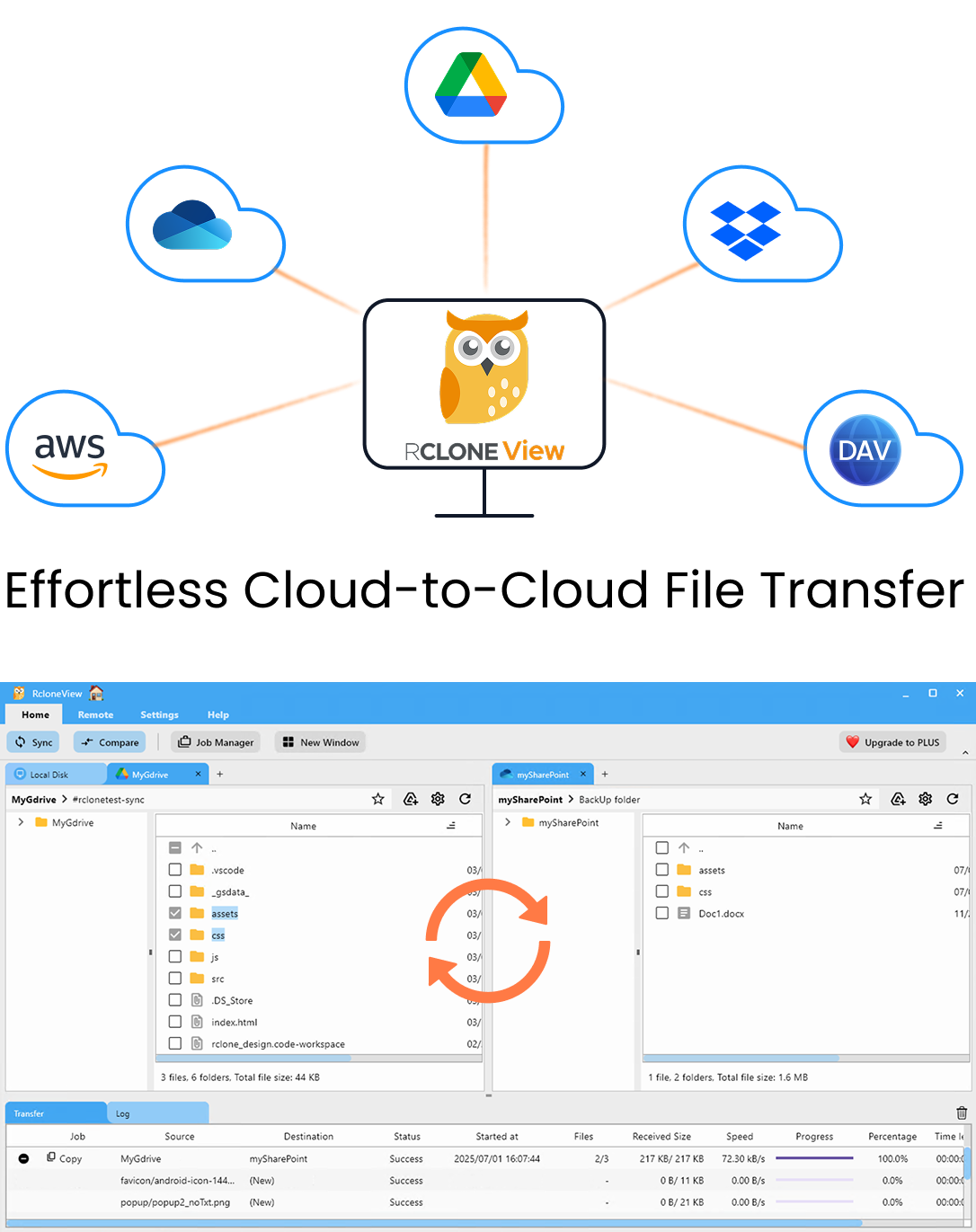
RcloneView is a cross-platform GUI for rclone. Compare folders, transfer or sync files, and automate multi-cloud workflows with a clean, visual interface.
- One-click jobs: Copy · Sync · Compare
- Schedulers & history for reliable automation
- Works with Google Drive, OneDrive, Dropbox, S3, WebDAV, SFTP and more
Free core features. Plus automations available.
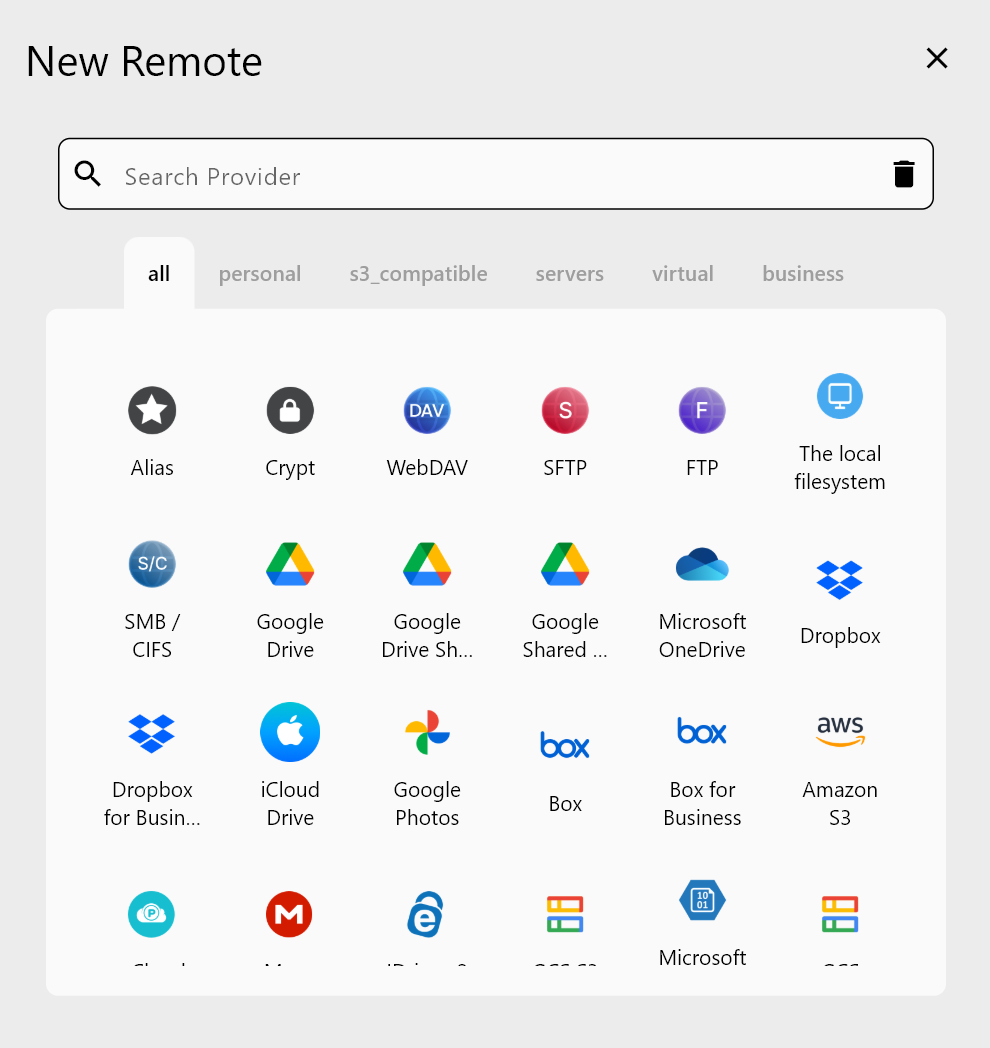
Connect Box and Cloudflare R2
Box is an OAuth remote: RcloneView opens your browser, you sign in, and the remote is created with no API key. If your company uses Box for Business, the remote needs box_sub_type = enterprise. Check this first, because a personal-type remote will not see enterprise content.
Cloudflare R2 uses credentials. Create an R2 bucket in the Cloudflare dashboard, generate an API token with Admin Read & Write permission, and enter the token details and your account endpoint, https://<ACCOUNT_ID>.r2.cloudflarestorage.com, in the New Remote dialog.
Plan the Folder Layout
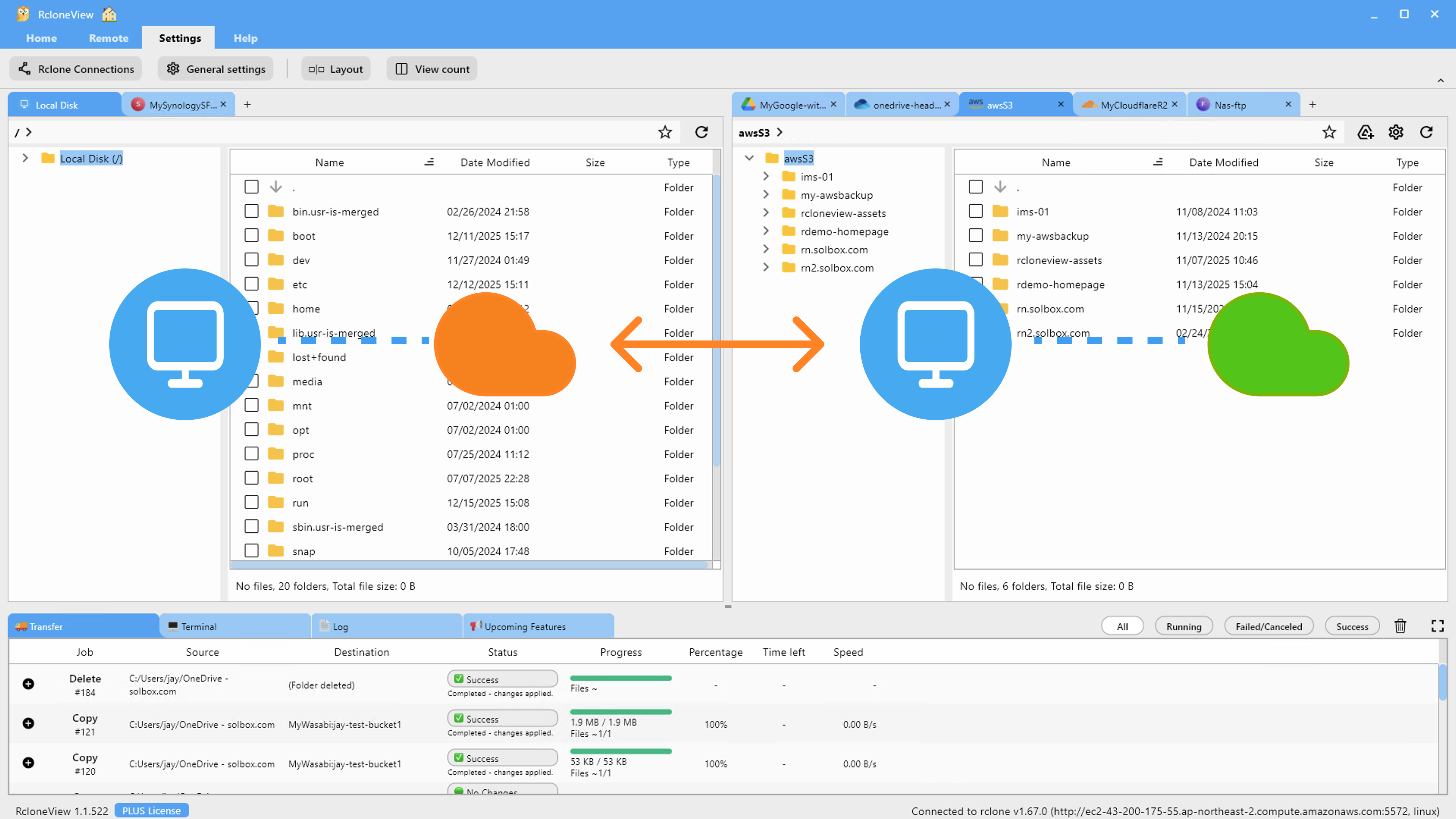
Open Box in one Explorer panel and R2 in the other. R2 is flat object storage, so decide on a prefix structure before copying: for example one top-level folder per Box department, then the original subfolders beneath it. Use Get Size on large Box folders to estimate the volume you are about to move.
Box Docs such as Box Notes are not ordinary files. The predefined filters in the sync wizard include a Box Docs option, which lets you exclude them if you do not want them in the archive.
Dry Run, Then Copy
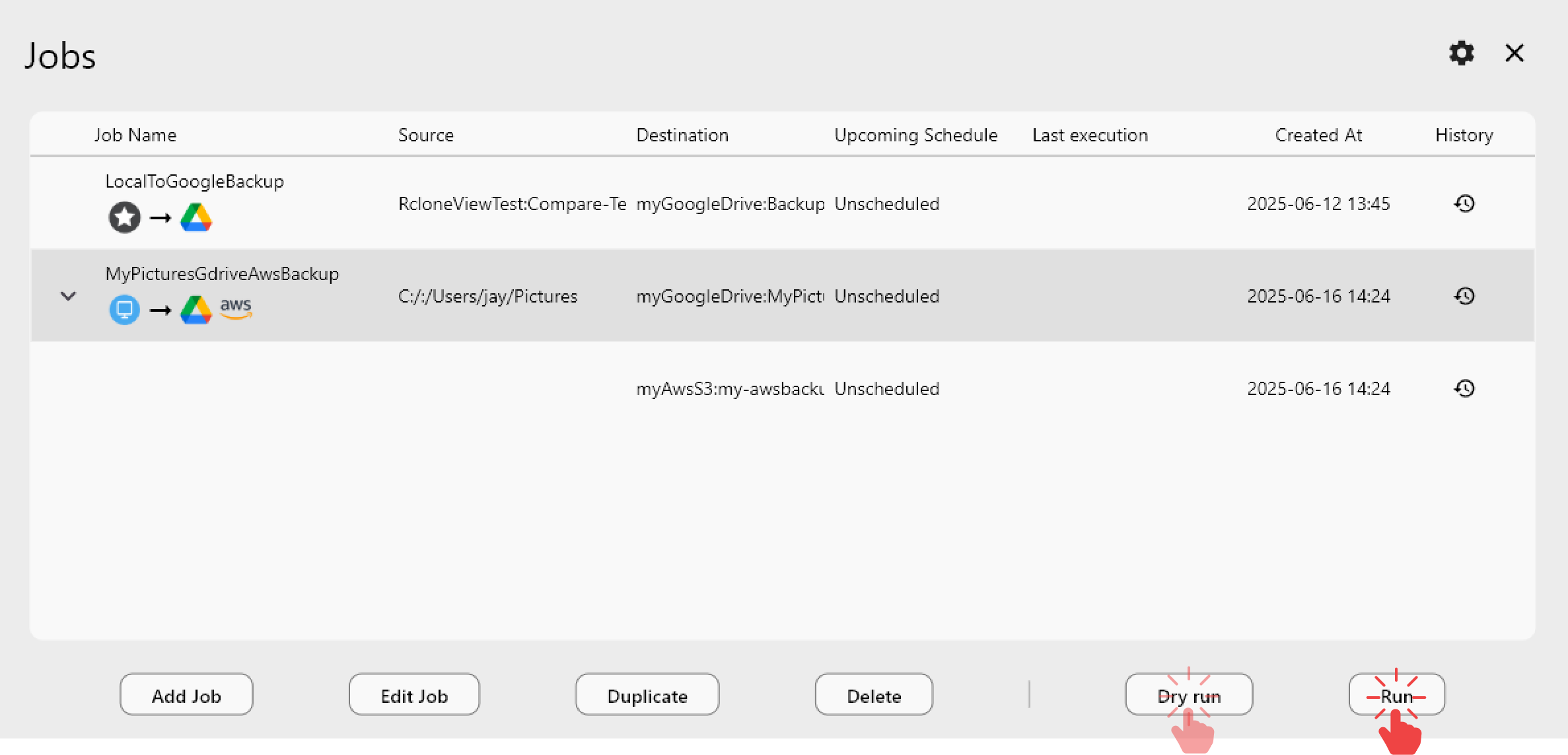
Create a Copy job rather than a Sync job for the first pass, so nothing is ever removed from either side. Run it as a Dry Run first: RcloneView lists the files it would copy without transferring them, which helps catch a wrong source folder.
In the Advanced Settings step, raise the number of file transfers if you have many small files, and enable checksum comparison if you want hash-and-size matching. Then run the job and follow progress in the Transferring tab: percentage, speed and file counts update live.
Verify the Migration
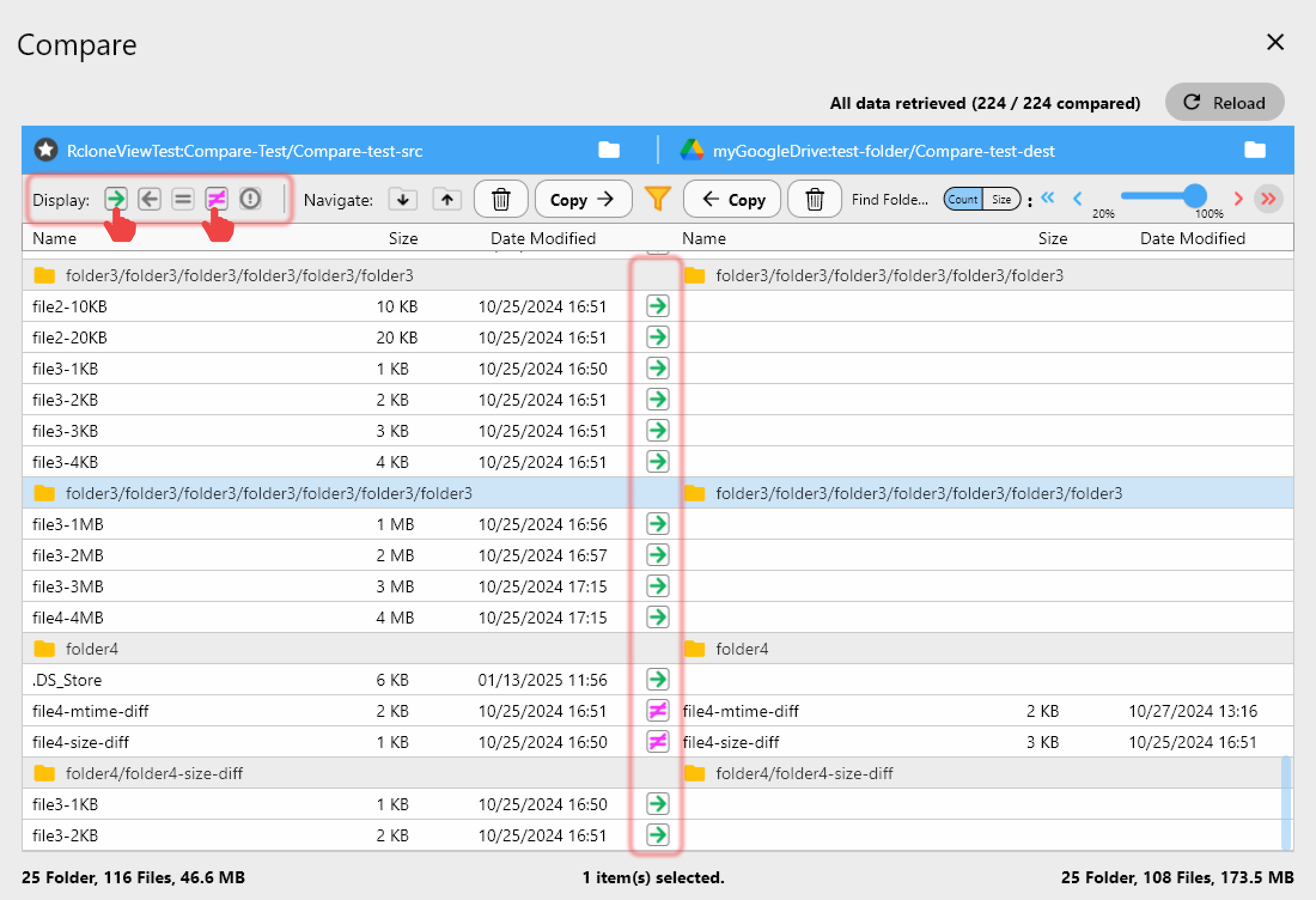
When the job finishes, open Folder Compare with Box on the left and R2 on the right. Use the left-only filter to see anything that did not arrive, and the different-files filter to spot size mismatches. Job History keeps the status, duration, total size and file count of each run, which is useful evidence for an audit trail.
Getting Started
- Download RcloneView from rcloneview.com.
- Add your Box remote (OAuth) and your Cloudflare R2 remote (API token and endpoint).
- Create a Copy job from a Box folder to an R2 bucket prefix and run a Dry Run.
- Run the job, then confirm the result with Folder Compare.
Moving Box content into R2 takes a handful of clicks once both remotes are connected.
Related Guides:
Supported Cloud Providers