Global Rclone Flags — Apply Custom Options to Every Job in RcloneView

Set an rclone flag once in Settings and have it apply across RcloneView instead of repeating it job by job.
Some setups need one extra rclone option everywhere: a self-signed certificate on a private server, a custom log location, or an encrypted config file. The Embedded Rclone settings page is where these live. RcloneView mounts AND syncs 90+ providers from one window, on Windows, macOS, and Linux, and these settings apply to that whole embedded engine.
Manage & Sync All Clouds in One Place
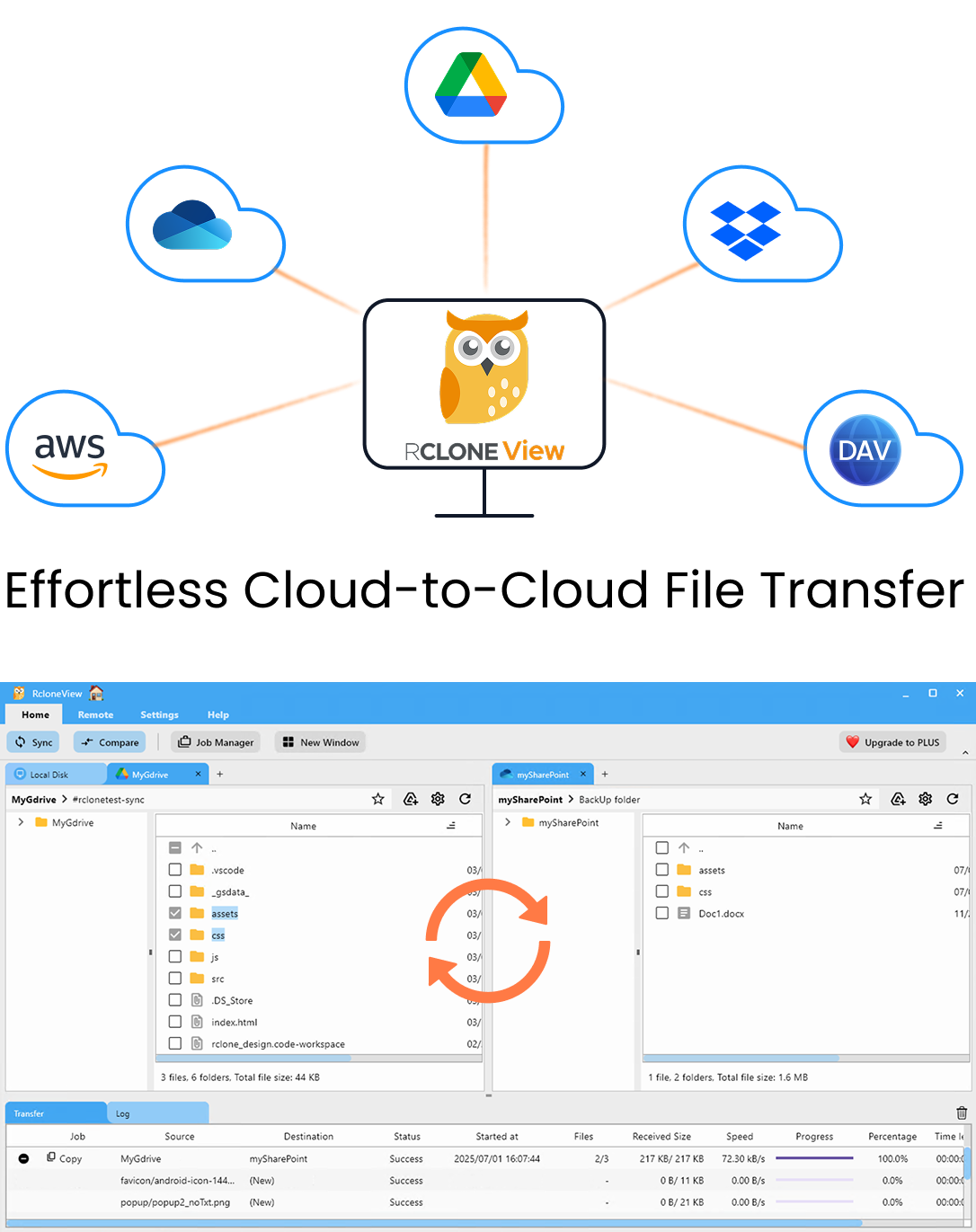
RcloneView is a cross-platform GUI for rclone. Compare folders, transfer or sync files, and automate multi-cloud workflows with a clean, visual interface.
- One-click jobs: Copy · Sync · Compare
- Schedulers & history for reliable automation
- Works with Google Drive, OneDrive, Dropbox, S3, WebDAV, SFTP and more
Free core features. Plus automations available.
Where the Settings Live
Open the Settings tab and choose Embedded Rclone. You will find the rclone binary location, the rclone.conf location, default download and upload folders, a Stop rclone on App Exit toggle, logging options, a Config Password field and the Global Rclone Flags box.
Embedded Rclone listens on http://127.0.0.1:5582 by default, and RcloneView talks to it through the rclone RC API. Changing these settings changes how that engine starts, so restart Embedded Rclone after editing them.
Using Global Rclone Flags
The Global Rclone Flags field accepts additional rclone flags that apply broadly. The documented example is --no-check-certificate, handy when a WebDAV or HTTPS-based server uses a self-signed certificate. Use it carefully: it disables certificate verification, so keep it for trusted private servers rather than public endpoints.
Prefer the per-job Advanced Settings (transfers, checkers, checksum, retries) for tuning a single job. Reserve global flags for options that genuinely belong everywhere.
Logging and Config Protection
Tick Enable rclone Logging, pick a log folder and file name, and choose a level: DEBUG, INFO, NOTICE or ERROR. DEBUG is the most verbose and is what support will ask for when you report a problem; click Restart Embedded Rclone, reproduce the issue, then send the log file.
If your rclone.conf is encrypted, enter the Config Password here so the embedded engine can read your remotes. You can also point RcloneView at a custom rclone binary or config path, and the in-app Self Update keeps the embedded rclone current.
Getting Started
- Download RcloneView from rcloneview.com.
- Open Settings, then Embedded Rclone, and review the current paths.
- Add the flag you need to Global Rclone Flags and enable logging if you want a record.
- Restart Embedded Rclone and run a small test job.
A few well-chosen global settings keep every job consistent without extra clicks.
Related Guides:
Supported Cloud Providers