Fix Google Docs and Sheets Sync Problems — Handle Native Files with RcloneView

Google Docs, Sheets, and Slides are not ordinary files, and a backup job that ignores that difference will keep surprising you.
You back up Google Drive to a NAS or another cloud, and the job finishes — but Docs and Sheets show up as Word and Excel files, Folder Compare flags them as different every time, or they appear in the copy list again on the next run. None of this means the transfer is broken. RcloneView runs these jobs through rclone, and understanding how rclone treats Google-native documents lets you choose the behavior you actually want.
Manage & Sync All Clouds in One Place
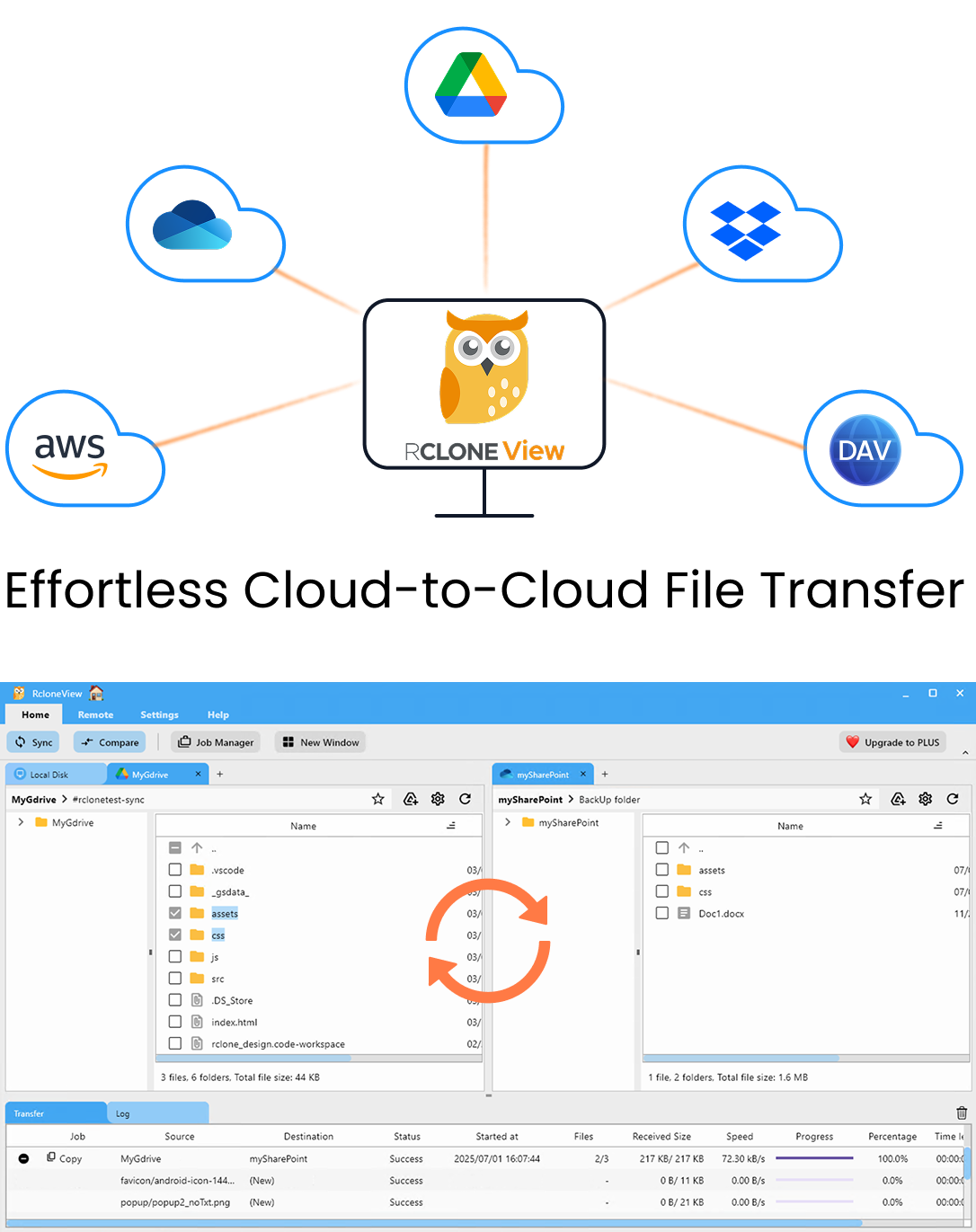
RcloneView is a cross-platform GUI for rclone. Compare folders, transfer or sync files, and automate multi-cloud workflows with a clean, visual interface.
- One-click jobs: Copy · Sync · Compare
- Schedulers & history for reliable automation
- Works with Google Drive, OneDrive, Dropbox, S3, WebDAV, SFTP and more
Free core features. Plus automations available.
Why Native Google Files Behave Differently
A Google Doc lives inside Google's editors; there is no stored binary file behind it. When rclone copies one out of Google Drive to a non-Google destination, it exports the document into a downloadable format — by default Office formats such as .docx, .xlsx, and .pptx.
That conversion has side effects. Drive reports no fixed size for native documents, so size-based comparisons cannot line them up with the exported copy. Drive also stores no MD5 hash for them, so enabling checksum in a sync job cannot verify them either. The result is a set of files that can look "different" on every check.
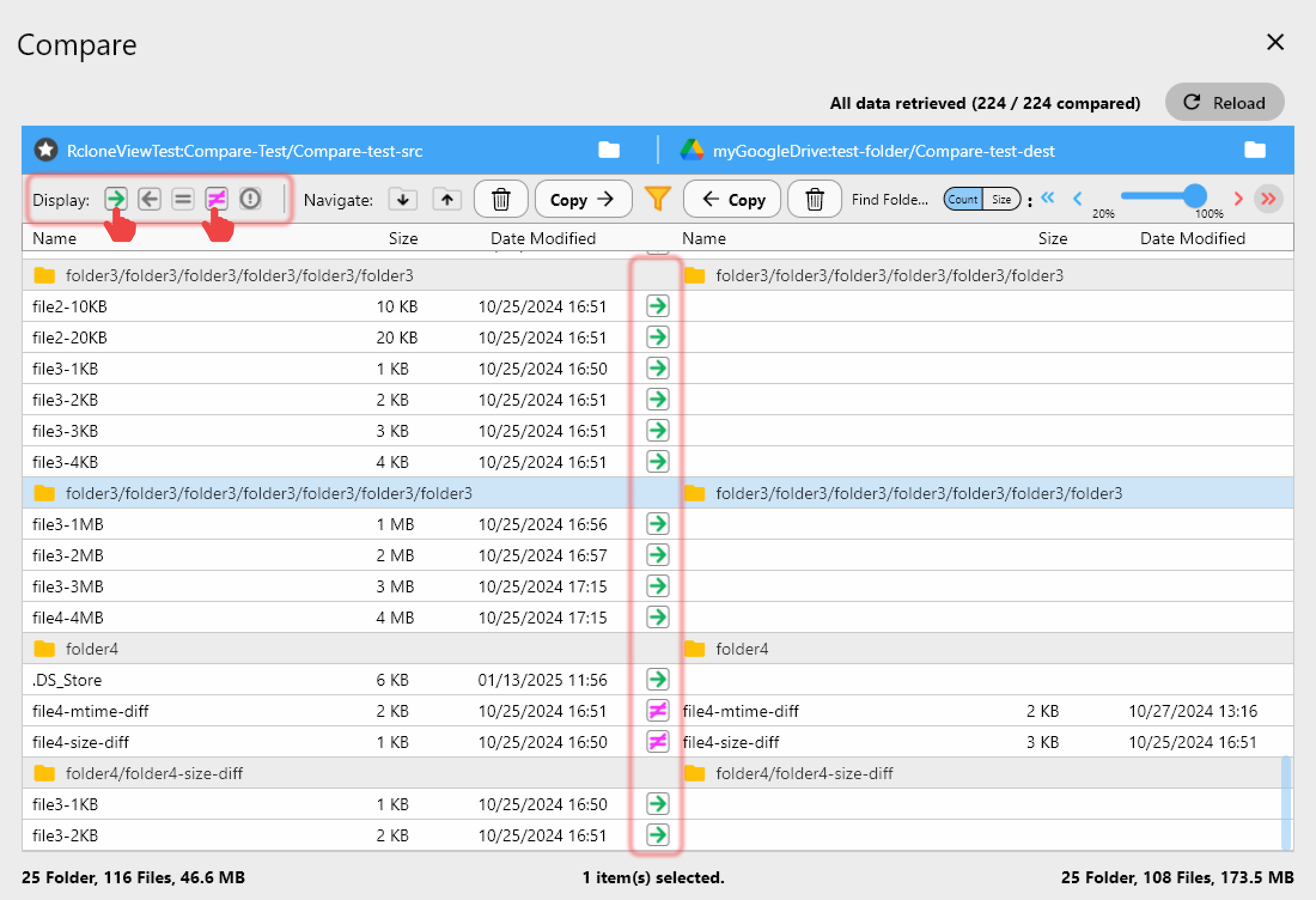
Option 1: Exclude Native Docs from File Backups
If your team only needs uploaded files — PDFs, images, videos — backed up, the cleanest fix is to leave native documents out. In Step 3 of the sync wizard, enable the predefined Google Docs filter. The job then focuses on regular files and stops re-listing documents it cannot compare.
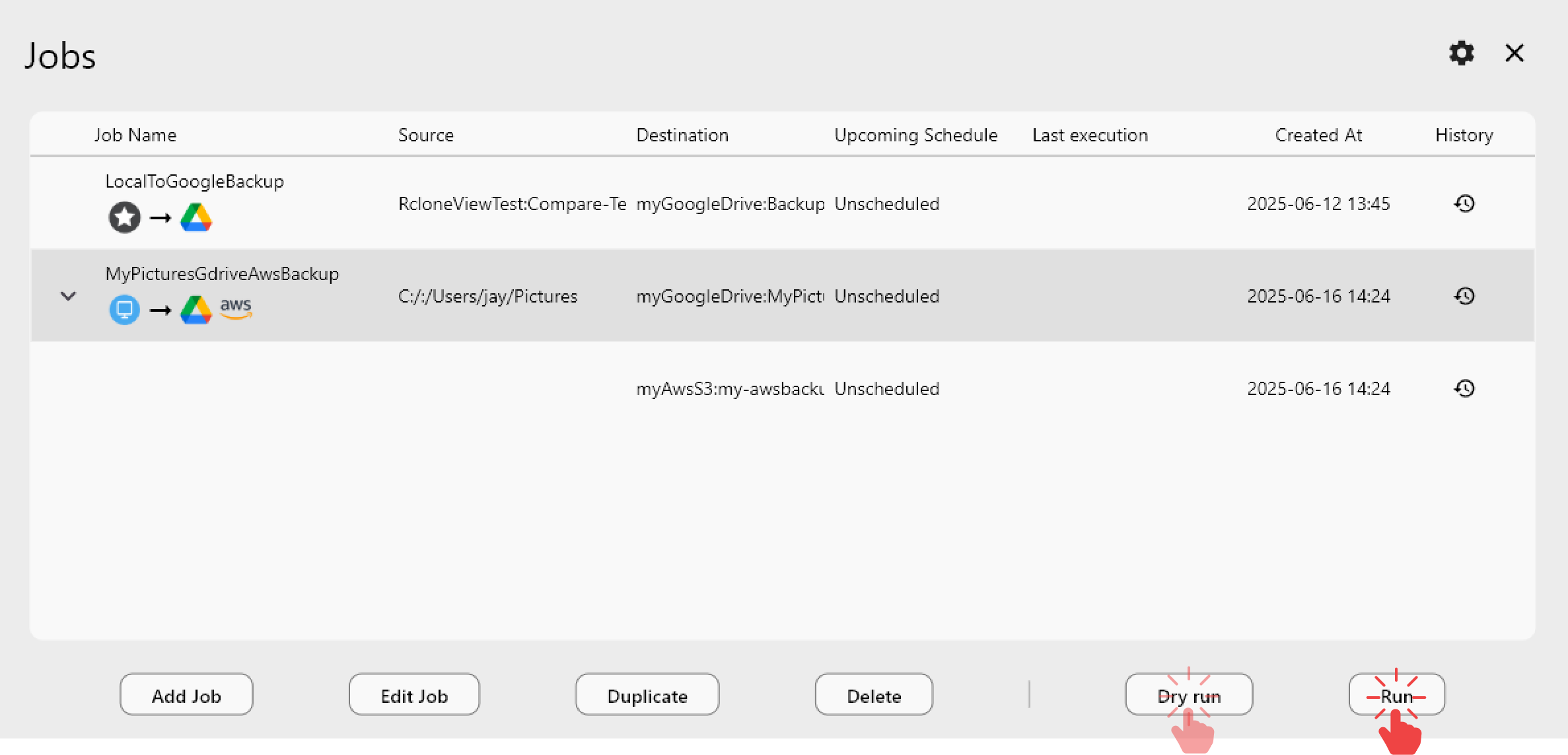
Pair this with Dry Run before the first real run. The preview lists exactly which files will be copied, so you can confirm Docs and Sheets are no longer in the queue.
Option 2: Keep Exported Copies on Purpose
Sometimes exported copies are the point — an accounting office may want every spreadsheet archived as .xlsx on a NAS so it opens without a Google account. In that case, keep native files in the job and treat the converted copies as the archive.
You can change the export format through rclone flags. In Settings, the Global Rclone Flags field accepts extra flags such as --drive-export-formats (for example, pdf for read-only archives). Test the flag on a small folder with Dry Run first, because it applies to every job that touches Google Drive.
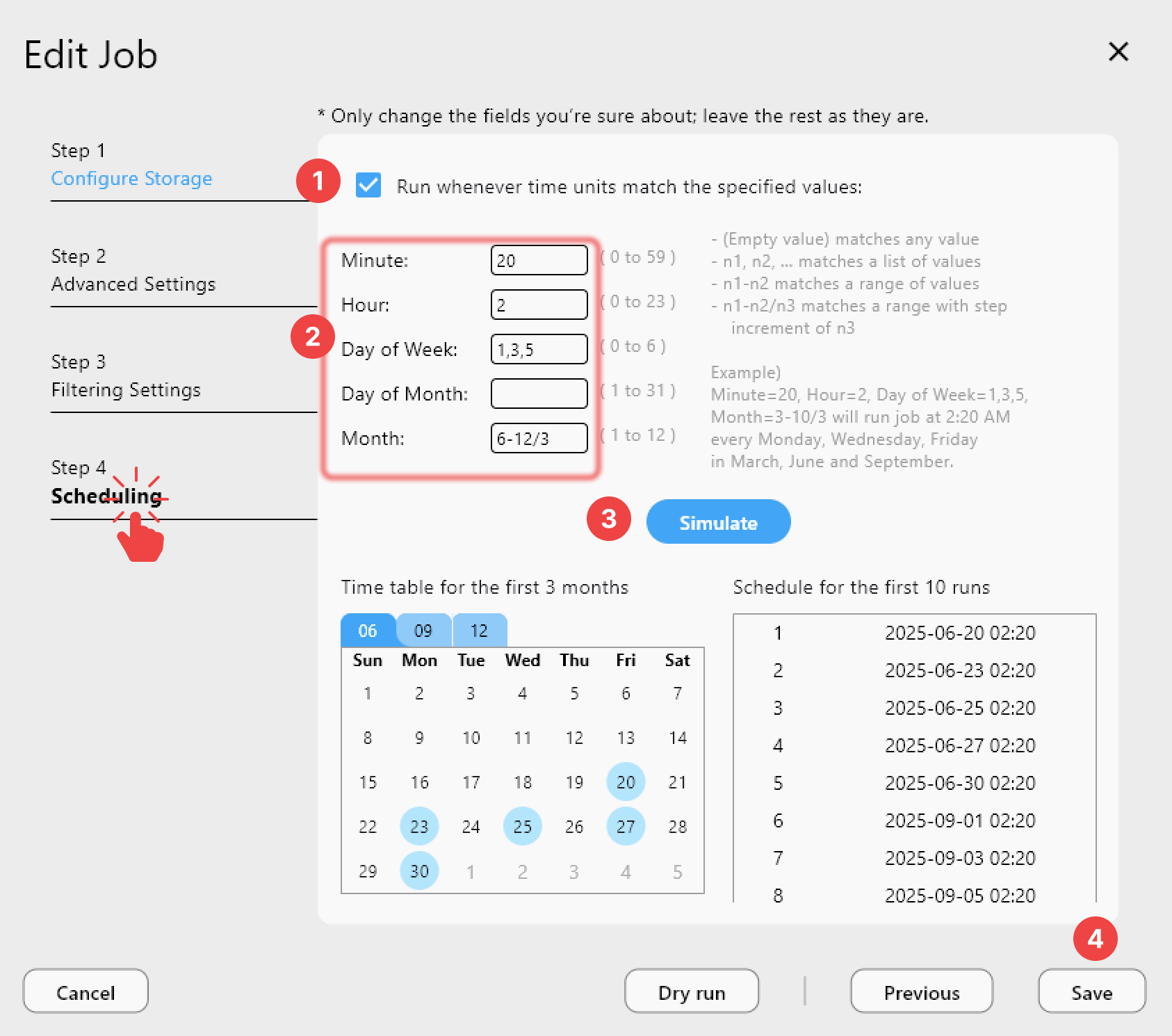
Check the Results in Job History
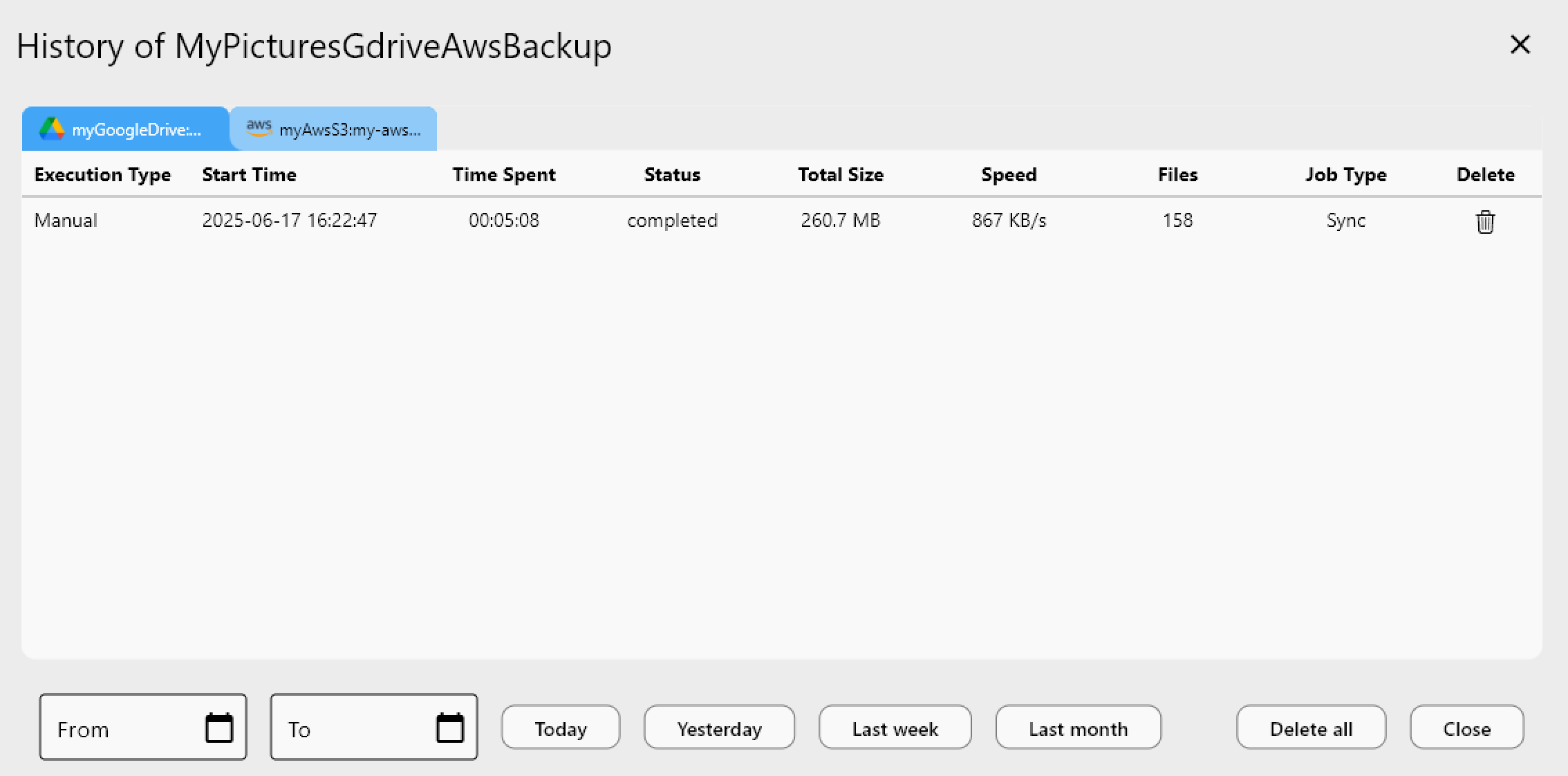
After each run, open Job History and review the status, file count, and total size. If counts swing unexpectedly between runs, revisit the filter rules from Step 3.
Getting Started
Unlike mount-only tools, RcloneView also syncs and compares folders — on the FREE license.
- Download RcloneView from rcloneview.com.
- Connect Google Drive through the OAuth browser login.
- Decide whether native Docs should be excluded with the Google Docs filter or exported as Office files.
- Preview the job with Dry Run, run it, and confirm the outcome in Job History.
Once native files are handled deliberately, your Google Drive backups stop producing false alarms.
Related Guides:
- Fix Google Drive Sync Errors — Missing Folders, Failed Jobs, and Empty Listings Resolved with RcloneView
- RcloneView Filter Rules: Exclude Folders and File Types for Faster, Cleaner Syncs
- Dry Run Preview — Test Cloud Sync Before Committing Changes in RcloneView
Supported Cloud Providers