RcloneView Filter Rules: Exclude Folders and File Types for Faster, Cleaner Syncs
The fastest sync is the one that ignores noise. RcloneView filter rules help you skip cache folders, temp files, and build artifacts so every transfer is intentional.
Selective sync is one of the most searched rclone topics because it directly saves time, bandwidth, and cloud costs. Most guides list CLI flags and stop there. This post shows how to build filter-first workflows in RcloneView with a visual UI that keeps results predictable.

Manage & Sync All Clouds in One Place
RcloneView is a cross-platform GUI for rclone. Compare folders, transfer or sync files, and automate multi-cloud workflows with a clean, visual interface.
- One-click jobs: Copy · Sync · Compare
- Schedulers & history for reliable automation
- Works with Google Drive, OneDrive, Dropbox, S3, WebDAV, SFTP and more
Free core features. Plus automations available.
Why filter rules matter more than ever
Cloud sync costs and delays come from scanning and transferring files you never needed:
- Cache folders (
.cache,node_modules,.gradle) - Temporary or preview files (
*.tmp,*_preview.*) - Auto-generated build artifacts
- Repeated metadata checks on unchanged files
Filters cut noise and make every Sync or Copy job smaller, faster, and safer.
What filter rules do in RcloneView
Filters define what to include and exclude before any transfer happens. In RcloneView, you apply them through the Sync/Job UI, so you do not need to memorize CLI syntax.
Use filter rules to:
- Exclude entire folders
- Include only specific project paths
- Skip file types you never want to back up
- Protect sensitive or irrelevant data
Where to configure filters in the GUI
You can add filters when running Sync or creating a Job:
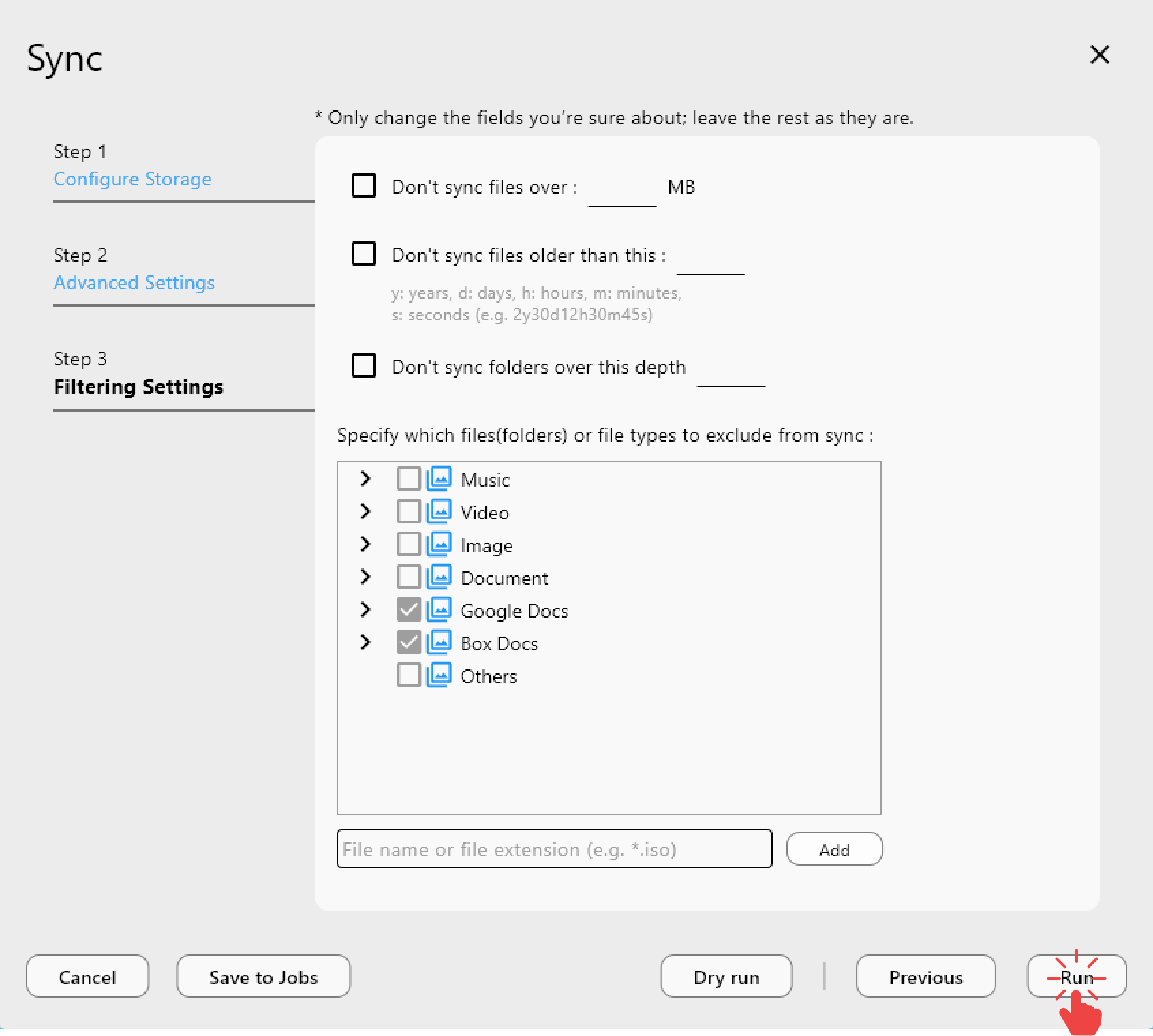
Add a custom rule in seconds:
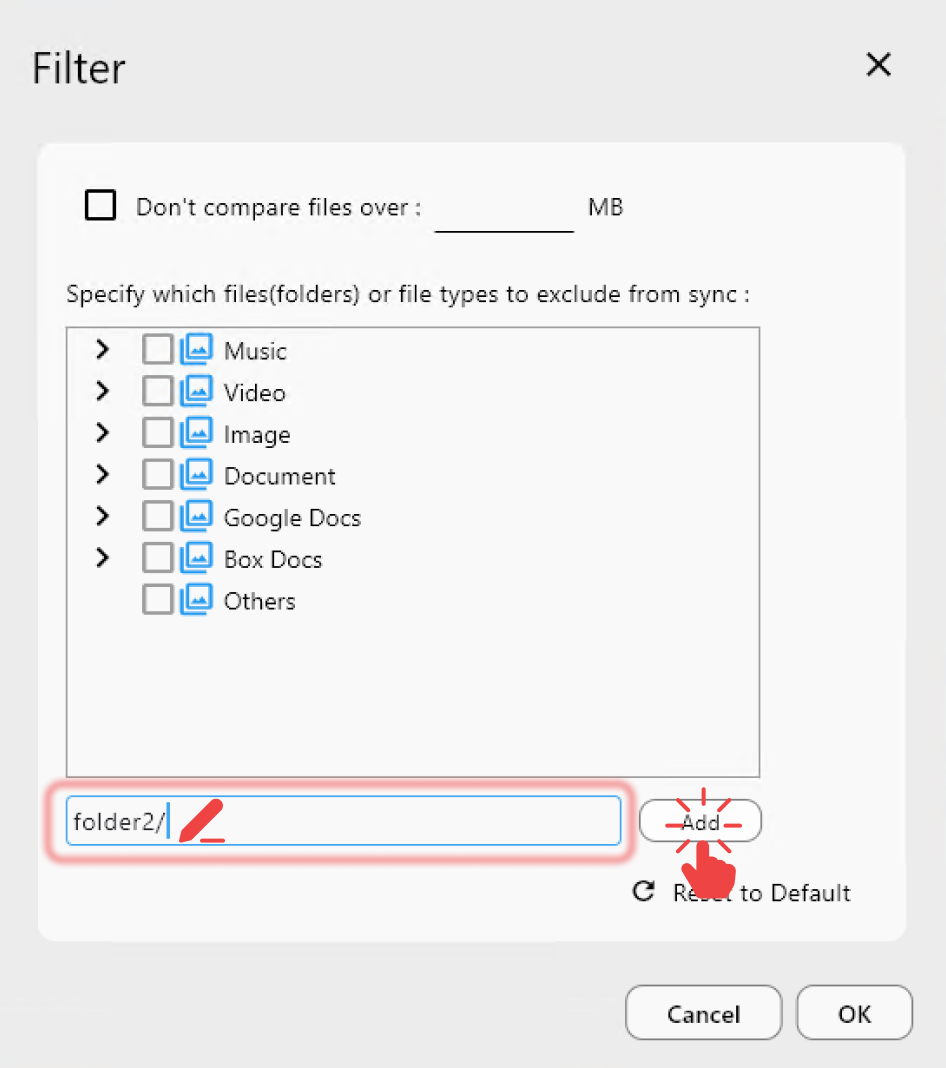
Edit and refine rules as needed:
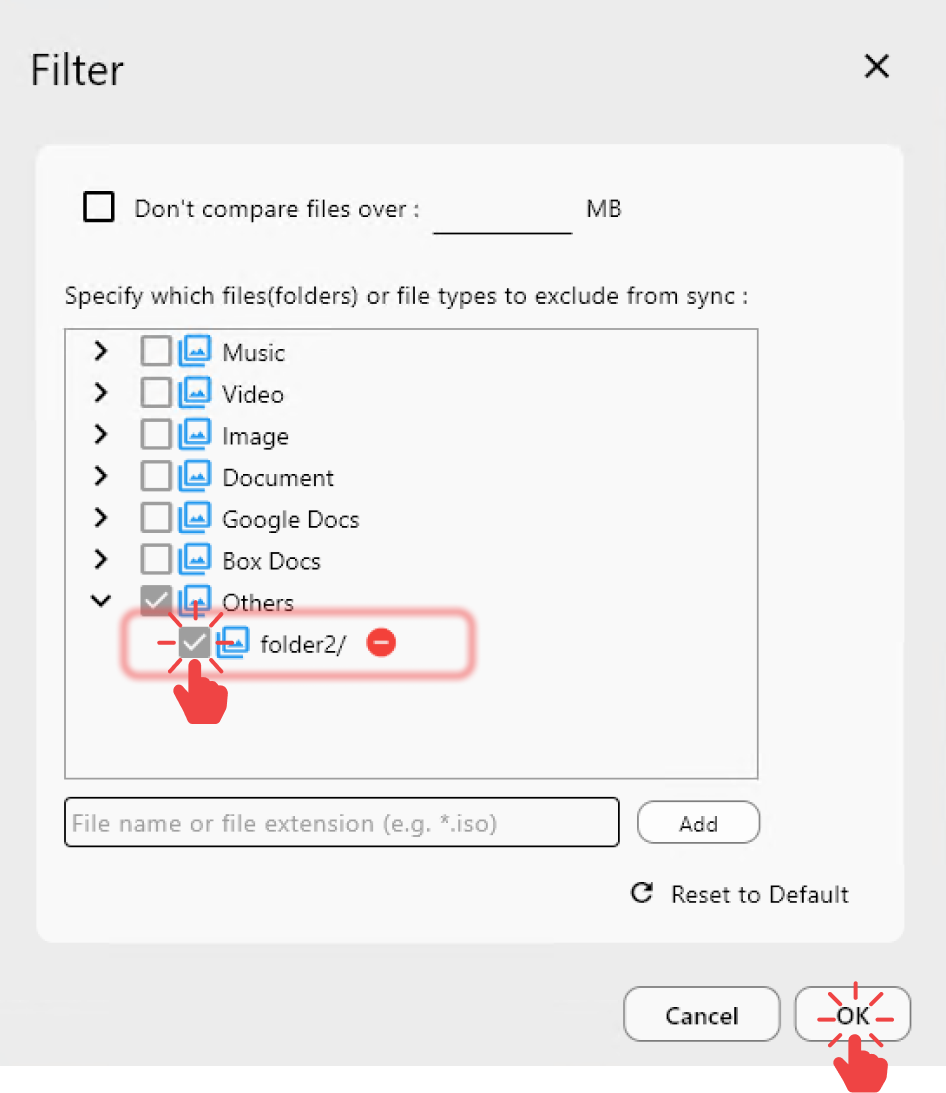
Practical filter rules (copy-ready examples)
Exclude common noise
**/node_modules/****/.cache/****/*.tmp**/*.log
Only sync your working folders
- Include:
**/Projects/** - Exclude:
**/Downloads/**
Media project rules
- Include:
**/*.mp4,**/*.mov,**/*.wav - Exclude:
**/*_proxy.*,**/*_preview.*
Design/creative workflows
- Include:
**/*.psd,**/*.ai,**/*.blend - Exclude:
**/renders/**,**/cache/**
Compare first, then filter, then Sync
Filters are safest when you validate them visually:
- Run Compare to see what will change.
- Adjust filters if anything important disappears.
- Sync with confidence.

Guide: /support/howto/rcloneview-basic/compare-folder-contents
Filter-first workflow (safe by design)
Step 1: Confirm source and destination
Use the Configure Storage step to validate paths before filtering.
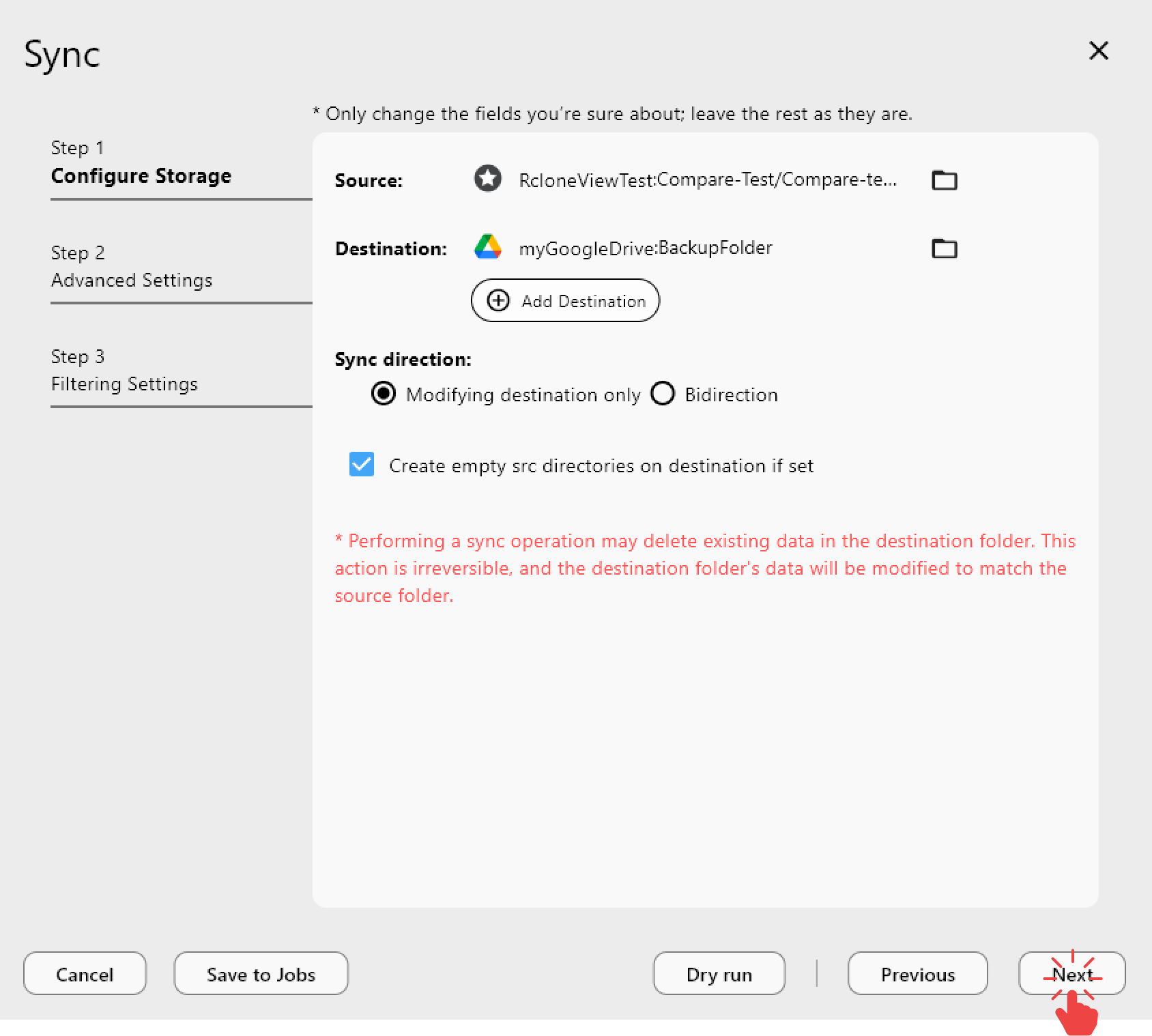
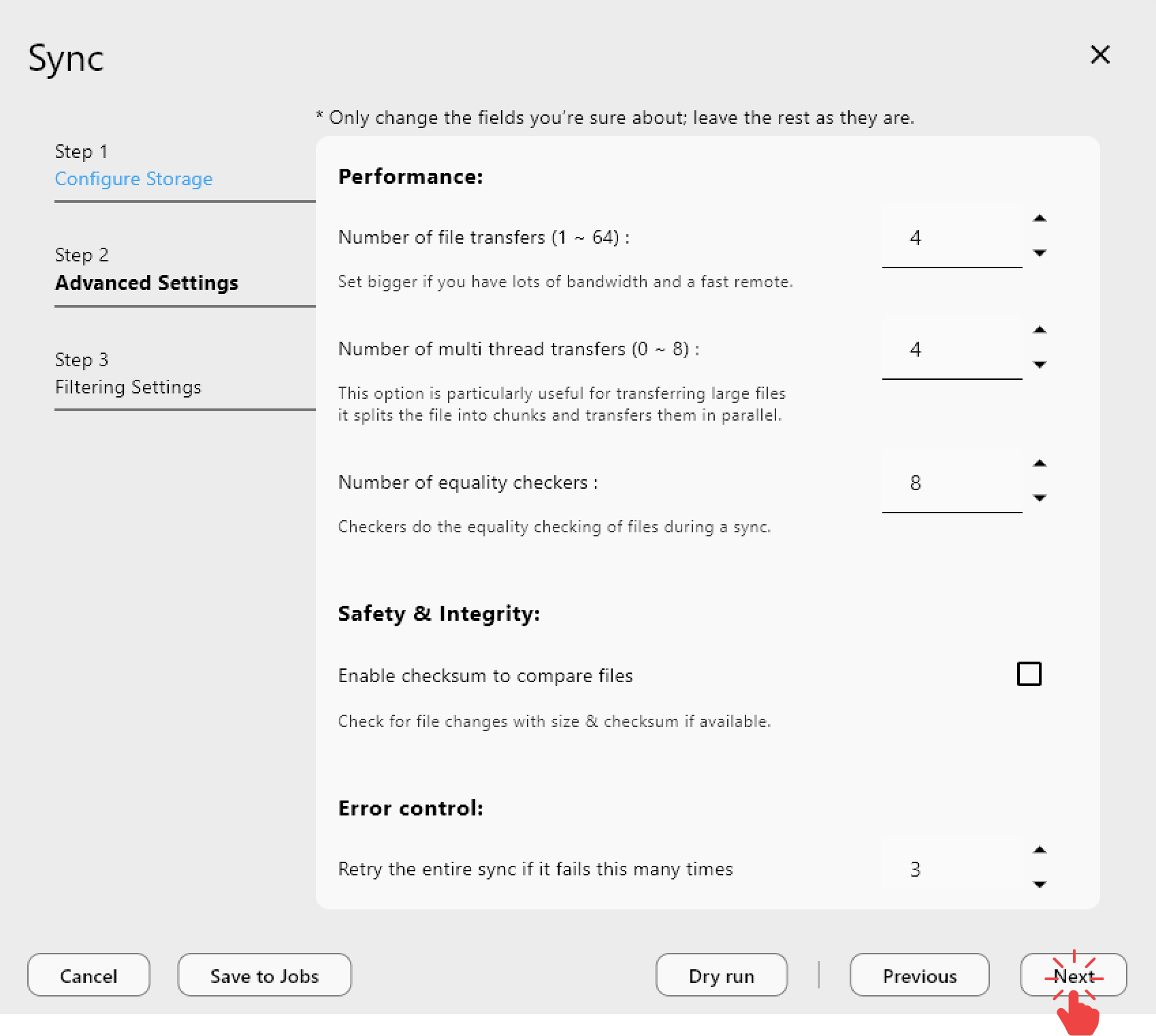
Step 2: Apply filters
Add excludes and includes based on your workflow.
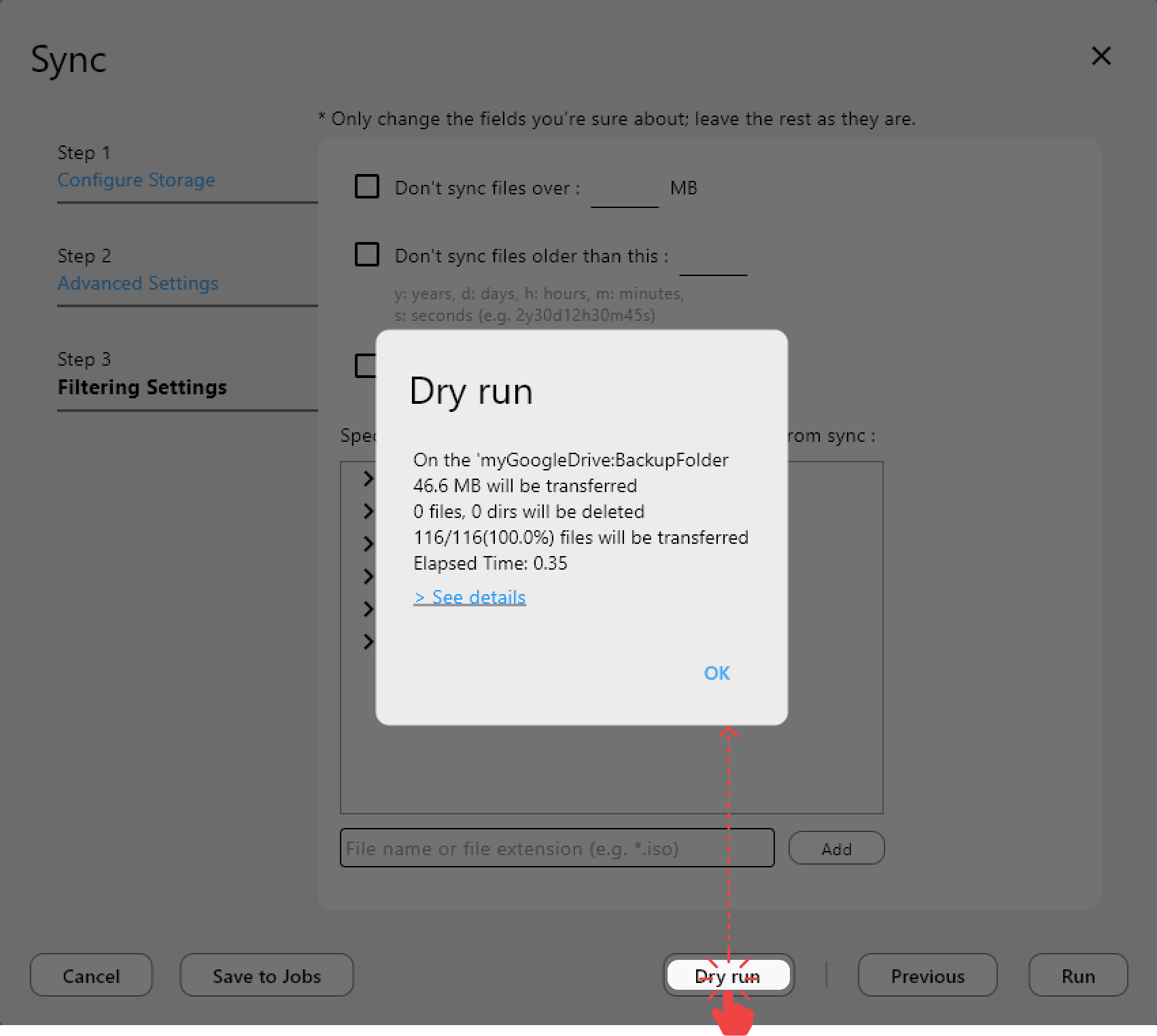
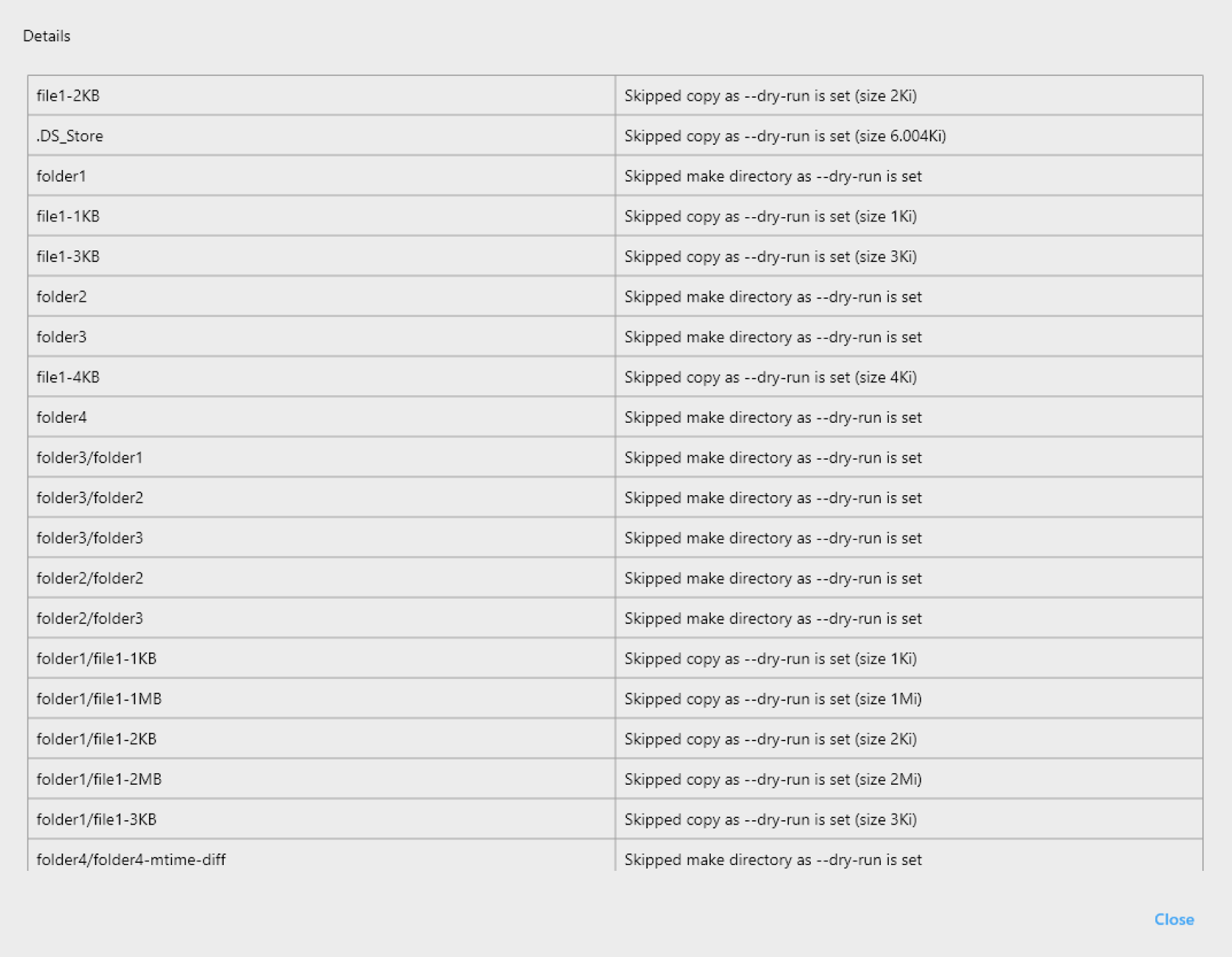
Step 3: Dry run for verification
Run Dry Run so you can confirm the filtered result set before moving data.
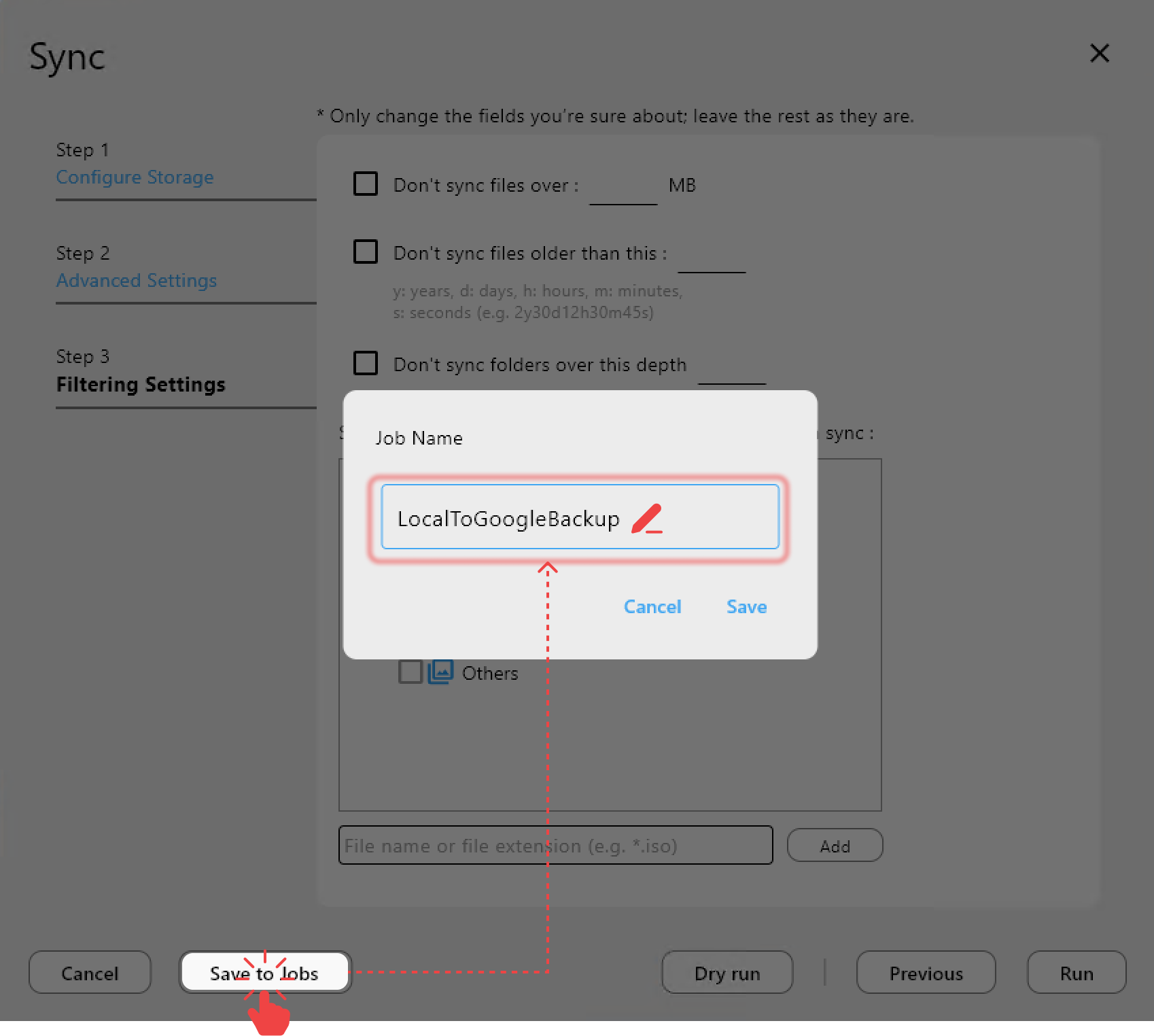
Save filtered workflows as Jobs
Once the filters are correct, save the Sync as a Job:
- Consistent behavior every run
- Reduced human error
- Easy scheduling for automated backups
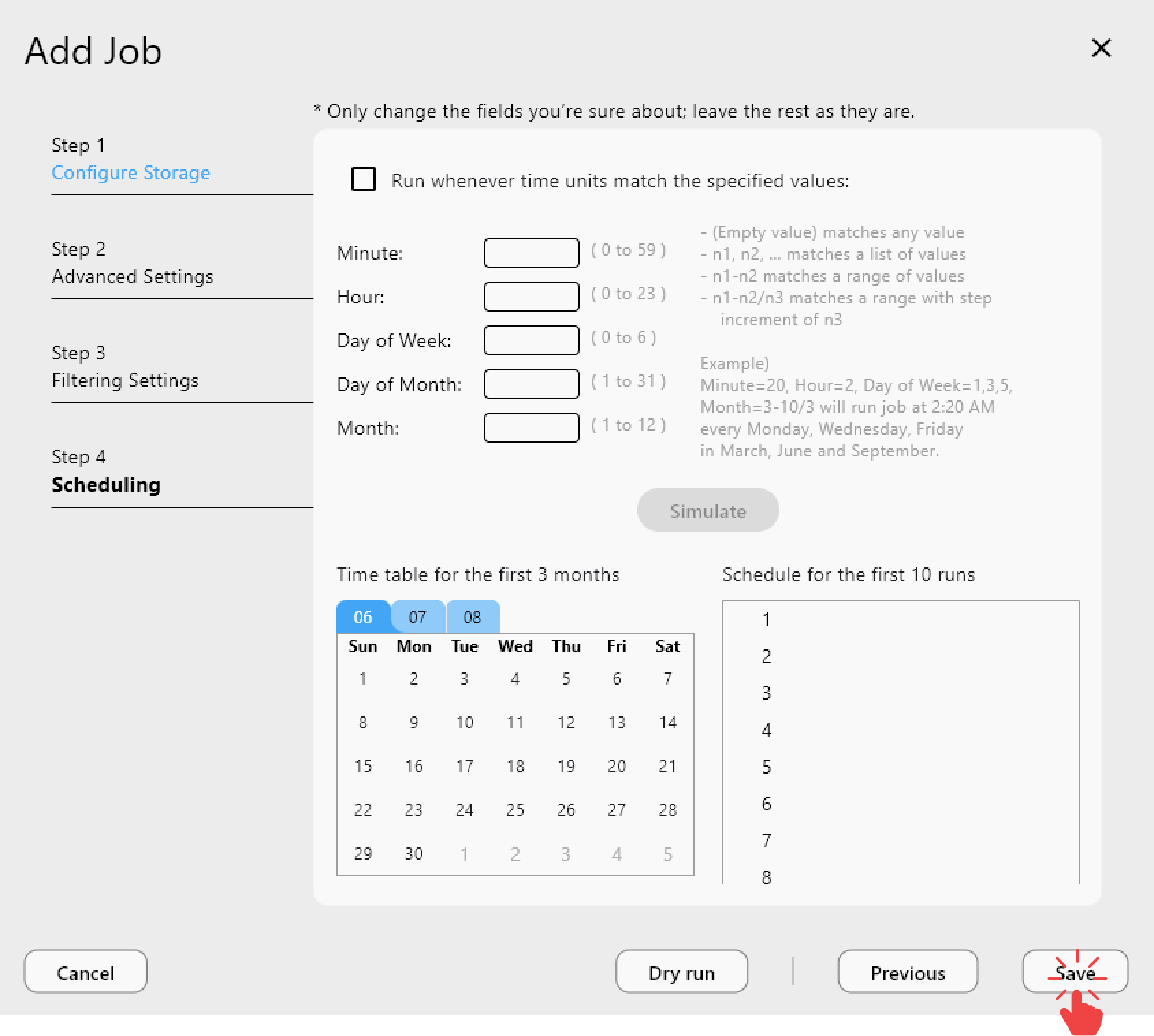
Guide: /support/howto/rcloneview-basic/create-sync-jobs
Scheduling filtered syncs
Use Job Scheduling to automate selective backups:

Guide: /support/howto/rcloneview-advanced/job-scheduling-and-execution
Real-world wins from filter rules
- Faster syncs: fewer files scanned and transferred
- Lower costs: less API traffic and fewer repeated uploads
- Cleaner backups: only meaningful files are preserved
- More stable operations: smaller job logs and easier troubleshooting
Common mistakes to avoid
- Over-filtering critical folders (test with Compare first)
- Mixing includes/excludes without a clear order
- Skipping Dry Run on large migrations
- Assuming filters apply retroactively to old data
Best practices summary
- Make filters part of every Sync or Copy job.
- Use Compare to validate what the filters will remove.
- Start with a small test folder before applying filters to the full dataset.
- Save filtered jobs for repeatability and auditability.
Conclusion
Selective sync is the quickest way to make cloud operations faster and cheaper. RcloneView turns complex rclone filter rules into a visual workflow you can understand, test, and automate. Start by excluding one noisy folder, and watch your sync time drop on the very next run.