Fix Backblaze B2 Sync Errors — Diagnose and Resolve with RcloneView

Most B2 sync failures trace back to a few causes: key scope, retries, or logs you haven't looked at yet.
A Backblaze B2 sync that stalls or reports errors is usually fixable in minutes once you can see what rclone is actually reporting. RcloneView surfaces job status, logs, and a built-in terminal in one window so you can diagnose without guessing. Connect S3, Azure, or Backblaze B2 with full read/write on the FREE license.
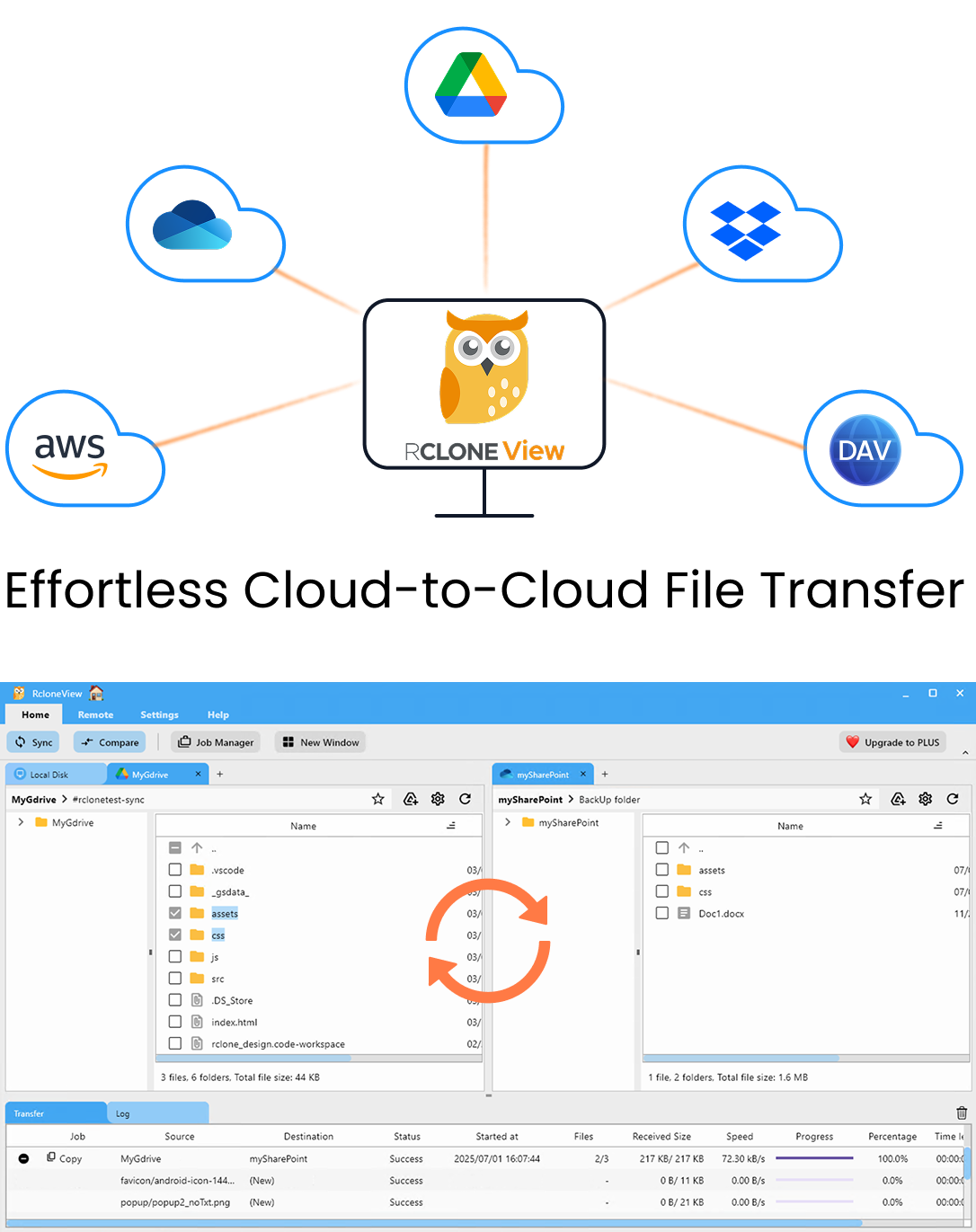
Manage & Sync All Clouds in One Place
RcloneView is a cross-platform GUI for rclone. Compare folders, transfer or sync files, and automate multi-cloud workflows with a clean, visual interface.
- One-click jobs: Copy · Sync · Compare
- Schedulers & history for reliable automation
- Works with Google Drive, OneDrive, Dropbox, S3, WebDAV, SFTP and more
Free core features. Plus automations available.
Check the Application Key First
B2 remotes authenticate with an Application Key ID and Application Key. If a job fails immediately with an authorization error, the usual suspects are a key restricted to a different bucket, a key without write capability, or a copy-paste mistake where the key ID and key are swapped or trailing whitespace slipped in.
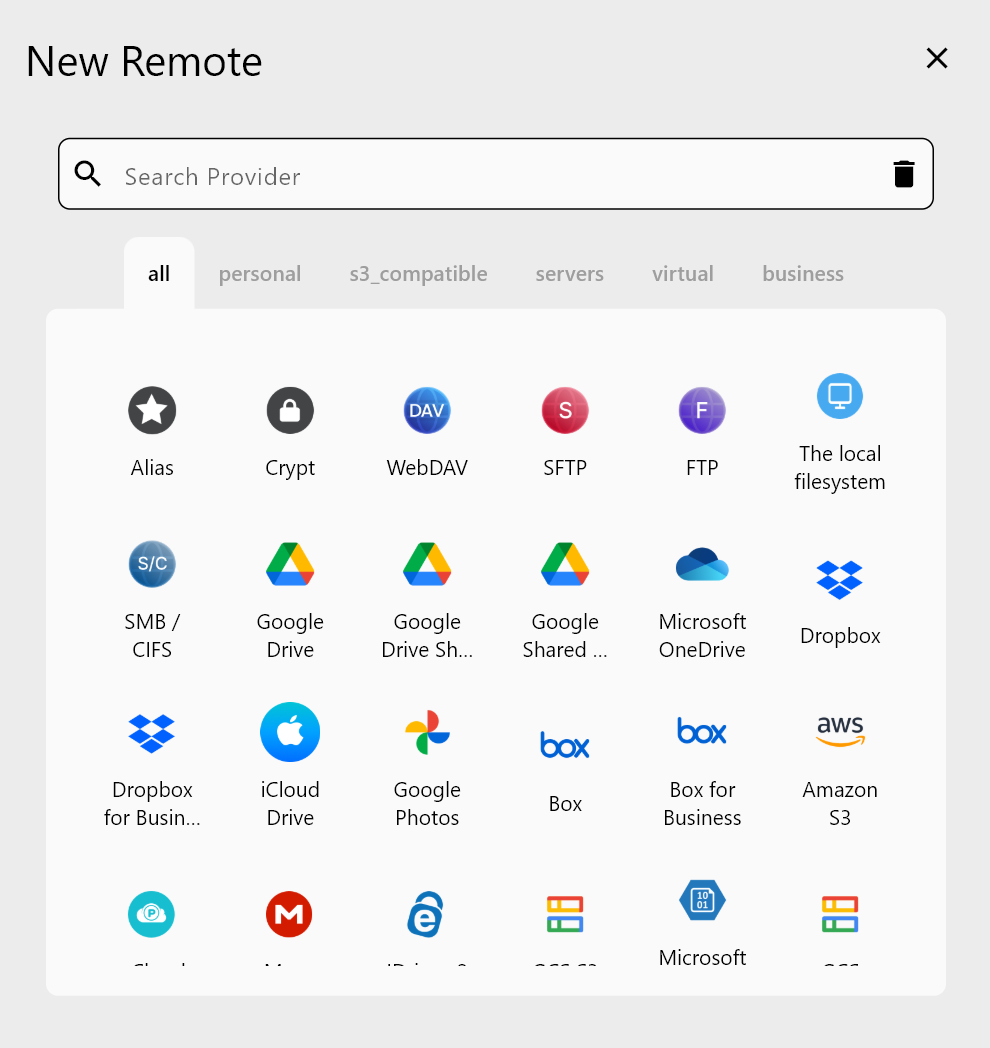
Open Remote Manager, edit the B2 remote, and re-enter both values. If you generate a new key in the Backblaze key management page, remember the full Application Key is shown only once at creation. Then browse the bucket in the Explorer: if listing works but uploads fail, the key likely lacks write permission.
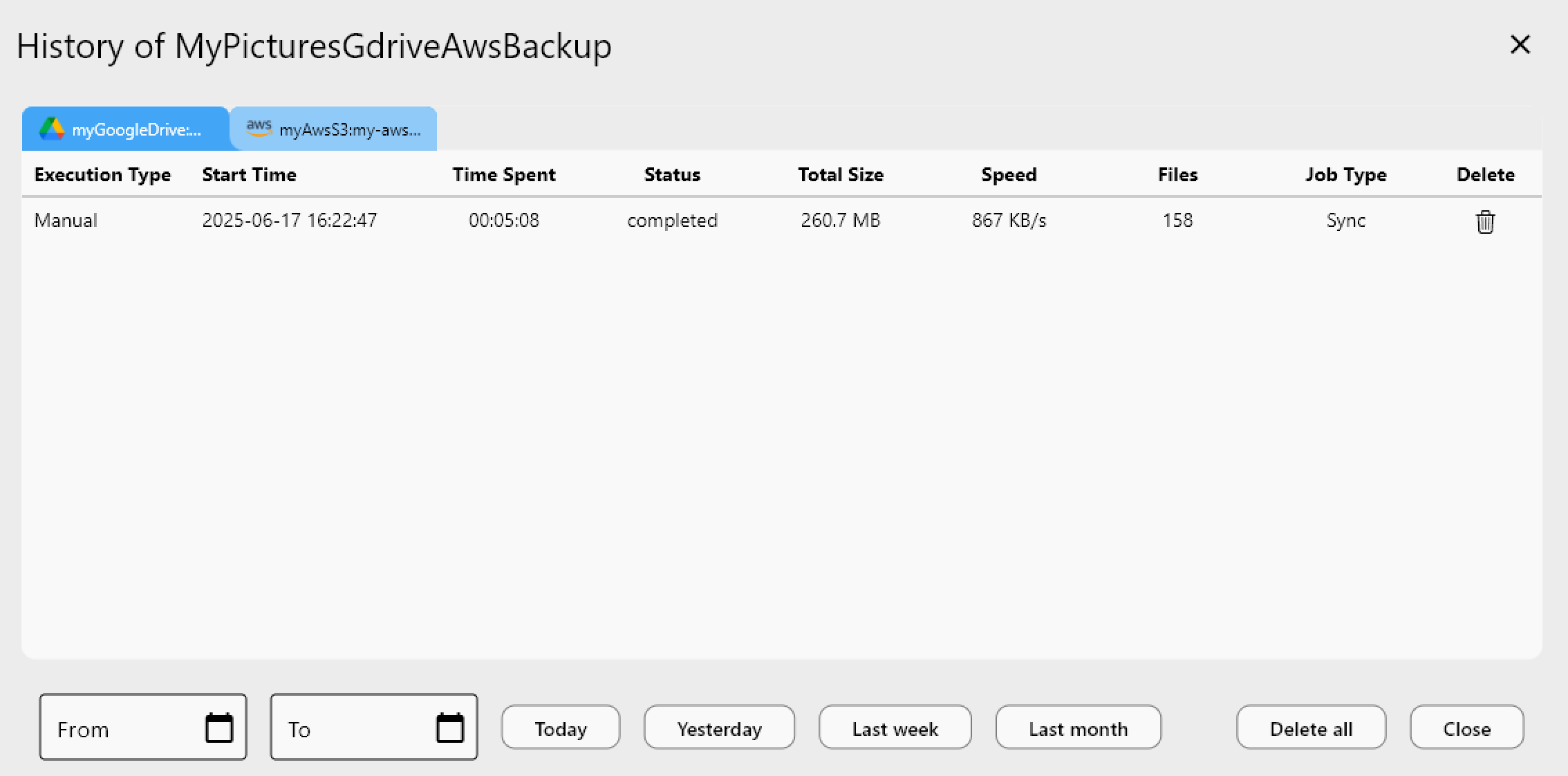
Read the Job History and Logs
Open Job History to see each run's status (Completed, Errored, or Canceled), duration, files, and speed. A run that errors only on some files points to per-file problems; one that fails at the start points to credentials or connectivity.
For detail, enable rclone logging under Settings > Embedded Rclone, set the log level to DEBUG, restart the embedded rclone, and reproduce the issue. The Log tab and the log file then show timestamped entries you can search for the failing file or message.
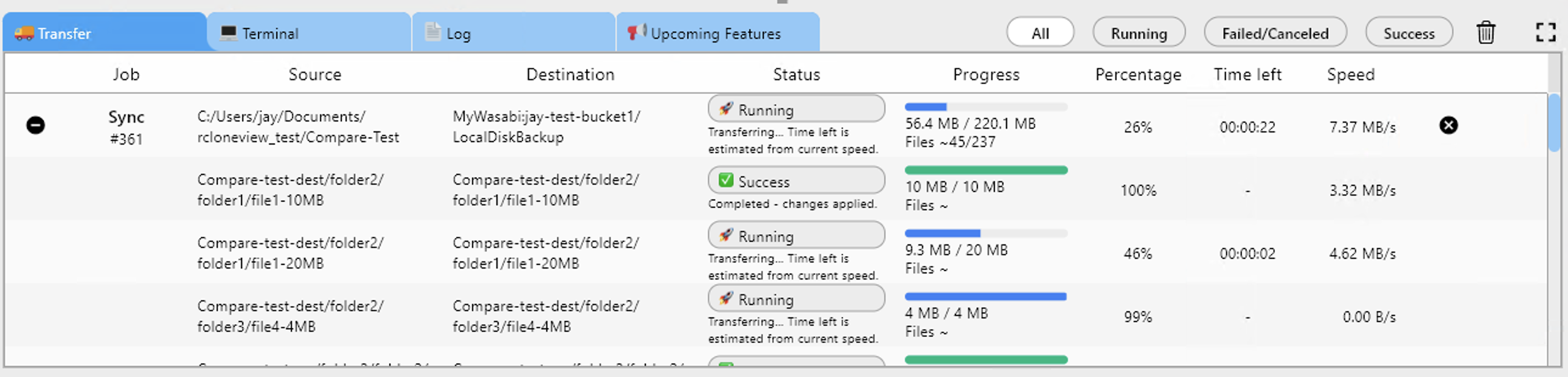
Tune Transfers and Retries
Errors during large runs often come from too much concurrency. In the job's Advanced Settings, lower the number of file transfers and equality checkers (4 or fewer checkers is recommended for slow backends). Keep "Retry entire sync if fails" at its default of 3 so transient network drops recover on their own. For a photographer syncing thousands of RAW files overnight, a lower concurrency setting is a reasonable first adjustment when errors appear.
Verify and Re-run Safely
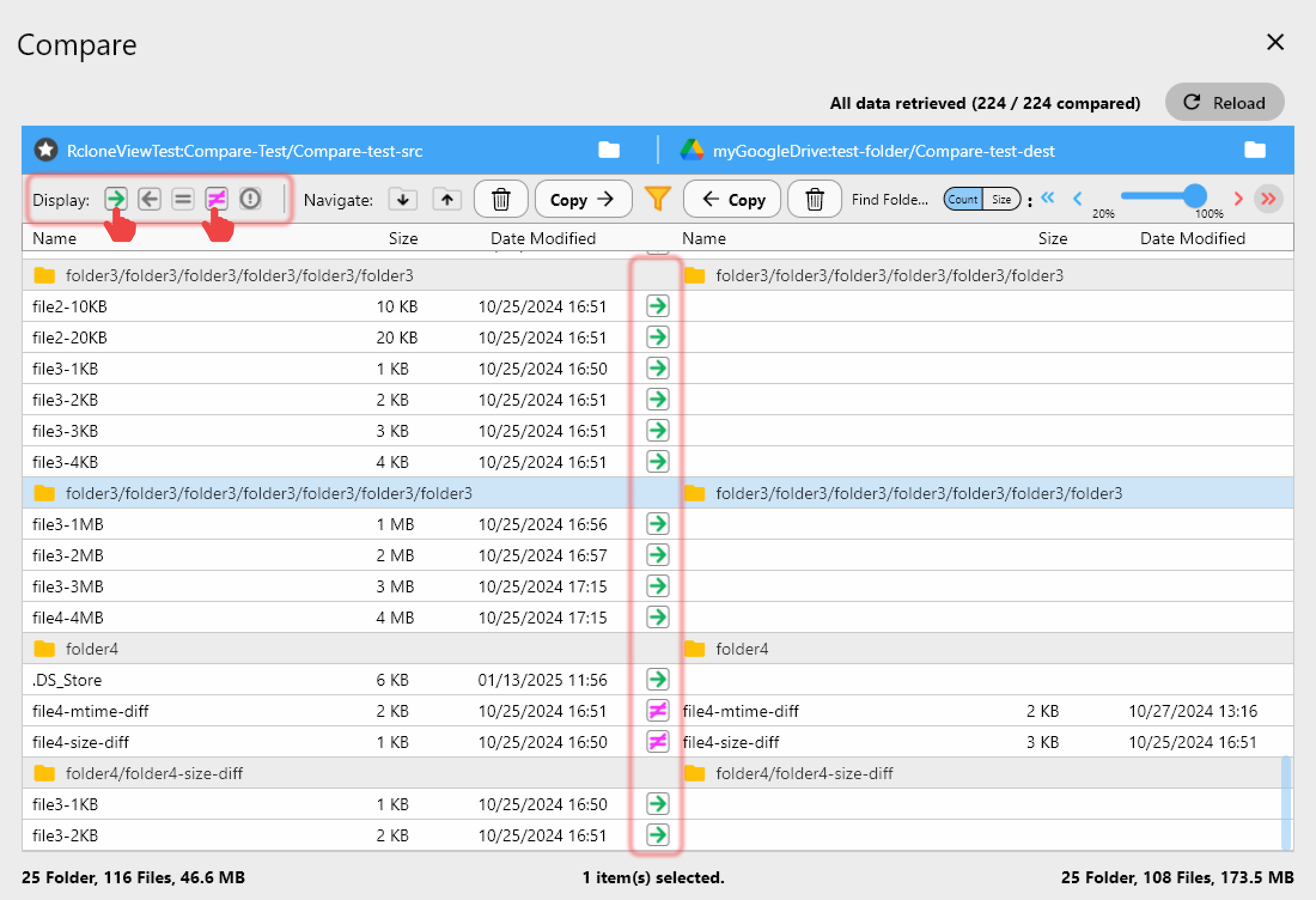
After changes, run a Dry Run to preview what would copy or delete. Then execute the job and use Folder Compare between the local folder and the B2 bucket: left-only files are what still needs uploading, and different files show size mismatches. Copy right to fix gaps, and re-compare until clean.
Getting Started
- Download RcloneView from rcloneview.com.
- Re-enter your B2 Application Key ID and Key in Remote Manager.
- Enable DEBUG logging and rerun the failing job.
- Lower concurrency, Dry Run, then verify with Folder Compare.
A methodical pass through keys, logs, and settings turns most B2 errors into a quick fix.
Related Guides:
Supported Cloud Providers