Storj White Label Explorer (Preview)
This page is a private preview of how RcloneView can be delivered as a fully branded Storj Explorer desktop application for your users.
The goal of this white-label proposal is to:
- Put the Storj brand front-and-center across the entire product.
- Make it effortless for users to connect their Storj account immediately after installation.
- Ensure Storj is the first choice in every management and navigation workflow.
- Provide priority support and maintenance specifically for Storj-branded deployments.
1. Brand Kit & Visual Integration
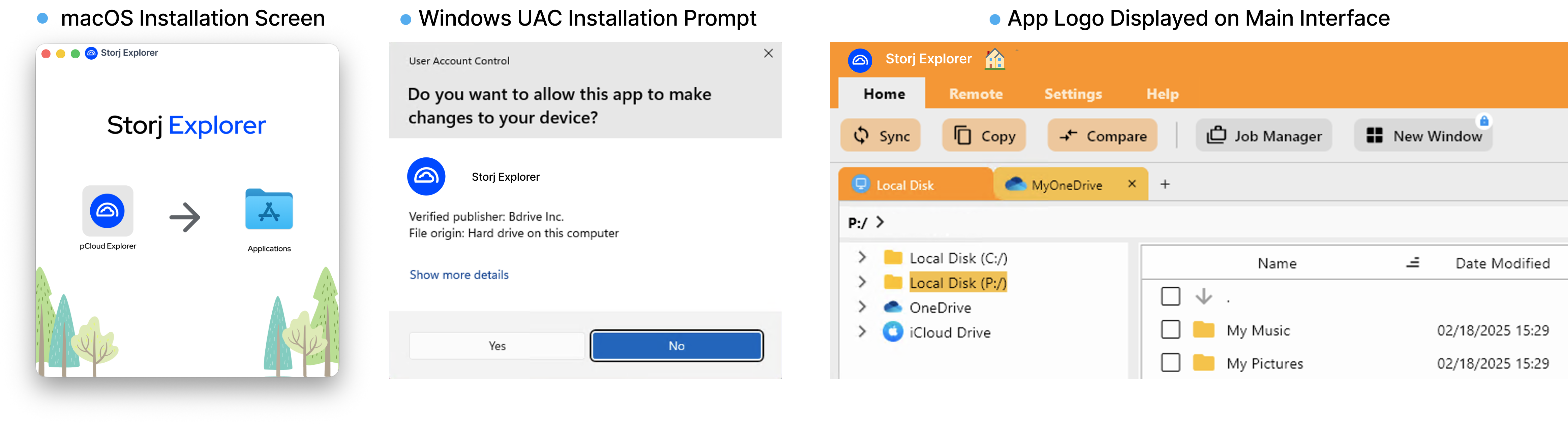
We provide a brand kit where Storj is the primary and visible brand throughout the product. All RcloneView branding is removed or kept only where legally required (e.g., internal version strings).
Key elements:
- Application name set to “Storj Explorer” (or another agreed label).
- All RcloneView logos replaced by the Storj logo:
- Desktop shortcuts and taskbar icons.
- Installer icons.
- In-app header and window icon.
- Color accents adjusted to match Storj’s brand palette where appropriate.
2. Post‑Install Storj Remote Wizard
Immediately after installation, users are guided to connect their Storj account so they can start using the service without additional setup steps.
Main behaviors:
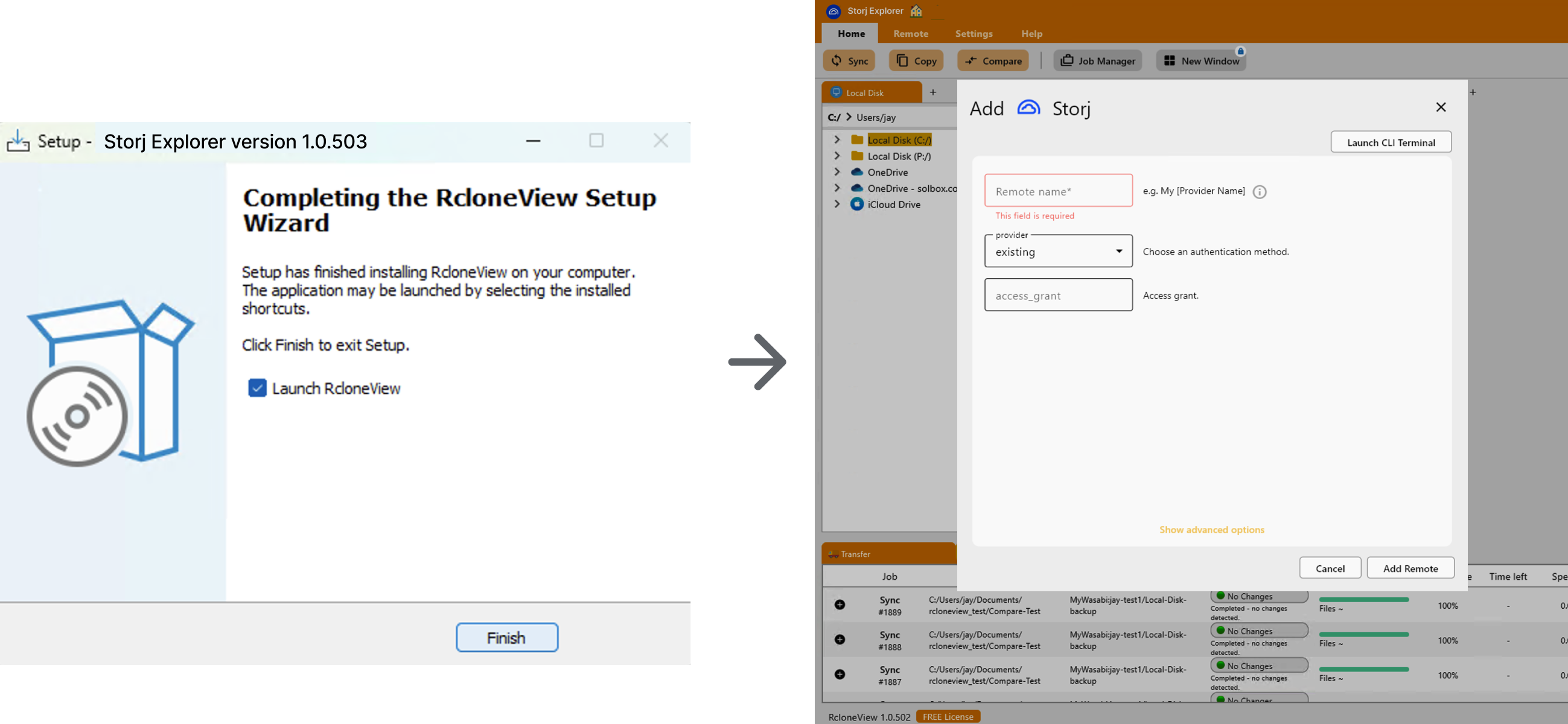
- At the end of the setup wizard, launching the app opens “Add Storj Remote” as the default onboarding flow.
- The wizard is simplified and pre-configured for Storj:
- Provider type is pre-selected as Storj.
- Only Storj‑specific options are shown by default.
- Advanced options remain available behind an “Show advanced options” link.
On-Home Quick Access Wizard
If the user skips the initial connection or closes the wizard:
- The right-hand panel of the home screen shows a large Storj tile.
- Clicking the tile reopens the “Add Storj Remote” wizard at any time.
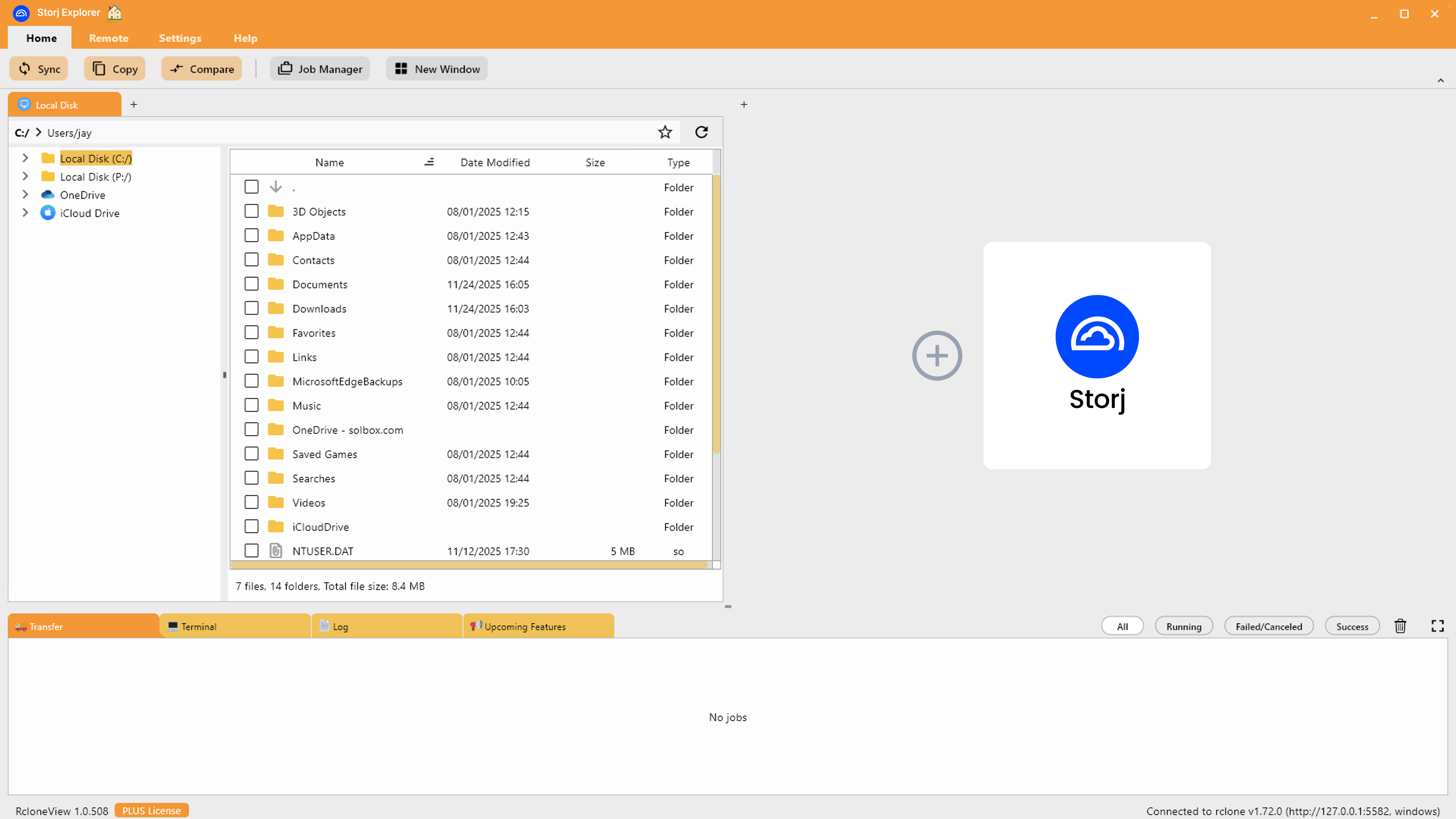
This ensures that connecting Storj is always the most visible next action for new or returning users.
3. Storj‑First Navigation & Management
Once a Storj remote is added, the UI is optimized to keep Storj prominently visible across all key navigation and management screens.
3.1 Storj Panel Pinned on Re‑Launch
After a Storj remote has been configured:
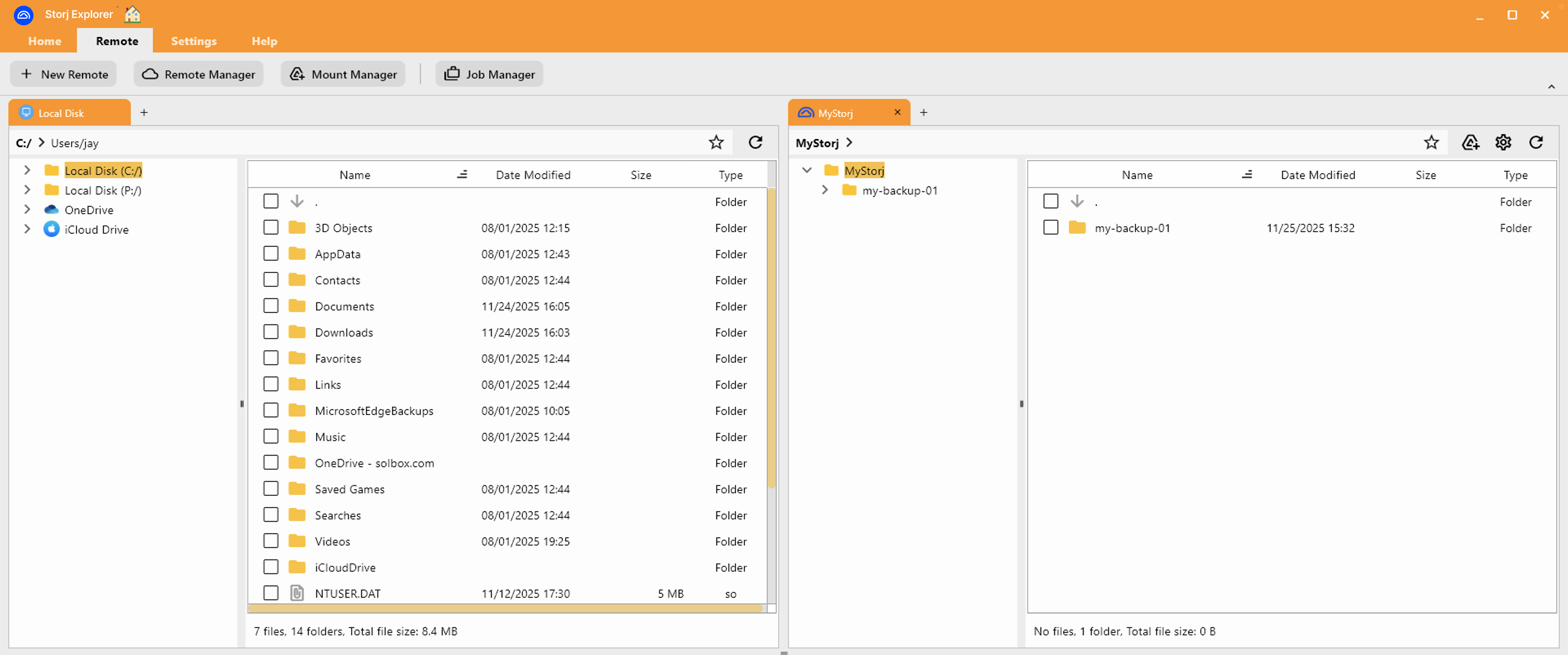
- On subsequent launches, the UI opens with a Storj panel pinned by default.
- Typical layout:
- Left side: local disk or another source.
- Right side: the user’s MYStorj remote.
- Users can freely rearrange panels via drag-and-drop, so the Storj panel can be moved between the left and right sides depending on their preferred workflow.
- This makes repeated sync or copy operations between local folders and Storj a one-click action, regardless of which side the Storj panel is currently on.
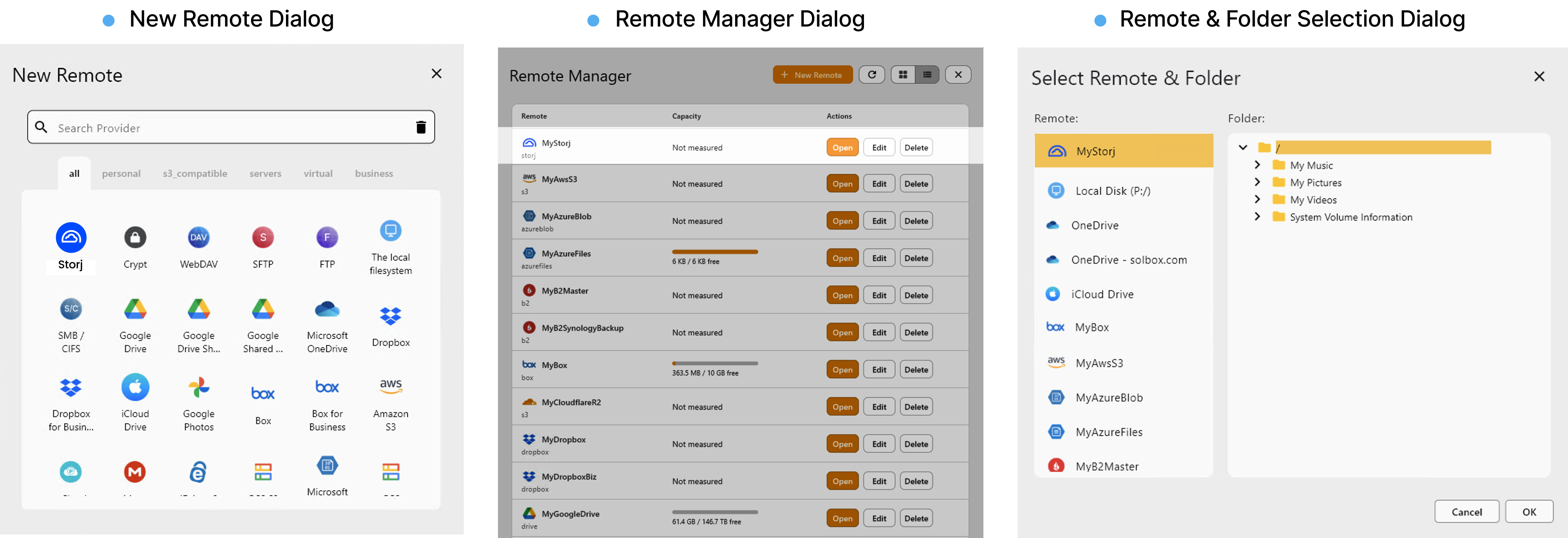
3.2 Storj First in “New Remote” & “Remote Manager”
To highlight Storj as a primary storage provider:
- In the New Remote dialog:
- Storj appears at the top of the provider list.
- Storj tile is visually highlighted to encourage selection.
- In Remote Manager:
- The Storj remote (e.g.,
MYStorj) is displayed at the top of the remote list. - In both list and card views, the Storj remote is visually emphasized for quicker access.
- The Storj remote (e.g.,
4. Priority Support & Maintenance for Storj
For the Storj white-label deployment, we provide a dedicated support and maintenance track.
Included services:
-
Dedicated documentation
- Separate manual pages specifically for Storj Explorer users.
- Step-by-step guides for connecting, syncing, and troubleshooting with Storj.
-
Priority incident handling
- Storj user issues are prioritized in the support queue.
- Emergency response for critical incidents affecting Storj users (e.g., connection failures, data access issues).
-
Ongoing product updates
- Regular desktop client upgrades included as part of the maintenance agreement.
- Ability to roll out new RcloneView features behind Storj branding after joint approval.
5. Next Steps
If you would like to move forward with this white-label product:
- Branding alignment
- Confirm Storj logo usage guidelines and brand colors.
- Decide final product name (e.g., Storj Explorer).
- Experience definition
- Validate the onboarding flow and Storj-first behaviors described above.
- Adjust any default settings (e.g., default sync mode, default mount path).
- Pilot build
- We deliver a private pilot build and Storj-specific documentation for internal testing.
This page and its URL are intended for Storj and partner stakeholders only and will not appear in public navigation or search. It can be safely shared as a direct link during evaluation and pilot discussions.