RcloneView Slackリモートコントロール
Slackリモートコントロールを使うと、PCの前に座っていなくても、RcloneViewのジョブ通知を受け取り、Slackから直接ジョブを制御できます。
このチュートリアルでは、以下の内容を扱います。
- Slackアプリの作成(App Manifestを使用)
- 必要なトークンの発行(App TokenとBot Token)
- Slackメンバー IDの確認方法
- RcloneViewでのSlackリモートコントロールの有効化
- Slackコマンドを使ったジョブの一覧表示、開始、停止、ステータス確認
Slackリモートコントロールとは?
Slackリモートコントロールは、以下のことを可能にするRcloneViewの組み込み機能です。
- ジョブの開始、完了、エラーのリアルタイム通知の受信
- 登録済みジョブの一覧表示
- ジョブのリモート開始
- 実行中ジョブの停止
- ジョブの進捗とステータスをその都度確認
RcloneViewが実行されている限り、モバイルのSlackアプリだけでクラウドジョブを管理できます。
要件
- RcloneViewがインストール済みで実行中であること(Desktop版またはHeadless版)
- Slackアカウントとワークスペース
- インターネット接続
Step 1: Slackアプリの作成(App Manifest)
最も速く正確にセットアップするために、"App Manifest"方式でボットを作成します。
1-1 Slack API Dashboardを開く
- Slack API Dashboard にアクセスします。
- Create New App ボタンをクリックします。
1-2 Manifestを使って作成
- From an app manifest オプションを選択します。
- アプリをインストールしたい Workspace を選択します。
- JSON タブを選択し、以下の設定コードを貼り付けます。
{
    "display_information": {
        "name": "RcloneView",
        "description": "Effortlessly browse, organize, transfer files across your cloud storages.",
        "background_color": "#3f2f3f"
    },
    "features": {
        "bot_user": {
            "display_name": "RcloneView",
            "always_online": false
        },
        "slash_commands": [
            {
                "command": "/help",
                "description": "Show all commands",
                "should_escape": false
            },
            {
                "command": "/joblist",
                "description": "List jobs",
                "should_escape": false
            },
            {
                "command": "/start",
                "description": "Starts a job (Enter number or name)",
                "usage_hint": "<#number> or <jobName>",
                "should_escape": false
            },
            {
                "command": "/stop",
                "description": "Stop a running job by JobId",
                "usage_hint": "<JobId>",
                "should_escape": false
            },
            {
                "command": "/jobstatus",
                "description": "Check status by JobId",
                "usage_hint": "<JobId>",
                "should_escape": false
            }
        ]
    },
    "oauth_config": {
        "scopes": {
            "bot": [
                "commands",
                "chat:write",
                "chat:write.public",
                "im:write",
                "app_mentions:read",
                "files:write"
            ]
        }
    },
    "settings": {
        "interactivity": {
            "is_enabled": true
        },
        "org_deploy_enabled": false,
        "socket_mode_enabled": true,
        "token_rotation_enabled": false
    }
}
- Next をクリックし、続けて Create をクリックして完了します。
Step 2: トークンの発行と保存
RcloneViewには2種類のトークンが必要です。パスワードと同様に厳重に扱ってください。
2-1 App Tokenの発行(Socket Mode用)
- 左メニューの Basic Information をクリックします。
- App-Level Tokens セクションで Generate Token and Scopes をクリックします。
- トークン名を
RcloneViewとし、connections:writeスコープを追加して発行します。 xapp-で始まるトークンを保存します。
2-2 Bot Tokenの取得
- 左メニューの Install App をクリックします。
- Install to Workspace をクリックし、Allow をクリックします。
xoxb-で始まる Bot User OAuth Token をコピーします。
Step 3: Messagesタブの有効化
- 左メニューの App Home をクリックします。
Messages Tabを有効にします。Allow users to send Slash commands and messages from the messages tabをチェックします。
これにより、ボットに直接スラッシュコマンドを送信できるようになります。
Step 4: Slackメンバー IDの確認
ボットが通知を送るユーザーを識別するために、あなた固有のIDが必要です。
- Slackを開き、プロフィール写真 をクリックして Profile を選択します。
- More(···) ボタンをクリックし、Copy member ID を選択します。
- IDを保存します(例:
U1234567890)。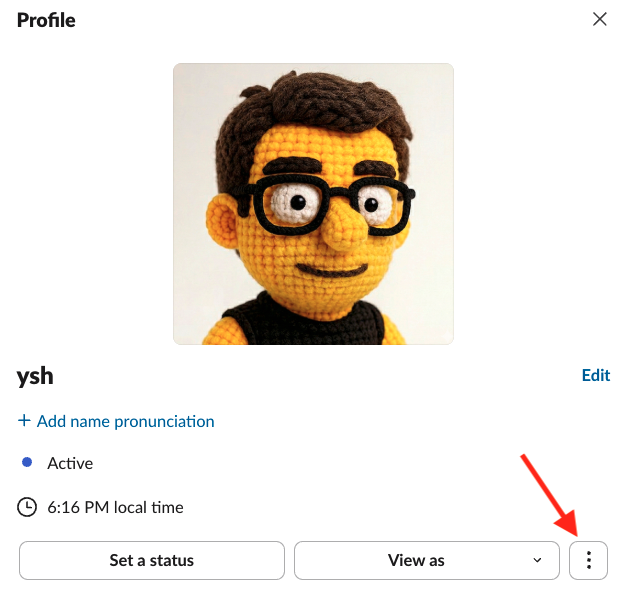
Step 5: RcloneViewでSlackリモートコントロールを有効化
5-1 設定を開く
- RcloneViewを起動します。
- Settings -> Interfaces & Notifications に移動します。
5-2 認証情報を入力
- Slack Remote Control をオンにします。
- トークンとIDを入力します。
- Slack App Token:
xapp-... - Slack Bot Token:
xoxb-... - My Member ID:
U...
5-3 テストメッセージの送信
Send Test Message をクリックします。成功すると、スマートフォンにメッセージが届きます。
Step 6: Slackコマンド(ジョブ制御)
ボットがインストールされている任意のチャットで、以下のコマンドを入力します。
/help
利用可能なすべてのコマンドを表示します。
/joblist
現在選択中の接続のジョブを一覧表示します。
/start <jobName>
ジョブ名を指定して特定のジョブを開始します。
/start #<number>(推奨)
直近の /joblist 結果のインデックスを使ってジョブを開始します(例:/start #1)。
/stop <JobId>
実行中のジョブを停止します。
/jobstatus <JobId>
特定のジョブのリアルタイムの進捗と統計情報を確認します。
自動ジョブ通知
有効化すると、RcloneViewは以下について自動的に通知を送信します。
- ジョブの開始
- ジョブの正常完了
- エラーによるジョブの失敗
セキュリティに関する注意
- コマンドは、設定された メンバー ID から送信された場合のみ処理されます。
- App Token と Bot Token は外部に漏らさないよう管理してください。
- リモートコントロールを一時停止したい場合は、設定のトグルをオフにするだけです。
まとめ
Slackリモートコントロールを使うことで、長時間かかるクラウドタスクの管理がより効率的になります。
- 場所を問わないリモートジョブ管理
- 通知によるリアルタイムのステータス更新
- PCなしでモバイルから即座に制御
一度セットアップすれば、よりスマートなクラウド自動化環境を今日から楽しめます!