RcloneView Slack Remote Control
Slack Remote Control allows you to receive RcloneView job notifications and control jobs directly from Slack — without sitting in front of your PC.
This tutorial covers:
- Creating a Slack app (using App Manifest)
- Issuing required tokens (App Token and Bot Token)
- Finding your Slack Member ID
- Enabling Slack Remote Control in RcloneView
- Using Slack commands to list, start, stop jobs, and check status
What is Slack Remote Control?
Slack Remote Control is a built-in RcloneView feature that allows you to:
- Receive real-time notifications for job start, completion, and errors
- List registered jobs
- Start a job remotely
- Stop a running job
- Check job progress and status on demand
As long as RcloneView is running, you can manage your cloud jobs using just your mobile Slack app.
Requirements
- RcloneView installed and running (Desktop or Headless)
- A Slack account and workspace
- Internet connection
Step 1: Create a Slack App (App Manifest)
For the fastest and most accurate setup, we use the "App Manifest" method to create your bot.
1-1 Open Slack API Dashboard
- Go to the Slack API Dashboard.
- Click the Create New App button.
1-2 Create using Manifest
- Select the From an app manifest option.
- Select the Workspace where you want to install the app.
- Select the JSON tab and paste the following configuration code:
{
    "display_information": {
        "name": "RcloneView",
        "description": "Effortlessly browse, organize, transfer files across your cloud storages.",
        "background_color": "#3f2f3f"
    },
    "features": {
        "bot_user": {
            "display_name": "RcloneView",
            "always_online": false
        },
        "slash_commands": [
            {
                "command": "/help",
                "description": "Show all commands",
                "should_escape": false
            },
            {
                "command": "/joblist",
                "description": "List jobs",
                "should_escape": false
            },
            {
                "command": "/start",
                "description": "Starts a job (Enter number or name)",
                "usage_hint": "<#number> or <jobName>",
                "should_escape": false
            },
            {
                "command": "/stop",
                "description": "Stop a running job by JobId",
                "usage_hint": "<JobId>",
                "should_escape": false
            },
            {
                "command": "/jobstatus",
                "description": "Check status by JobId",
                "usage_hint": "<JobId>",
                "should_escape": false
            }
        ]
    },
    "oauth_config": {
        "scopes": {
            "bot": [
                "commands",
                "chat:write",
                "chat:write.public",
                "im:write",
                "app_mentions:read",
                "files:write"
            ]
        }
    },
    "settings": {
        "interactivity": {
            "is_enabled": true
        },
        "org_deploy_enabled": false,
        "socket_mode_enabled": true,
        "token_rotation_enabled": false
    }
}
- Click Next, then click Create to finish.
Step 2: Issue and Save Tokens
RcloneView requires two types of tokens. Treat these like passwords.
2-1 Issue App Token (for Socket Mode)
- Click Basic Information in the left menu.
- Under the App-Level Tokens section, click Generate Token and Scopes.
- Name the token
RcloneView, add theconnections:writescope, and generate it. - Save the token starting with
xapp-.
2-2 Get Bot Token
- Click Install App in the left menu.
- Click Install to Workspace and click Allow.
- Copy the Bot User OAuth Token starting with
xoxb-.
Step 3: Enable Messages Tab
- Click App Home in the left menu.
- Turn on
Messages Tab - Check
Allow users to send Slash commands and messages from the messages tab
This will allow you to send slash commands to your bot directly.
Step 4: Find Your Slack Member ID
The bot needs your unique ID to know which user should receive notifications.
- Open Slack, click your profile picture, and select Profile.
- Click the More(···) button and select Copy member ID.
- Save the ID (e.g.,
U1234567890).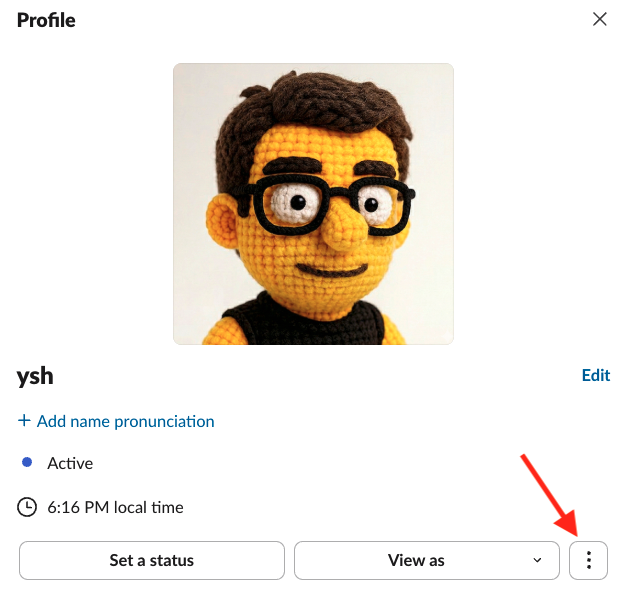
Step 5: Enable Slack Remote Control in RcloneView
5-1 Open Settings
- Launch RcloneView.
- Go to Settings -> Interfaces & Notifications.
5-2 Enter Credentials
- Toggle on Slack Remote Control.
- Enter your tokens and ID:
- Slack App Token:
xapp-... - Slack Bot Token:
xoxb-... - My Member ID:
U...
5-3 Send Test Message
Click Send Test Message. If successful, you will receive a message on your phone.
Step 6: Slack Commands (Job Control)
Type these commands in any chat where the bot is installed.
/help
Shows all available commands.
/joblist
Lists jobs for the currently selected connection.
/start <jobName>
Starts a specific job by its name.
/start #<number> (Recommended)
Starts a job using the index from the latest /joblist result (e.g., /start #1).
/stop <JobId>
Stops a running job.
/jobstatus <JobId>
Checks the real-time progress and statistics of a specific job.
Automatic Job Notifications
Once enabled, RcloneView automatically sends notifications for:
- Job started
- Job completed successfully
- Job failed with an error
Security Notes
- Commands are only processed if they come from the configured Member ID.
- Keep your App Token and Bot Token private.
- If you need to pause remote control, simply turn off the toggle in settings.
Summary
Slack Remote Control makes managing long-running cloud tasks much more efficient:
- Remote job management regardless of location
- Real-time status updates through notifications
- Instant control via mobile without a PC
Set it up once and enjoy a smarter cloud automation environment today!