Mount SFTP or SMB Storage as Local Drives with RcloneView — Self-Hosted Cloud Integration
Make your NAS, home server, or office file server behave like Google Drive: mount SFTP or SMB as a real drive letter or
/Volumespath with caching, buffering, and a GUI.
SFTP and SMB are the backbone of self-hosted storage—Synology/QNAP NAS, home servers, VPSs, and corporate file servers all rely on them. But mounting them reliably across Windows, macOS, and Linux often means OS-specific quirks, fragile authentication, no caching controls, and no unified view with your clouds.
RcloneView fixes that. It wraps rclone mount into a friendly desktop app so your SFTP/SMB shares act like modern cloud drives—complete with VFS cache, thumbnail streaming, buffering tweaks, and automation.

Manage & Sync All Clouds in One Place
RcloneView is a cross-platform GUI for rclone. Compare folders, transfer or sync files, and automate multi-cloud workflows with a clean, visual interface.
- One-click jobs: Copy · Sync · Compare
- Schedulers & history for reliable automation
- Works with Google Drive, OneDrive, Dropbox, S3, WebDAV, SFTP and more
Free core features. Plus automations available.
Understanding SFTP vs SMB
| Feature | SFTP | SMB |
|---|---|---|
| Protocol | SSH-based | Windows network share |
| Best Use | Remote servers, secure over WAN | LAN file sharing, local network |
| Speed | Moderate (encrypted) | Very fast on LAN |
| Security | Strong by default | Depends on version/policy |
| OS Support | Universal | Best on Windows/macOS, solid on Linux |
When to pick which?
- SFTP: VPS over the internet, zero-trust access, port-forwarded home lab, developers pulling configs.
- SMB: Office LAN, high-throughput NAS, shared drives for teams, low-latency media editing inside the network.
RcloneView supports both, alongside Google Drive, S3, Dropbox, OneDrive, and more—managed from the same dashboard.
Why Use RcloneView for SFTP/SMB Mounting
- No CLI required: All
rclone mountflags are generated in the GUI; see Remote Manager for remotes and Mount cloud storage as a local drive for guided mounts. - Cross-platform: Windows (WinFsp), macOS (macFUSE), Linux (FUSE) with consistent UI.
- True local mounts: Drive letters on Windows or
/Volumes/Serveron macOS; standard mount points on Linux. - Performance ready: VFS cache, thumbnail streaming, buffering controls, and read-ahead tuning surfaced in the Mount dialog.
- Unified control: Manage SFTP/SMB alongside cloud storage, schedule remounts, and monitor throughput in one place (see Job scheduling and execution and Real-time transfer monitoring).
Step-by-Step — Mount SFTP or SMB with RcloneView
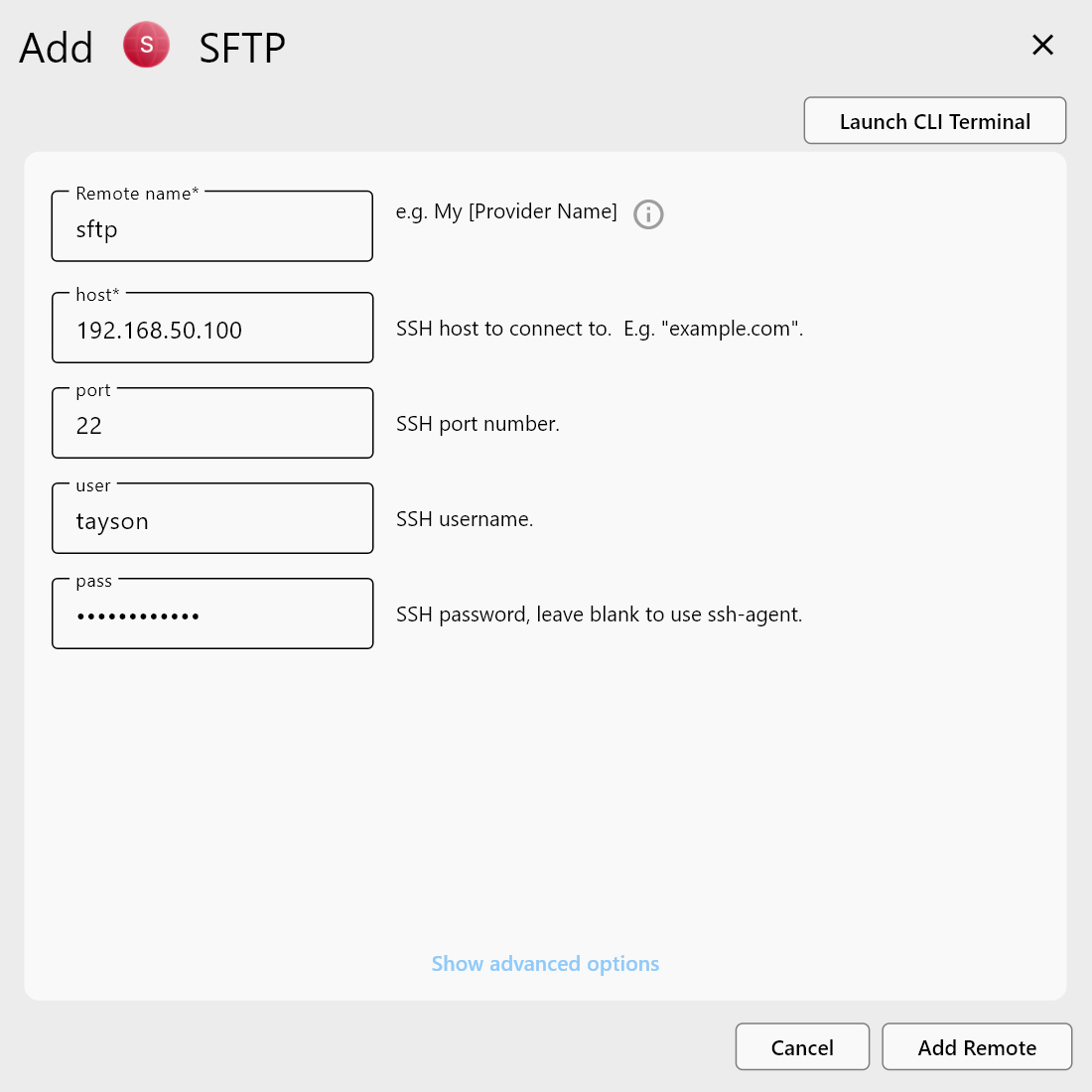
1) Add Remote (SFTP or SMB)
- Open Remote Manager → Add Remote → choose SFTP or SMB.
- Enter Host/IP and Port.
- Authenticate with Username/Password or SSH Key for SFTP. For SMB, set domain/user if required.
- Save the remote; consider enabling a config password in General Settings.
2) Create a Mount Job
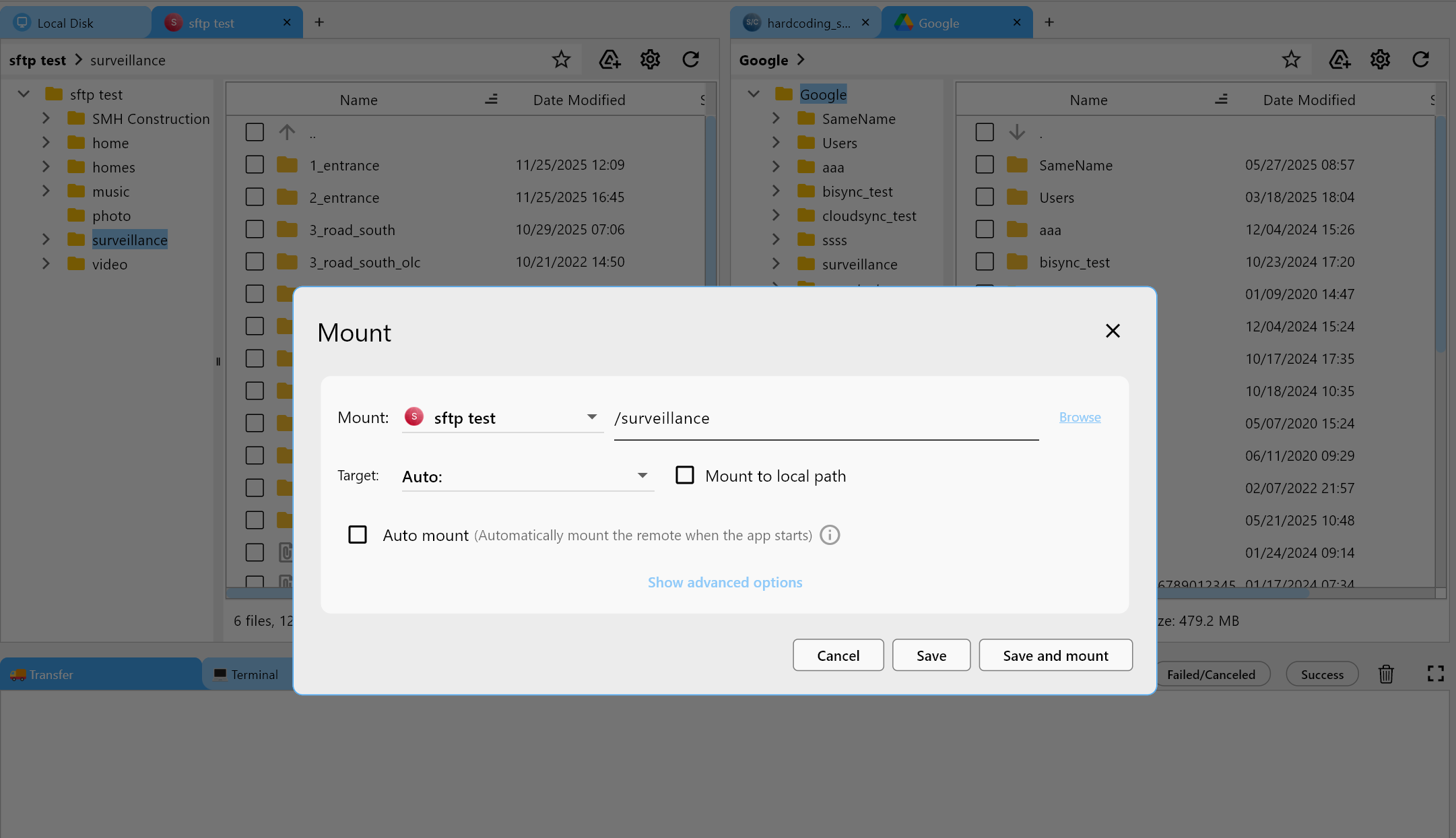
- In Mount Manager or the Explorer toolbar, click Mount.
- Select your SFTP/SMB remote and pick the target:
- Windows →
X:(or any free drive letter) - macOS →
/Volumes/ServerName - Linux →
/mnt/serveror your preferred path
- Windows →
3) Configure VFS Cache & Buffers
- Cache mode:
Fullfor smooth browsing and thumbnail streaming (ideal for photos/Plex). - Cache directory: Point to an SSD folder.
- Read-ahead: 4–8 MB for media scrubbing; increase for 4K video.
- Write-back/Buffering: Enable for large sequential writes; cap bandwidth if you share links.
4) Mount and Test
- Click Mount and open Finder/Explorer/Files.
- Browse folders; preview images and stream videos to verify caching.
- Keep the Mount entry saved so it auto-reconnects after reboot (toggle Auto Mount).
Use Cases
- NAS remote access: Treat your NAS like a cloud drive from any OS.
- Local ↔ cloud ↔ self-hosted: Move files between SFTP/SMB and Google Drive/S3/Dropbox in one UI.
- Office shared drive integration: Map departmental shares with cached thumbnails for design teams.
- Media editing: Edit video/photos directly from NAS with VFS caching to avoid re-downloads.
- Multi-server hub: Mount multiple SFTP/SMB servers side by side and drag-drop between them.
Performance Tips
- Set Cache mode: Full for media-heavy workloads (Plex/Photos).
- Use an NVMe/SSD cache directory to accelerate thumbnails and scrubbing.
- Increase Read-ahead and buffer-size for large sequential reads/writes.
- Prefer LAN for SMB when throughput matters; for SFTP over WAN, use SSH keys for stability.
- Monitor transfers in Real-time transfer monitoring and schedule remounts via Job scheduling and execution.
Conclusion — Self-Hosted Meets Multi-Cloud
SFTP and SMB no longer need to feel like legacy network drives. With RcloneView you get cloud-like mounts, smart caching, and a unified dashboard that mixes NAS, VPS, and public clouds without scripts. Add your server once, choose a drive letter or /Volumes path, and let RcloneView keep the mount alive while you focus on your files.
Supported Cloud Providers





























