Mount, Sync, and Manage Remote File Systems Easily with RcloneView
File-system remotes like SFTP, SMB, and WebDAV deserve the same comfort as cloud drives. RcloneView gives you a two-pane Explorer, Compare, Sync, and a mount manager so you can treat remote servers and NAS boxes like local disks-without memorizing rclone flags.

Manage & Sync All Clouds in One Place
RcloneView is a cross-platform GUI for rclone. Compare folders, transfer or sync files, and automate multi-cloud workflows with a clean, visual interface.
- One-click jobs: Copy · Sync · Compare
- Schedulers & history for reliable automation
- Works with Google Drive, OneDrive, Dropbox, S3, WebDAV, SFTP and more
Free core features. Plus automations available.
Local FS vs. Remote FS: why it matters
- Local FS: instant latency, native permissions, no network hops. Great for editing but not always redundant.
- Remote FS (SFTP/SMB/WebDAV): adds network latency and auth, but enables central NAS, off-site servers, and collaboration.
- Cloud object storage: cheap and durable, but not POSIX; mounting improves workflows for apps expecting a filesystem.
- Goal: unify them in one UI so you can browse, mount, sync, and automate without switching tools.
Connect SFTP and WebDAV in minutes
RcloneView wraps the rclone backend list (100+ providers) in a simple remote wizard. For most FS-style remotes, you just pick the provider and fill host/credentials.
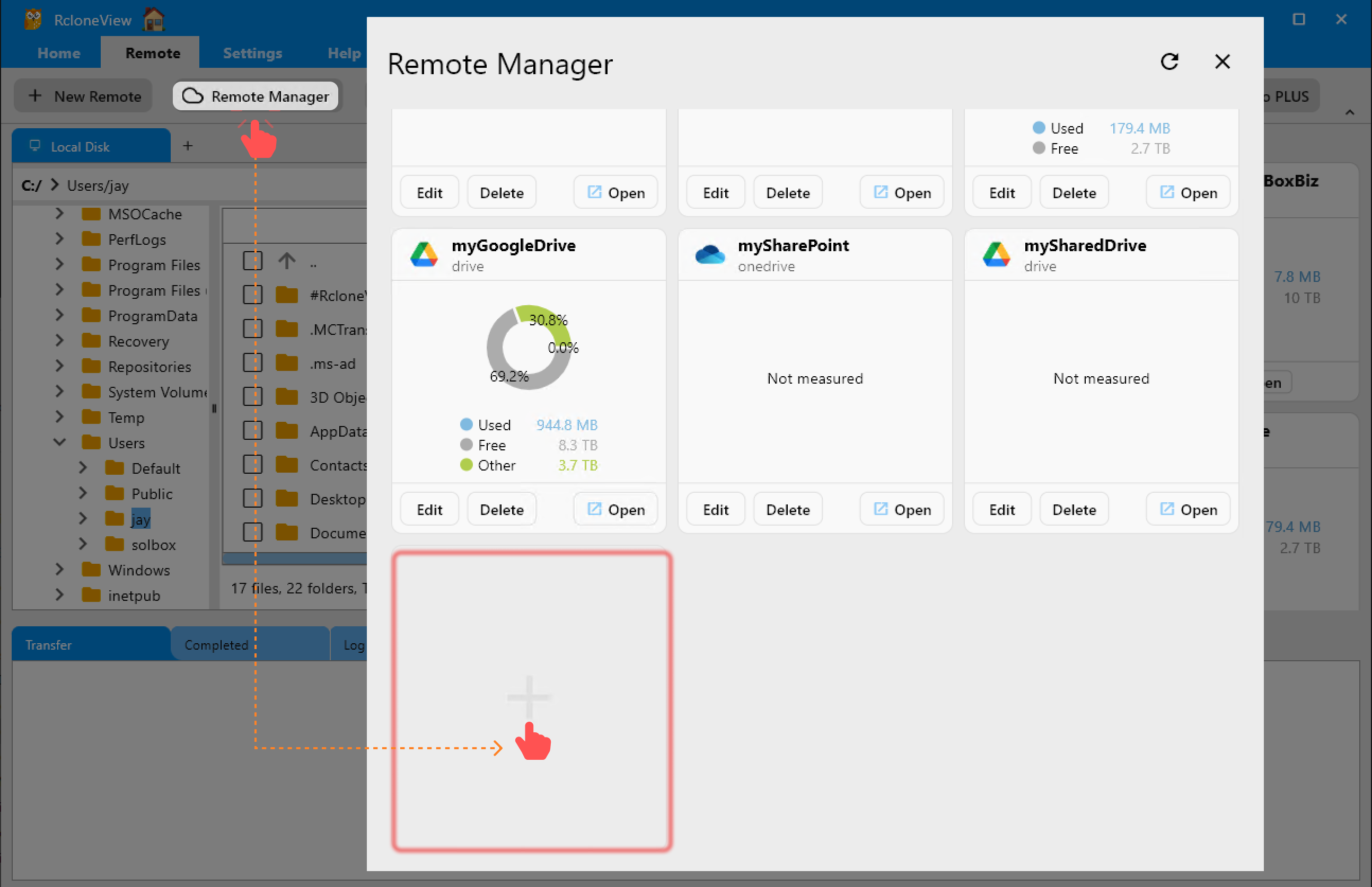
👉 Remote guide: Remote Manager
SFTP remote
- Open Remote -> + New Remote (or the + in Explorer).
- Choose SFTP.
- Enter
host,port,user, and either a password or key file. - Save-your SFTP server appears in Remote Manager.
WebDAV remote
- Select WebDAV in the provider list.
- Enter the WebDAV URL, username, and password/token.
- Save and test browsing in the two-pane Explorer.
SMB / NAS share
- Choose SMB (Samba/CIFS).
- Provide the server address and share name; add domain if required.
- Save and open it like any other remote.
Cloud + FS together
You can mix SFTP, SMB, WebDAV, and cloud remotes (Google Drive, Dropbox, Mega, S3) in the same Explorer session and copy between them directly.
Two-pane Explorer for fast housekeeping
Remote file systems feel local when you can see them side-by-side.

- Open the server (SFTP/SMB/WebDAV) on the left and a cloud/NAS destination on the right.
- Drag & drop to copy; progress appears in Transfer.
- Right-click for
**Copy ->**/**<- Copy**, Delete, or Mount actions. - Use filters to hide cache/temp folders before syncing.
👉 Explorer basics:
Mount remote file systems like local drives
Need your SFTP or WebDAV share as a drive letter or Finder mount? Use the built-in mount manager.

- Click Mount from the toolbar or remote card.
- Pick mount type (drive letter/path) and set cache/buffer options.
- Monitor status in Mount Manager; stop/restart without CLI.
- Great for apps that only understand local paths (NLEs, DAWs, CAD tools).
👉 Mount guide: Mount Cloud Storage as a Local Drive
Compare before syncing
Remote FS copies should be deliberate. Use Compare to avoid overwriting newer edits.

- Highlights missing, different size, and matching files.
- Copy only what changed from NAS -> cloud, or from cloud -> NAS.
- Ideal for staging edits from local SSD to remote SFTP without surprises.
👉 Compare guide: Compare folder contents
Solve permission issues quickly
- SFTP: ensure correct UID/GID on the server; if writes fail, check directory ownership and
chmodon the host. - SMB: match domain/workgroup; set “Allow guest/NTLMv2” as required on the server; verify share permissions separate from filesystem ACLs.
- WebDAV: some hosts block MOVE/DELETE-use COPY then DELETE; watch for read-only mounts.
- Local mounts: if apps can’t write, remount with the proper user or adjust mount options in the mount dialog.
- Use Logs tab to see HTTP/SFTP errors (401/403/550) and adjust credentials or paths accordingly.

Backup and automation examples
Example 1: NAS -> S3 (nightly)
- Source: SMB share; Destination: S3 bucket.
- Click Sync and choose one-way (NAS -> S3).
- Enable checksum (if supported) and exclude temp/cache folders.
- Save to Jobs (e.g.,
nas-to-s3-nightly). - Open Job Manager -> Add Job, schedule 02:00 daily.

👉 Job guides: Create Sync Jobs, Execute & Manage Jobs, Job Scheduling, Transfer Monitoring
Example 2: SFTP editing share -> Google Drive (work-in-progress)
- Left pane: SFTP project folder; Right pane: Google Drive team space.
- Use Compare to sync only new renders.
- Save as a reusable Job for daily backups at 03:00.
- Keep a second job for EXPORT only, so review links stay current.
Example 3: WebDAV CMS -> Local SSD (mount + copy)
- Mount the WebDAV site via Mount Manager for app compatibility.
- Copy site assets to a local SSD folder; run Compare weekly to fetch deltas.
- If deletes are blocked, use copy-only and prune manually after verifying.
Speed and stability tips for remote FS
- Use bandwidth limits during office hours; raise concurrency after-hours.
- Prefer resume for large uploads; RcloneView handles retries automatically.
- For long-haul SFTP, enable compression only if CPU headroom exists.
- On SMB, avoid double-mounting the same share on unstable networks-keep one mount alive.
- For WebDAV hosts with rate limits, reduce parallel transfers in the sync dialog.
Organize NAS and Cloud folders cleanly
- Keep a shared folder template (e.g.,
Project/RAW,EDIT,EXPORT,ARCHIVE) stored on both NAS and cloud; copy it before each project. - Use Compare weekly: NAS vs. cloud archive to ensure cold storage is current.
- Maintain one-way copy for archives (avoid delete propagation).
- Store proxies on cloud for collaboration; keep RAW on NAS/S3 for safety.
When to mount vs. when to sync
- Mount when applications need file handles (NLEs, asset browsers).
- Sync/Copy for bulk moves, off-site backups, or when network links are lossy.
- Combine both: mount for daily edits, then run a scheduled sync to archive.
Logging and recovery
- Use Job History to see which files failed and why; rerun to pick up only missing items.
- For permission errors, re-authenticate the remote or adjust server ACLs before retrying.
- Keep Log tab open during first runs to spot 401/403/550/429 codes early.
- If a mount stalls, stop/restart from Mount Manager instead of rebooting.
Quick start checklist
- Add SFTP/SMB/WebDAV remotes in Remote Manager.
- Open two-pane Explorer and verify listing.
- Run Compare on a small folder; confirm copy directions.
- Mount if your app needs a drive letter/path.
- Save Sync/Copy as Jobs; schedule off-hours.
- Review logs after the first full run; enable checksum where supported.
Summary
RcloneView turns remote file systems into first-class citizens. Connect SFTP, SMB, WebDAV, NAS, and cloud remotes, mount them like local drives, compare before syncing, and automate backups with Jobs and schedules-all from a GUI built on rclone’s engine. Treat every storage endpoint the same way: visible, verifiable, and automated.
Supported Cloud Providers





























