Lock Down RcloneView with App Lock: Protect Remotes, Jobs, and History
Shared or company PC? Turn on App Lock to require a password before anyone can open RcloneView, keeping remotes, jobs, and transfer history out of sight.
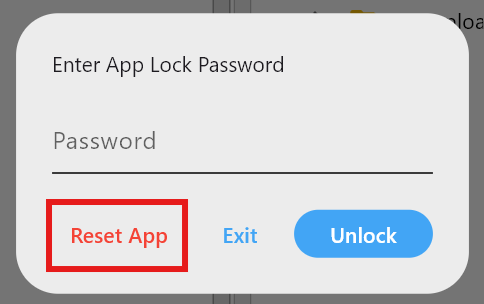
RcloneView’s App Lock adds a simple password screen at launch or when reopening the app. It protects the internal database (rclone_view.db), which holds your remotes, job definitions, mount settings, job history, and transfer logs—so sensitive automation stays private even if the workstation is shared.

Manage & Sync All Clouds in One Place
RcloneView is a cross-platform GUI for rclone. Compare folders, transfer or sync files, and automate multi-cloud workflows with a clean, visual interface.
- One-click jobs: Copy · Sync · Compare
- Schedulers & history for reliable automation
- Works with Google Drive, OneDrive, Dropbox, S3, WebDAV, SFTP and more
Free core features. Plus automations available.
What App Lock protects
- Remote definitions and credentials stored in
rclone.conf(access gated by the app) - Transfer history and logs
- Job settings and schedules
- Mount configurations and UI state
- The SQLite database (
rclone_view.db) that ties everything together
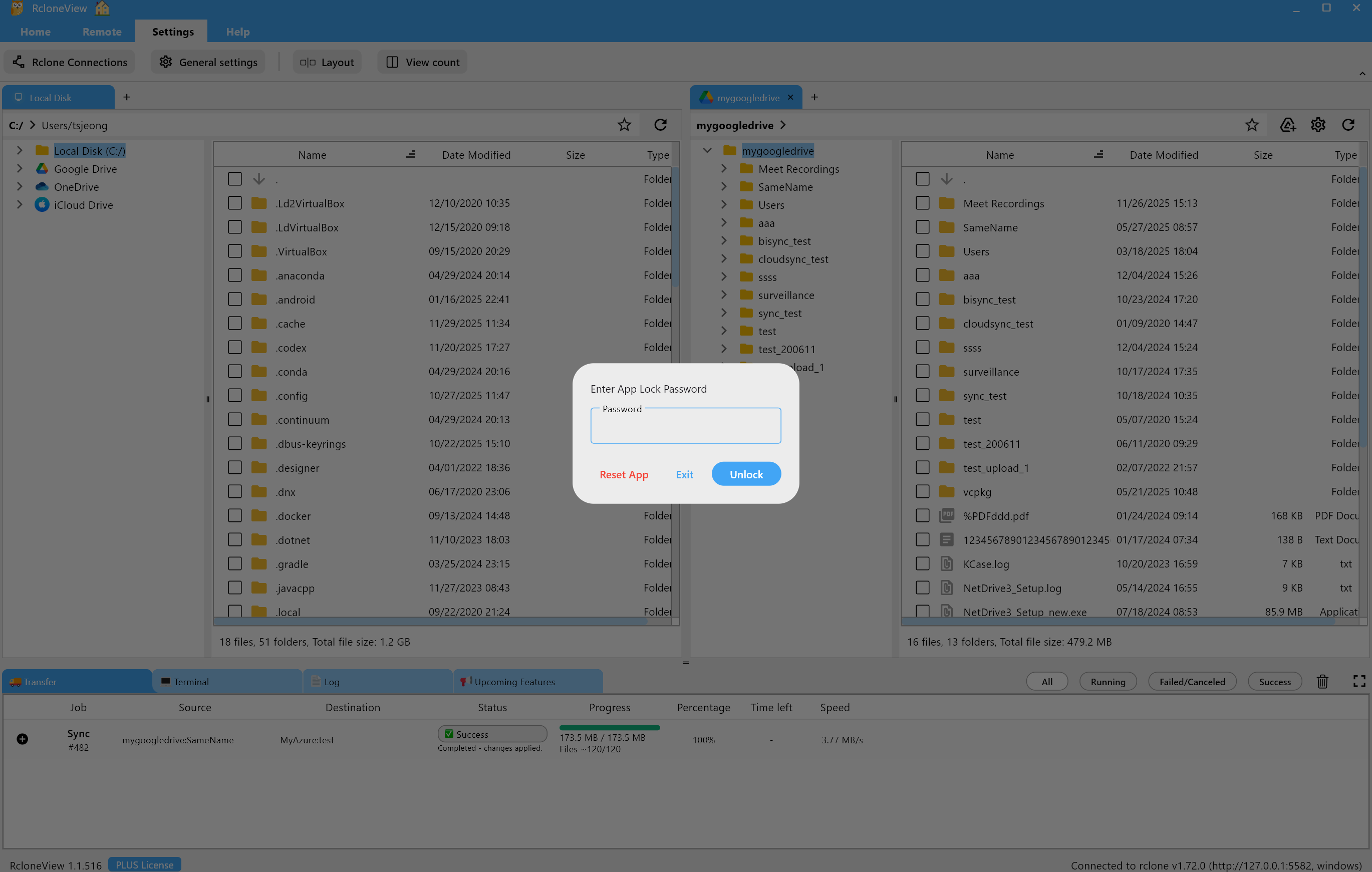
Who benefits
- Teams sharing one workstation or jump box
- IT admins running scheduled sync/mount jobs who need tamper resistance
- Users with sensitive cross-cloud workflows (backups, compliance archives)
- Anyone who wants a quick security layer without OS-level changes
How to turn on App Lock (takes a minute)
- Open Settings → General Settings in the top menu.

- In General, check Enable App Lock, enter your password, and click Close.
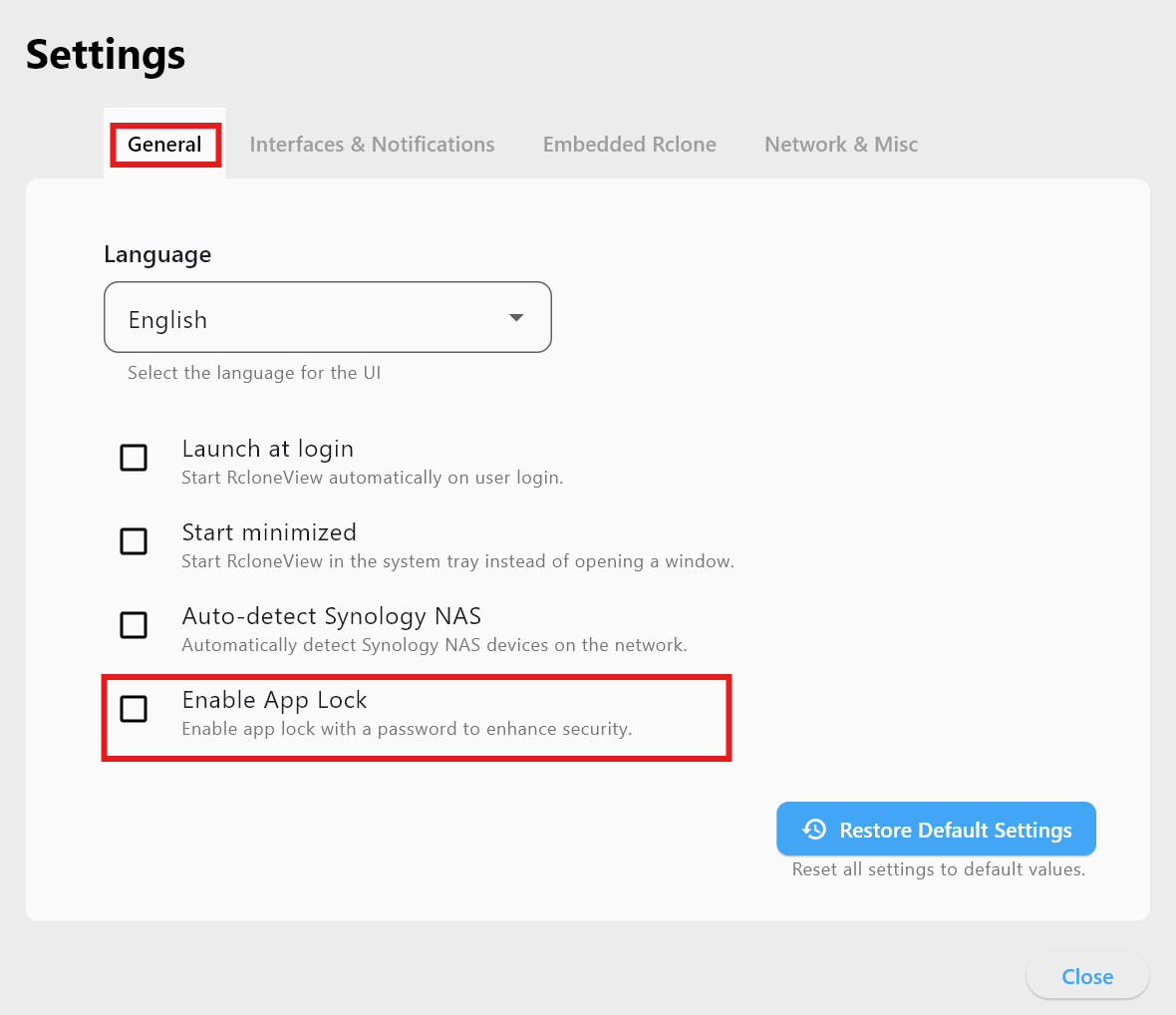
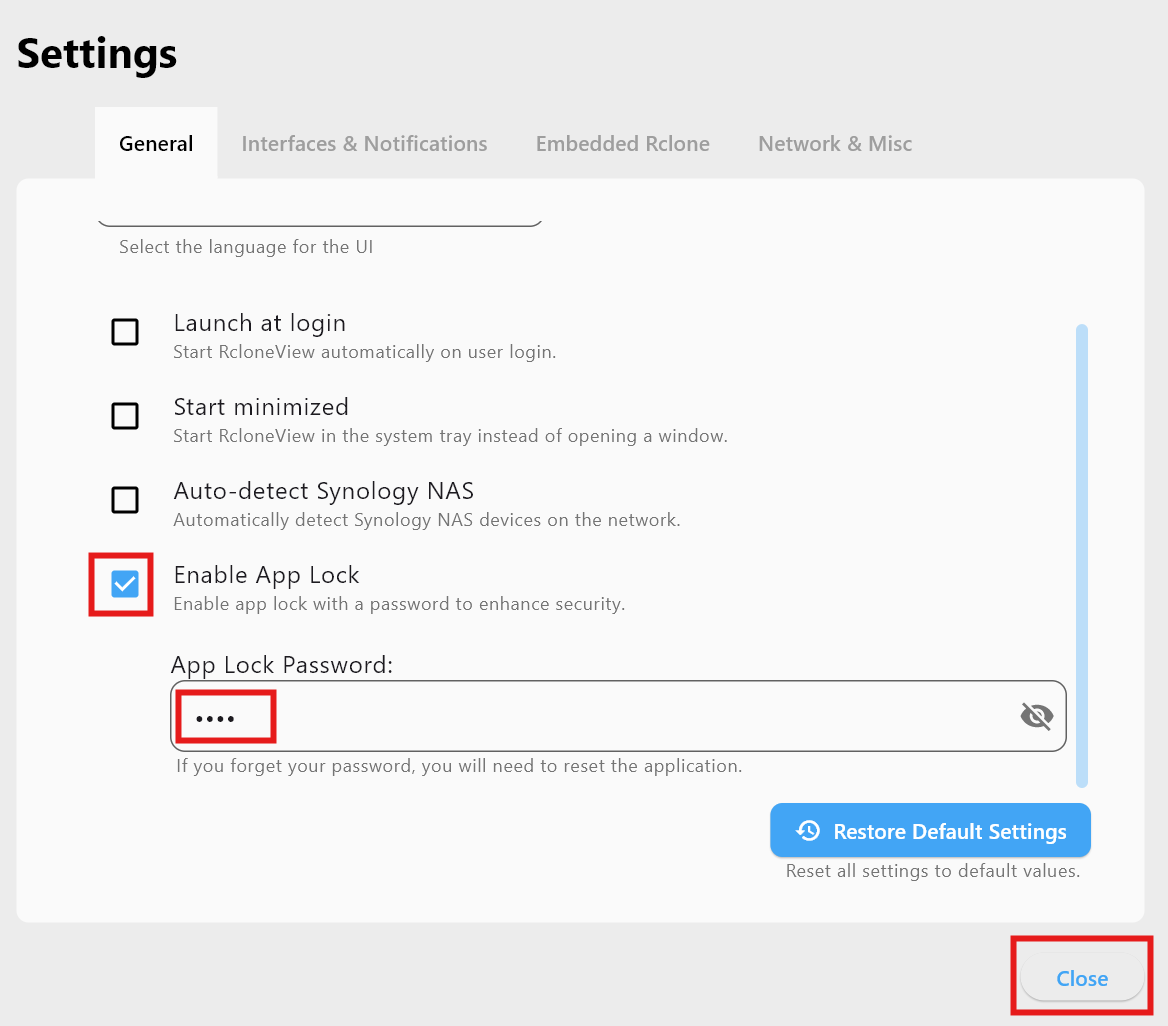
That’s it. The next time RcloneView starts or its window is reopened, you’ll see the unlock prompt.
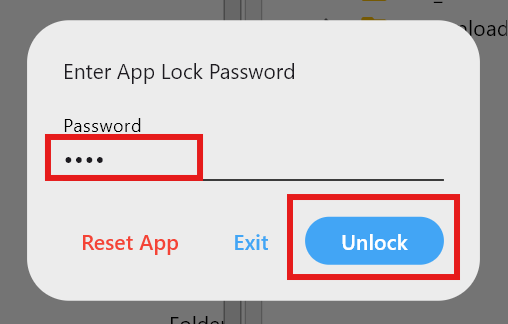
Resetting when you forget the password
- On the unlock screen, click Reset App.
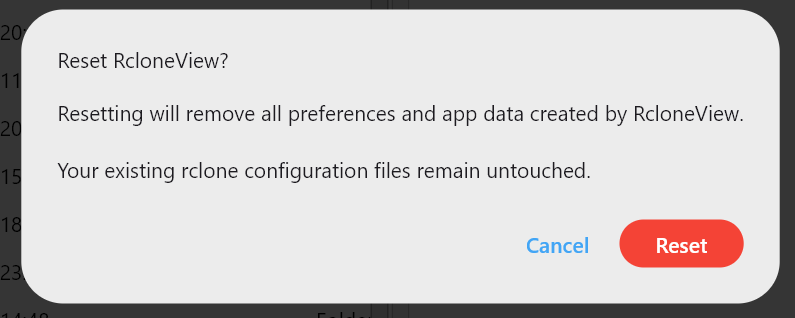
- Confirm the reset to clear App Lock and all internal data (settings, jobs, transfer history, job history).
- Your
rclone.confremains intact, so remote definitions stay available once you reopen.
Best practices for secure operations
- Use App Lock on shared PCs or in offices where multiple users can open your session.
- Pair it with OS account passwords or disk encryption for layered protection.
- Name jobs clearly but avoid embedding secrets in job names or notes.
- Back up
rclone_view.dbto a secure, user-writable location (see change the database location). - Keep the scheduler enabled only for jobs you trust and monitor via Job History.
Quick FAQ
Does App Lock stop scheduled jobs?
No—jobs you’ve scheduled continue to run. App Lock restricts UI access so others can’t view or alter them.
What if I reset App Lock?
Internal data clears, but rclone.conf persists, so remotes remain. Recreate jobs/history as needed.
Can I still use the Terminal?
Yes. Once unlocked, the built-in Terminal works normally; App Lock only gates access at launch.
Wrap-up
A password prompt may seem small, but it’s a powerful shield for remotes, automation, and history. Enable App Lock, keep your rclone_view.db in a secure location, and run your cloud workflows knowing they stay private—even on shared machines.
Supported Cloud Providers





























