Change the Database Storage Location
RcloneView stores its core state in a SQLite file named rclone_view.db. This database remembers your transfer history, job definitions, mount settings, job execution history, and UI state—everything the app needs to “remember what you did” and “show current status” in the interface.
By default, the database lives in your Documents folder. You can move it to a different writable location such as an external drive or a synced backup folder.

Default database path by OS
| Platform | Default path |
|---|---|
| Windows | C:\Users\<user>\Documents\rclone_view.db |
| macOS | /Users/<user>/Documents/rclone_view.db |
| Linux | /home/<user>/Documents/rclone_view.db |
How to change the database location
You can pick any writable folder (local or external) directly inside RcloneView.
Step 1 — Open Settings
- Go to Settings → General Settings in the top menu.

Step 2 — Embedded Rclone → Path Settings
-
In the Settings window, open Embedded Rclone → Path Settings.
-
Click Database folder to choose a new location for
rclone_view.db.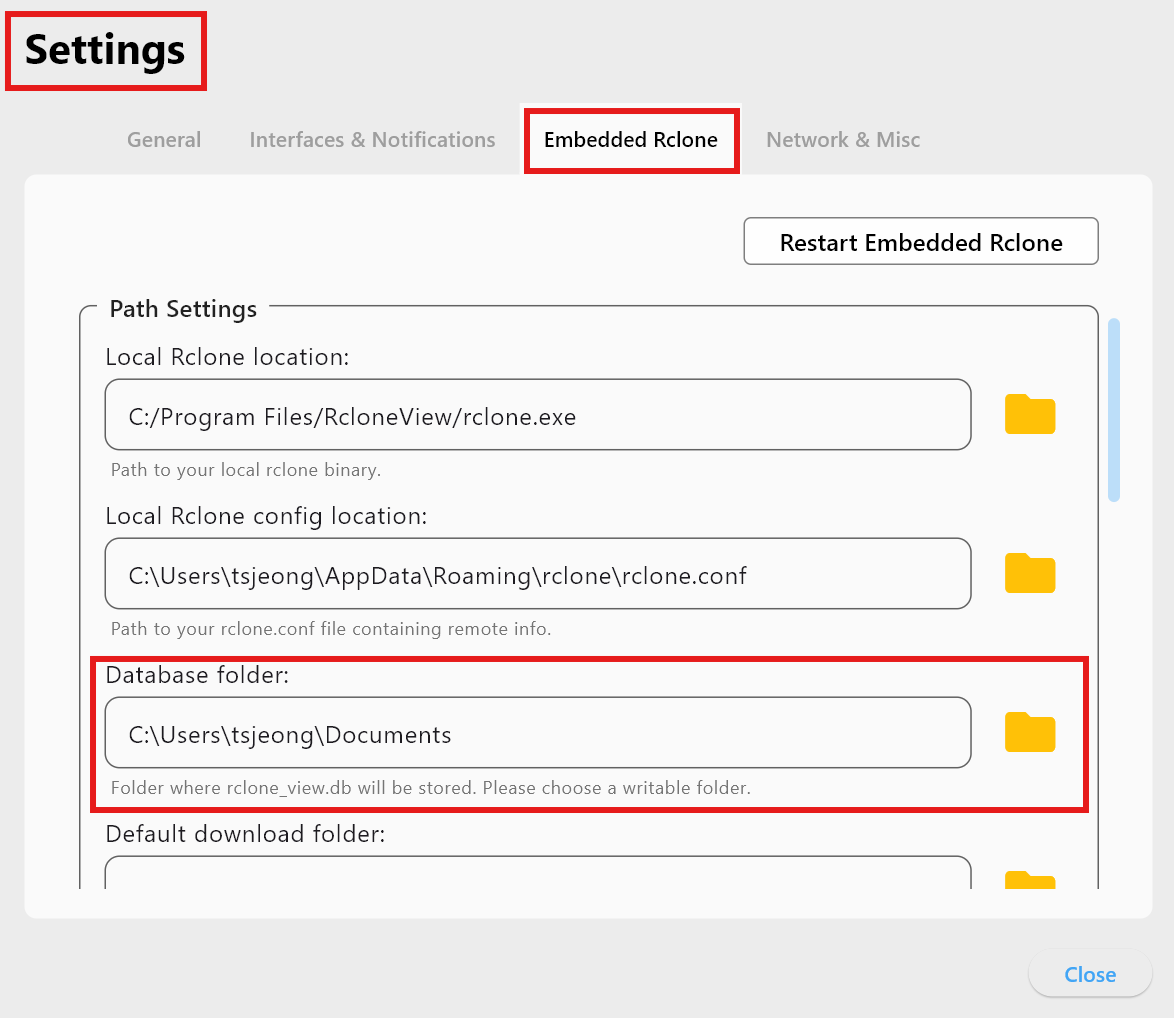
-
Use the folder icon to browse to the target directory; RcloneView will place
rclone_view.dbthere.
Permission and path cautions
RcloneView tests write permission by creating a temp file in the selected folder. Certain system folders block writes for standard users and will trigger a warning:
- Windows:
C:\Program Files,C:\Windows, etc. - macOS:
/Applications,/System,/usr, etc. - Linux:
/usr,/opt,/etc, etc.
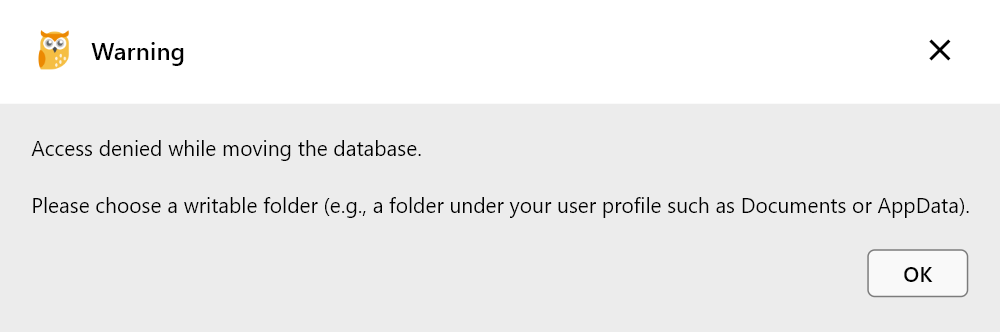
If you see the warning, choose another path with full write access.
Recommended locations
C:\Users\<user>\DocumentsC:\Users\<user>\AppData\Roaming- Any personal folder you own with write permission
- An external drive you control (ensure write access)
Avoid slow or permission-restricted locations, and note that network shares can introduce latency.
Database care tips
- Avoid system-protected folders.
- If using a cloud-sync folder, prefer services that sync small files reliably (e.g., OneDrive, Dropbox).
- Back up
rclone_view.dbperiodically. - Avoid high-latency network paths for the live database.
Quick summary
| Item | Details |
|---|---|
| Database file | rclone_view.db |
| What it stores | Transfer history, jobs, mounts, UI state |
| Default path | User Documents folder |
| Change path | Settings → Embedded Rclone → Path Settings |
| Permission check | Temp file write test |
| Best locations | User-writable folders (Documents, Roaming, external drive) |
Pick a stable, writable location for rclone_view.db to keep RcloneView reliable and your history intact.