RcloneView Telegram Remote Control
Telegram Remote Control lets you receive RcloneView job notifications and control jobs directly from Telegram — without sitting in front of your PC.
This tutorial covers:
- Creating a Telegram bot (BotFather)
- Finding your Telegram Chat ID
- Enabling Telegram Remote Control in RcloneView
- Using Telegram commands to list/start/stop jobs and check status
- Practical examples and security notes
What is Telegram Remote Control?
Telegram Remote Control is a built-in RcloneView feature that allows you to:
- Receive job start/completion/error notifications
- List jobs
- Start a job remotely
- Stop a running job
- Check job progress/status
If RcloneView is running, you can manage jobs with just your phone.
Requirements
- RcloneView installed and running
- A Telegram account
- Internet connection
- Permission to create a Telegram bot (via BotFather)
Step 1 Create a Telegram Bot (BotFather)
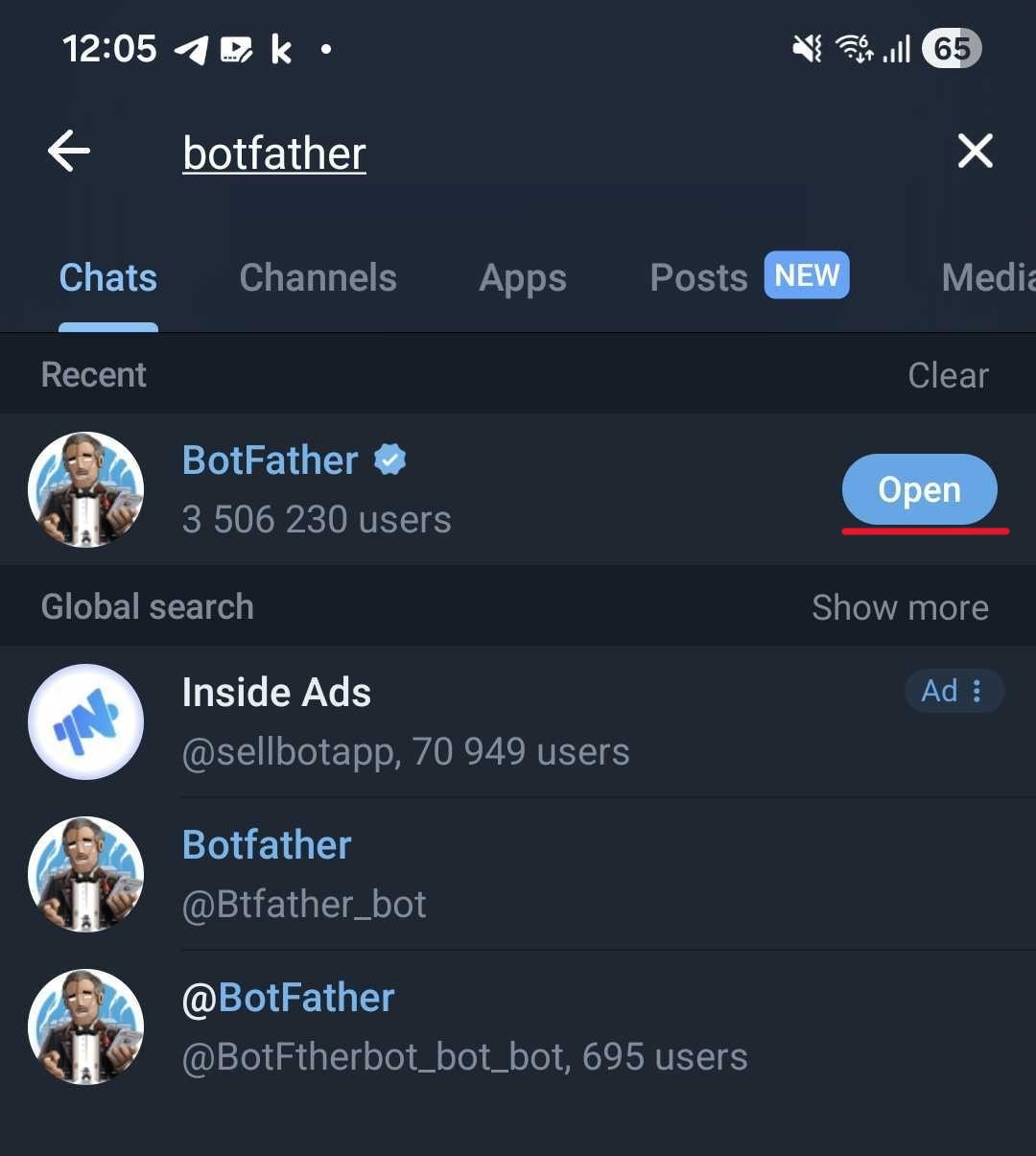
Step 1-1 Open BotFather
- Open Telegram.
- Search for BotFather.
- Open the BotFather chat.
Step 1-2 Create a new bot
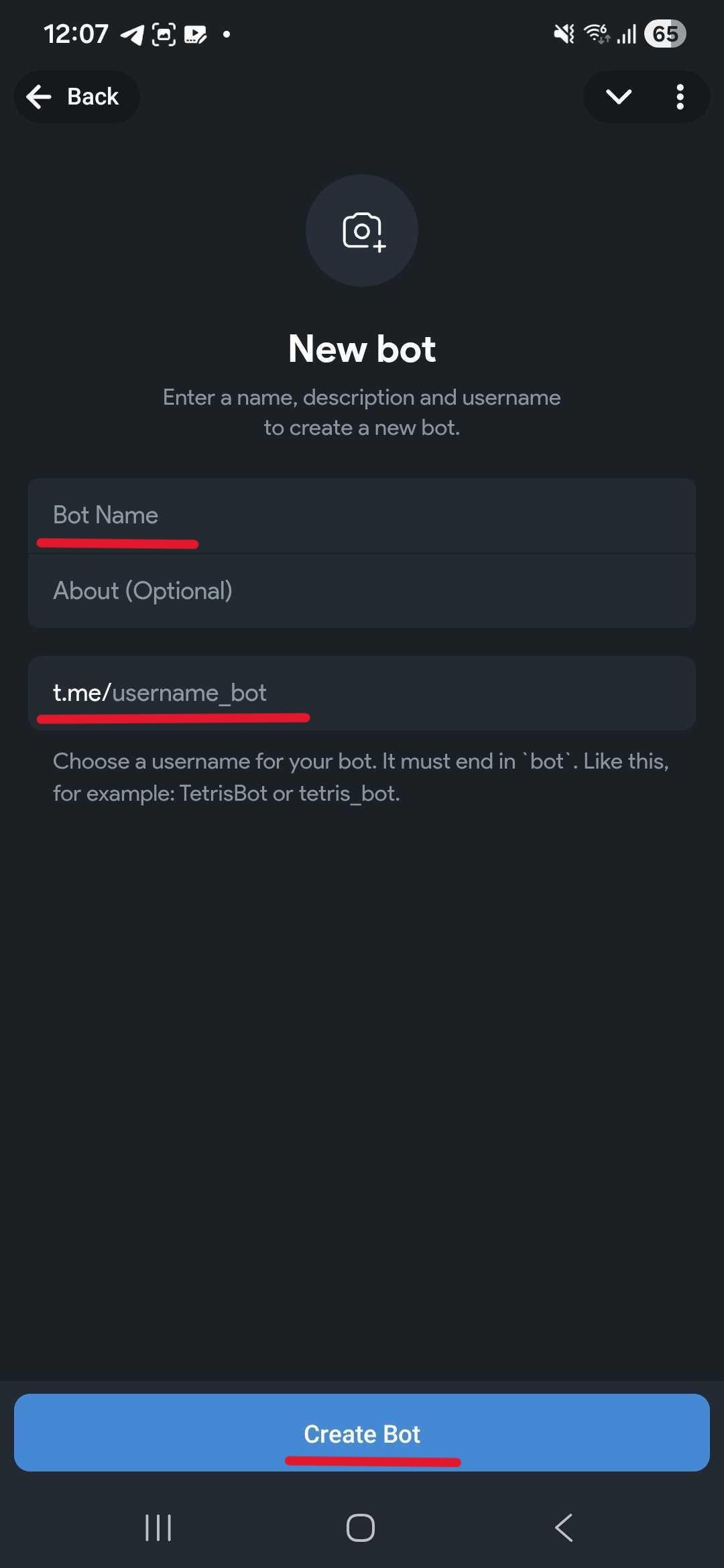
Use BotFather to create a new bot and set:
- Bot Name (display name)
- Bot Username (must end with
bot)
Example:
- Bot Name:
RcloneView_test_bot - Bot Username:
rcloneview_test_bot
Step 1-3 Save your bot token (Important)
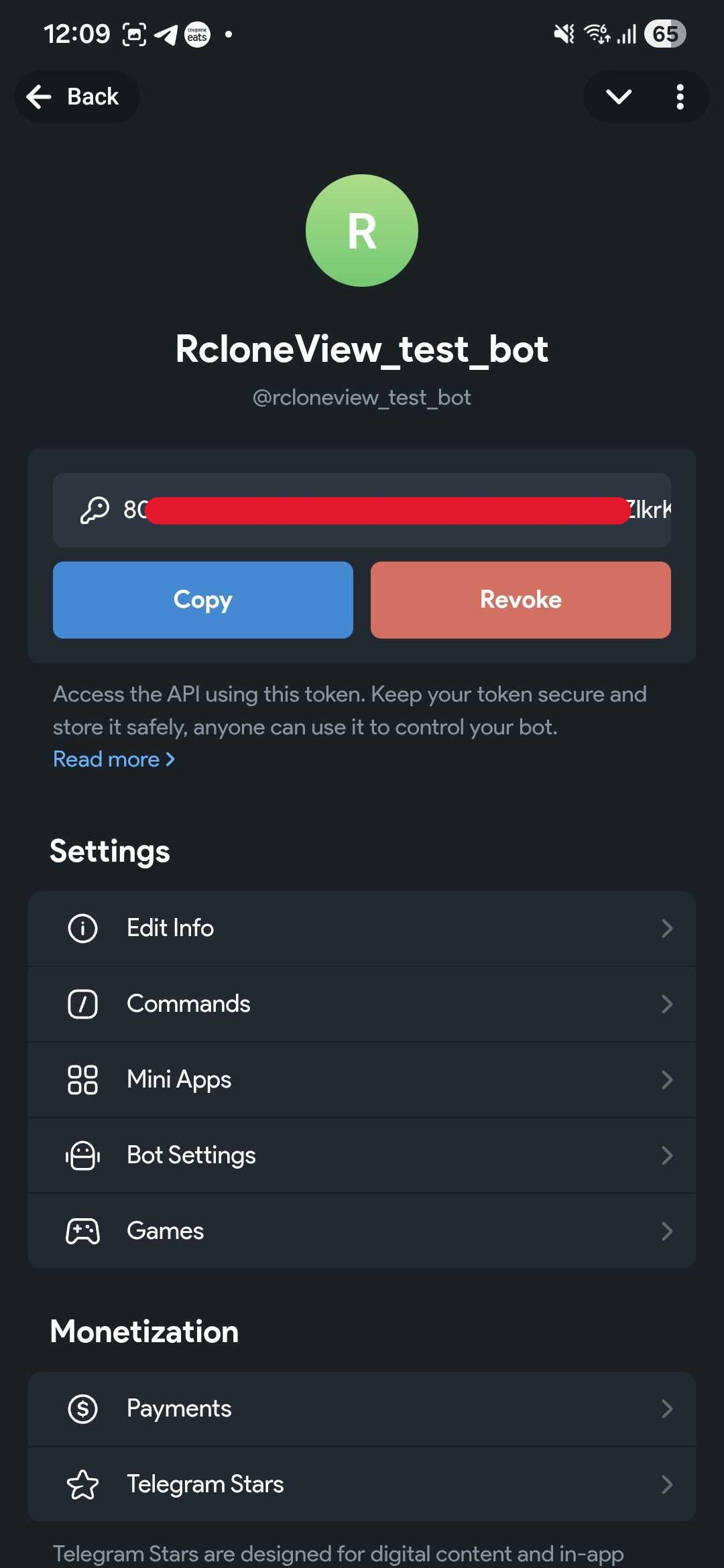
After the bot is created, BotFather gives you a token like:
123456789:AAHxxxxxxxxxxxxxxxxxxxxxxxxxxxx
This token is required in RcloneView settings. Do not share it publicly.
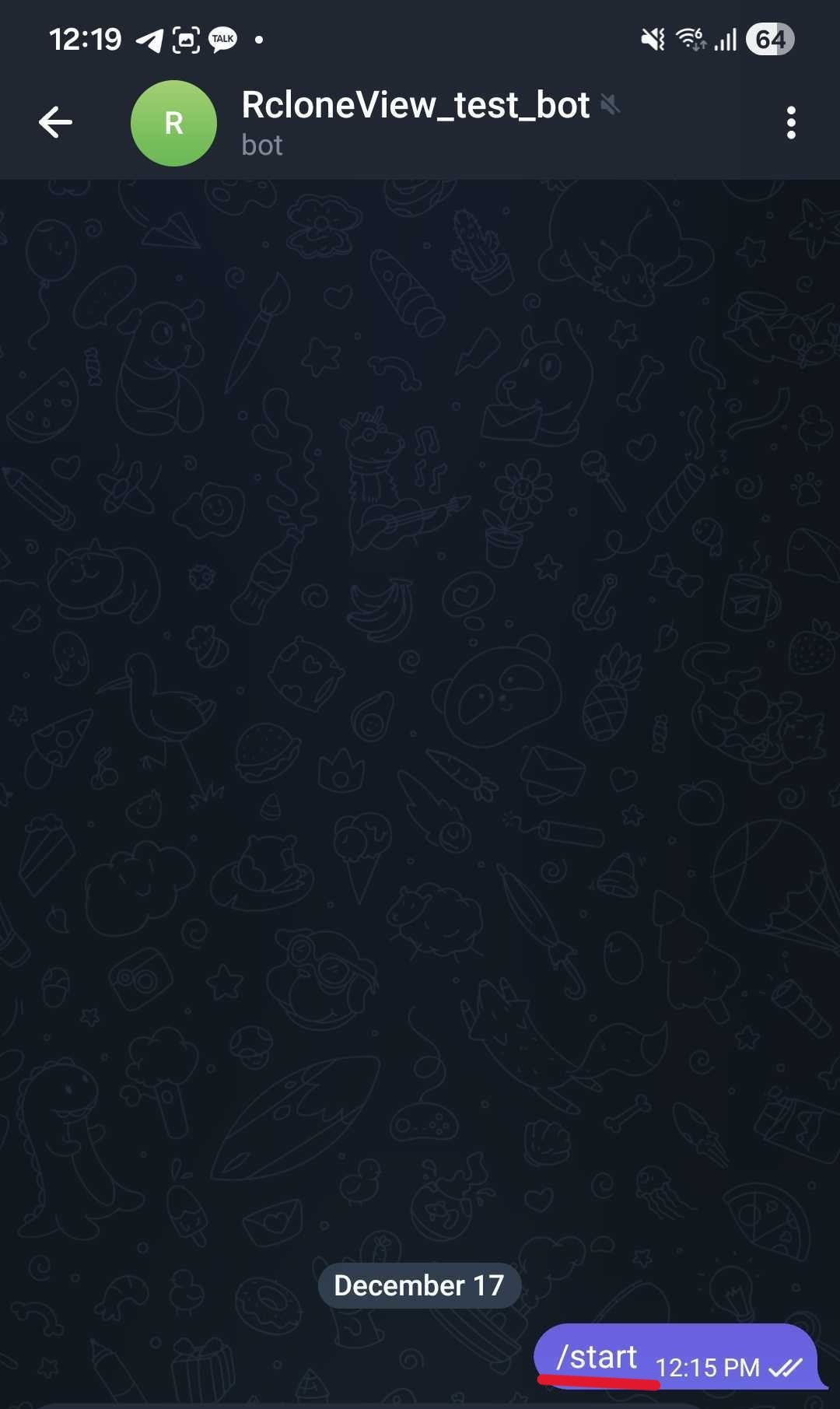
Step 2 Start Your Bot in Telegram (Important)
You must start a chat with your bot before you can retrieve your Chat ID via getUpdates.
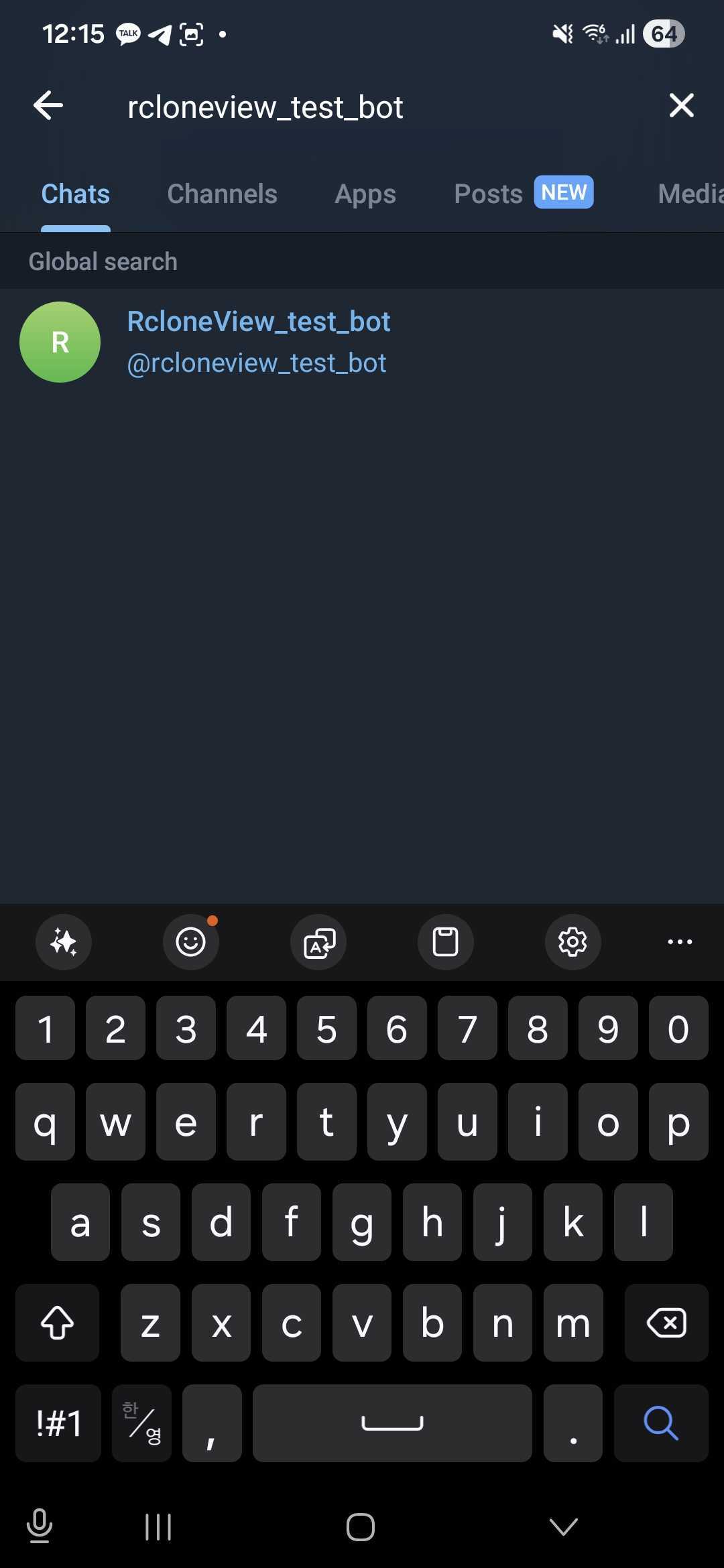
Step 2-1 Search for your bot
- Search your bot by name or username.
- Open the bot chat.
Step 2-2 Press Start and send a message
- Click Start (or send
/start). - Send one more message (example:
hi).
This creates an update record that you can later read from Telegram.
Step 3 Find Your Telegram Chat ID
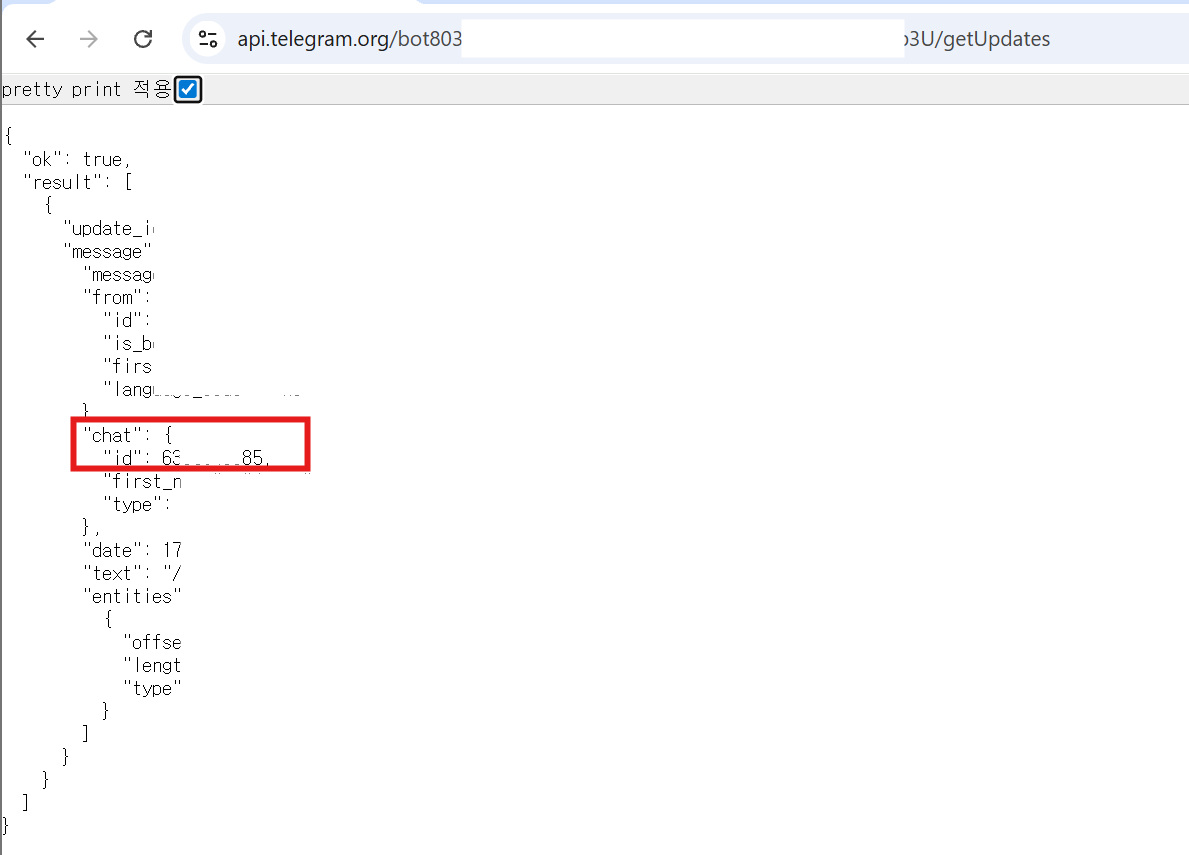
Step 3-1 Open getUpdates in a browser
Open this URL (replace with your token):
https://api.telegram.org/bot<YOUR_BOT_TOKEN>/getUpdates


Step 3-2 Extract chat.id
In the JSON response, find:
"chat": {
  "id": 987654321
}
Your Chat ID is the number in chat.id (example: 987654321).
Step 4 Enable Telegram Remote Control in RcloneView
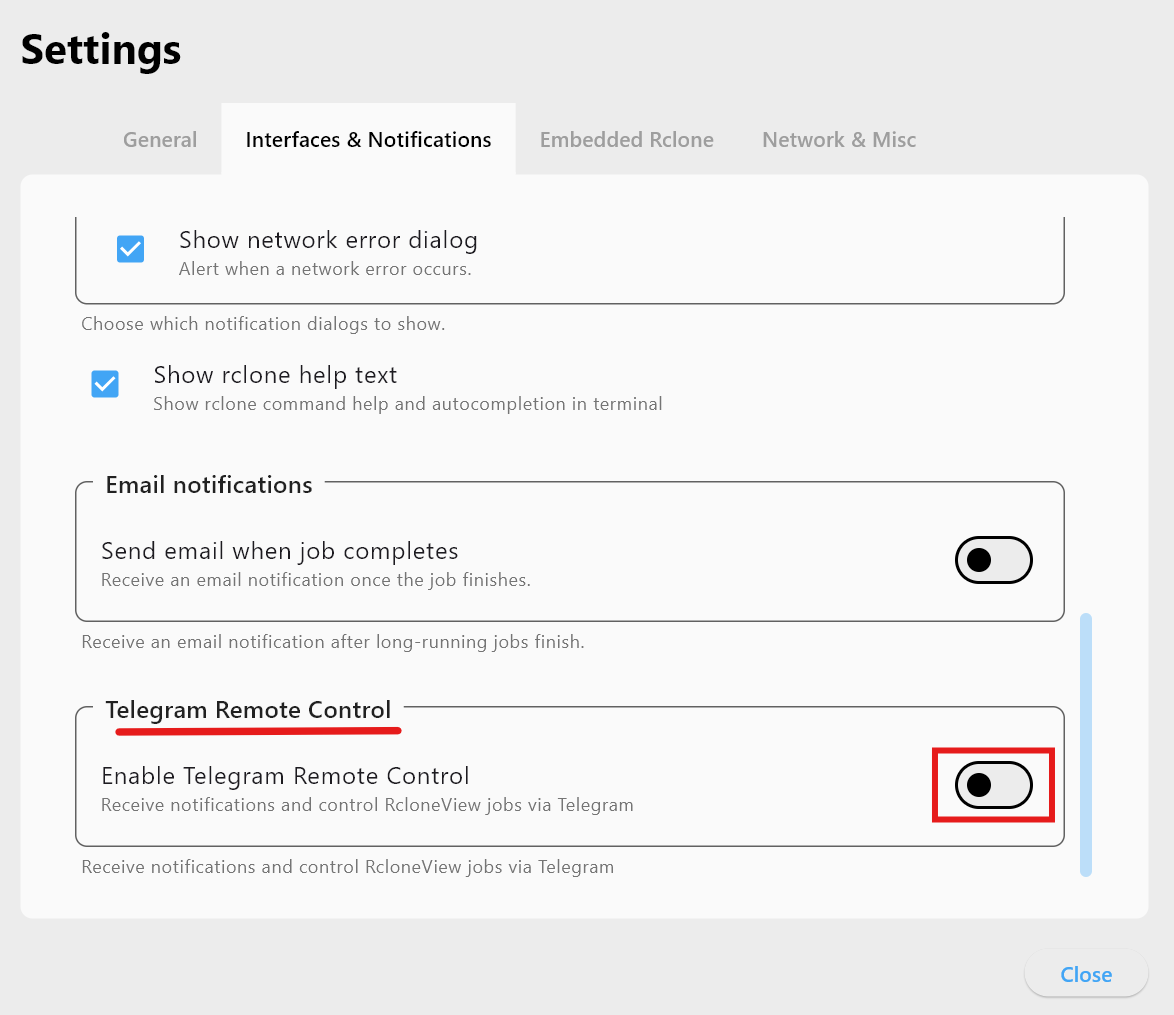
Step 4-1 Open settings
- Open RcloneView.
- Go to Settings.
- Select Interfaces & Notifications.
- Find Telegram Remote Control.
Step 4-2 Turn it on
Enable Telegram Remote Control:
Step 4-3 Enter Token and Chat ID
- Telegram Bot Token: from BotFather
- Telegram Chat ID: from
getUpdates
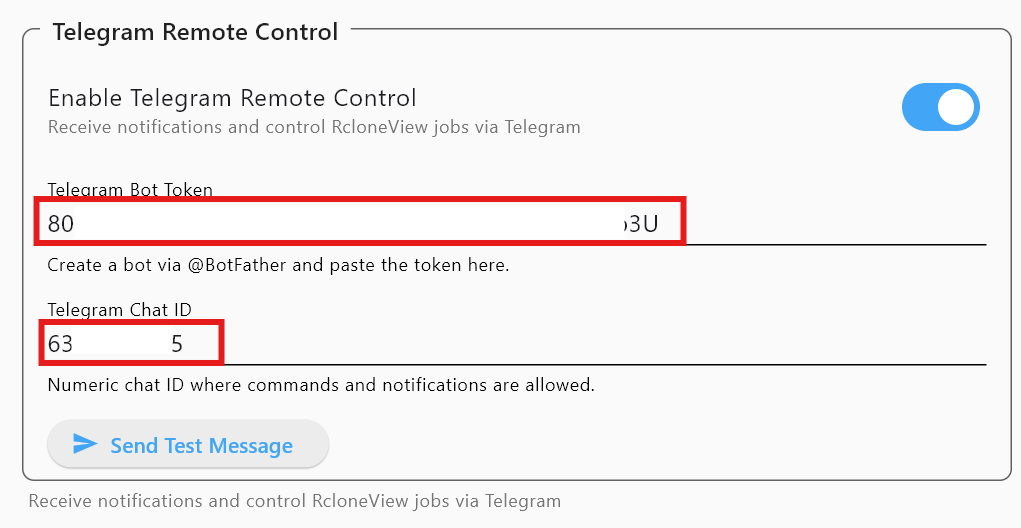
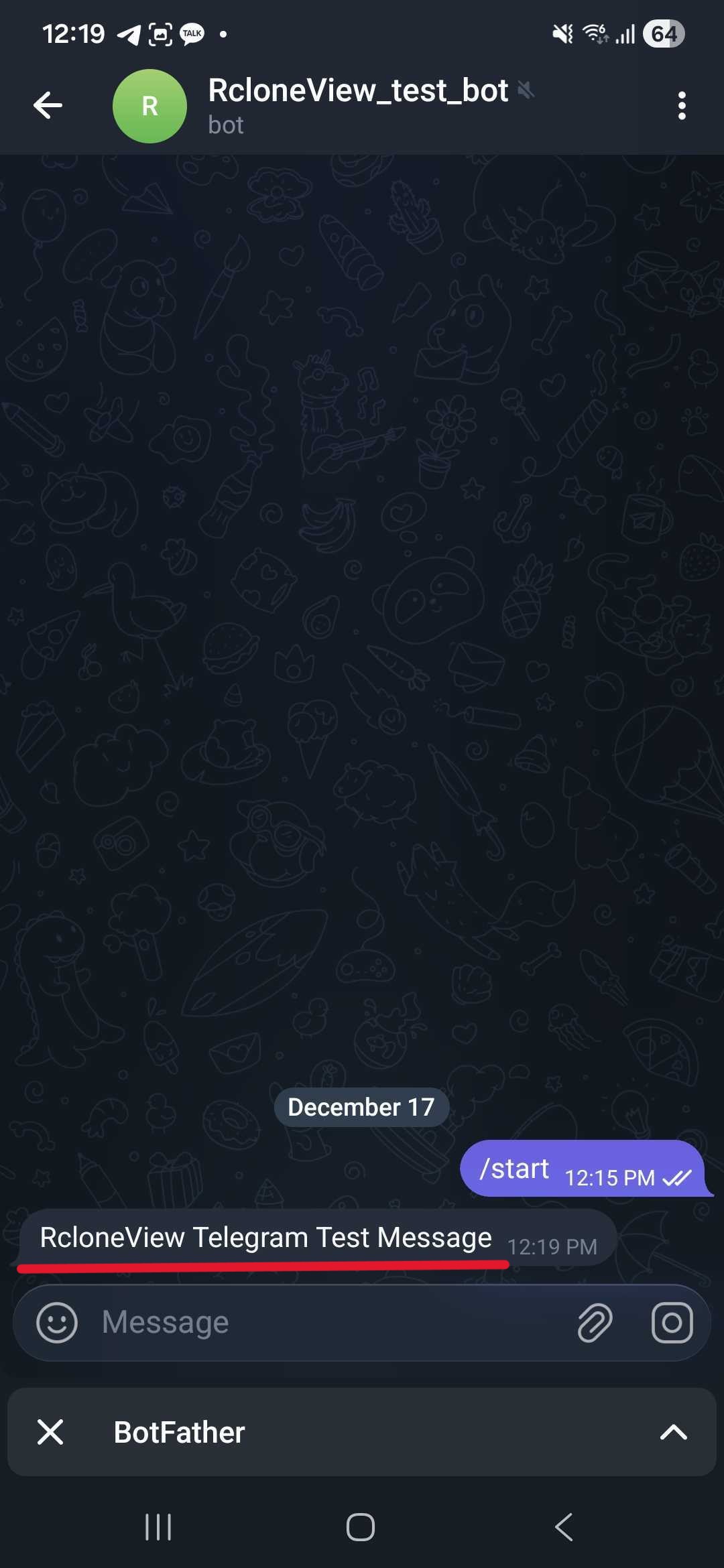
Step 4-4 Send a test message
Click Send Test Message. If it works, you will receive:
RcloneView Telegram Test Message
Step 5 Telegram Commands (Job Control)
Type these commands in your Telegram chat with the bot.
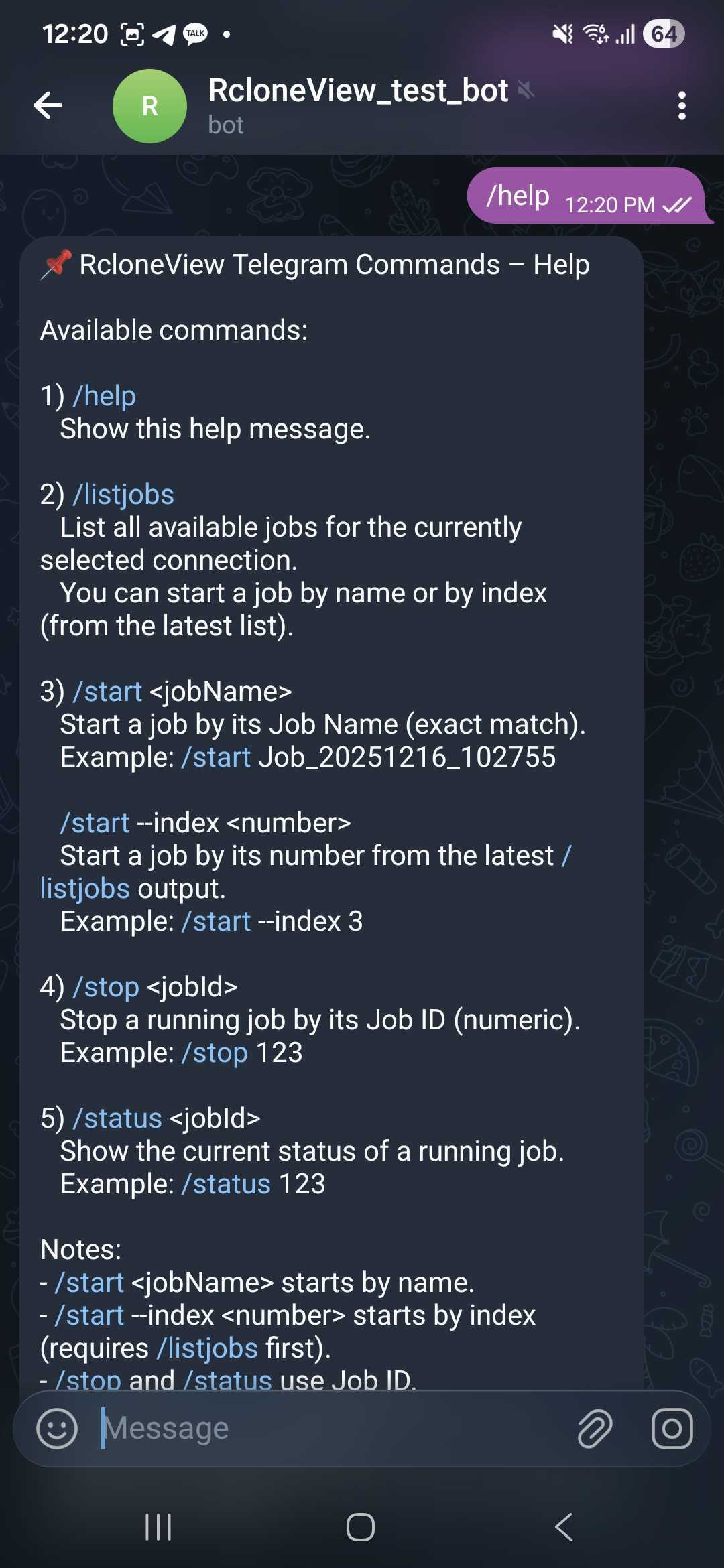
/help
Shows all available commands:
/help
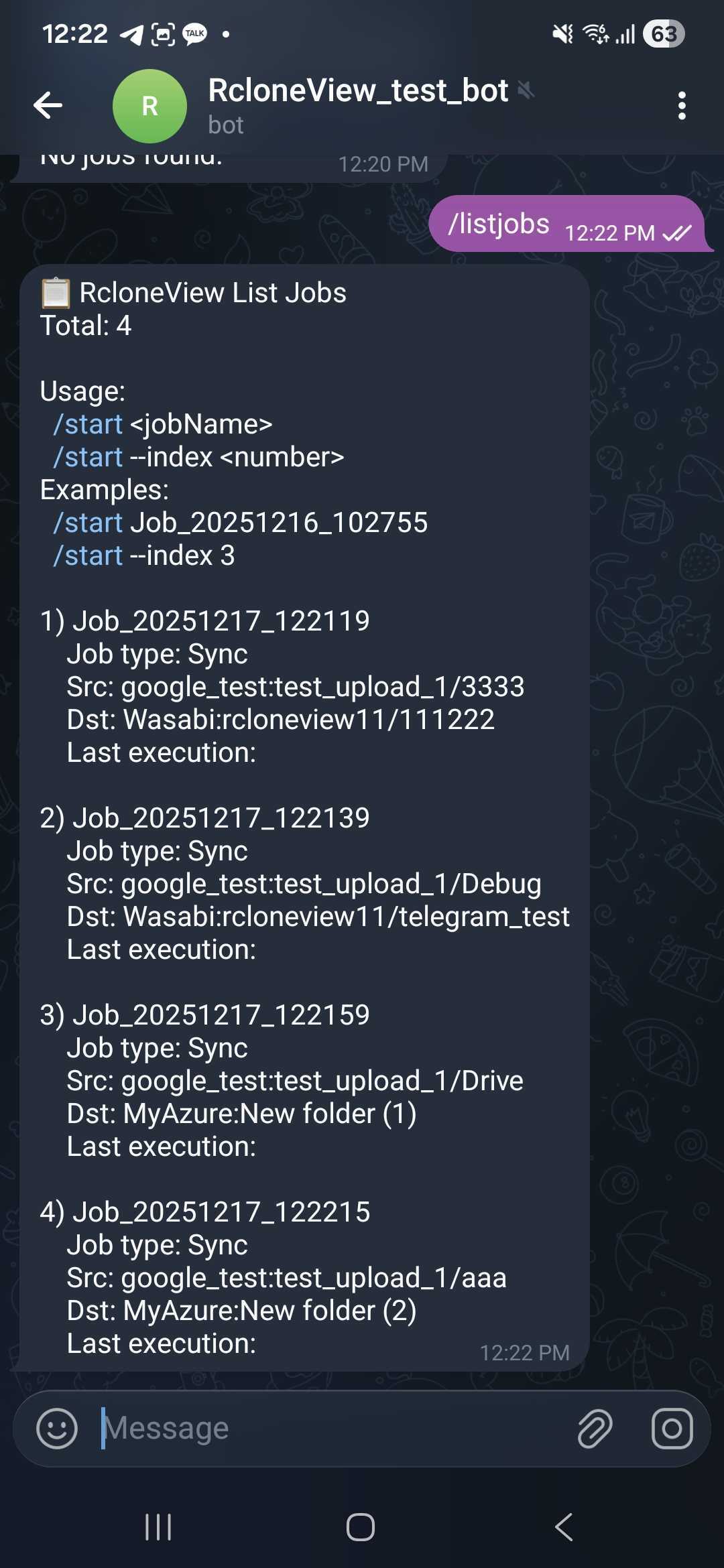
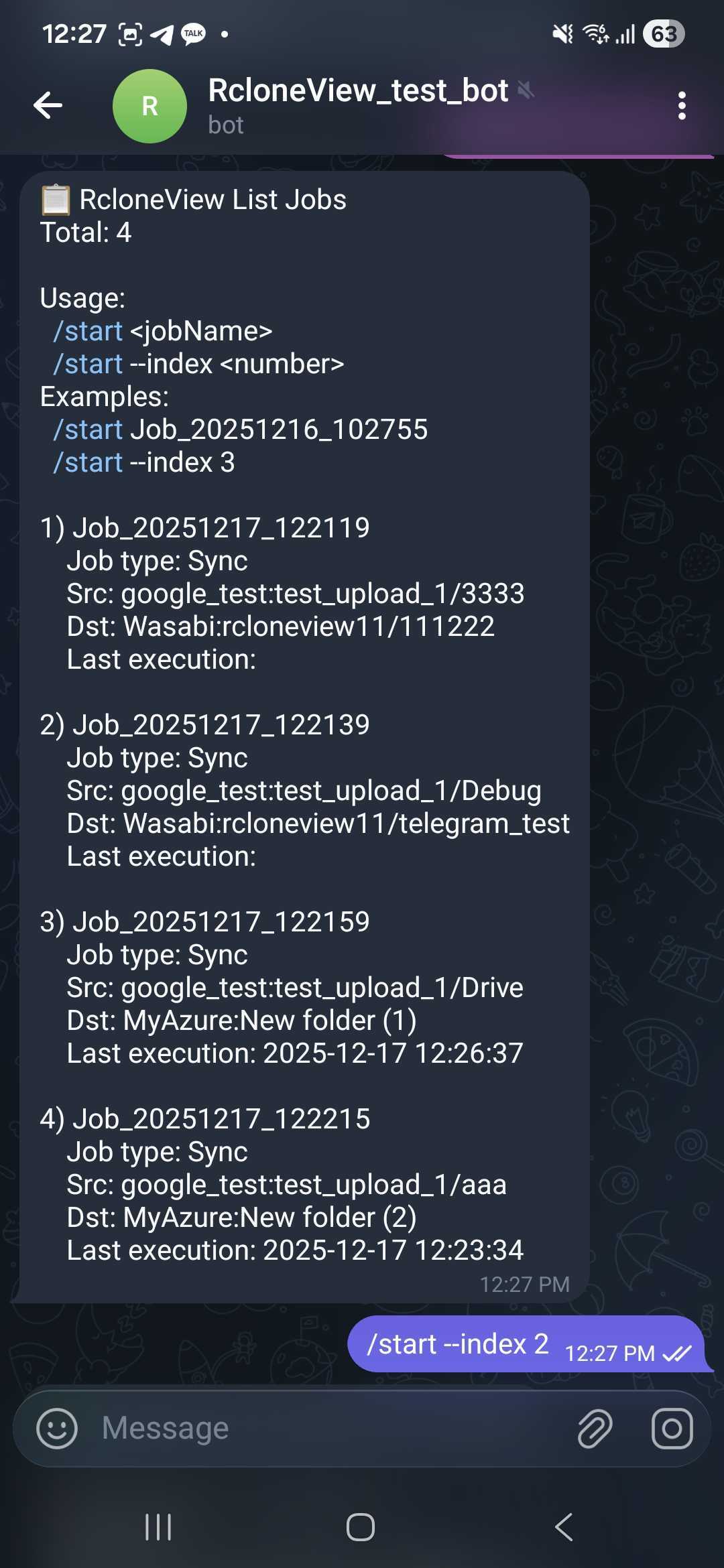
/listjobs
Lists jobs for the currently selected connection:
/listjobs
Example output:
Total: 3
1) Backup_Photos
2) Sync_Documents
3) Archive_To_NAS
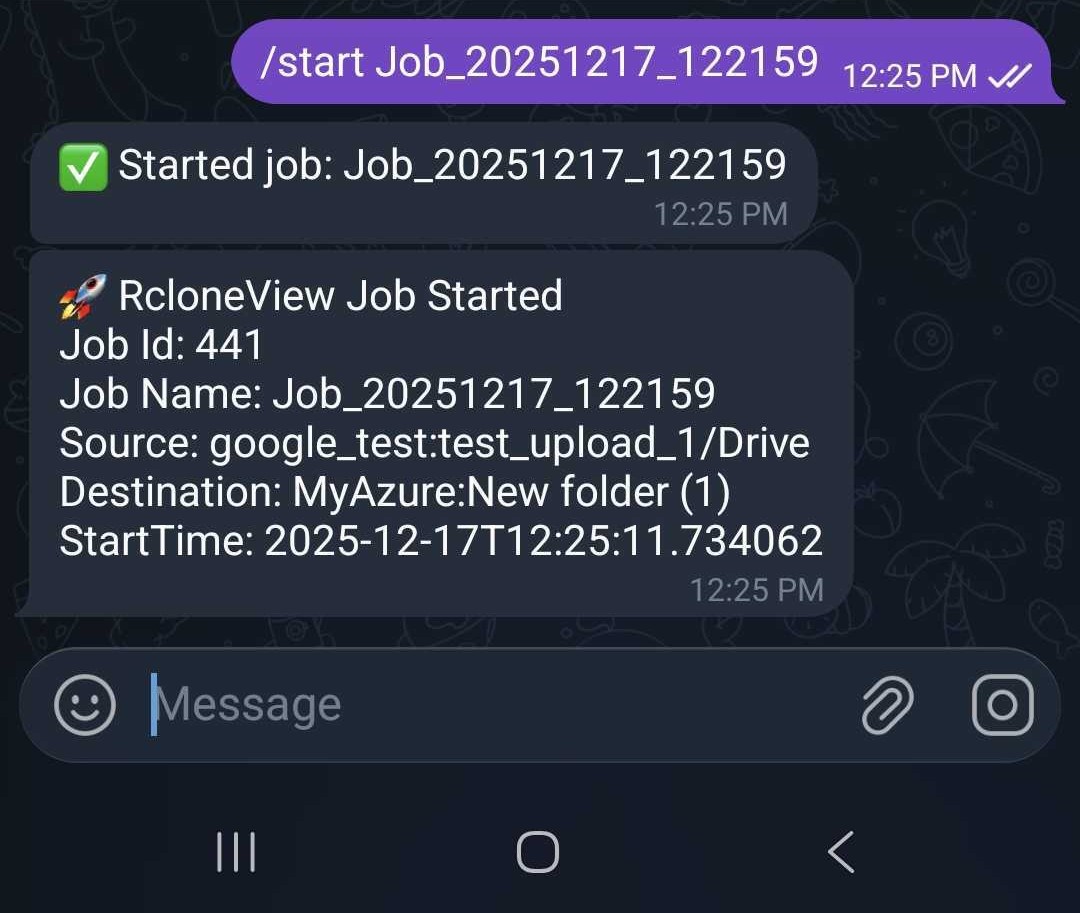
/start <jobName>
Starts a job by name:
/start Backup_Photos
Use /listjobs to copy the exact job name.
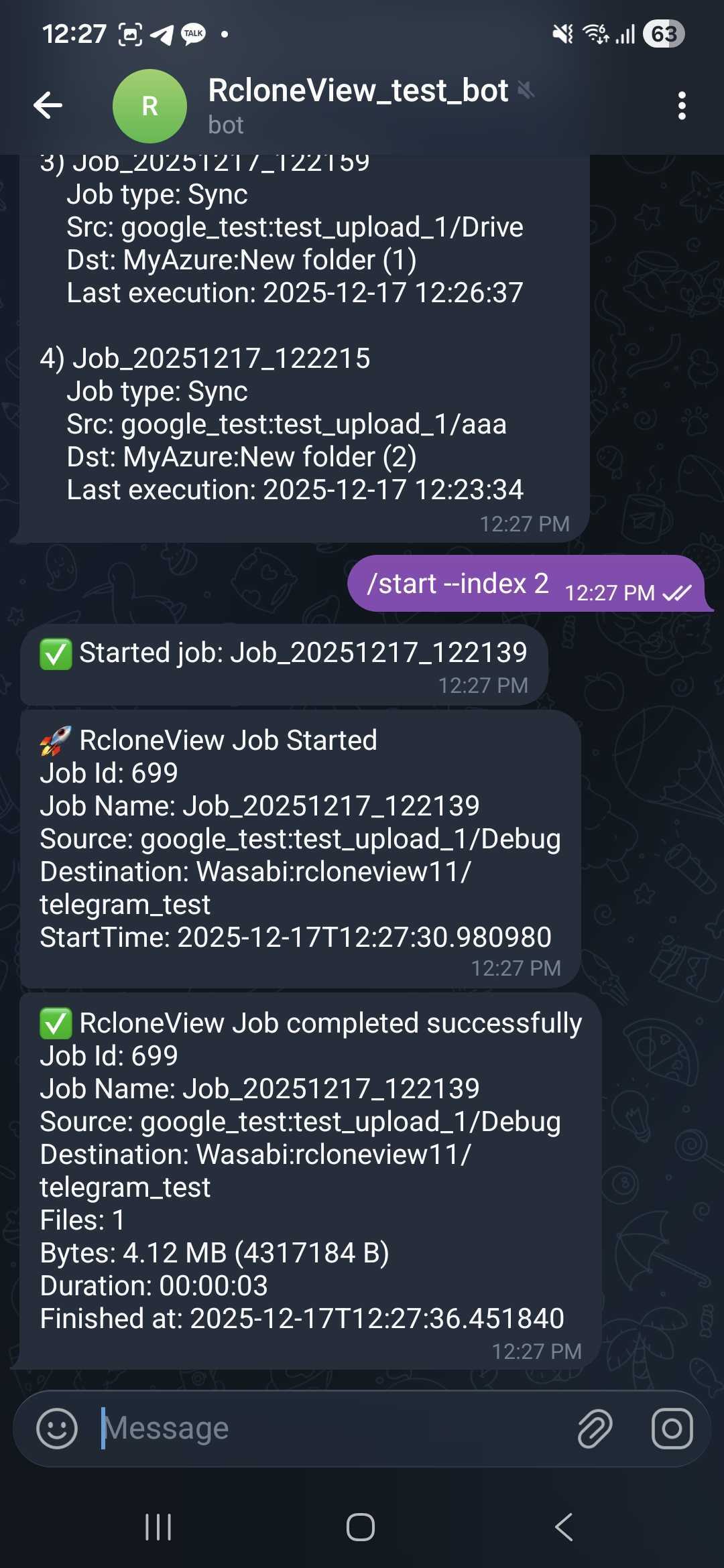
/start #<number> (Recommended)
Start a job by its number from the latest /listjobs result:
/start #2
/listjobs firstThe number is based on the current job list output.
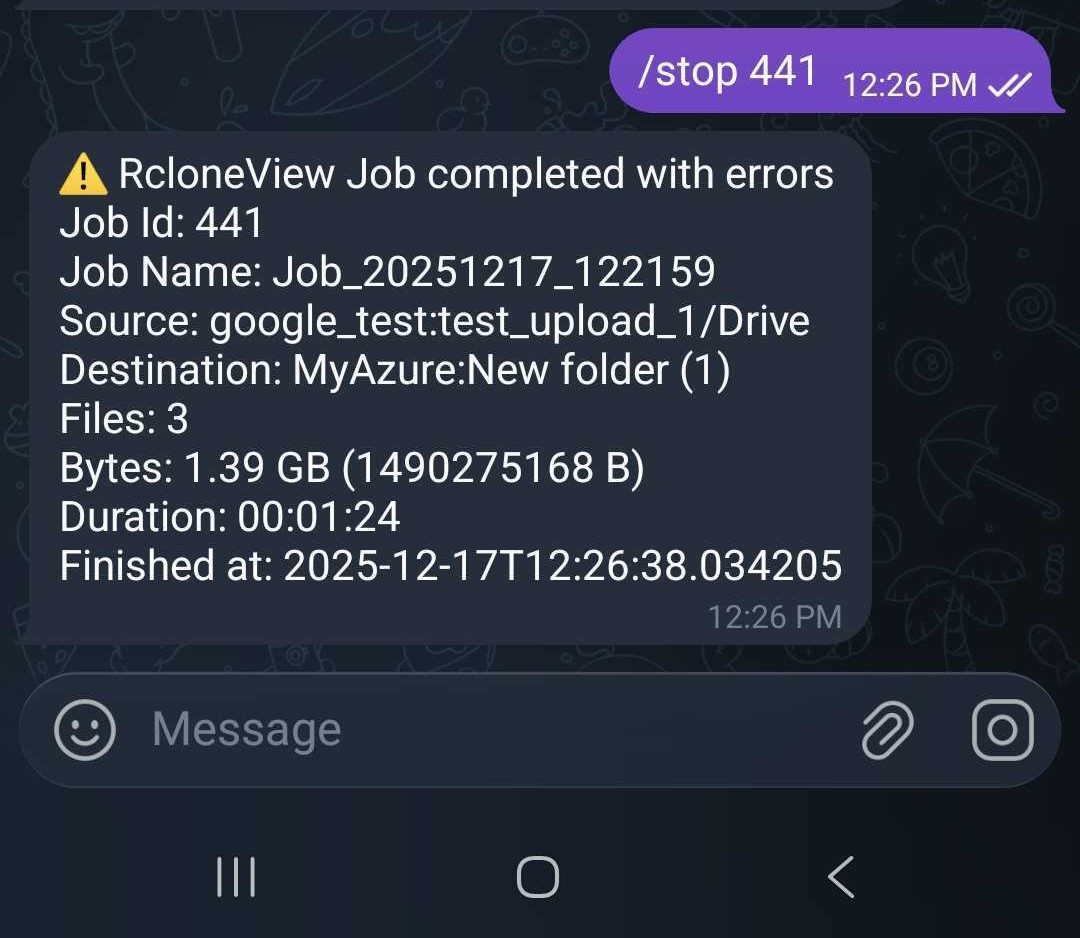
/stop <jobId>
Stops a running job:
/stop 123
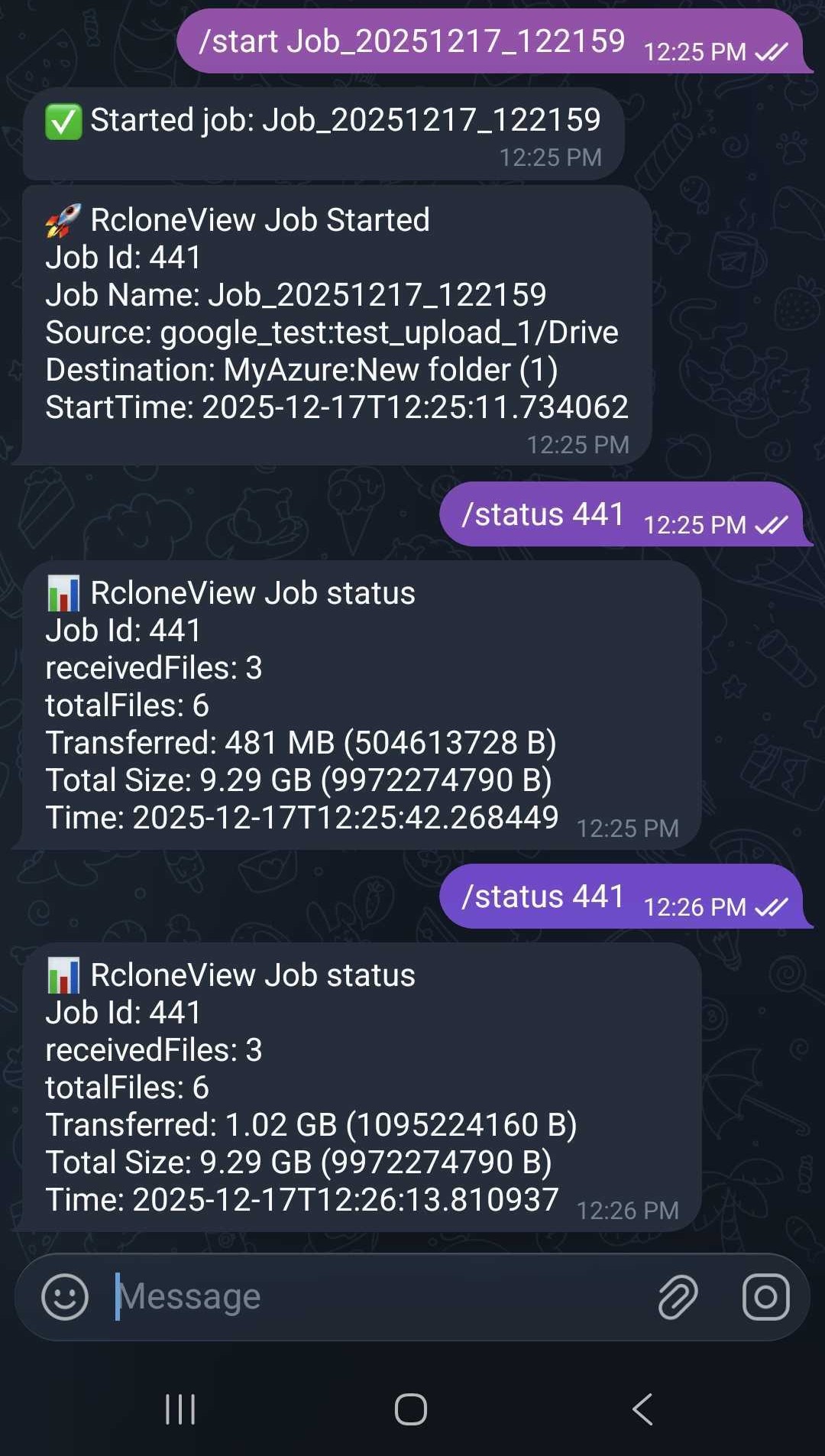
/status <jobId>
Shows progress for a running job:
/status 123
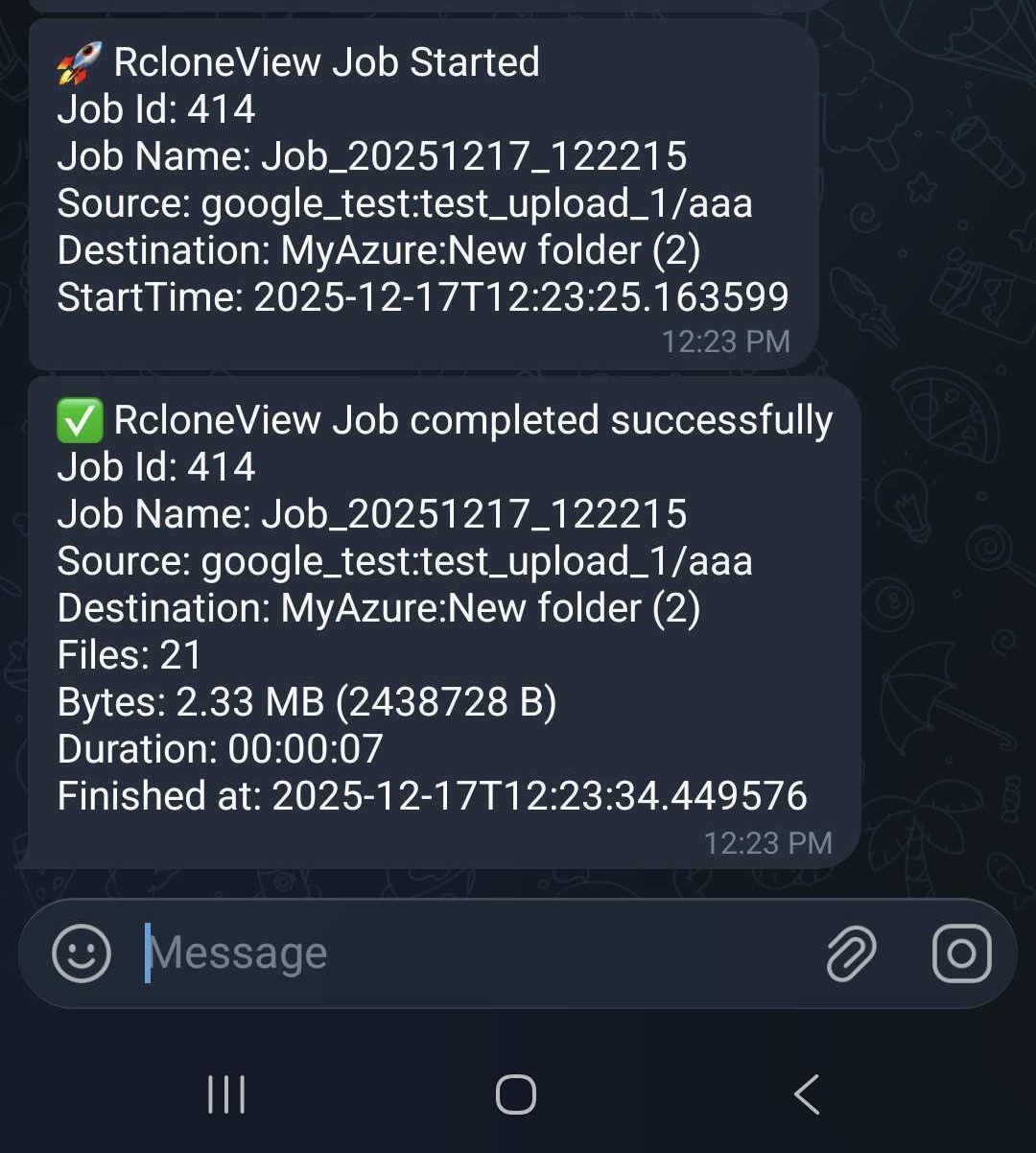
Automatic Job Notifications
When Telegram Remote Control is enabled, RcloneView can automatically send notifications for:
- Job started
- Job completed successfully
- Job failed with an error
Security Notes
- Commands are processed only from the configured Chat ID.
- Keep your Bot Token private. Treat it like a password.
- If you want to pause remote control, turn off the switch in settings.
Summary
Telegram Remote Control makes RcloneView easier to operate for long-running jobs:
- Manage jobs remotely
- Stay informed with real-time notifications
- Control jobs from mobile without opening your PC
Try it when you run scheduled backups, syncs, or large transfers and want visibility anywhere.