Use App Lock (Password Protection)
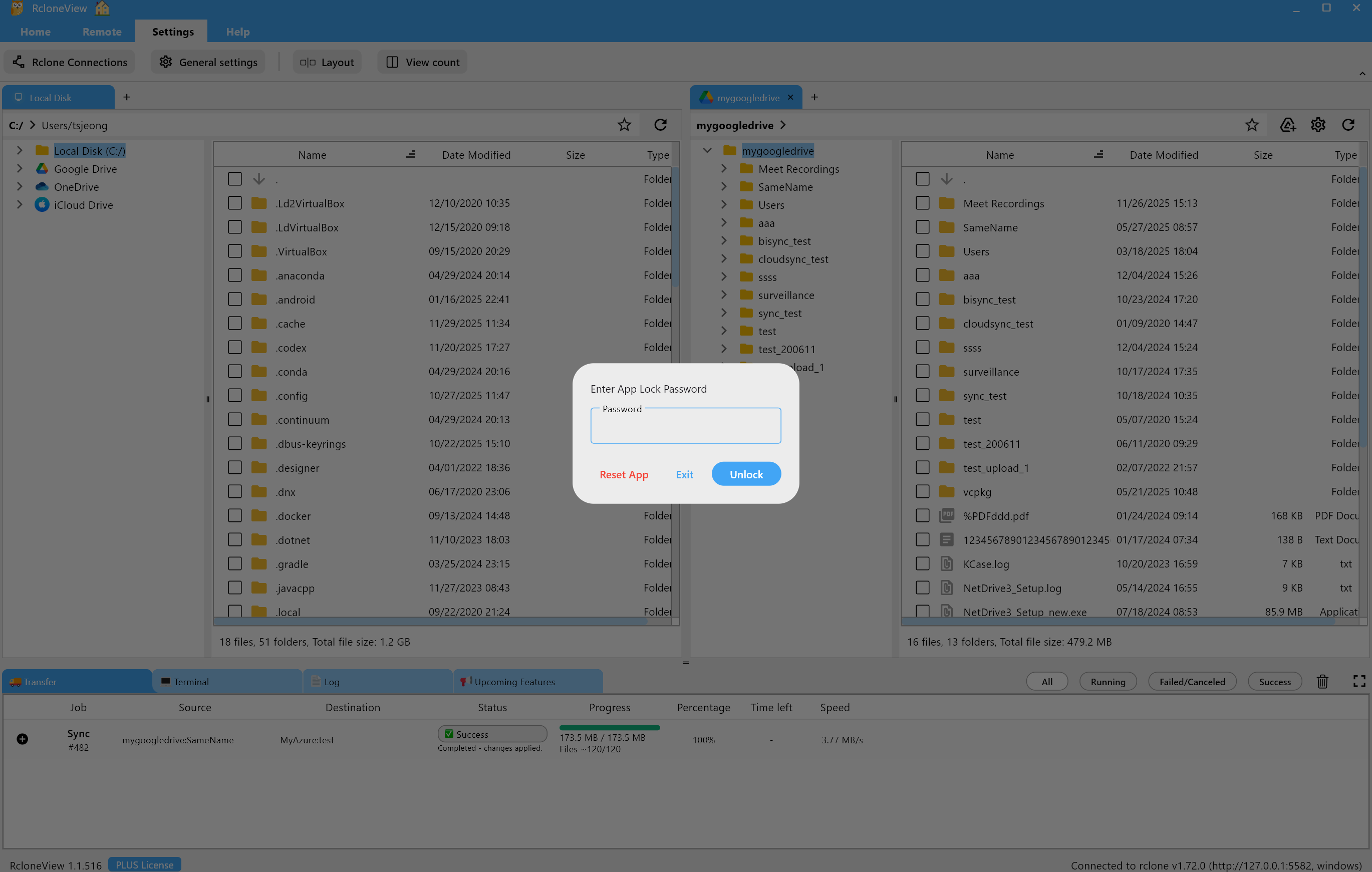
App Lock requires a password when RcloneView starts or is reopened, protecting your remotes, transfer records, jobs, mount info, job history, and internal database (rclone_view.db). It is ideal for shared or corporate PCs where multiple users may access the machine.
Why use App Lock?
- Keep RcloneView jobs, mounts, and transfer history private.
- Suitable for shared PCs or office environments.
- Protect sensitive sync/mount operations and automation jobs.
- Adds a security layer even if auto jobs are running in the background.
How to enable App Lock
Step 1 — Open Settings
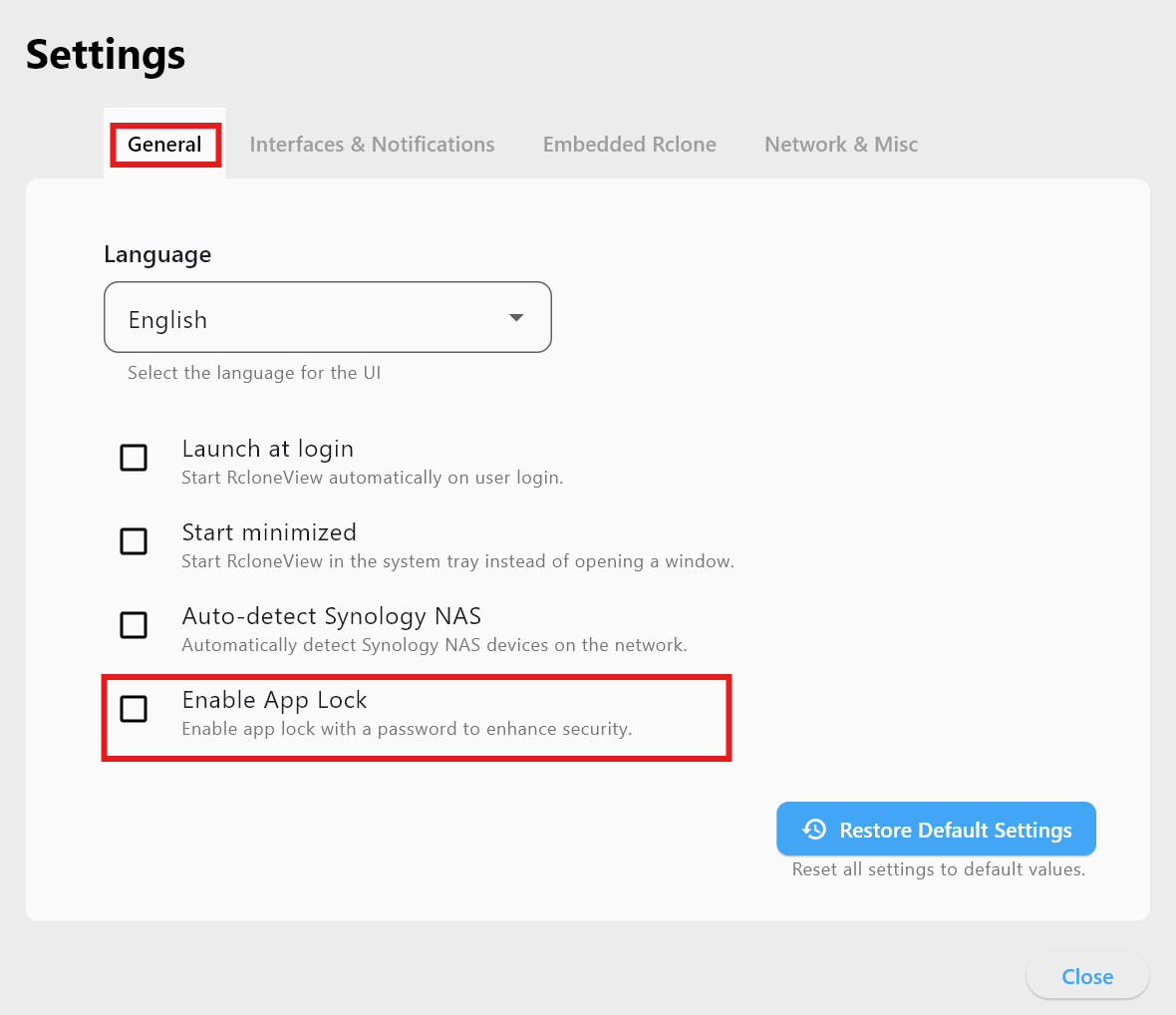
- Go to Settings → General Settings from the top menu.

Step 2 — Turn on App Lock in the General tab
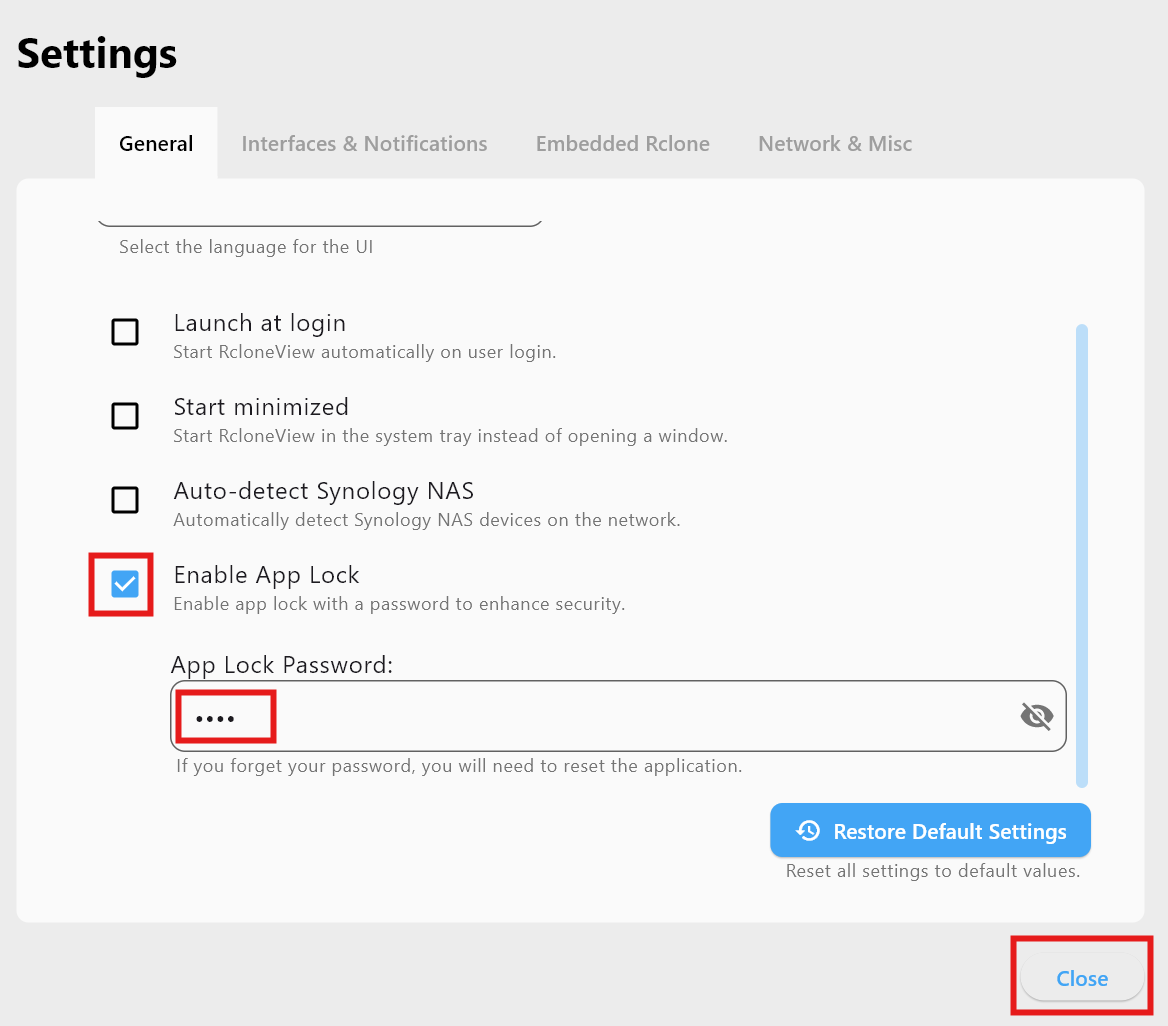
- In General, check Enable App Lock.
- Enter the password you want to use.
- Click Close to save.
How App Lock works
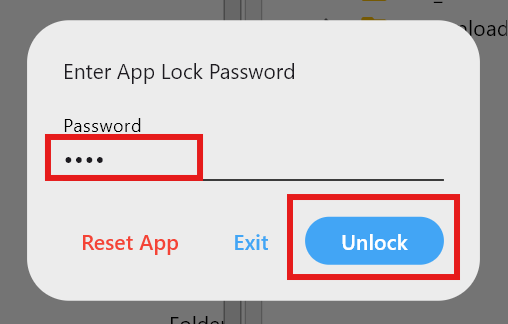
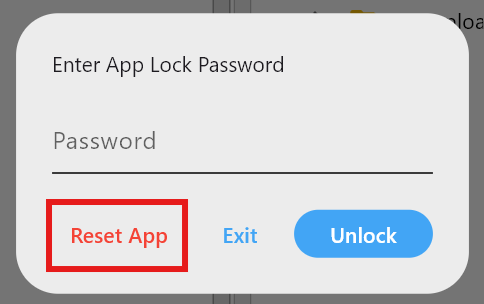
When App Lock is enabled, launching RcloneView or reopening its window prompts for the password before access is granted.
Reset App Lock (Reset App)
If you forget the password, click Reset App on the password prompt.
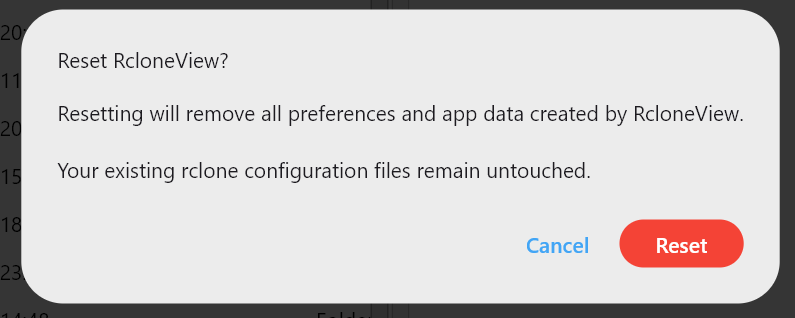
Warning: Reset App clears all internal RcloneView data:
- App Lock password
- All settings values
- Transfer history
- Job definitions
- Job history
Not reset: rclone config (rclone.conf) remains, so remote definitions stay intact.
Recommended use
- Shared or public PCs.
- Company or institutional environments.
- When you run many automated jobs and want to prevent tampering.
- When you need to protect job/transfer history and internal data.
Summary
| Item | Description |
|---|---|
| Function | Requires password when RcloneView starts/reopens |
| Protects | Settings, jobs, transfer history, DB file |
| Trigger | App launch or re-open |
| Reset | Reset App clears internal data; keeps rclone.conf |
| Best for | Shared PCs, high-security environments |
App Lock is a small switch that provides a strong shield. Enable it to keep your RcloneView activity and history private.