RcloneView Discord Remote Control
Discord Remote Control lets you receive RcloneView job notifications and control jobs directly from Discord — without sitting in front of your PC.
This tutorial covers:
- Creating a Discord application and bot
- Setting the Installation Context to Guild Install
- Getting the required IDs (Bot Token, Application ID, Discord User ID)
- Enabling Discord Remote Control in RcloneView
- Using Discord commands to list/start/stop jobs and check status
What is Discord Remote Control?
Discord Remote Control is a built-in RcloneView feature that allows you to:
- Receive real-time notifications for job start, completion, and errors
- List registered jobs
- Start a job remotely
- Stop a running job
- Check job progress and status on demand
As long as RcloneView is running, you can manage your cloud jobs from your Discord client.
Requirements
- RcloneView installed and running (Desktop or Headless)
- A Discord account
- Permission to create and install a Discord bot in a server (Guild Install)
- Internet connection
Step 1: Create a Discord Application and Bot
Step 1-1 Open the Discord Developer Portal
- Go to the Discord Developer Portal.
- Click New Application and name it (e.g.,
RcloneView).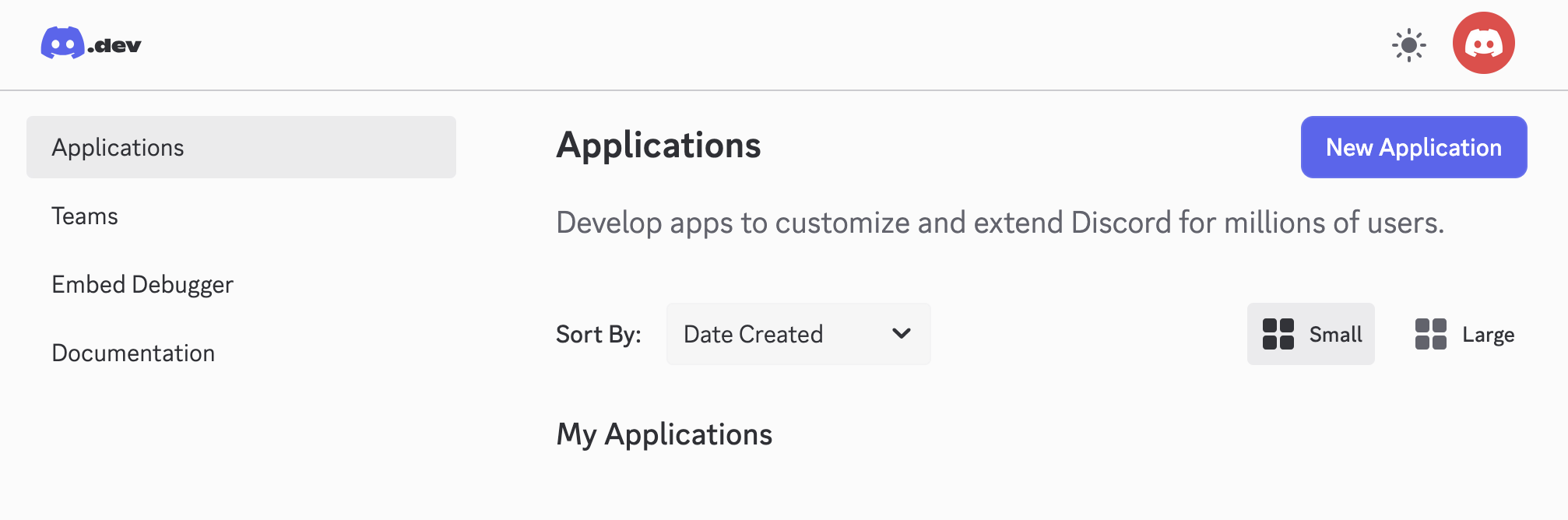
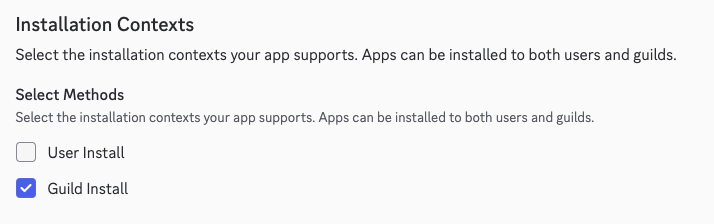
Step 1-2 Set Installation Context to Guild Install
- In the left menu, open Installation.
- Under Installation Contexts, select Guild Install. (Disable User Install if it is on.)
- Save your changes.
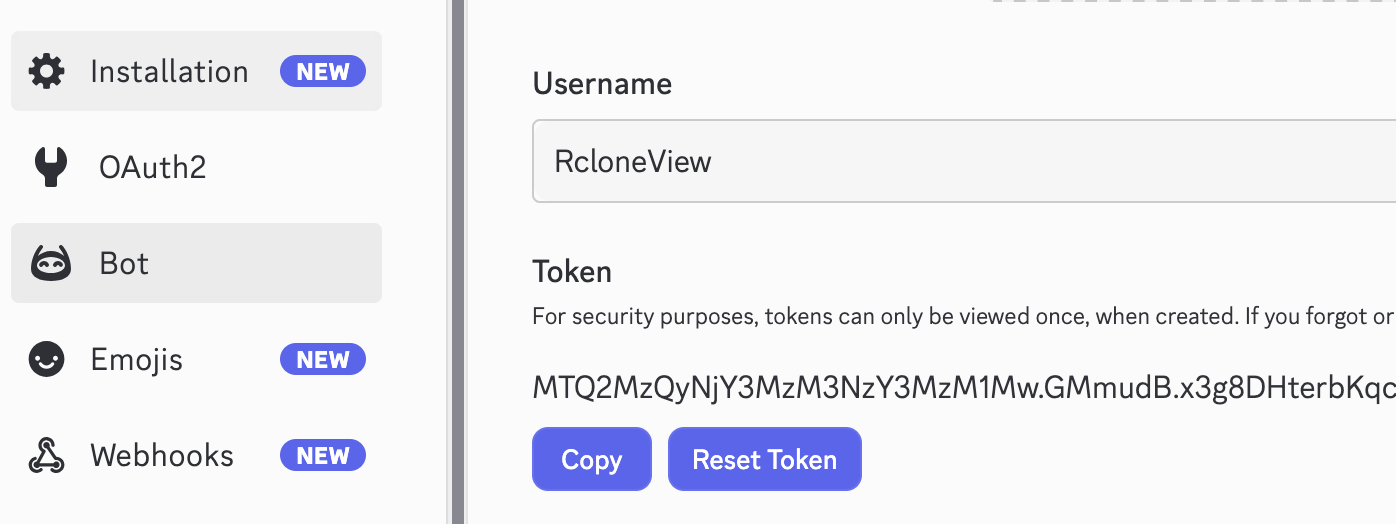
Step 1-3 Add a Bot and issue the Bot Token
- Open the Bot tab.
- Click Add Bot and confirm.
- Click Reset Token (or Copy Token) to get your Discord Bot Token. Keep it secret.
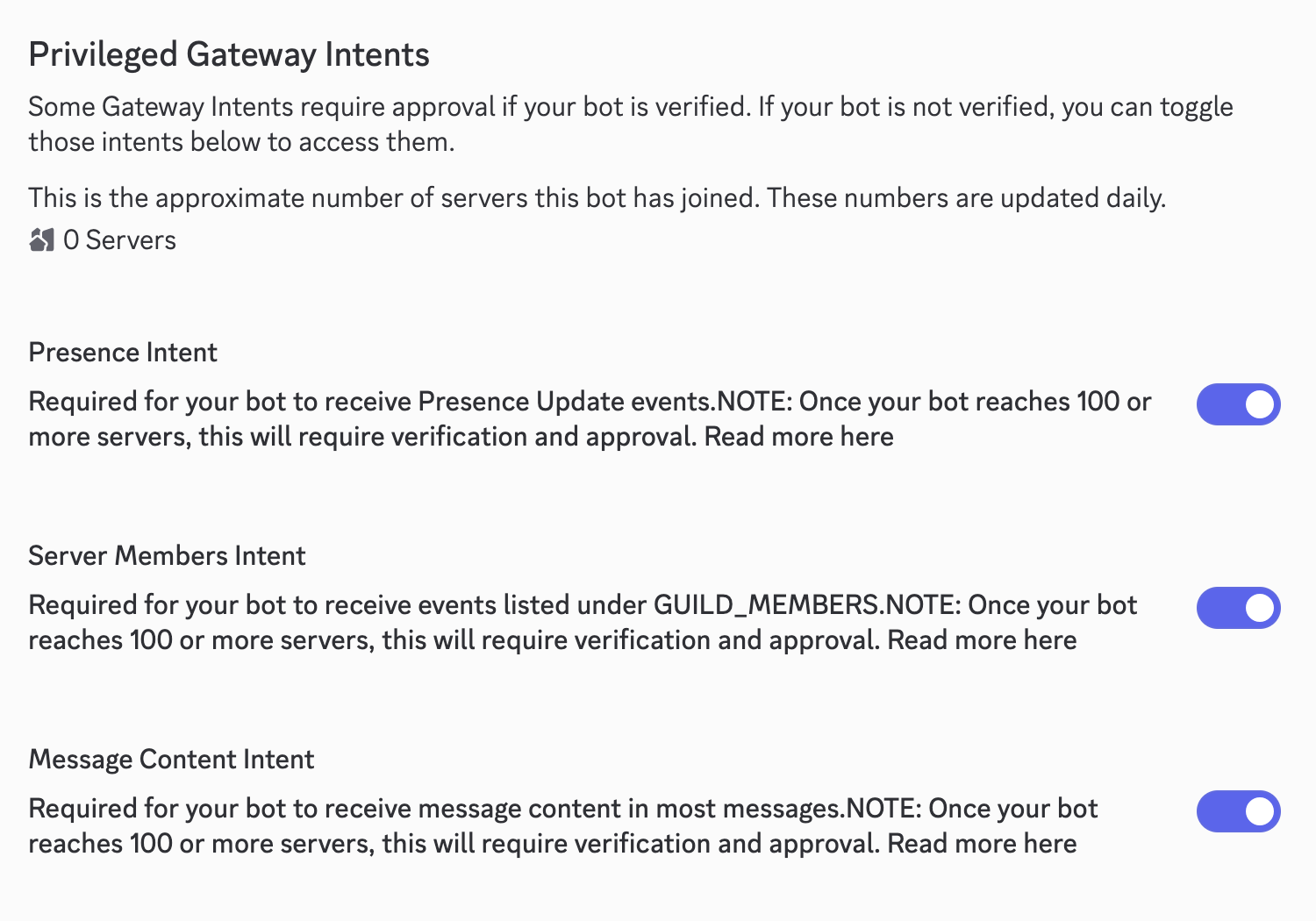
Step 1-4 Allow the bot to read messages (recommended)
If you plan to send text commands (instead of slash commands), enable MESSAGE CONTENT INTENT in the Bot tab so RcloneView can read your command text in DMs or channels.
Step 2: Create a Server and Install the Bot
To use the bot, you need a Discord server (also called a "Guild") where the bot can live. If you don't have a private server for your RcloneView logs, follow the steps below.
Step 2-1 Create a New Discord Server
- Open your Discord app (Desktop or Web).
- Click the plus (+) icon (Add a Server) at the bottom of your server list on the left.
- Select Create My Own.
- Choose For me and my friends.
- Give your server a name (e.g.,
RcloneView Control Center) and click Create.
Step 2-2 Install the Bot to Your Server
- Go back to the Discord Developer Portal.
- Open OAuth2 > URL Generator.
- Select scopes: bot and applications.commands.
- In Bot Permissions, select Send Messages, Use Slash Commands, and Attach Files (if you want to receive log files).
- Copy the generated URL at the bottom and paste it into your browser.
- Select the server you just created (e.g.,
RcloneView Control Center) and click Authorize.
Step 3: Collect the Values RcloneView Needs
- Discord Bot Token: From Bot tab (Step 1-3).
- Discord Application ID: From General Information in the Developer Portal.
- My Discord User ID (Snowflake): A long number that uniquely identifies you.
How to get your Discord User ID
To get your Discord User ID, first enable Developer Mode:
- Open Discord (Desktop or Web).
- Click User Settings (⚙️) at the bottom left.
- In App Settings, open Advanced.
- Toggle Developer Mode to On.
Then copy your ID:
- Right-click your Profile Picture or Username (in the bottom left or in a chat/member list).
- Click Copy User ID.
- Save the long numeric string (example:
123456789012345678).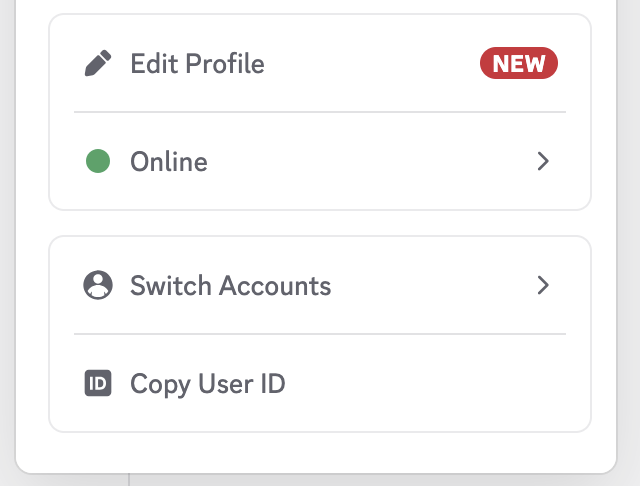
Why is this ID needed?
- Security: Only commands from your account are processed by the Flutter app.
- Direct Notifications: The bot knows exactly which user to send DMs to when a job starts or fails.
Step 4: Enable Discord Remote Control in RcloneView
Step 4-1 Open Settings
- Launch RcloneView.
- Go to Settings -> Interfaces & Notifications.
Step 4-2 Enter credentials
- Toggle on Discord Remote Control.
- Enter:
- Discord Bot Token:
... - Discord Application ID: From General Information.
- My Discord User ID:
123456789012345678
- Discord Bot Token:
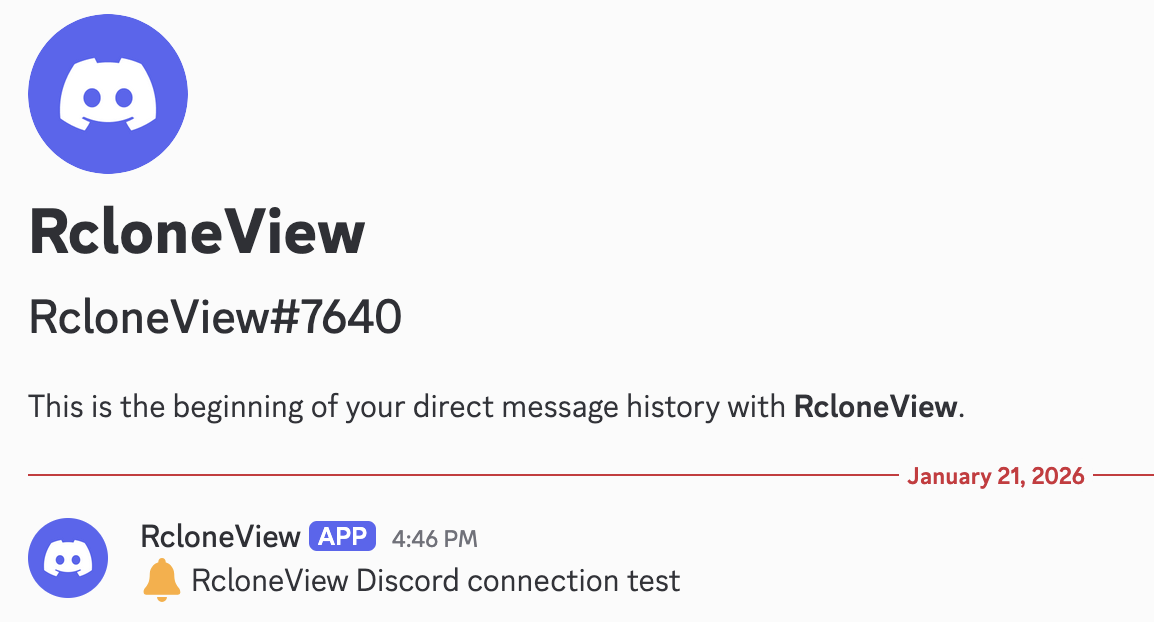
Step 4-3 Send a test message
Click Send Test Message. If successful, you will receive a DM from the bot in Discord.
Step 5: Discord Commands (Job Control)
Send commands to the bot (DM is recommended for privacy, but you can also use a channel where the bot is present and you have permission to run it).
/help
Shows all available commands.
/joblist
Lists jobs for the currently selected connection.
/start <jobName>
Starts a specific job by its name.
/start #<number> (Recommended)
Starts a job using the index from the latest /joblist result (example: /start #1).
/stop <JobId>
Stops a running job.
/jobstatus <JobId>
Checks the real-time progress and statistics of a specific job.
Automatic Job Notifications
Once enabled, RcloneView automatically sends notifications for:
- Job started
- Job completed successfully
- Job failed with an error
Security Notes
- Commands are only processed if they come from the configured Discord User ID.
- Keep your Discord Bot Token and Application ID private.
- If you need to pause remote control, simply turn off the toggle in settings.
Summary
Discord Remote Control lets you operate long-running transfers without being at your PC:
- Remote job management from Discord
- Real-time status updates through notifications
- Instant control via mobile or desktop Discord
Set it up once and manage your cloud automation from anywhere.