Google Drive to OneDrive Transfer Guide
Cloud storage services have become essential for managing documents, media, and backups. Two of the most widely used services are Google Drive and Microsoft OneDrive. Each provides generous storage, integration with productivity tools (Google Workspace and Microsoft 365), and wide platform support.
While both platforms provide their own cloud ecosystems, RcloneView offers a centralized interface to manage, transfer, and synchronize files between them—without complex scripts or command-line operations.
In this guide, we’ll walk you through how to transfer files from Google Drive to OneDrive using RcloneView, a GUI-based tool built on top of Rclone that makes multi-cloud file management simple and powerful.
Why Use RcloneView for Cloud-to-Cloud Transfers?
RcloneView is a powerful GUI built on top of the Rclone engine, designed to simplify cloud storage management.
- Easily connect multiple cloud providers
- Intuitive interface for transferring files with drag-and-drop
- Compare folder contents before transferring
- Simple GUI with advanced features like dry-run, filters, and job scheduling
- Schedule recurring transfers and backups
- Secure OAuth login for Google Drive and OneDrive
Unlike traditional manual download/upload methods, RcloneView automates the process through direct API-based operations—allowing smooth, unattended transfers between cloud storages.
📙 Transfer Files from Google Drive to OneDrive
Add Google Drive and OneDrive Remotes in RcloneView
- Open RcloneView and click
+ New Remotefrom theRemotemenu. - In the
Providertab, search and select Google Drive. - Proceed through the wizard and complete OAuth login.
- Repeat the same process for OneDrive.
🔍 For detailed setup, see:
Open Both Remotes in the Explorer Pane
- Open RcloneView and go to the Browse tab in Explorer pane.
- In one pane, click the plus icon
+in its header and select your Google Drive remote from the list. - In the other pane, click the
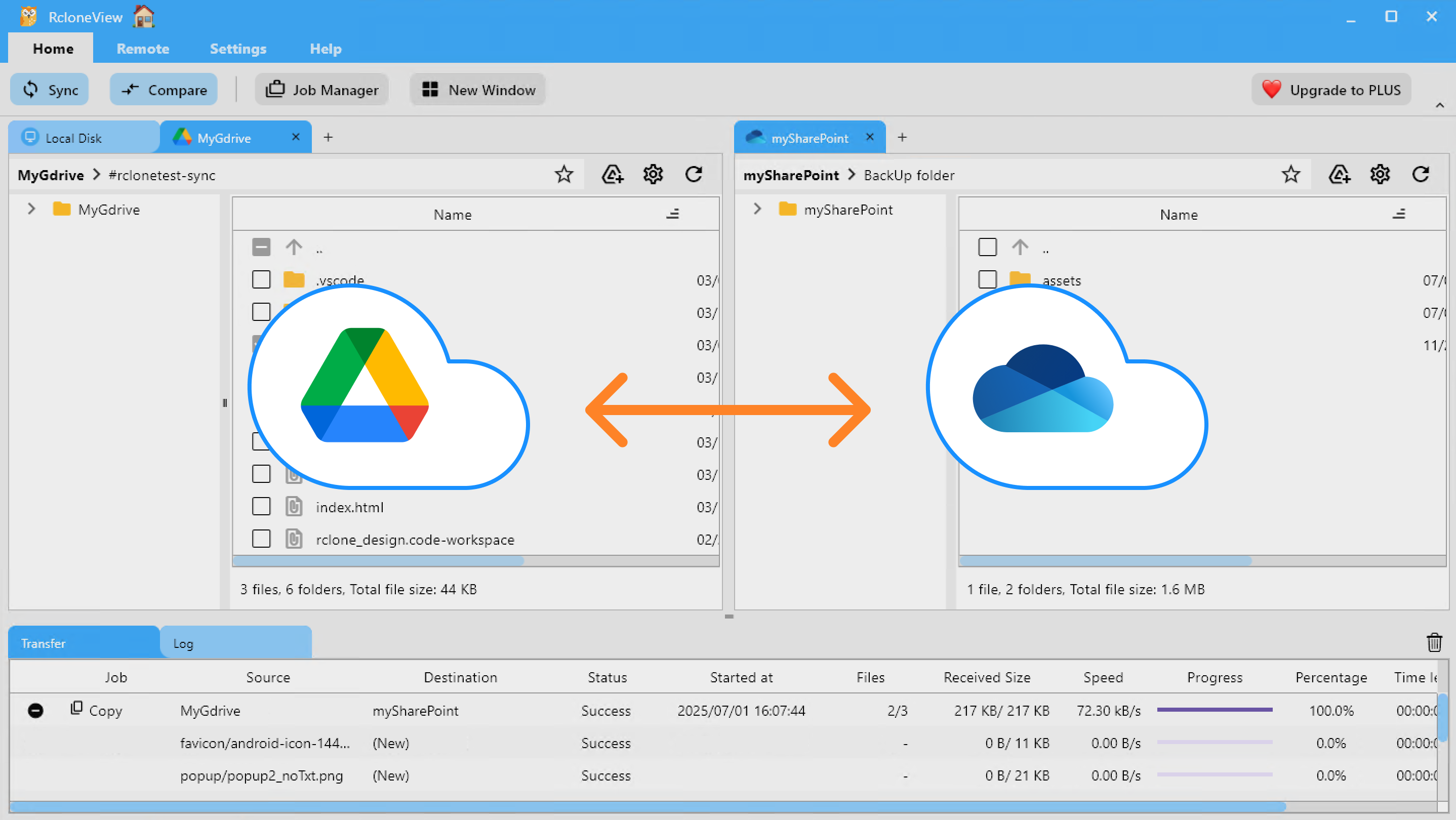
+icon and choose your OneDrive remote from the list. - Both remotes will now appear side‑by‑side, allowing you to easily copy, compare, drag, or sync files and folders between them.
📌 4 Methods to Transfer Files
RcloneView provides several powerful methods to move or sync data between Google Drive and OneDrive. Choose the one that fits your workflow:
🖱️ Method 1: Drag & Drop Between Explorer Panes
- Open RcloneView and navigate to the Browse tab (shown by default on startup).
- Ensure both cloud remotes (Google Drive and OneDrive) are visible side‑by‑side in the dual‑pane Explorer.
- Simply drag files or folders from the Google Drive pane and drop them into the OneDrive pane.
- The transfer will begin automatically via Rclone background engine. You can monitor progress in real time on the
TransferLogs tab.
This intuitive drag‑and‑drop interface simplifies moving or copying files—no commands needed.
👉 Learn more: Browse & Manage Remote Storage
🔍 Method 2: Compare Folder Contents, Copy, or Delete
- In both Explorer panes, navigate to and select the folders you want to compare (left: Google Drive, right: OneDrive).
- Click the
Comparebutton in the main menu tab to initiate folder comparison. - RcloneView will scan and highlight:
- Files only present on one side
- Files with the same name but different sizes
- Identical files
- Select files to choose which files you want to act on.
- To transfer files left→right, click
Copy →button. To transfer right→left, use← Copybutton. To remove a file from a remote, click theDeletebutton on its pane. - Progress and summary updates appear in the status bar.
This visual comparison minimizes errors by letting you review files before moving or deleting them.
👉 Learn more in the Compare Folder Contents guide
🔁 Method 3: Use Sync or Job
- In the Explorer pane, navigate to and select the Google Drive folder and the OneDrive folder you want to keep synchronized.
- Click the
Syncbutton in thehomemenu. - Choose sync options (ond-directional or vice versa), preview actions, and confirm.
- RcloneView will run the sync and display a progress indicator in
transferlog tab.
- Alternatively, for repeated or scheduled transfers:
1. Click Save to Jobs in Sync modal window Or Open Job Manager → click Add Job.
2. Configure source and destination and set options.
3. Save the job and run it manually or schedule it.
👉 Learn more:
⏰ Method 4: Schedule Automatic Sync Job
- In the Explorer pane, navigate to and select the Google Drive folder and the OneDrive folder you want to keep synchronized.
- Open
Job Managerfrom theHomeorRemotemenu, then clickAdd Job. - Verify your selected source and destination; adjust if needed.
- Use the schedule editor to define when the job should run. RcloneView provides a built-in simulation tool to preview your schedule pattern before saving it.
- Save and enable the scheduled job.
Once saved, RcloneView will automatically run the sync at the times you've specified.
Execution details and logs are available in Job History, and you'll receive a notification when the job completes successfully.
👉 Learn more: Job Scheduling and Execution
Final Thoughts
Transferring files between cloud services like Google Drive and OneDrive doesn’t need to be complicated. With RcloneView, it’s a matter of a few clicks — no command-line usage required.
This method is fast, secure, and reliable, whether you’re moving gigabytes of personal files or syncing company documents across accounts.
🎯 Try using RcloneView today and make your multi-cloud management effortless.
🔗 Related Guides
- How to Add Google Drive Remote
- How to Add OneDrive Remote
- Browse & Manage Remote Storage
- Compare Folder Contents guide
- Synchronize Remote Storages
- Create Sync Jobs
- Execute & Manage Jobs
- Job Scheduling and Execution
Supported Cloud Providers





























