Crypt
How to Add Crypt Using RcloneView
A Crypt Remote adds an encryption layer on top of an existing cloud remote (Google Drive, OneDrive, etc.).
Files still live on the original remote, while the Crypt remote handles encryption and decryption.
Why it is useful:
- Prevents providers from seeing file contents.
- Can also encrypt filenames for full privacy.
- Decryption happens automatically inside RcloneView.
- Ideal for sensitive backups.
Why a Crypt Remote Can Look Empty
Users often expect to see their plain files in a Crypt remote. Instead:
- Crypt shows only encrypted files.
- Plain files in the underlying remote are not shown in the Crypt view (this is normal).
Example:
mygoogledrive:Meet Recordingscontains plain files.MyCryptGoogle:wraps the same folder with Crypt.- In the Crypt remote it looks empty—this is expected.
When you upload via Crypt, files are stored encrypted, so:
- They appear normally (decrypted) in the Crypt remote.
- They appear with encrypted names in the original remote.
Create a Crypt Remote via New Remote
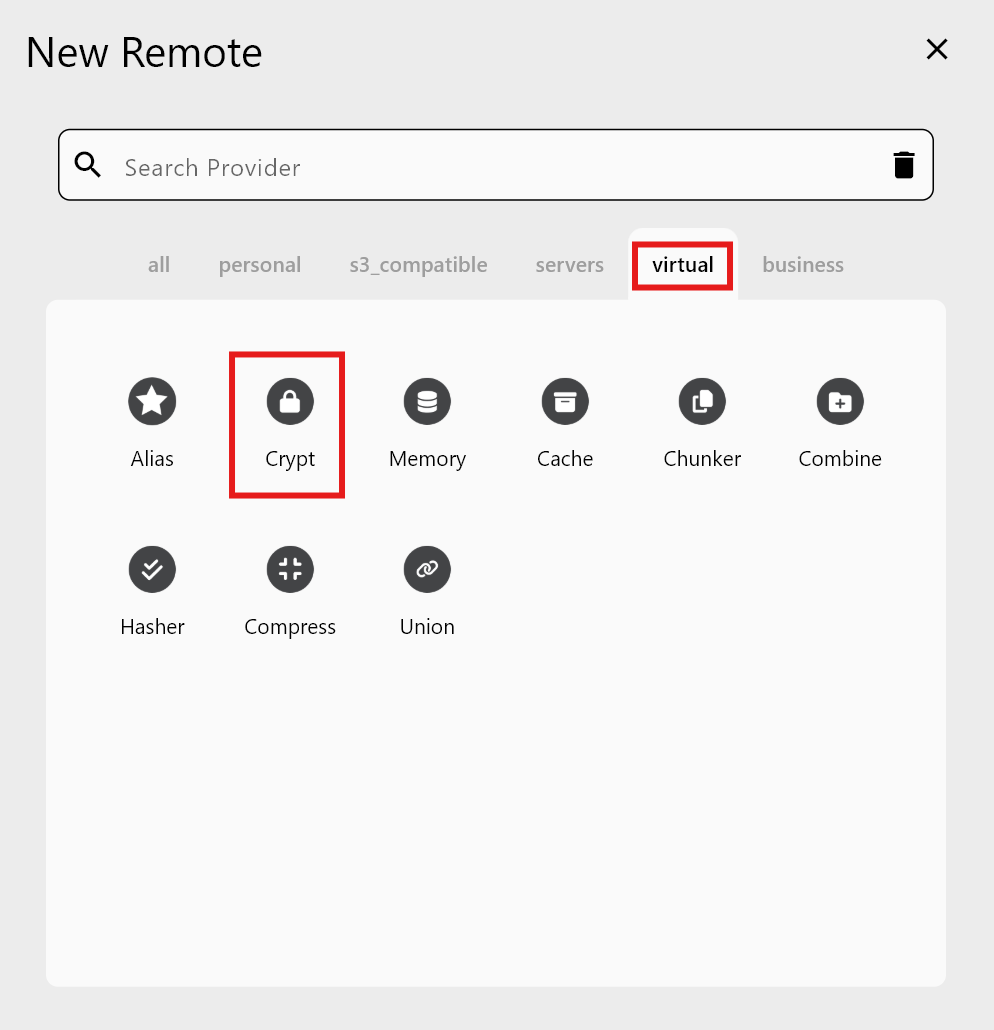
Step 1 — Open New Remote → Virtual → Crypt
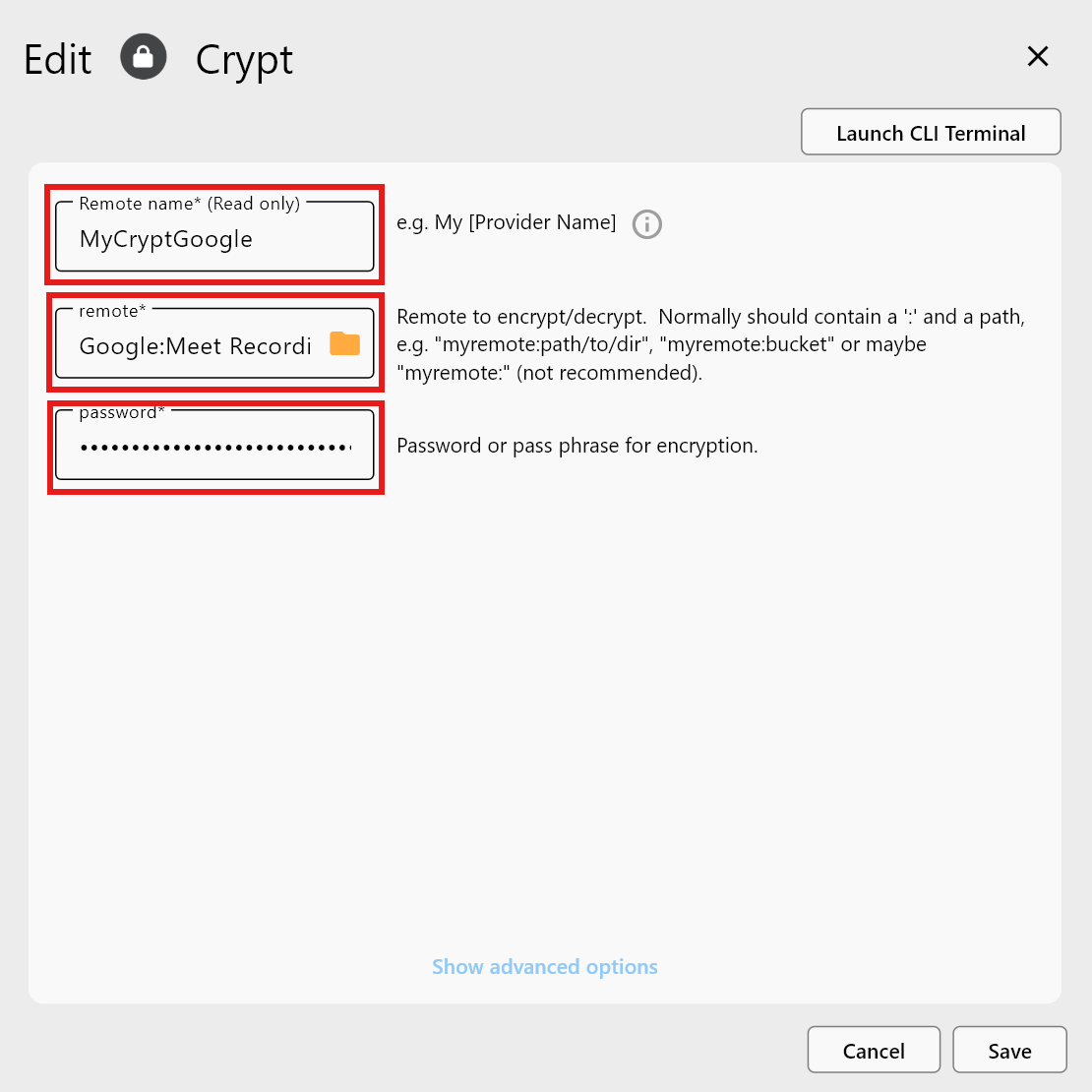
Step 2 — Enter Crypt details
Required fields:
- Remote name: Name of the Crypt remote (e.g.,
MyCryptGoogle). - Remote (folder to encrypt): Click the folder picker to choose the existing remote and folder to protect.
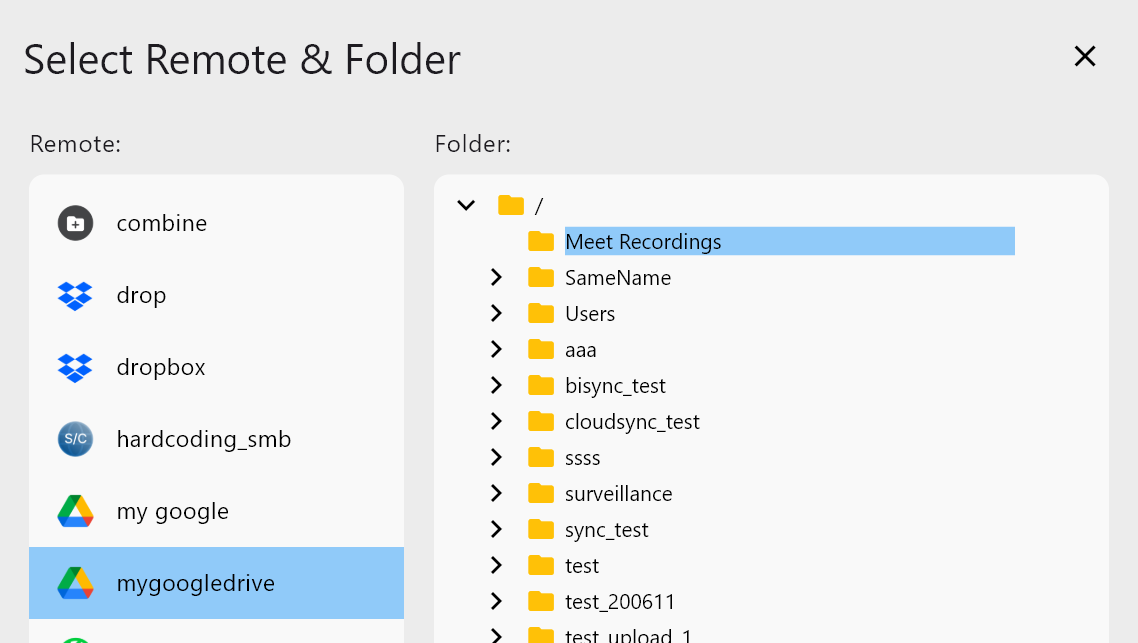
After selection, review the settings and click Add Remote.
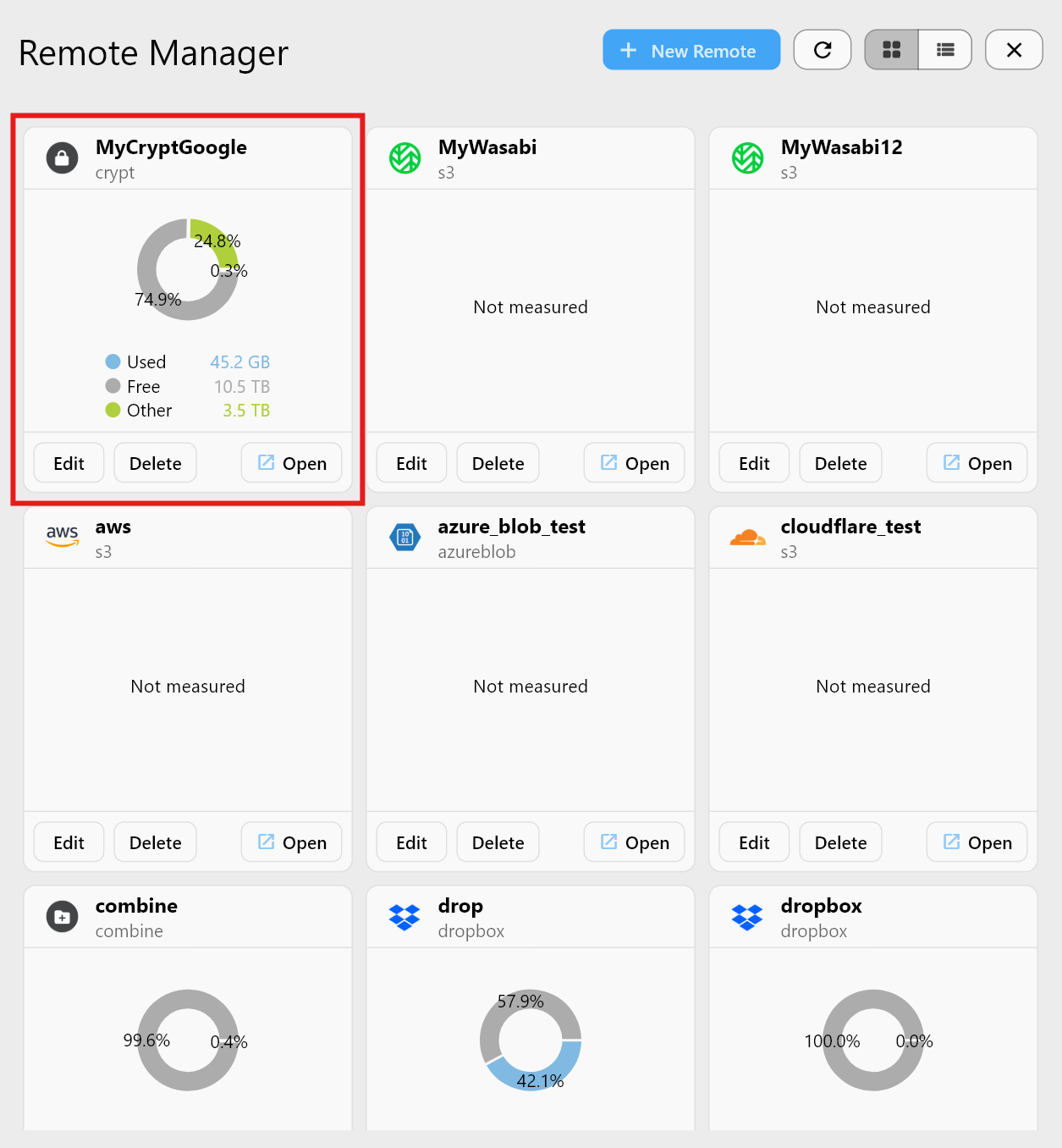
Step 3 — Confirm in Remote Manager
Uploading and Viewing Files in a Crypt Remote
When you upload through the Crypt remote:
- Files are encrypted on upload.
- The Crypt view shows decrypted names for convenience.
- The underlying remote shows encrypted filenames.
Comparison example:

| View location | What you see |
|---|---|
MyCryptGoogle: | Plain-looking filenames (decrypted) |
mygoogledrive:Meet Recordings | Encrypted filenames (expected) |
Why Use a Crypt Remote
- Cloud providers cannot read file contents.
- Filenames can be encrypted for full privacy.
- Automatic decryption in RcloneView keeps usage simple.
- Great for secure backups, sensitive documents, and shared drives.
- Combine with scheduler for automated encrypted backups.
Summary
| Feature | Description |
|---|---|
| Crypt Remote | Encryption layer over an existing remote |
| Plain files visibility | Plain files are hidden in Crypt view (normal) |
| Uploads via Crypt | Stored encrypted; visible decrypted in Crypt view |
| Purpose | Secure cloud backups and privacy protection |