Add OneDrive to External Rclone on AWS EC2 (Headless)
If you need a full EC2 setup walkthrough, see 👉 How to Run Rclone Engine on AWS EC2.
The process: generate a OneDrive OAuth token on a machine with a browser, then paste that token into the external Rclone running on EC2 via RcloneView.
Step 1. Generate a OneDrive token (pick one method)
Method A: rclone authorize "onedrive" (fastest)
- On a machine with a browser and the same rclone version, run:
rclone authorize "onedrive" - Complete the Microsoft login/consent in the browser.
- Copy the printed JSON token block (keep the whole JSON). You will paste this into EC2 in Step 3.
Method B: Use RcloneView embedded remote and copy its token
- On your local PC, add OneDrive using the embedded Rclone (normal browser OAuth).
- Open Remote Manager, edit the OneDrive remote, click Show advanced options, and copy the Token field (JSON).
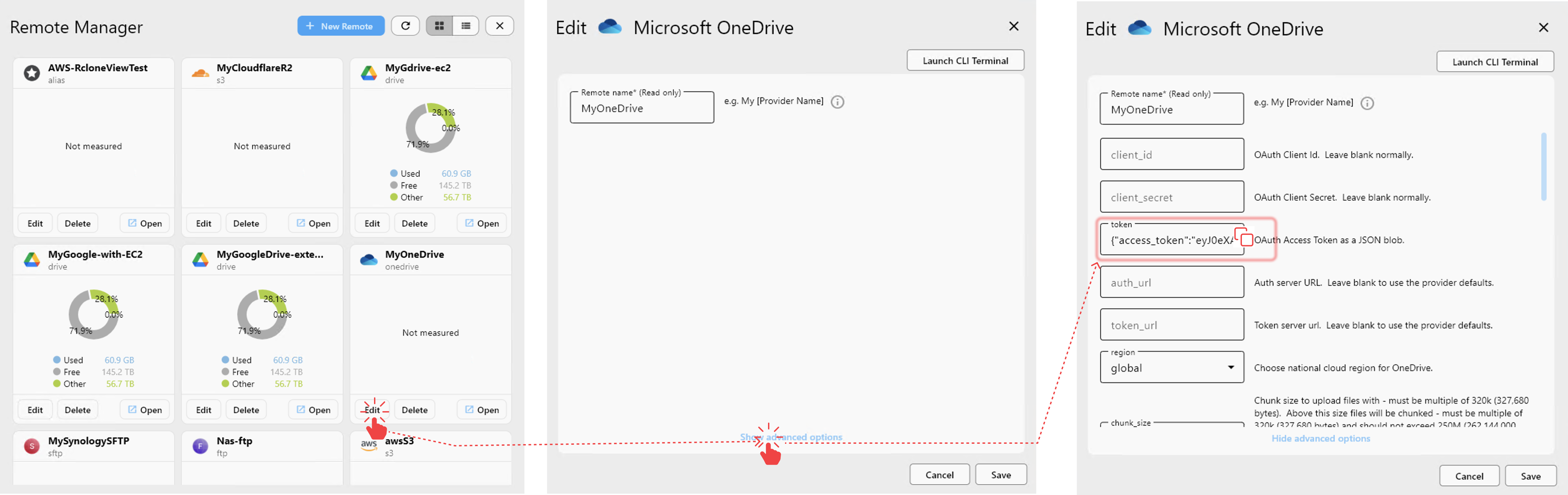
👉 More about editing remotes: Edit Remote Settings
Step 2. Connect to the External Rclone (EC2)
Open a new window or use your current session in RcloneView to connect to your EC2-hosted Rclone:
- Open
Settings->Connection Managerto either create a new connection to your EC2-hosted Rclone or connect to an existing one if already configured.
👉 Learn more: Connect External Rclone
👉 Learn more: New Window Feature
Step 3. Add OneDrive remote to the external Rclone (paste your token)
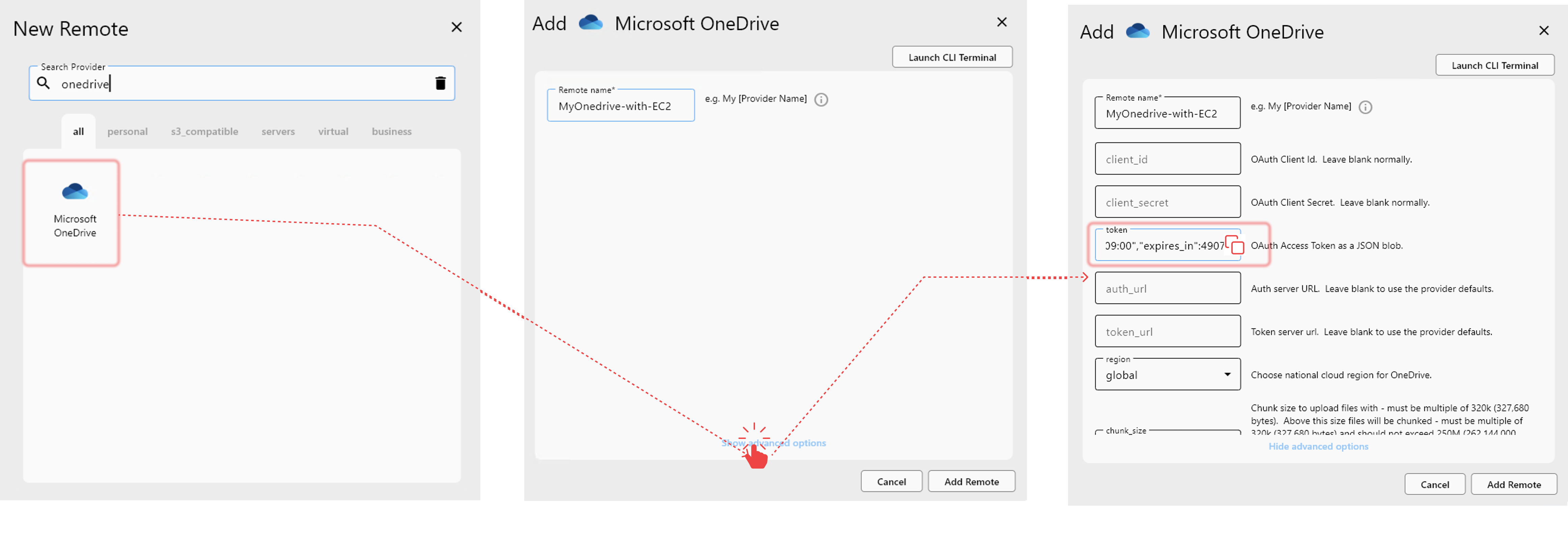
- In the EC2-connected window, go to the
Remotemenu and select+ New Remote. - Choose OneDrive as the provider.
- Input Remote Name and click Show advanced options.
- Paste the previously copied OAuth Token into the Token field.
- Click Add Remote to complete the setup.
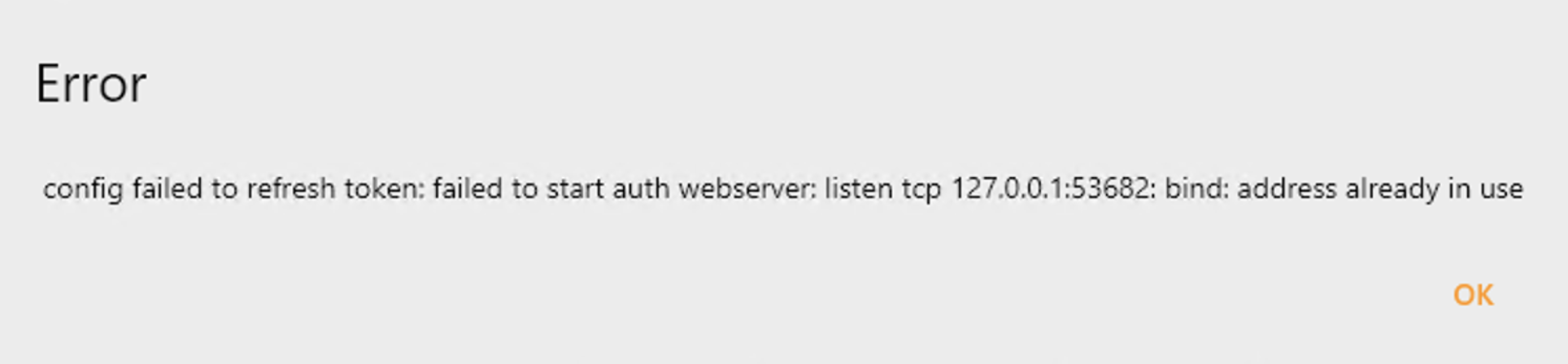
If RcloneView shows an error message like the one below, you can safely ignore it.
In most cases, the token configuration is completed successfully despite this message.
After closing the dialog, you should be able to access OneDrive normally.
This is a known UI issue, and we will improve the user experience in the next release.
Once configured, your EC2-based Rclone can now access OneDrive even without browser support. You can manage, sync, and transfer files using RcloneView as usual.