Microsoft 365 비즈니스 사용자를 위한 SharePoint
Rclone CLI로 SharePoint를 추가하는 방법 (Windows)
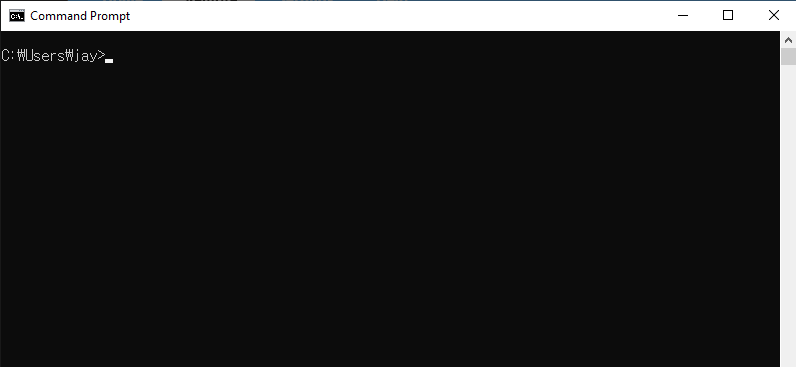
1단계: 명령 프롬프트 열기
Win + R키를 누른 다음cmd를 입력하고Enter를 누릅니다.
2단계: Rclone 구성 시작
명령 프롬프트 창에서 다음을 입력합니다.
rclone config
다음과 같은 메뉴가 표시됩니다.
No remotes found - make a new one
n) New remote
s) Set configuration password
q) Quit config
n/s/q> n
새 리모트를 생성하려면 n을 입력하고 Enter를 누릅니다.
3단계: SharePoint 설정
다음 안내에 따라 진행합니다.
- 이름: 리모트에 알기 쉬운 이름을 지정합니다 (예:
mySharePoint).
Enter name for new remote.
name> mySharePoint
- 스토리지: 목록에서
onedrive를 입력하거나 해당 번호(보통36)를 입력하여 OneDrive를 선택합니다.
Storage> onedrive
- client_id 및 client_secret: 별도의 자격 증명이 없다면 비워 둡니다.
client_id> (press Enter)
client_secret> (press Enter)
- 리전: 기본적으로 global을 선택합니다.
Choose national cloud region for OneDrive.
Choose a number from below, or type in your own value of type string.
Press Enter for the default (global).
 1 / Microsoft Cloud Global
   \ (global)
 2 / Microsoft Cloud for US Government
   \ (us)
 3 / Microsoft Cloud Germany (deprecated - try global region first).
   \ (de)
 4 / Azure and Office 365 operated by Vnet Group in China
   \ (cn)
region> (press Enter)
- 옵션 tenant: 특별히 필요하지 않다면 비워 둡니다.
Enter a value. Press Enter to leave empty.
tenant> (press Enter)
- 고급 구성을 편집하시겠습니까?
n을 입력합니다.
Edit advanced config? (y/n)
y/n> n
- 자동 구성을 사용하시겠습니까?
y를 입력합니다.
Use web browser to automatically authenticate rclone with remote?
....
y) Yes (default)
n) No
y/n> y
브라우저 창이 자동으로 열립니다. Microsoft 계정(비즈니스 계정)으로 로그인하고 요청된 권한을 부여합니다.
4단계: SharePoint 사이트 구성
인증 후 계정 유형을 선택합니다.
- SharePoint 사이트를 추가하려면 옵션
2(루트 SharePoint 사이트) 또는4(SharePoint 사이트 검색)를 선택합니다.
Choose a number from below, or type in an existing value of type string.
Press Enter for the default (onedrive).
 1 / OneDrive Personal or Business
   \ (onedrive)
 2 / Root Sharepoint site
   \ (sharepoint)
   / Sharepoint site name or URL
 3 | E.g. mysite or https://contoso.sharepoint.com/sites/mysite
   \ (url)
 4 / Search for a Sharepoint site
   \ (search)
 5 / Type in driveID (advanced)
   \ (driveid)
 6 / Type in SiteID (advanced)
   \ (siteid)
   / Sharepoint server-relative path (advanced)
 7 | E.g. /teams/hr
   \ (path)
config_type> 2
-
SharePoint 사이트 URL을 입력하거나 검색 결과에서 선택합니다.
-
표시된 구성을 확인하고 승인합니다.
Keep this "mySharePoint" remote?
y) Yes this is OK (default)
e) Edit this remote
d) Delete this remote
y/e/d> y
- Rclone 구성을 종료합니다.
Current remotes:

Name                 Type
====                 ====
mySharePoint         onedrive

e) Edit existing remote
n) New remote
d) Delete remote
r) Rename remote
c) Copy remote
s) Set configuration password
q) Quit config
e/n/d/r/c/s/q> q
완료! 이제 SharePoint 사이트가 성공적으로 구성되었습니다.
5단계: 연결 테스트
SharePoint 사이트의 콘텐츠 목록을 확인하여 구성을 검증합니다.
rclone ls mySharePoint:
올바르게 구성되었다면 파일 목록이 표시됩니다.
6단계: RcloneView에서 SharePoint 확인
RcloneView를 실행합니다.
-
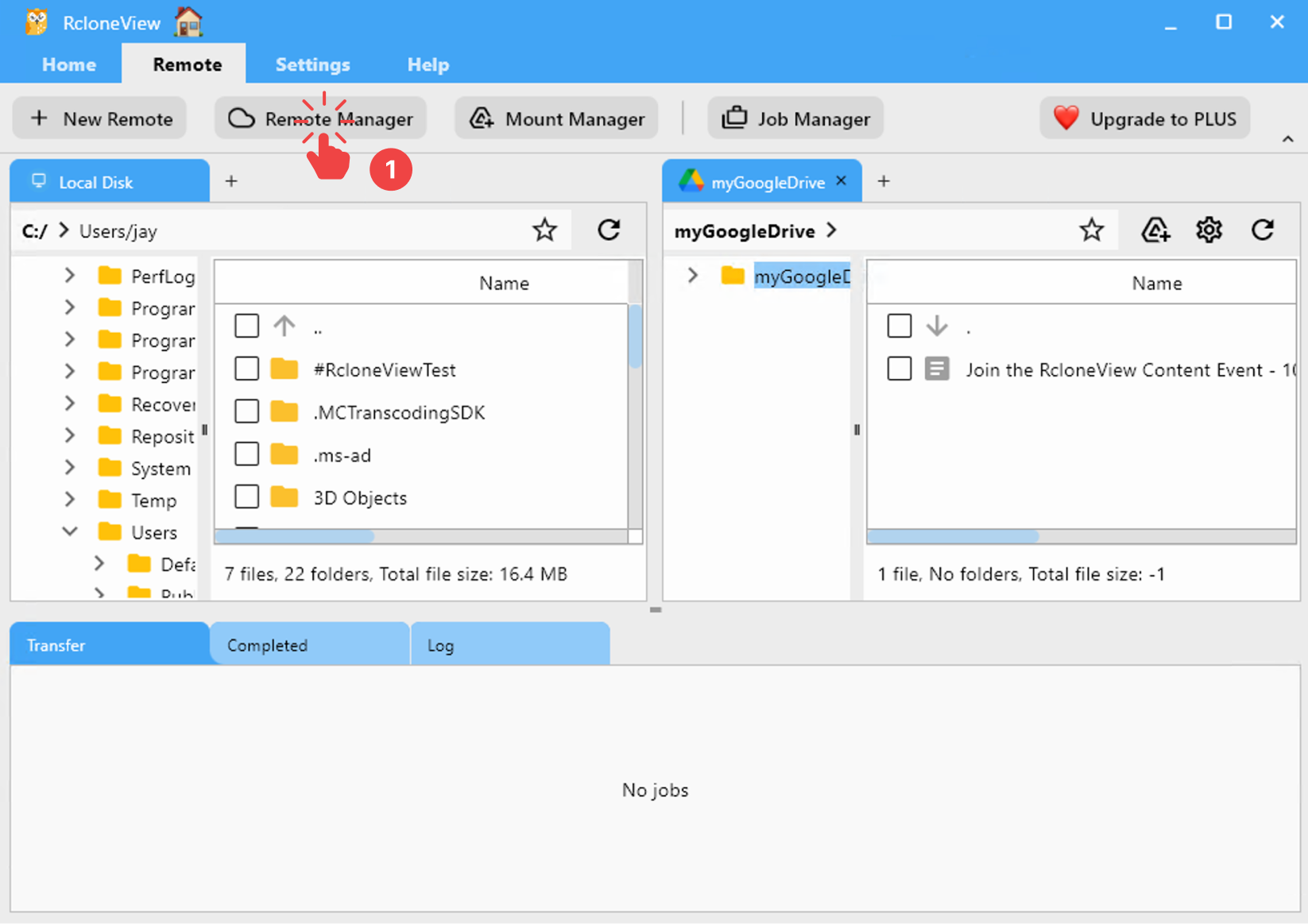
메뉴 바에서 Remote > Remote Manager를 클릭합니다.
-
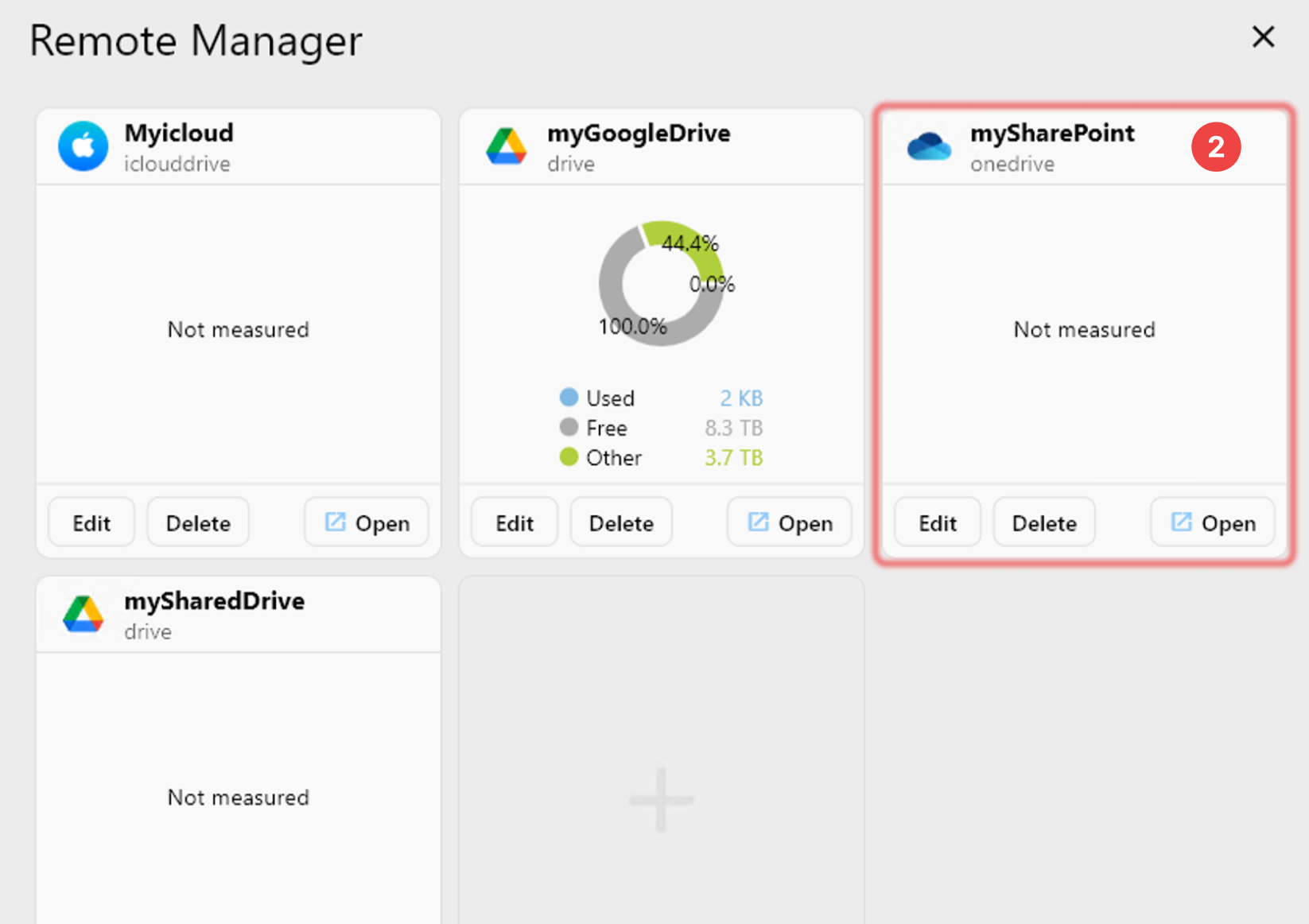
Remote Manager 창에 SharePoint가 표시되는지 확인합니다.