適用於 Microsoft 365 商務使用者的 SharePoint
如何使用 Rclone CLI 新增 SharePoint(Windows)
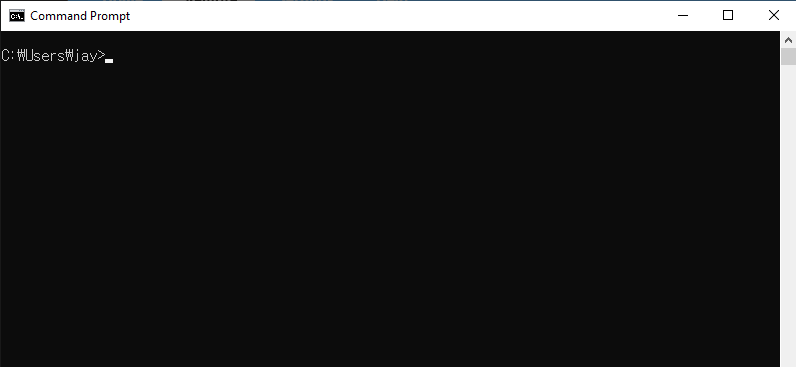
步驟 1:開啟命令提示字元
- 按下
Win + R,輸入cmd,然後按下Enter。
步驟 2:開始 Rclone 設定
在命令提示字元視窗中,輸入:
rclone config
您將會看到以下選單:
No remotes found - make a new one
n) New remote
s) Set configuration password
q) Quit config
n/s/q> n
輸入 n 並按下 Enter 以建立新的遠端。
步驟 3:設定 SharePoint
依照以下提示操作:
- 名稱:為您的遠端取一個有意義的名稱(例如
mySharePoint)。
Enter name for new remote.
name> mySharePoint
- 儲存類型:透過輸入
onedrive或清單中對應的編號(通常為36)來選擇 OneDrive。
Storage> onedrive
- client_id 和 client_secret:除非您有特定的憑證,否則請留空。
client_id> (press Enter)
client_secret> (press Enter)
- 地區:預設請選擇 global(全球)。
Choose national cloud region for OneDrive.
Choose a number from below, or type in your own value of type string.
Press Enter for the default (global).
 1 / Microsoft Cloud Global
   \ (global)
 2 / Microsoft Cloud for US Government
   \ (us)
 3 / Microsoft Cloud Germany (deprecated - try global region first).
   \ (de)
 4 / Azure and Office 365 operated by Vnet Group in China
   \ (cn)
region> (press Enter)
- Option tenant:除非有特別需要,否則請留空。
Enter a value. Press Enter to leave empty.
tenant> (press Enter)
- 是否編輯進階設定? 輸入
n。
Edit advanced config? (y/n)
y/n> n
- 是否使用自動設定? 輸入
y。
Use web browser to automatically authenticate rclone with remote?
....
y) Yes (default)
n) No
y/n> y
系統將自動開啟瀏覽器視窗。請使用您的 Microsoft 帳號(商務帳號)登入,並授予所需的權限。
步驟 4:設定 SharePoint 網站
驗證完成後,請選擇您的帳戶類型:
- 若要新增 SharePoint 網站,請選擇選項
2(根 SharePoint 網站)或4(搜尋 SharePoint 網站):
Choose a number from below, or type in an existing value of type string.
Press Enter for the default (onedrive).
 1 / OneDrive Personal or Business
   \ (onedrive)
 2 / Root Sharepoint site
   \ (sharepoint)
   / Sharepoint site name or URL
 3 | E.g. mysite or https://contoso.sharepoint.com/sites/mysite
   \ (url)
 4 / Search for a Sharepoint site
   \ (search)
 5 / Type in driveID (advanced)
   \ (driveid)
 6 / Type in SiteID (advanced)
   \ (siteid)
   / Sharepoint server-relative path (advanced)
 7 | E.g. /teams/hr
   \ (path)
config_type> 2
-
輸入您的 SharePoint 網站網址,或從搜尋結果中選擇。
-
檢查並確認顯示的設定:
Keep this "mySharePoint" remote?
y) Yes this is OK (default)
e) Edit this remote
d) Delete this remote
y/e/d> y
- 結束 Rclone 設定:
Current remotes:

Name                 Type
====                 ====
mySharePoint         onedrive

e) Edit existing remote
n) New remote
d) Delete remote
r) Rename remote
c) Copy remote
s) Set configuration password
q) Quit config
e/n/d/r/c/s/q> q
完成! 您的 SharePoint 網站現已成功設定完畢。
步驟 5:測試連線
透過列出您 SharePoint 網站的內容來驗證您的設定:
rclone ls mySharePoint:
若設定正確,您將會看到您的檔案列表。
步驟 6:在 RcloneView 中驗證 SharePoint
啟動 RcloneView。
-
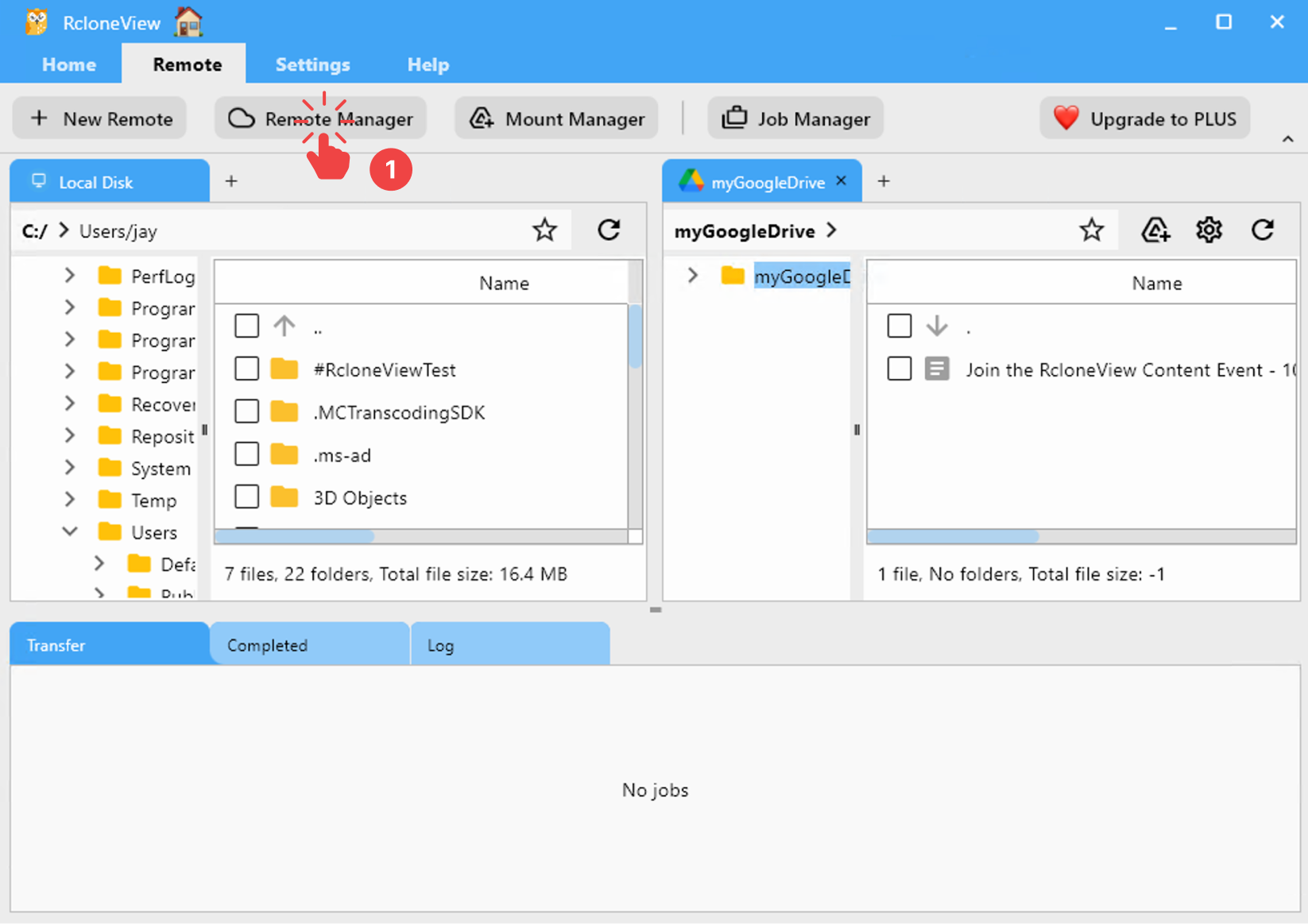
從選單列點選 Remote > Remote Manager。
-
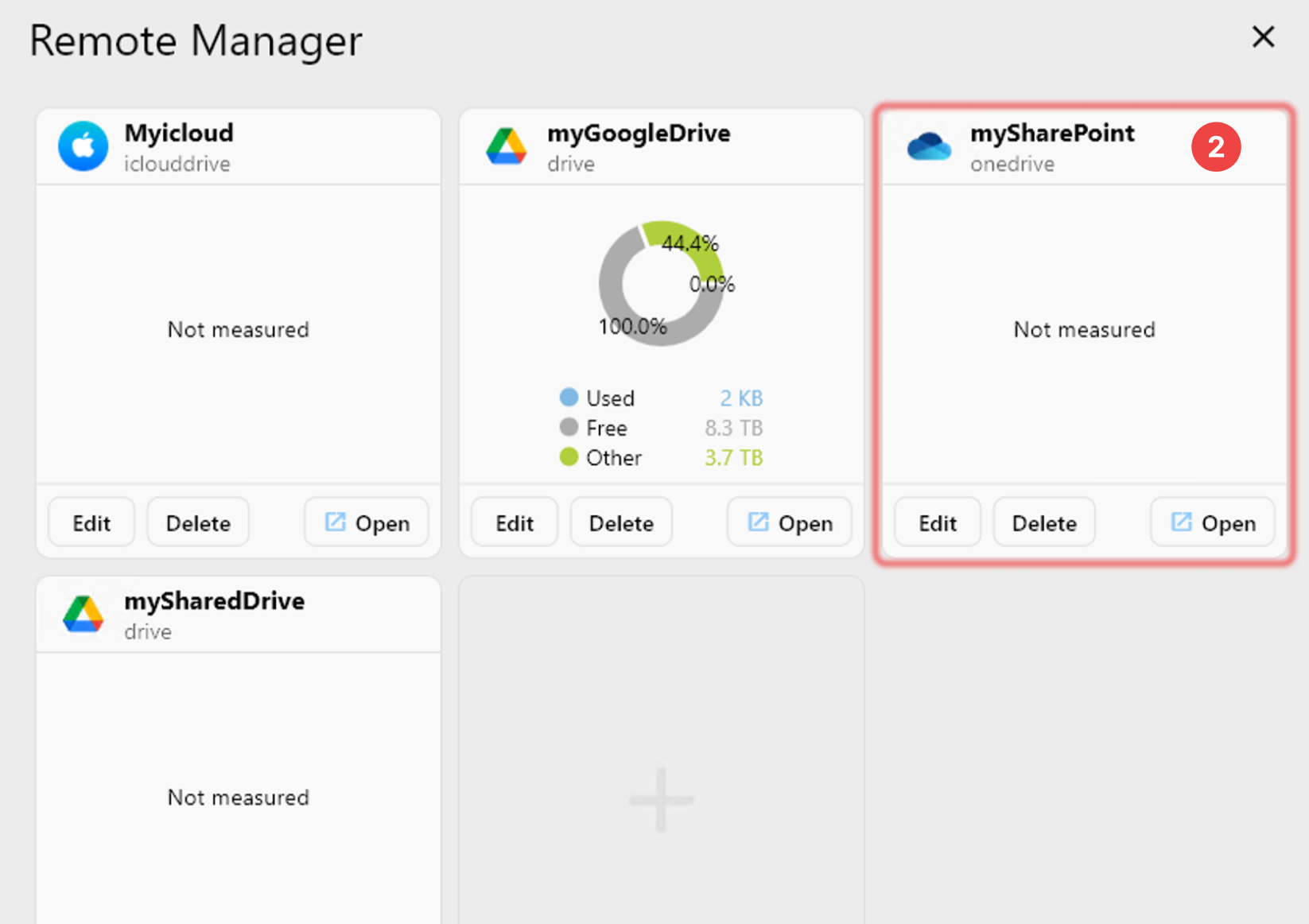
確認您的 SharePoint 出現在 Remote Manager 視窗中。