SharePoint para usuarios empresariales de Microsoft 365
Cómo agregar SharePoint usando Rclone CLI (Windows)
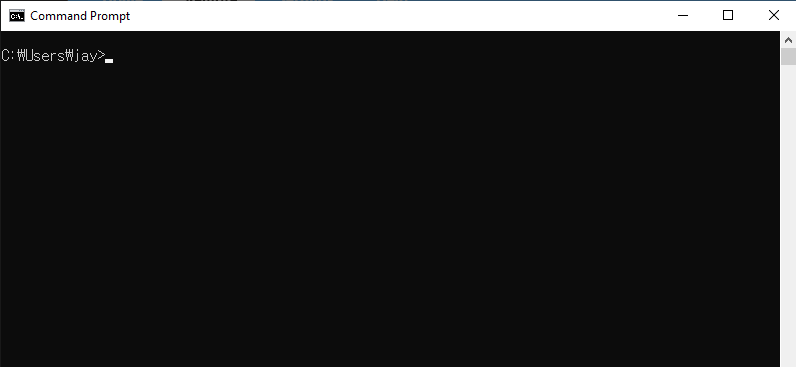
Paso 1: Abrir el símbolo del sistema
- Presiona
Win + R, escribecmdy presionaEnter.
Paso 2: Iniciar la configuración de Rclone
En la ventana del símbolo del sistema, escribe:
rclone config
Verás el siguiente menú:
No remotes found - make a new one
n) New remote
s) Set configuration password
q) Quit config
n/s/q> n
Escribe n y presiona Enter para crear un nuevo remoto.
Paso 3: Configurar SharePoint
Sigue estas indicaciones:
- Nombre: Asigna un nombre significativo a tu remoto (por ejemplo,
mySharePoint).
Enter name for new remote.
name> mySharePoint
- Almacenamiento: Selecciona OneDrive escribiendo
onedriveo su número correspondiente (normalmente36) de la lista.
Storage> onedrive
- client_id y client_secret: Déjalos en blanco a menos que tengas credenciales específicas.
client_id> (press Enter)
client_secret> (press Enter)
- Región: Elige global por defecto.
Choose national cloud region for OneDrive.
Choose a number from below, or type in your own value of type string.
Press Enter for the default (global).
 1 / Microsoft Cloud Global
   \ (global)
 2 / Microsoft Cloud for US Government
   \ (us)
 3 / Microsoft Cloud Germany (deprecated - try global region first).
   \ (de)
 4 / Azure and Office 365 operated by Vnet Group in China
   \ (cn)
region> (press Enter)
- Opción tenant: Déjala vacía a menos que sea específicamente necesaria.
Enter a value. Press Enter to leave empty.
tenant> (press Enter)
- ¿Editar configuración avanzada? Escribe
n.
Edit advanced config? (y/n)
y/n> n
- ¿Usar configuración automática? Escribe
y.
Use web browser to automatically authenticate rclone with remote?
....
y) Yes (default)
n) No
y/n> y
Se abrirá automáticamente una ventana del navegador. Inicia sesión con tu cuenta de Microsoft (cuenta empresarial) y concede los permisos solicitados.
Paso 4: Configurar el sitio de SharePoint
Después de la autenticación, selecciona el tipo de cuenta:
- Para agregar un sitio de SharePoint, selecciona la opción
2(Sitio raíz de SharePoint) o4(Buscar un sitio de SharePoint):
Choose a number from below, or type in an existing value of type string.
Press Enter for the default (onedrive).
 1 / OneDrive Personal or Business
   \ (onedrive)
 2 / Root Sharepoint site
   \ (sharepoint)
   / Sharepoint site name or URL
 3 | E.g. mysite or https://contoso.sharepoint.com/sites/mysite
   \ (url)
 4 / Search for a Sharepoint site
   \ (search)
 5 / Type in driveID (advanced)
   \ (driveid)
 6 / Type in SiteID (advanced)
   \ (siteid)
   / Sharepoint server-relative path (advanced)
 7 | E.g. /teams/hr
   \ (path)
config_type> 2
-
Ingresa la URL de tu sitio de SharePoint o selecciona entre los resultados de búsqueda.
-
Revisa y confirma la configuración mostrada:
Keep this "mySharePoint" remote?
y) Yes this is OK (default)
e) Edit this remote
d) Delete this remote
y/e/d> y
- Sal de la configuración de Rclone:
Current remotes:

Name                 Type
====                 ====
mySharePoint         onedrive

e) Edit existing remote
n) New remote
d) Delete remote
r) Rename remote
c) Copy remote
s) Set configuration password
q) Quit config
e/n/d/r/c/s/q> q
¡Listo! Tu sitio de SharePoint ahora está configurado correctamente.
Paso 5: Probar la conexión
Verifica tu configuración listando el contenido de tu sitio de SharePoint:
rclone ls mySharePoint:
Si está configurado correctamente, verás tus archivos listados.
Paso 6: Verificar SharePoint en RcloneView
Inicia RcloneView.
-
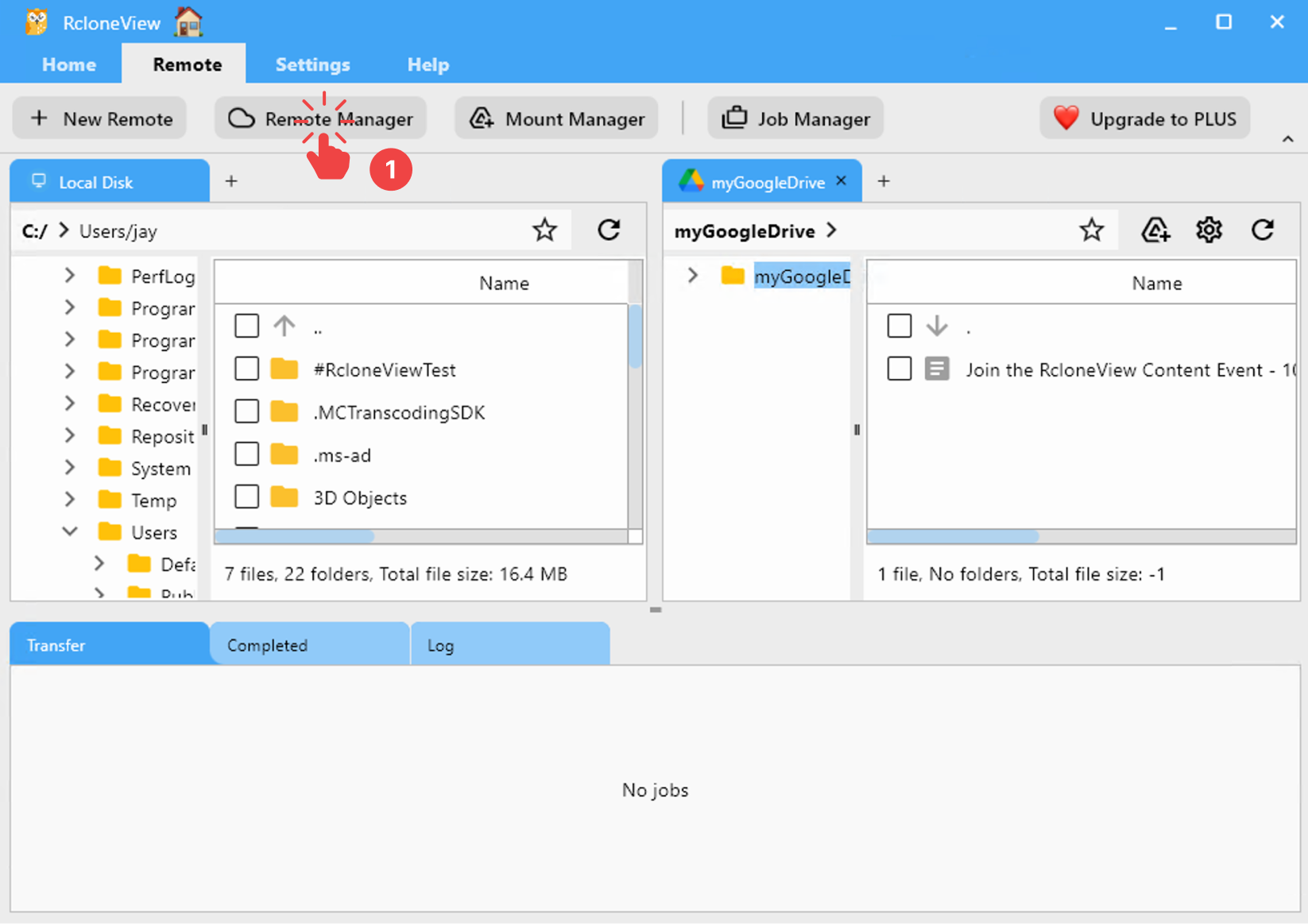
Haz clic en Remote > Remote Manager en la barra de menú.
-
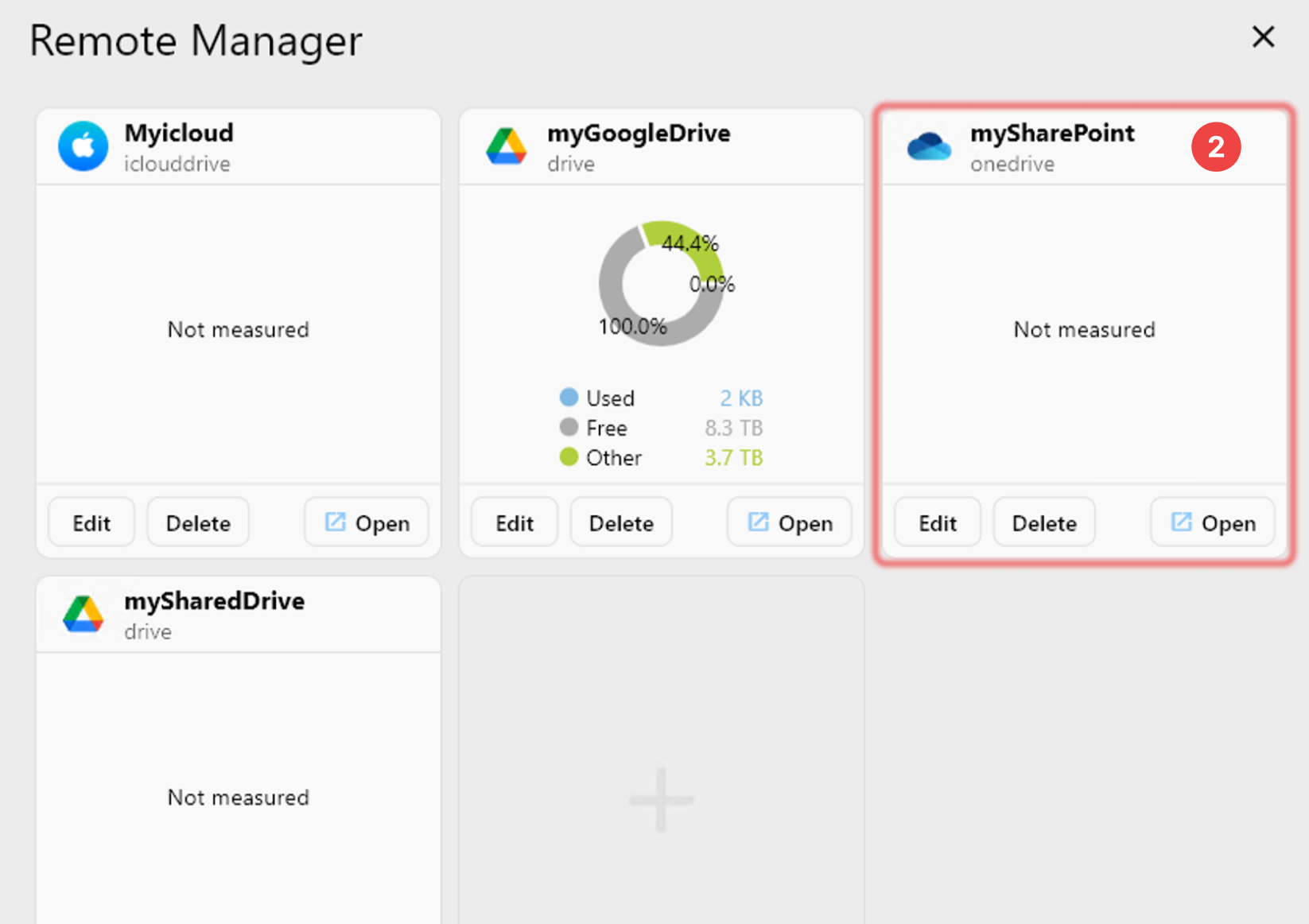
Confirma que tu SharePoint aparece en la ventana Remote Manager.