Google 共有ドライブ(旧称: Team Drive)
Rclone CLI を使用して Google 共有ドライブを追加する方法(Windows)
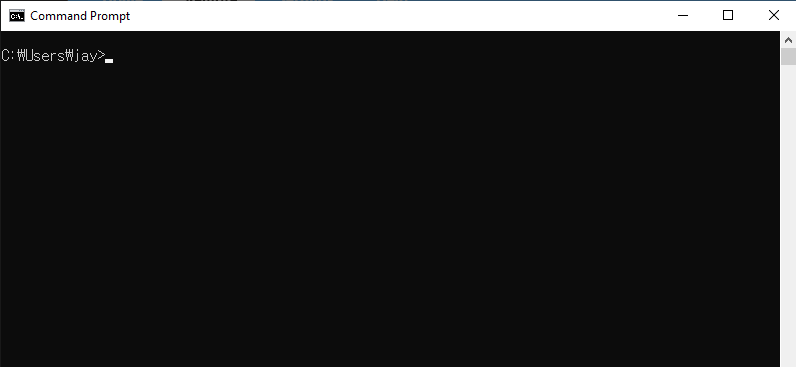
ステップ1: コマンドプロンプトを開く
- Win + R を押し、cmd と入力して Enter を押します。
ステップ2: Rclone の設定を開始する
コマンドプロンプトを開き、Rclone の設定プロセスを開始します。
rclone config
次のようなメニューが表示されます。
No remotes found - make a new one
n) New remote
s) Set configuration password
q) Quit config
n/s/q> n
n と入力して Enter を押し、新しいリモートを作成します。
ステップ3: Google 共有ドライブを設定する
以下のプロンプトに従って進めます。
- Name: 新しいリモートに名前を付けます(例: mySharedDrive)。
Enter name for new remote.
name> mySharedDrive
- Storage: ストレージオプションの一覧から
driveと入力するか、対応する番号(通常は20)を入力して Google Drive を選択します。
Storage> 20
- client_id および client_secret: 特定の認証情報がない限り、空欄のままにします。
client_id> (press Enter)
client_secret> (press Enter)
- Scope: Google Drive へのフルアクセスを許可するため、
1と入力します。
scope> 1
- Service Account Credentials: 特に必要でない限り、空欄のままにします。
service_account_file> (press Enter)
- Advanced Config: 必要がない限り、詳細設定はスキップします。
Edit advanced config? (y/n)
y/n> n
- Auto Config: セットアップを簡単にするため、自動設定を使用します。
If not sure try Y. If Y failed, try N.
y) Yes (default)
n) No
y/n> y
ブラウザウィンドウが自動的に開きます。Google アカウントでログインし、要求された権限を許可してください。
ステップ4: 共有ドライブを設定する
Google 認証が完了したら:
- 「Configure this as a Shared Drive?」というプロンプトが表示されます。
yと入力して確定します。
Configure this as a Shared Drive (Team Drive)?
y) Yes
n) No (default)
y/n> y
- Rclone に共有ドライブの一覧が表示されます。追加したい共有ドライブに対応する番号を入力します。
Choose a number from below, or type in your own value of type string.
Press Enter for the default (0APnCeqmeA1p1Uk9PVA).
 1 / Team shared drive
   \ (0APnCeqmeA1p1Uk9PVA)
config_team_drive> 1
- 表示された設定内容を確認し、確定します。
Keep this "mySharedDrive" remote?
y) Yes this is OK (default)
e) Edit this remote
d) Delete this remote
y/e/d> y
- Rclone の設定インターフェースを終了します。
Current remotes:

Name                 Type
====                 ====
mySharedDrive        drive

e) Edit existing remote
n) New remote
d) Delete remote
r) Rename remote
c) Copy remote
s) Set configuration password
q) Quit config
e/n/d/r/c/s/q> q
完了です! これで Google 共有ドライブの設定が完了し、Rclone で使用できるようになりました。
ステップ5: 接続をテストする
Google 共有ドライブの中身を一覧表示して、設定内容を確認します。
rclone ls mySharedDrive:
正しく設定されていれば、共有ドライブ内のファイル一覧が表示されるはずです。
ステップ5: RcloneView で追加した iCloud Drive を確認する
RcloneView を起動します。
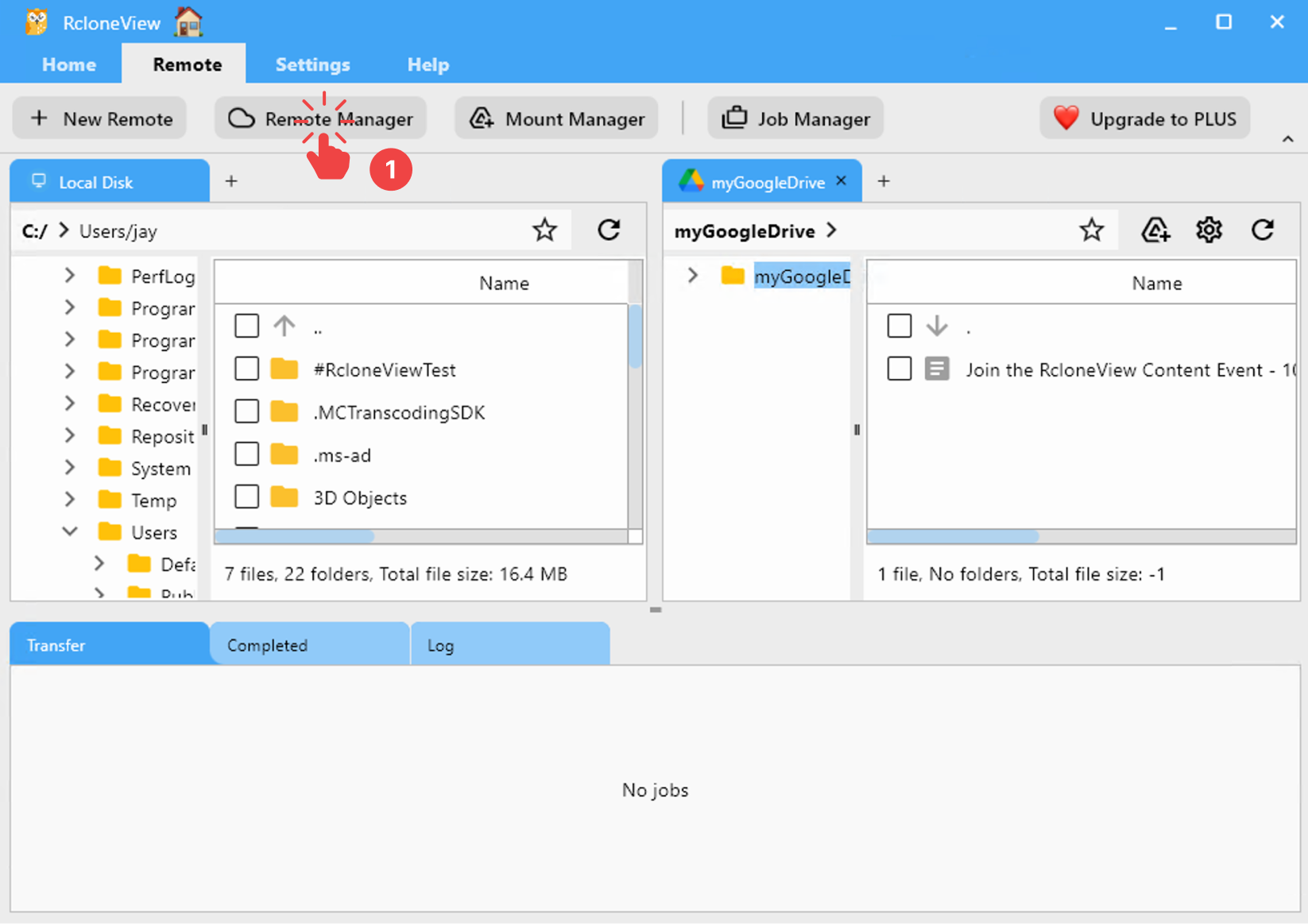
- メニューバーの Remote タブから Remote Manager をクリックします。
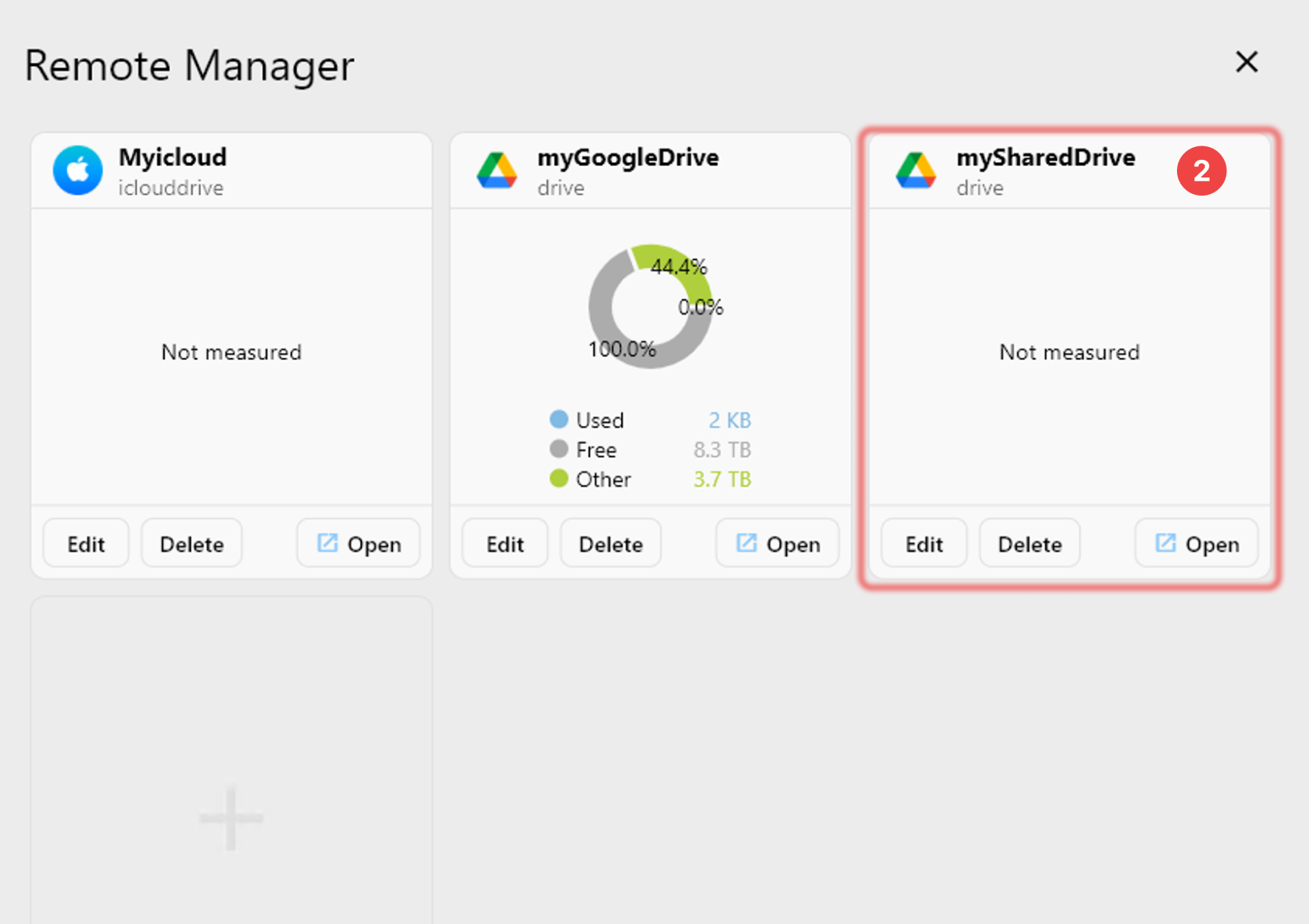
- Remote Manager ウィンドウに Google 共有ドライブ が表示されていることを確認します。