RcloneView Terminal + GUI: The Fastest and Safest Way to Use rclone (No Context Switching)
Visual confidence meets full CLI power — in one workspace.
The old way forces you to choose: Terminal for power, GUI for comfort. RcloneView puts both in the same window so you move faster without guessing.
Rclone is powerful, but CLI-only workflows create friction: context switching, copy-pasting paths, hunting logs, and rechecking folders. RcloneView removes that drag by embedding a full rclone Terminal inside the GUI.

Manage & Sync All Clouds in One Place
RcloneView is a cross-platform GUI for rclone. Compare folders, transfer or sync files, and automate multi-cloud workflows with a clean, visual interface.
- One-click jobs: Copy · Sync · Compare
- Schedulers & history for reliable automation
- Works with Google Drive, OneDrive, Dropbox, S3, WebDAV, SFTP and more
Free core features. Plus automations available.
Why combine Terminal + GUI?
- CLI alone is powerful but intimidating for beginners and hard to visualize.
- GUI alone is friendly but can hide advanced flags and debug details.
- Together you get visual confirmation and full CLI control, without leaving the app.
What the RcloneView Terminal adds
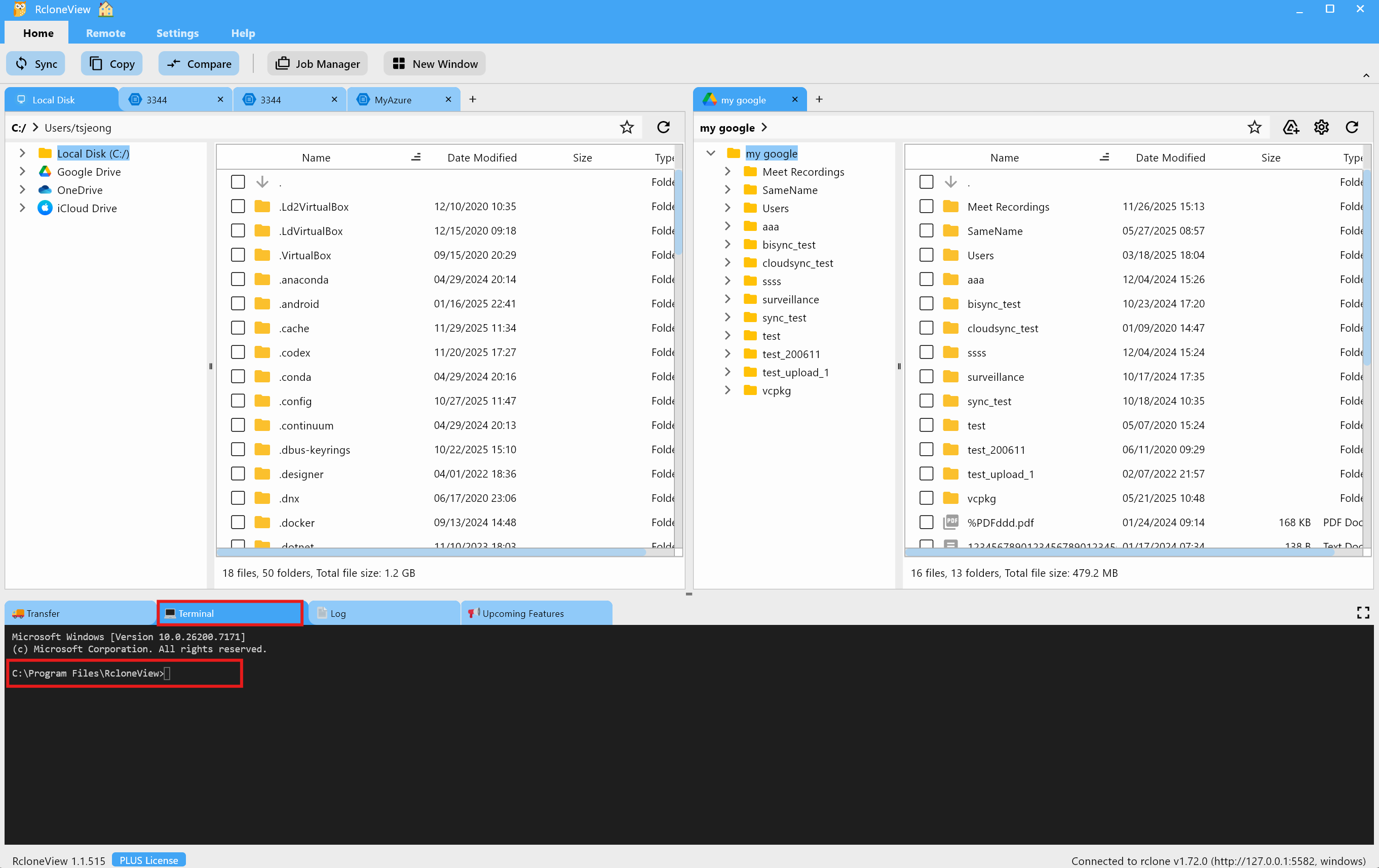
Built-in rclone CLI (no external shell)
- No separate terminal window, PATH setup, or version juggling.
- Uses the same rclone engine RcloneView manages internally.
Smarter than a normal terminal
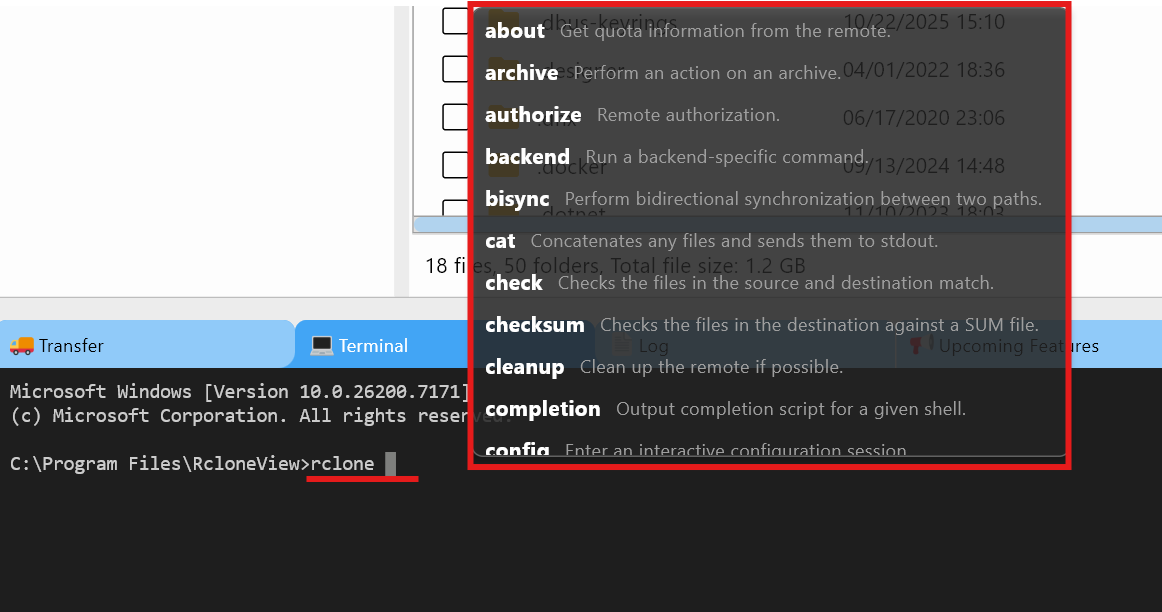
- Command discovery with autocomplete (type
rcloneand see all commands). - Full-screen expandable output for long logs.
- Copy, paste, and copy-all for fast sharing or audit trails.
Where the GUI wins
Visual control beats guesswork
- Browse real folders and confirm paths before running commands.
- Drag & drop transfers with built-in progress logs.


Predict before you run
- Compare to see exactly what will change.
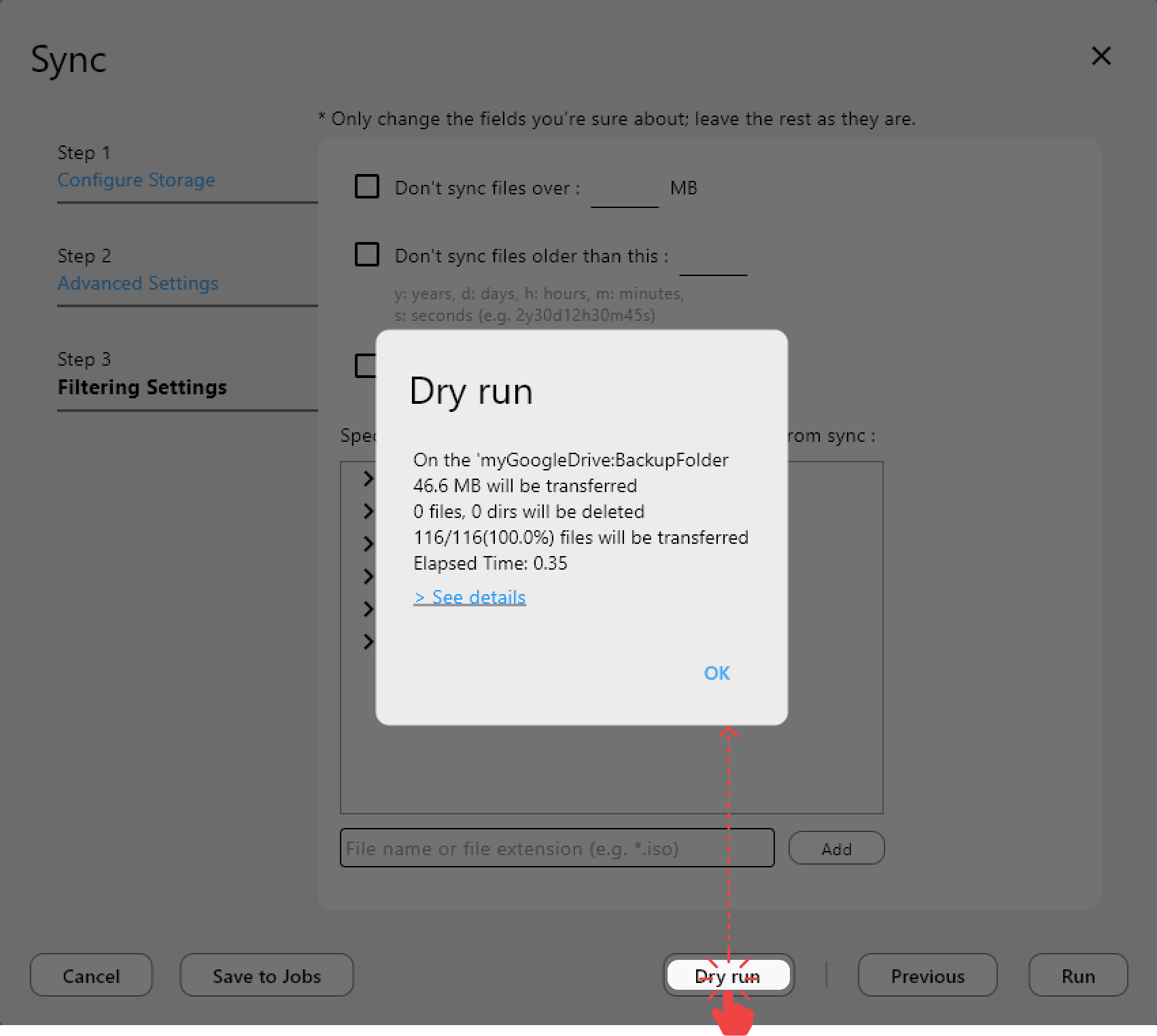
- Sync preview (dry run) to avoid accidental deletions.

Operational management
- Job Manager + History for repeatable workflows and audits.
- Mount Manager for local-drive access and simplified file operations.


Where the Terminal wins
Fast diagnostics
rclone about myremote:
rclone lsf myremote:projects --dirs-only --recursive
rclone listremotes
Advanced control
- Use flags not exposed in UI (
--transfers,--checkers,--bwlimit). - Test backend-specific options quickly.
Real debugging
-vvlogs reveal API throttling, auth issues, or backend quirks.- Run
--dry-runto validate changes before committing.
Combined workflow examples
Example 1: Compare in GUI → Verify with Terminal
- Compare folders visually in the GUI.
- Run a Terminal check for integrity:
rclone check source: dest: --one-way
- Copy the log for documentation or support.
Example 2: Create in Terminal → Manage in GUI
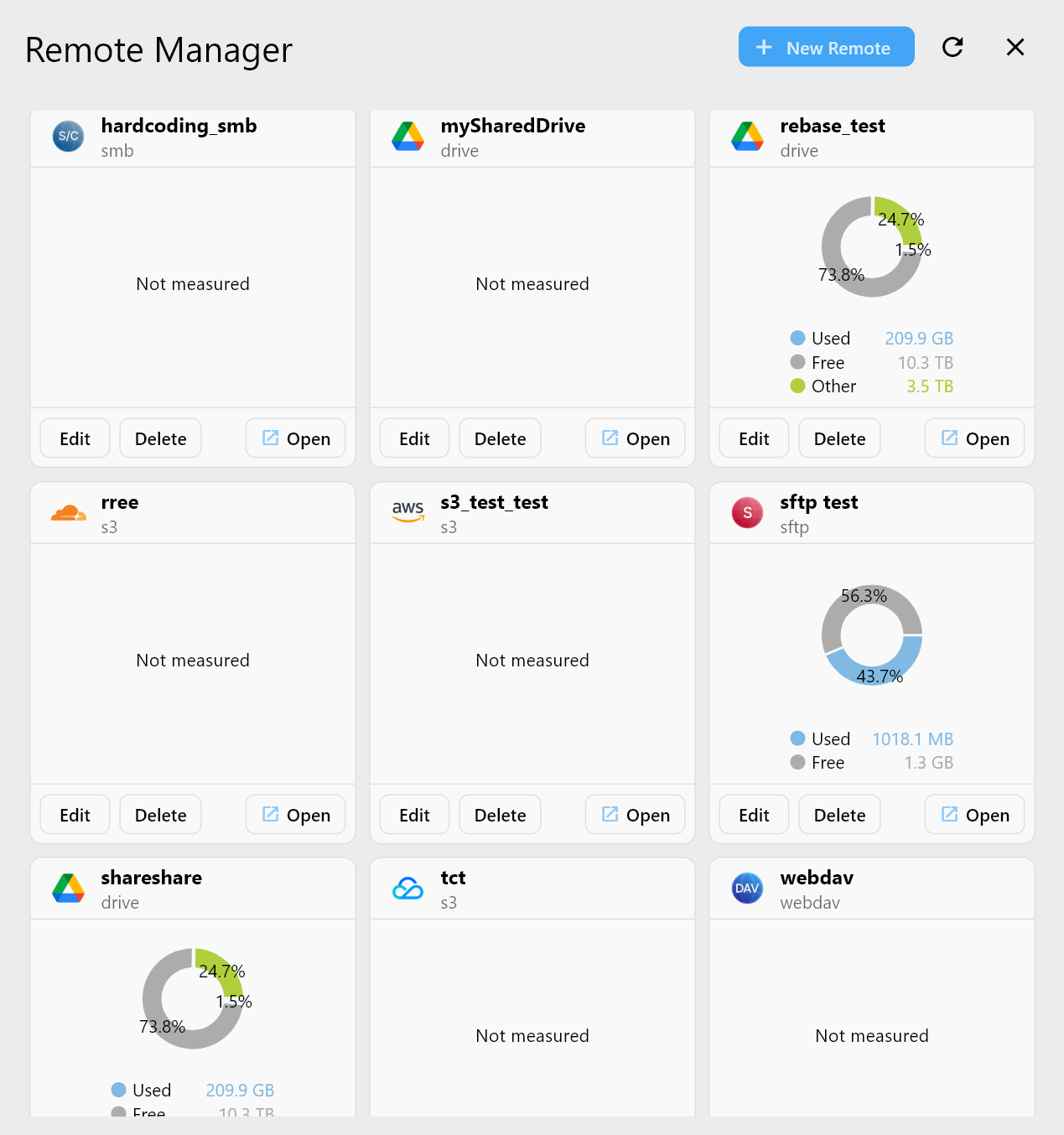
- Create a remote in Terminal.
- See it instantly in Remote Manager and handle it visually.
Example 3: Dry-run in Terminal → One-click Job
- Test a Sync with
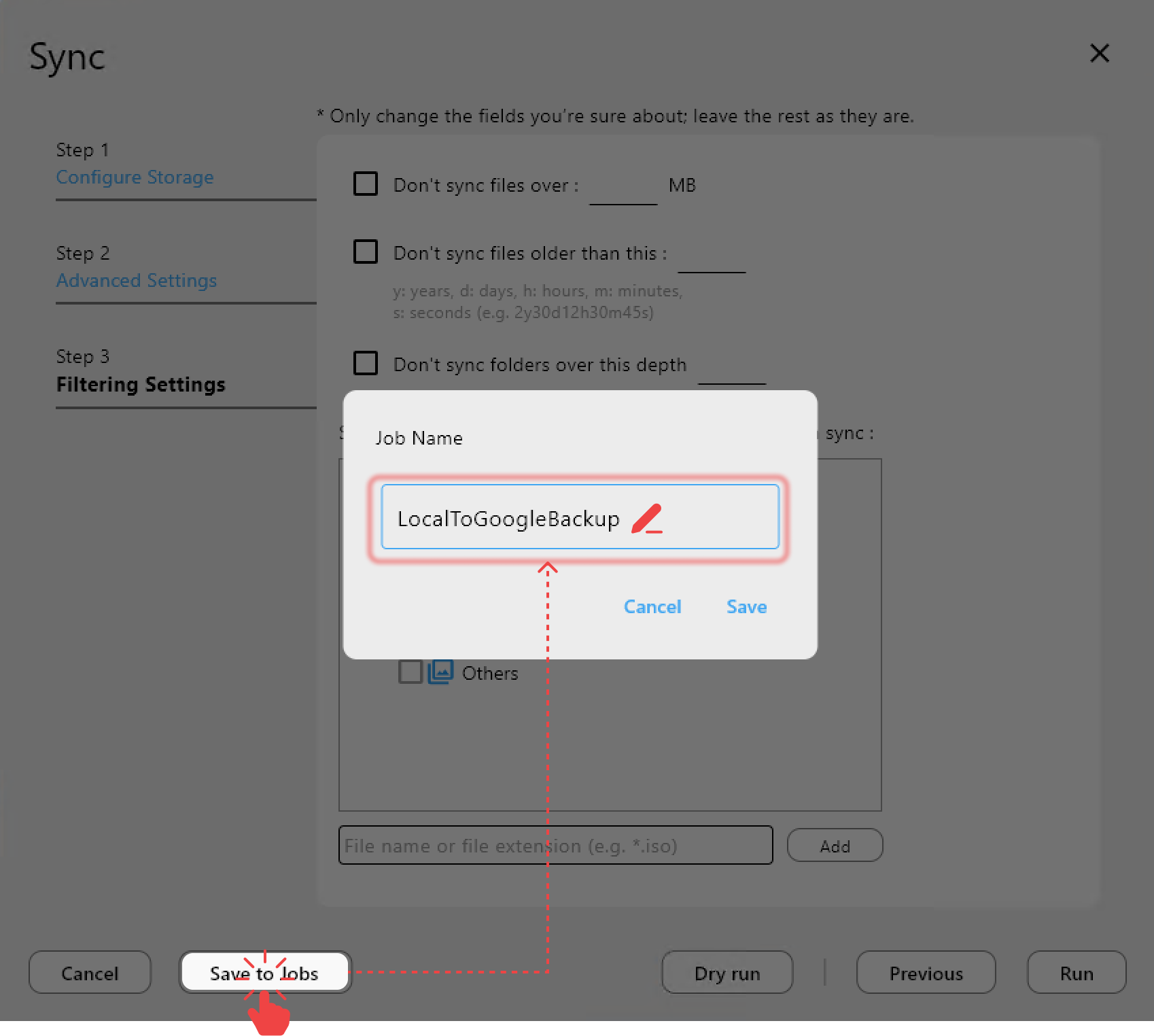
--dry-run. - Save the same workflow as a Job and schedule it.
CLI is the lab. GUI is the operations room.
Troubleshooting is faster with both
- Terminal = truth: exact rclone errors and raw logs.
- GUI = context: which files failed, how often, and what changed.
- Support-friendly: copy logs instantly, no repro steps needed.
Productivity and safety benefits
- Fewer mistakes with visual confirmation.
- Faster work by removing context switching.
- A safer place for beginners to learn CLI behavior.
- Consistent workflow for teams and IT admins.
SEO FAQ
Do I still need rclone installed separately?
No. RcloneView ships with and manages rclone for you.
Can I use all advanced rclone flags?
Yes. The Terminal supports the full rclone CLI.
Is the Terminal safe for delete or sync commands?
You can verify paths visually and run --dry-run before committing.
Is this suitable for beginners?
Especially. You see what commands do, safely and visually.
Conclusion
Terminal + GUI is the complete rclone workflow: faster, safer, and more transparent. Stop choosing between CLI power and GUI comfort. Open the RcloneView Terminal and run rclone without friction.