Backup Synology NAS to Cloud Without Hyper Backup: A Safer, More Flexible Strategy with RcloneView
Hyper Backup is popular, but it is not the only way. This guide shows a safer, more flexible NAS backup strategy using file-level cloud workflows in RcloneView.
Synology NAS users care about one thing above all: backup. Hyper Backup works for many cases, but it also creates a black-box archive that is hard to browse, hard to restore fast, and limited for multi-cloud workflows. If you want file-level access, encryption control, and predictable costs, you need a different approach.

Manage & Sync All Clouds in One Place
RcloneView is a cross-platform GUI for rclone. Compare folders, transfer or sync files, and automate multi-cloud workflows with a clean, visual interface.
- One-click jobs: Copy · Sync · Compare
- Schedulers & history for reliable automation
- Works with Google Drive, OneDrive, Dropbox, S3, WebDAV, SFTP and more
Free core features. Plus automations available.
Why Synology users look beyond Hyper Backup
Common searches like "Hyper Backup slow", "Hyper Backup restore problem", and "Hyper Backup alternative" are frequent for a reason:
- Backups are stored in a proprietary structure
- You cannot browse files directly in the cloud
- Restoring a single file still requires a restore workflow
- Multi-cloud control is limited
If your goal is fast recovery and clear control, file-level backup is a better fit.
The limitation of black-box backups
Hyper Backup packages data into a special format. That means:
- You cannot inspect files directly in cloud storage
- Recovery depends on Hyper Backup being available
- You cannot easily move or validate files with other tools
This is "restore-first" design. It works, but it is slow when you only need one file.
A different approach: file-level cloud backup
File-level backup keeps files as files and folders as folders:
- You can open a file directly in the cloud
- You can restore a single item without a full restore
- You can reuse the backup in other tools
This is the workflow rclone was built for, and RcloneView makes it safe for NAS users.
Where RcloneView fits in
Think of RcloneView as the backup control center:
- Synology NAS is the data source
- RcloneView orchestrates Compare, Copy, and Sync
- Jobs and logs provide repeatable, auditable backups
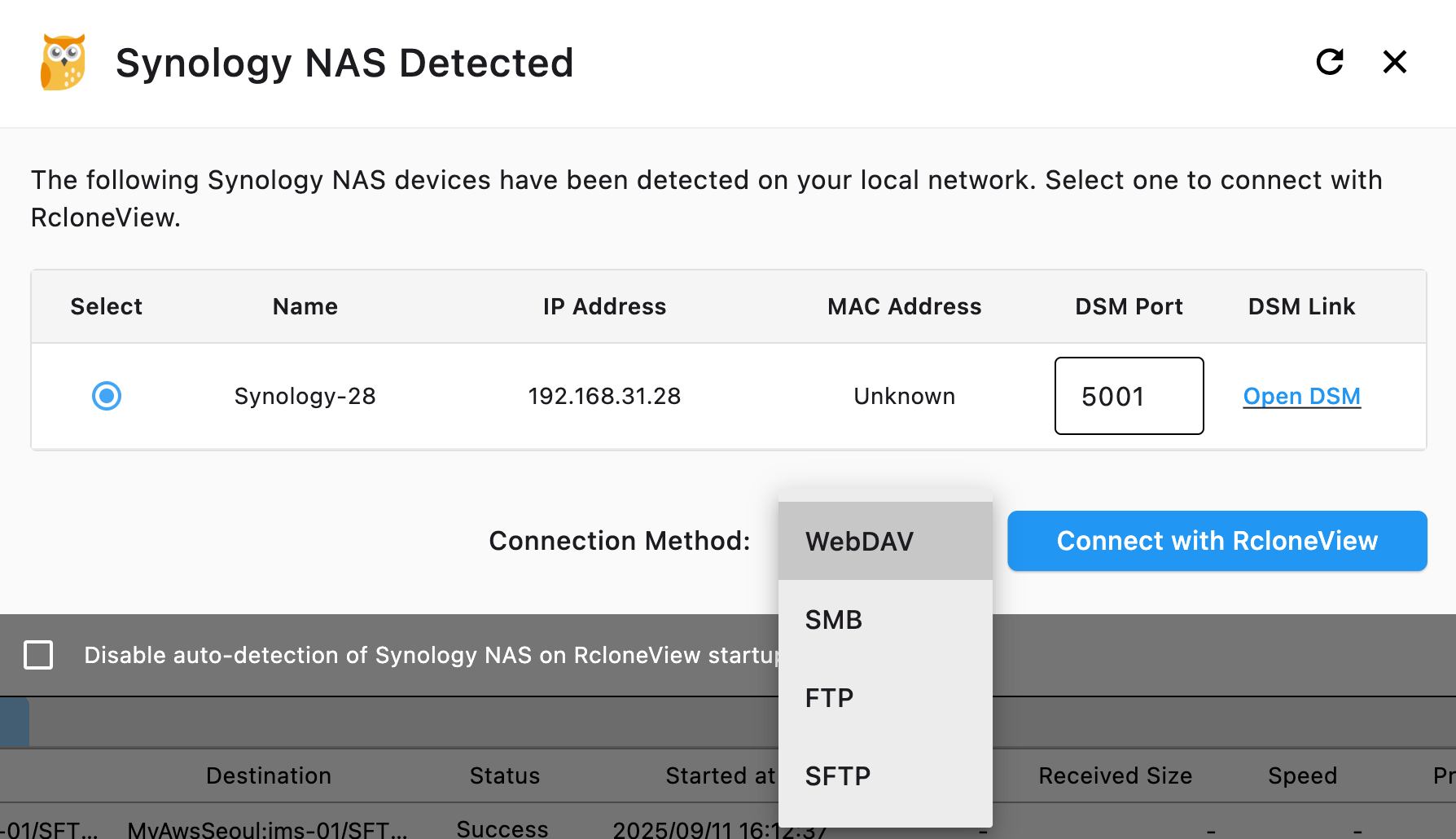
Step-by-step backup strategy without Hyper Backup
Step 1: Choose the right folders
Do not back up the entire NAS by default. Start with:
- Critical shared folders
- Project or department folders
- User-specific directories
Smaller targets mean faster jobs and less cloud cost.
Step 2: Pick the cloud target
- Google Drive for personal or small teams
- S3 / Wasabi for predictable long-term storage
- Multi-cloud if you want redundancy
Compare-first: prevent mistakes before backup
NAS folders often include caches, temp files, and hidden system data. Compare helps you verify what will actually move.
- Compare NAS and destination
- Review differences
- Proceed only when results match expectations

This saves bandwidth and prevents accidental deletions.
Copy vs Sync for NAS backups
Copy is the safest default:
- No deletions on the destination
- Ideal for backup use cases
Sync is for controlled mirrors:
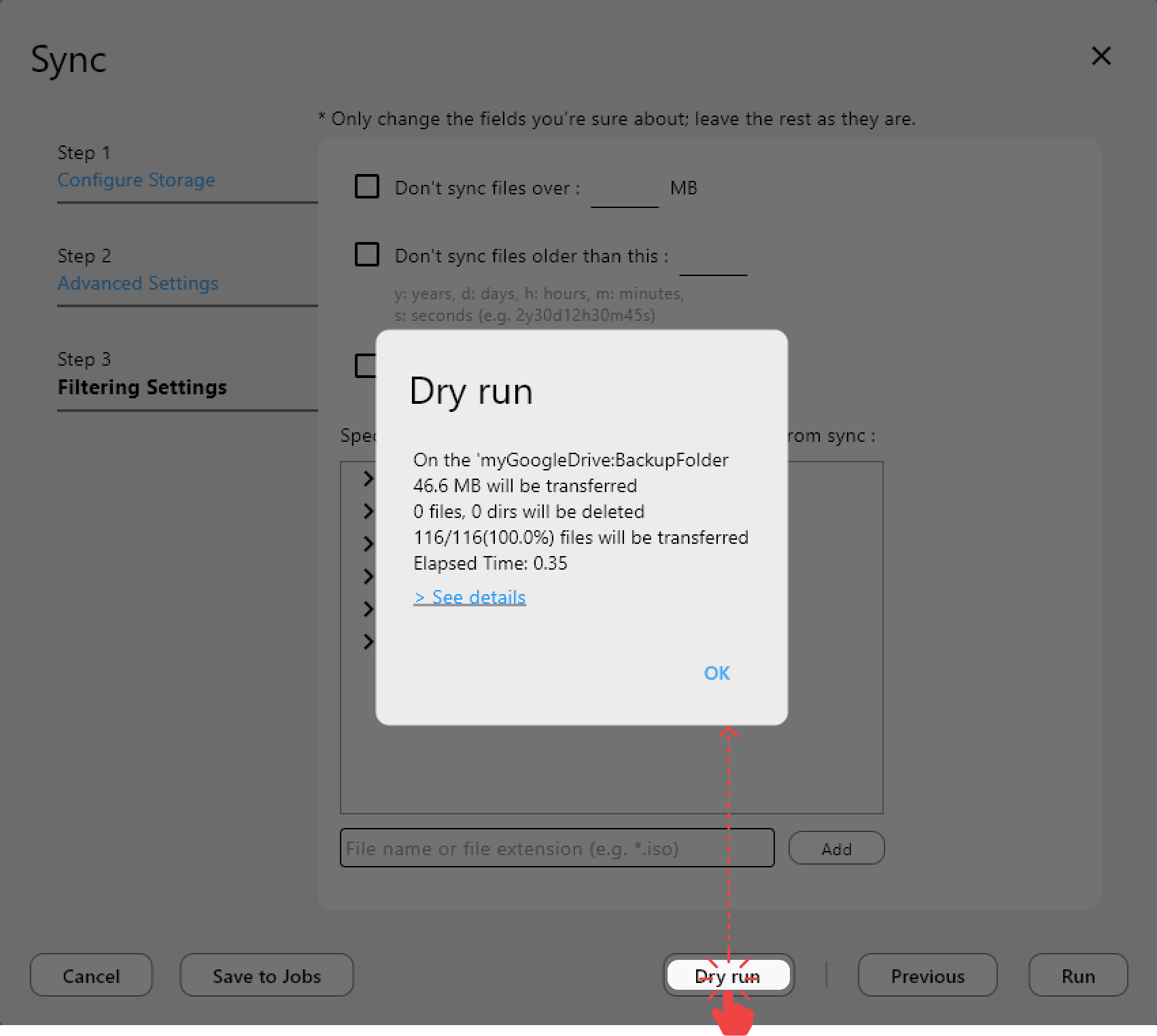
- Use only after Compare
- Always run Dry Run first
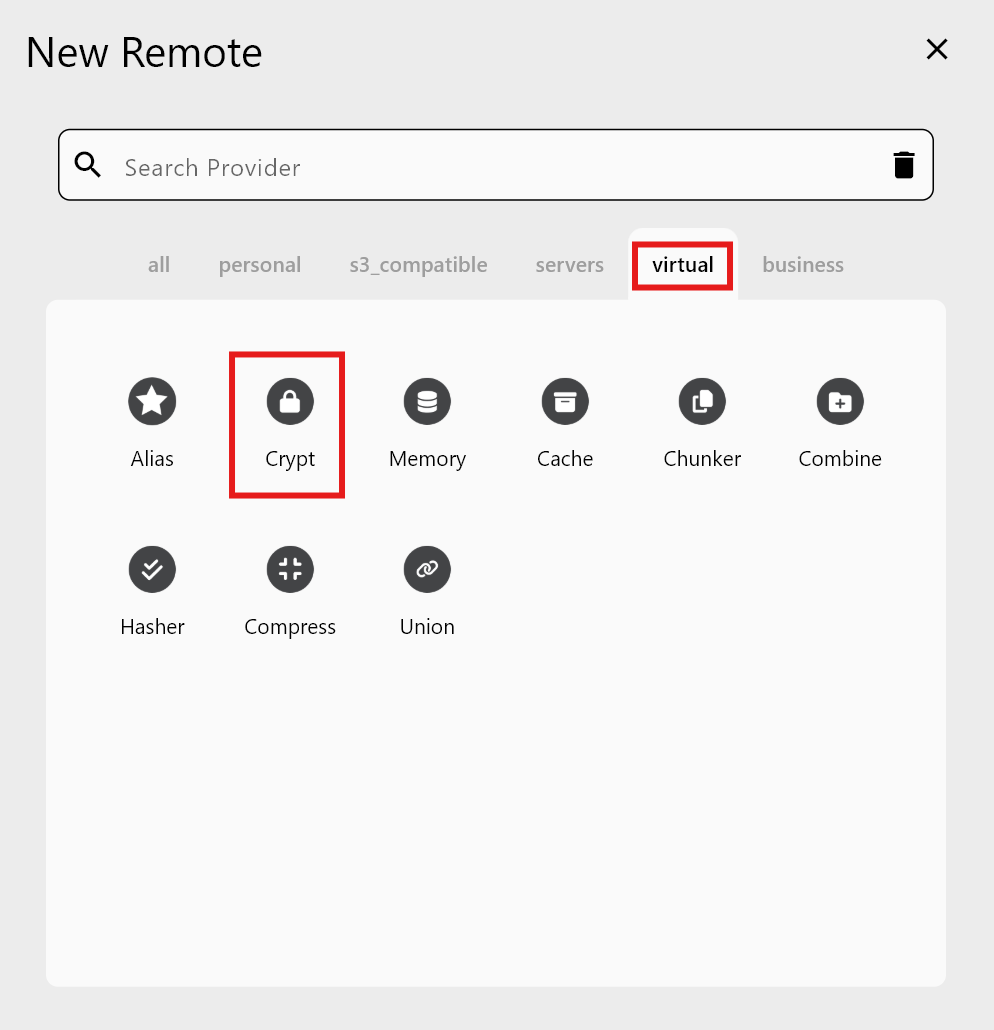
Encrypt before upload with Crypt Remote
NAS data still needs encryption if it lives in third-party clouds.
Crypt Remote provides:
- File content encryption
- Optional filename encryption
- Zero-knowledge storage on the cloud side
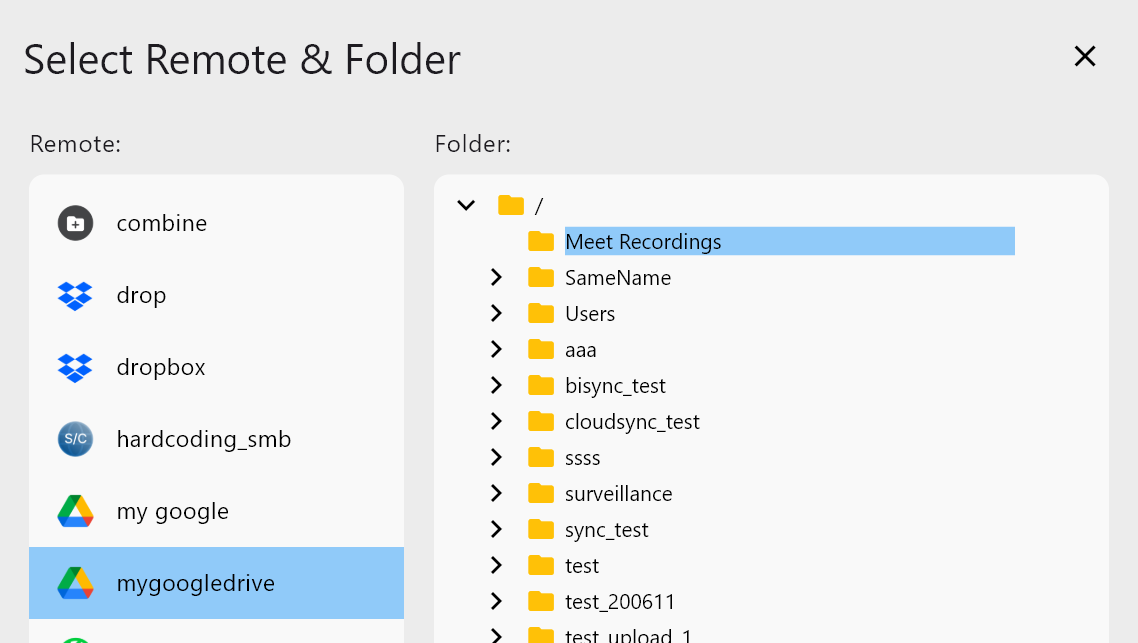
This gives you full control of encryption, unlike fixed backup containers.
Automate backups with Jobs (Hyper Backup replacement)
Create a Copy or Sync job and schedule it:
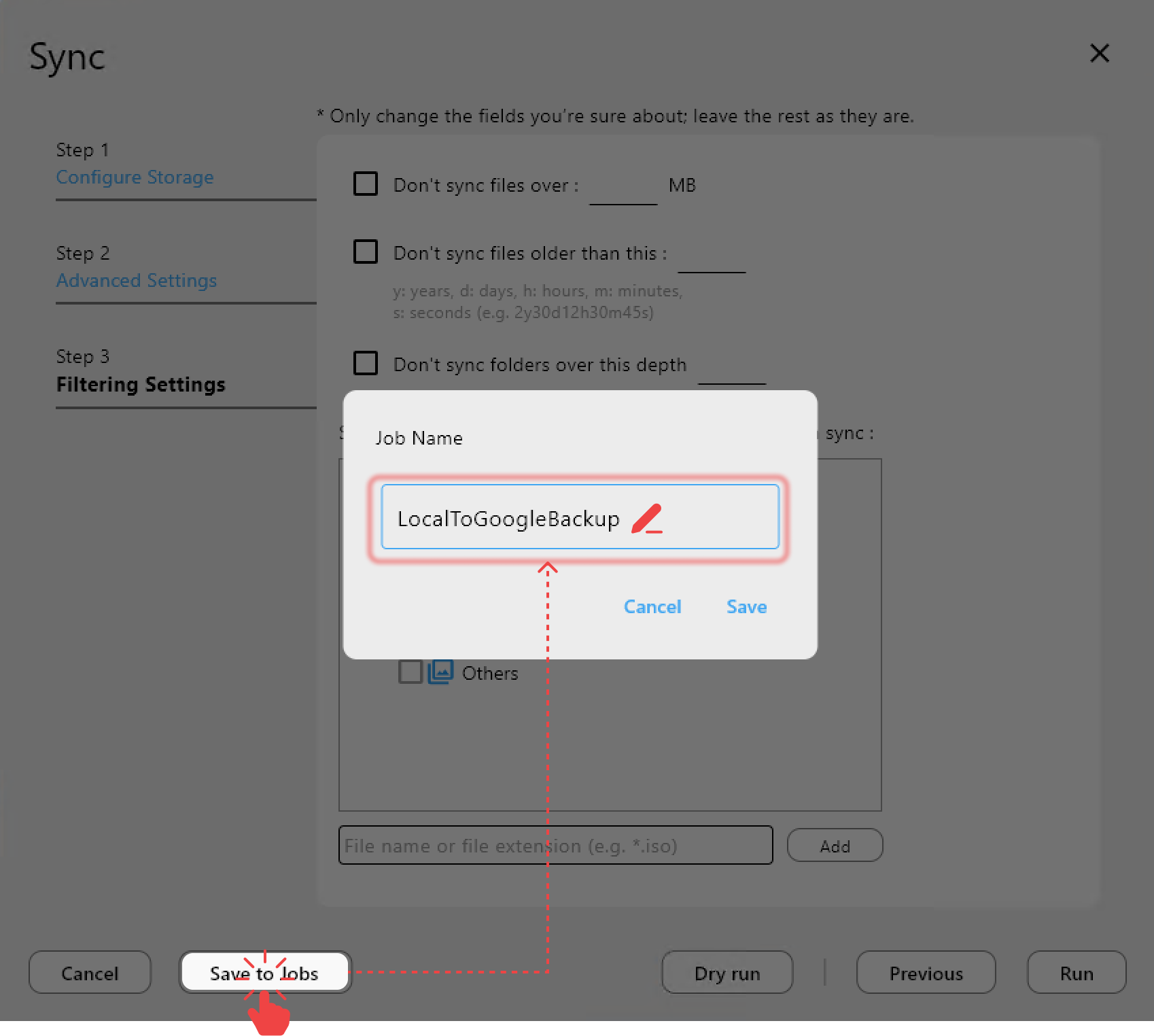
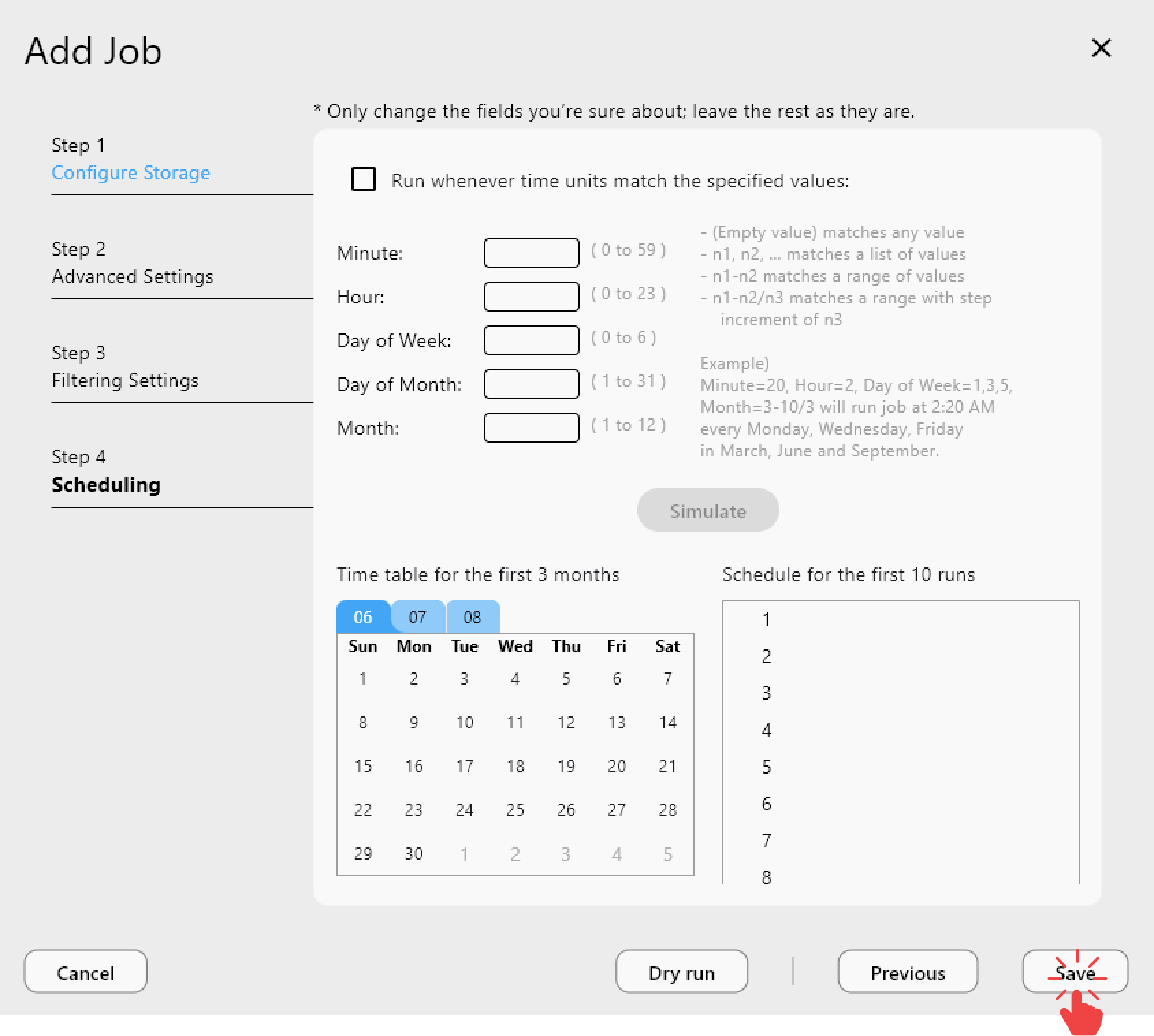
You get:
- Job history and logs
- Repeatable configuration
- Easy recovery and auditing
Real-world scenarios
Home NAS to Google Drive
- Backup photos and documents
- Restore single files instantly
Office NAS to S3 or Wasabi
- Control costs with selective Copy
- Keep long-term archives in cheaper storage
Hybrid backups
- NAS → Drive for fast access
- NAS → S3 for deep archive
Cost optimization vs Hyper Backup
Compare-first + Copy reduces:
- Unnecessary transfers
- API calls
- Billing surprises
File-level control also makes it easier to explain costs during audits.
Best practices for NAS cloud backups
- Keep backup structures simple and predictable
- Use Copy for backup, Sync for mirrors only
- Test restore by opening files directly in the cloud
- Separate encrypted backups into dedicated folders
Conclusion: Hyper Backup is optional, control is not
Hyper Backup is a solid tool, but it is not the only strategy. If you want file-level access, encryption control, and cost transparency, a Compare-first workflow with RcloneView is safer and more flexible. Turn your Synology NAS into an open, cloud-ready backup hub.