Backup MEGA to Google Drive Automatically with RcloneView -- No More Manual Downloads
Stop babysitting MEGA exports and Google Drive uploads; let RcloneView's scheduler clock in every time.
SEO tools show that the demand for MEGA -> Google Drive workflows keeps climbing, yet most tutorials still stop at manual drag-and-drop:
mega to google drive-- 30K+ monthly searchestransfer mega to google drive-- 14K+ monthly searchesmega backup google drive-- 8K+ monthly searches
This guide adds the missing automation layer. You will connect MEGA and Google Drive once inside RcloneView, design a repeatable copy or sync plan, and hand it off to the Scheduler so backups run even when you're offline.

Manage & Sync All Clouds in One Place
RcloneView is a cross-platform GUI for rclone. Compare folders, transfer or sync files, and automate multi-cloud workflows with a clean, visual interface.
- One-click jobs: Copy · Sync · Compare
- Schedulers & history for reliable automation
- Works with Google Drive, OneDrive, Dropbox, S3, WebDAV, SFTP and more
Free core features. Plus automations available.
Why manual MEGA downloads slow teams down
Large MEGA folders are throttled when exported through the browser, links expire, and files arrive as multi-GB ZIP archives that must be extracted again before uploading to Google Drive. Repeating that loop creates several issues:
- Clock-heavy workflows: manual downloads upload double the data and keep someone glued to a progress bar.
- Error-prone steps: pausing a browser transfer corrupts archives, while Drive rejects resumed uploads that exceed the 750 GB/day quota.
- No audit trail: it's hard to prove what was copied and when.
| Task | Manual approach | RcloneView automation |
|---|---|---|
| Transfer path | Download -> unzip -> upload | Direct cloud-to-cloud copy via rclone |
| Consistency | Depends on human action | Scheduler enforces cadence with retries |
| Visibility | Browser tabs | Job history with logs, bandwidth charts, and compare reports |
| Scale | One folder at a time | Queue multiple jobs, run concurrently, reuse presets |
Prerequisites: install RcloneView and connect both clouds
- Download the latest RcloneView build and sign in with your license or free tier.
- Add MEGA via
+ New Remoteand follow the MEGA connection guide - Add Google Drive using OAuth per the remote setup instructions.
- Confirm both remotes in Explorer; keep their names simple (
mega-prod,gdrive-archive) so jobs stay readable.

Map your first MEGA -> Google Drive transfer
Before automating, design the exact copy/sync behavior:
- Open Explorer and split the view so MEGA is on the left, Google Drive on the right.
- Use Compare to preview deltas between source and destination; this catches stale or already-moved folders without running a job.
- Test manual operations:
- Drag & drop files or folders.
- Right-click -> Copy, Move, or Sync to open the job wizard with the selected paths pre-filled.
- Apply include/exclude filters (for example: include
/Projects/**, exclude/cache/**).

Once the dry run looks correct, you're ready to save it as a job.
Build a hands-free Scheduler job
Step-by-step scheduler recipe
- Go to Job Manager -> Add Job.
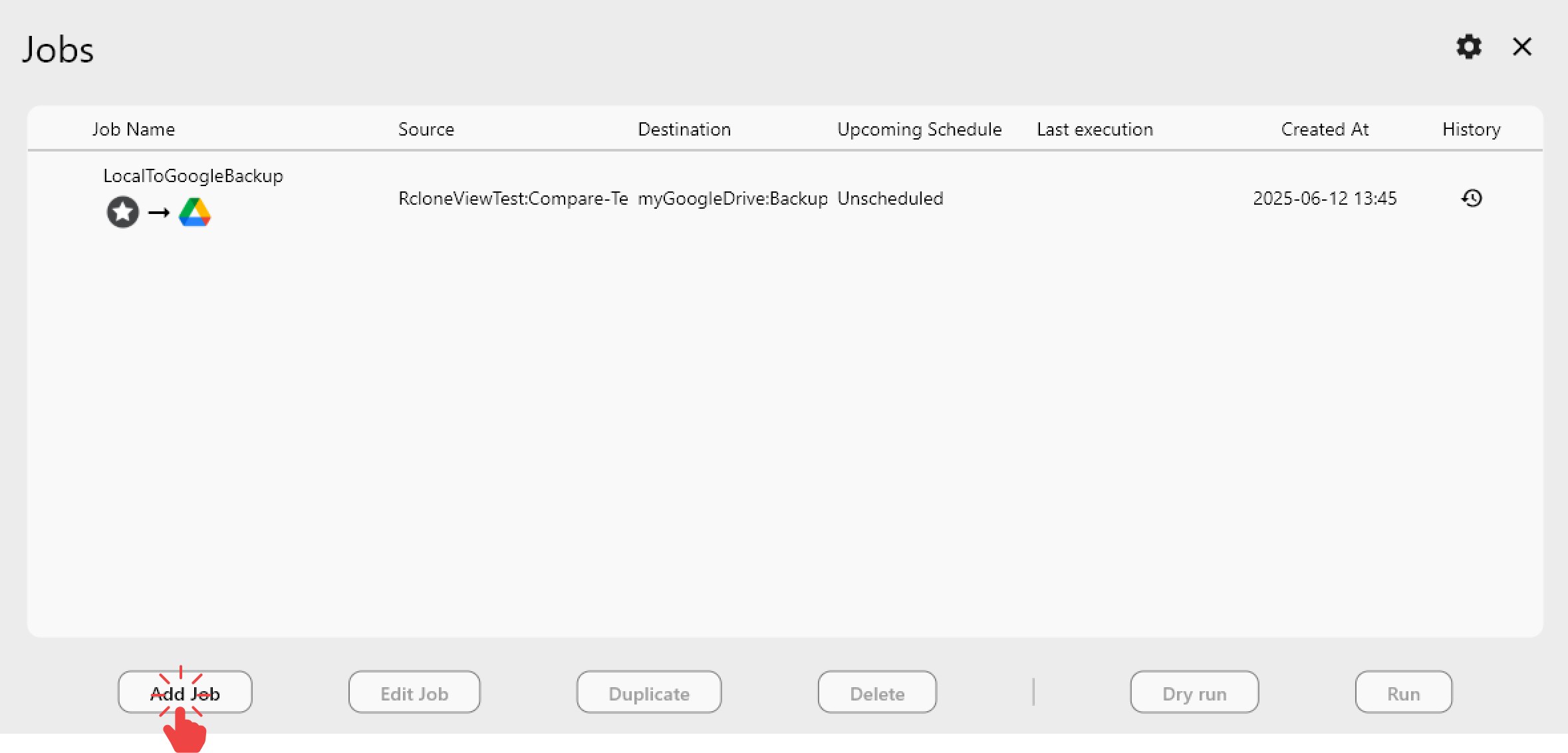
- Pick Copy (keeps MEGA untouched) or Sync (mirrors MEGA inside Drive). For archival backups, Copy is safer.
- Select the MEGA source folder and Google Drive destination folder; you can nest Drive paths like
gdrive-archive:mega-auto-backup. - Configure filters and options:
- Enable Compare checksum to avoid re-copying identical files even when timestamps change.
- Set
--transfers(default 4) higher for faster broadband, lower for congested links.
- On the Schedule step, toggle Enable Scheduler and pick:
- Cadence: hourly for critical workspaces, nightly for regular archives.
- Start window: run outside Drive's busiest hours (e.g., 02:00 local).

Optimize reliability and speed
Automation thrives on predictability. A few tweaks ensure MEGA -> Google Drive runs survive throttles and quotas:
- Respect Drive's 750 GB/day limit: split massive migrations into multiple scheduled jobs that target different folders or days.
- Chunking & concurrency: set transfer threads to 4-8 for 1 Gbps links; reduce to 2 if MEGA starts throttling.
- Checksum-first compares: combined with the Compare view, this prevents duplicate uploads when MEGA updates metadata but not file contents.
- Bandwidth caps: throttle uploads in Settings -> Transfers so nightly jobs do not swamp shared offices.
- Incremental strategy: run a nightly Copy for hot folders and a weekly Sync for cold archives; both can reuse the same remotes.
- Encryption: if you use MEGA's client-side encrypted folders, keep them as-is and let Drive house the encrypted blobs; RcloneView copies them byte-for-byte.
Monitor, verify, and recover faster
Scheduled jobs matter only if you can prove they ran:
-
Job history: every Scheduler run logs start/end time, bytes transferred, exit code, and a link to verbose logs.

-
Transfer panel: watch progress bars, bandwidth charts, and per-file updates while a job is live.
-

Real-world automation playbook
| Team | Problem | Scheduler solution |
|---|---|---|
| Video editors | MEGA desktop sync saturates workstations overnight | Create a Copy job that pushes /Studio/RAW to Drive between 01:00-05:00 with 8 transfers and a 200 Mbps cap |
| SaaS startups | Need Google Workspace search but keep MEGA for encrypted originals | Run nightly Copy jobs to Drive for collaboration, keep MEGA as immutable source |
| Agencies | Multiple MEGA client vaults go stale | Queue per-client jobs with staggered schedules and consistent naming in Job Manager for quicker reporting |
| Compliance teams | Need proof of retention | Versioned folders plus Compare reports deliver weekly evidence without manual exports |
Frequently asked automation questions
Does RcloneView need my PC to stay awake?
Yes, the Scheduler runs locally, so enable "Launch at login" and keep the workstation or server online. For 24/7 reliability, install RcloneView on a lightweight Windows Server or Linux VM.
Can I keep MEGA as the source of truth while collaborating in Drive?
Absolutely. Use Copy jobs so MEGA stays untouched, and pair them with Drive Shared Drives for collaboration.
Ready to reclaim your time?
Automating MEGA -> Google Drive backups frees you from late-night download/upload babysitting and removes human error from the equation. Build the workflow once in RcloneView, let the Scheduler enforce it, and focus on higher-value work.
Supported Cloud Providers





























