RcloneView Terminal: Use the Full Power of rclone CLI Inside a GUI
Run every rclone command without leaving RcloneView. The new Terminal brings autocomplete, copyable logs, and full-screen output into the same window you use to browse, compare, and sync.
RcloneView now includes a built-in Terminal so you can run the full rclone CLI inside the app -- no extra CMD, PowerShell, or Terminal window. Beginners can learn commands with visual context, while engineers, power users, and IT admins keep their automation flags, verbose logs, and scripting flow without context switching.

Manage & Sync All Clouds in One Place
RcloneView is a cross-platform GUI for rclone. Compare folders, transfer or sync files, and automate multi-cloud workflows with a clean, visual interface.
- One-click jobs: Copy · Sync · Compare
- Schedulers & history for reliable automation
- Works with Google Drive, OneDrive, Dropbox, S3, WebDAV, SFTP and more
Free core features. Plus automations available.
Why bring the CLI into a GUI?
- Stop bouncing between a GUI for browsing and a shell for advanced flags or diagnostics.
- Keep rclone outputs and logs beside your transfers, mounts, and scheduled jobs.
- Teach teammates rclone safely with guided UI cues instead of blank terminals.
What is the RcloneView Terminal?
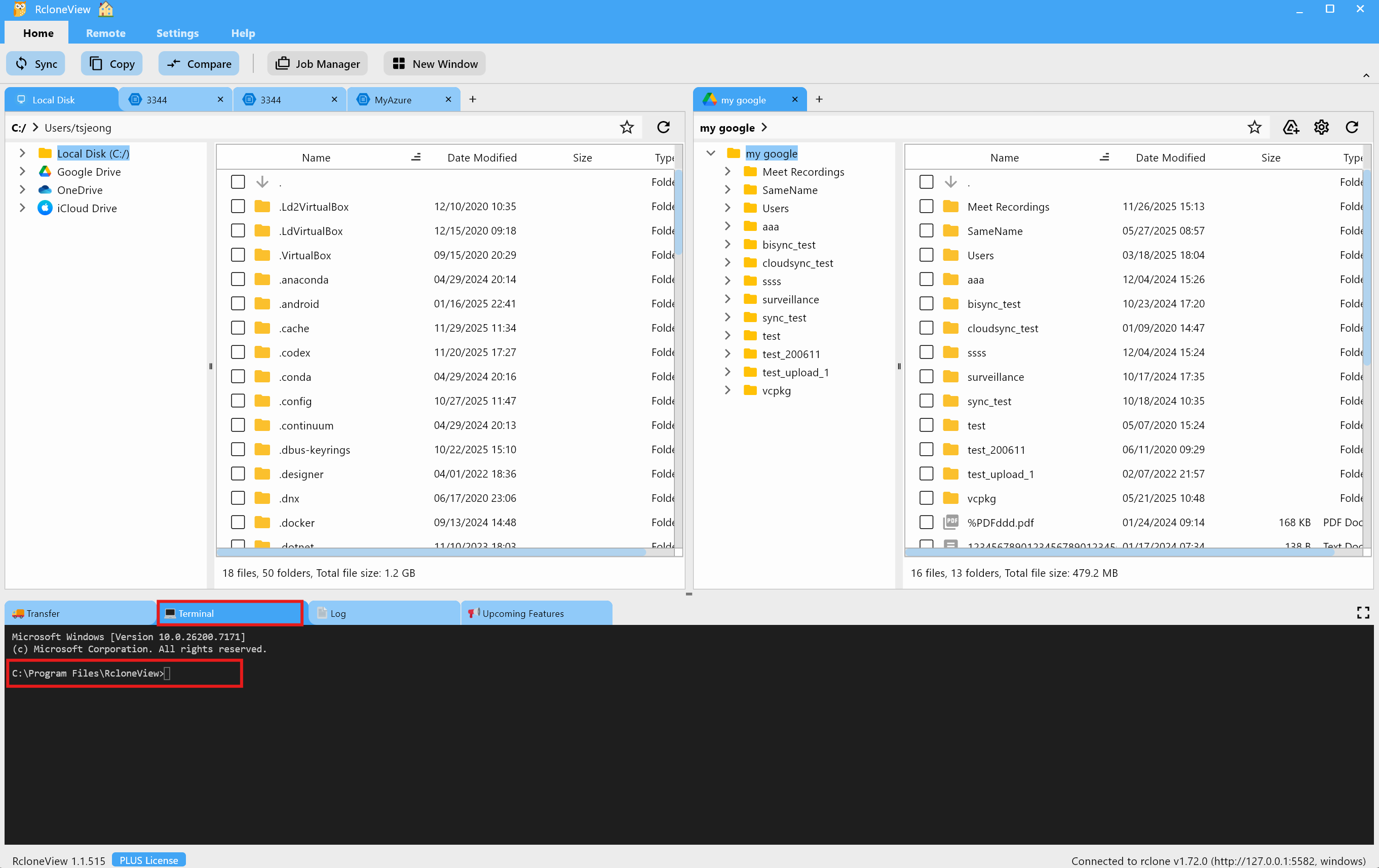
The Terminal lives at the bottom of the RcloneView workspace and runs the same rclone binaries you already use in the app. Type rclone and hit the space bar to reveal every supported command, then run it immediately--Windows, macOS, and Linux all share the same experience.
Benefits for beginners
- No setup stress: rclone is already bundled, so you can practice commands without installing or finding system paths.
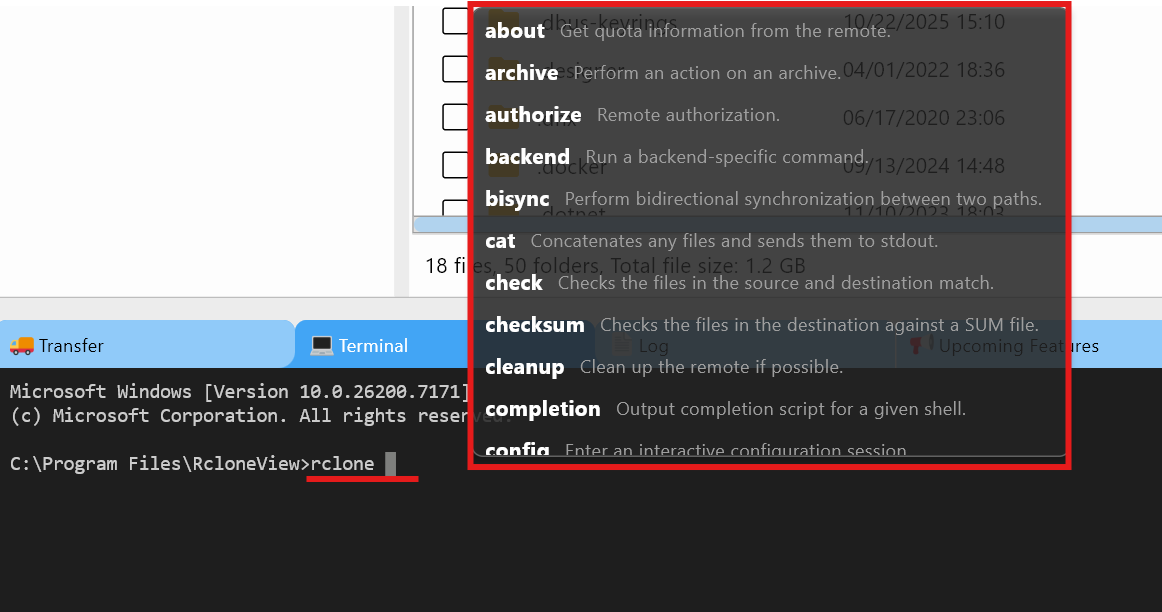
- Autocomplete makes discovery simple--type
rcloneto see the command list before running anything. - Output stays in-app, making it easier to copy, re-run, or compare with what you see in the GUI.
Benefits for engineers & power users
- Keep a single workspace for mounts, Compare, Scheduler, and CLI experiments--no context switching.
- Capture verbose logs (
-vv) for troubleshooting cloud latency or API throttling, then copy everything with one click. - Configure remotes faster with
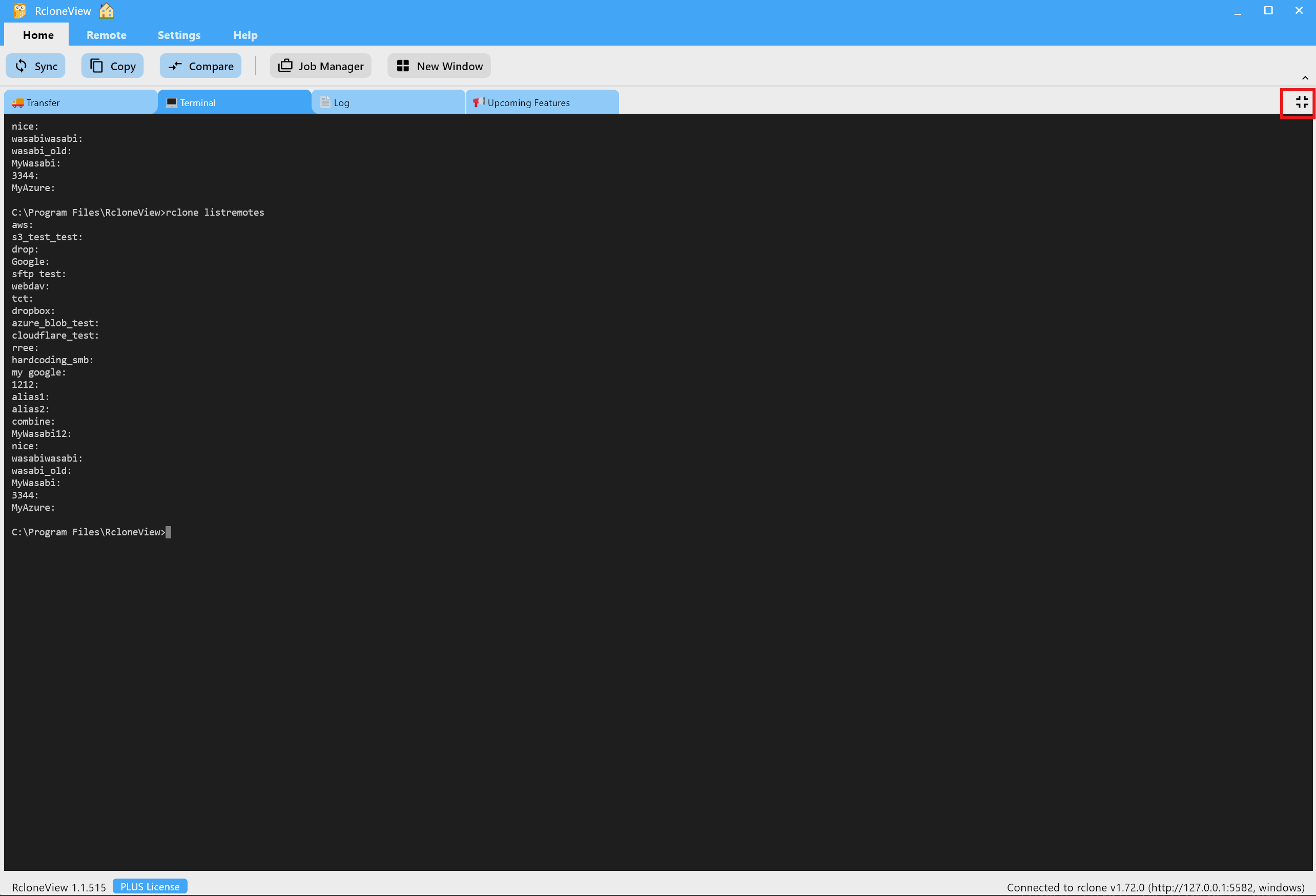
rclone config create, validate backends, and move on to scripted jobs. - Use the expand view to read long outputs or multi-line scripts comfortably.

Key features at a glance
- Command auto discovery: Type
rclone+ space to see every command in context before execution. - Full-screen Terminal: Expand for long listings, shrink when you need to glance at Compare or Transfers.
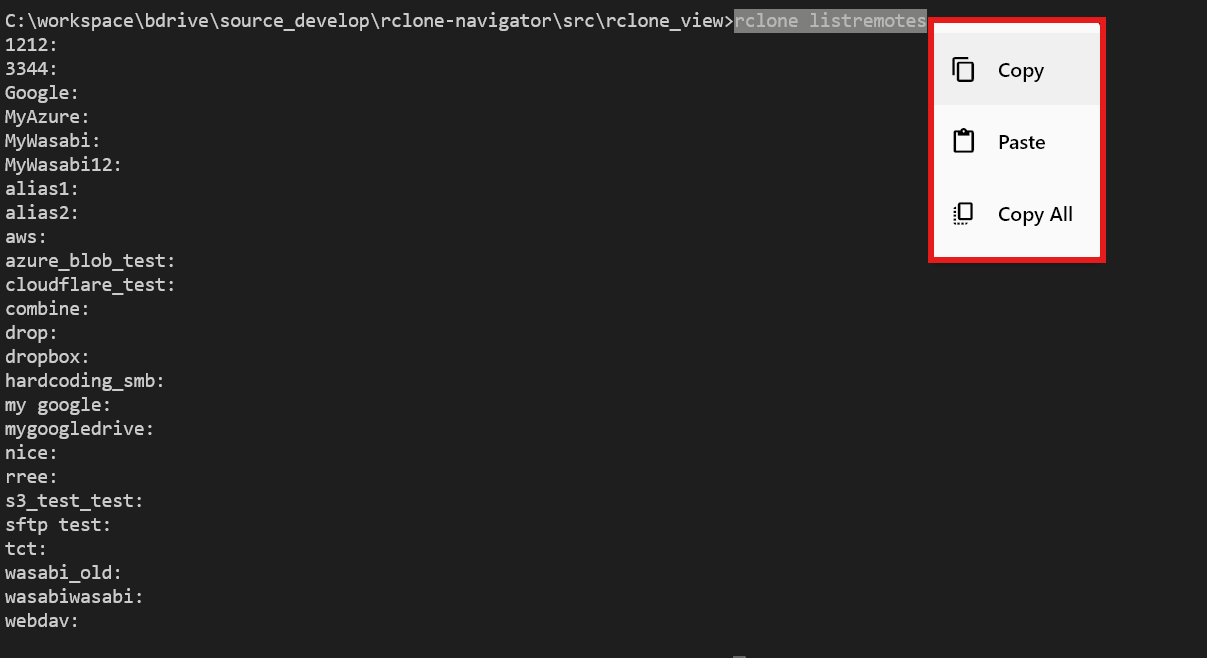
- Copy, Paste, Copy All: Share logs with teammates or support without exporting files.
Practical commands to try right now
1) Check storage usage for a remote
rclone about "mygoogle:"

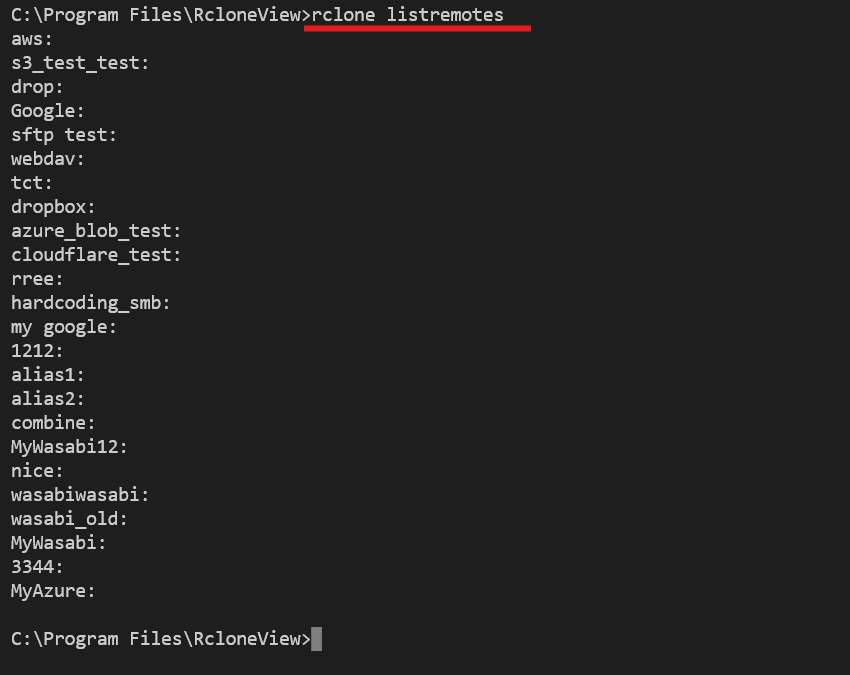
2) Discover every configured remote
rclone listremotes
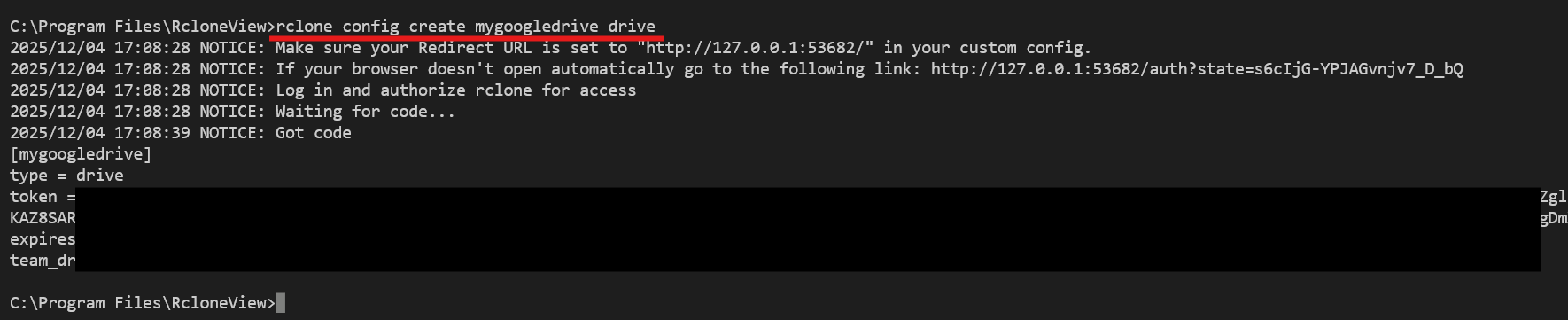
3) Create a new remote via CLI
rclone config create mygoogledrive drive
rclone listremotes
4) Preview folders before a transfer
rclone lsf mygoogledrive:Projects --dirs-only --recursive --max-depth 2
5) Rehearse a migration with verbose logs
rclone sync mygoogledrive:Projects s3backup:Projects --dry-run -vv --progress
Use --dry-run to simulate changes and -vv to spot slow backends or throttling before running the real job.
When to pick GUI vs Terminal
- Use the GUI to drag-and-drop between clouds, compare differences visually, schedule recurring jobs, or mount storage as a drive.
- Use the Terminal to test backend flags, run ad-hoc diagnostics, or execute advanced rclone commands that are faster to type than click.
- Use both together: preview with Compare, adjust the plan with CLI flags, then save the workflow as a scheduled job.
Quick start and safety
- Open the Terminal tab, type
rclone, and pick a command from the list. - Start with read-only commands (
listremotes,lsf,about) before running any sync or delete operations. - For a guided walkthrough with screenshots, see Using the Terminal in RcloneView.
Pro tip: Destructive commands like
delete,purge, or an uncheckedsynccan remove data. Double-check paths and remotes before you hit Enter.
Conclusion
The RcloneView Terminal puts the full rclone CLI alongside the visual tools you already use, so beginners can learn faster and experts can move faster. Try it today to keep your cloud operations, automation experiments, and debug logs in one place.
Supported Cloud Providers





























