Mount Cloud Storage on Synology NAS Safely and Efficiently with RcloneView
A cloud mount is not a shortcut. It is an interface that needs architecture, safety boundaries, and tuning. This guide shows how to treat Synology NAS as a secure cloud gateway.
NAS users increasingly want to mount cloud storage so it looks and behaves like a local drive. But mounts can be slow, fragile, and dangerous if configured like a normal disk. This article explains the right way: mount less, control access, tune cache, and use RcloneView to keep operations visible.

Manage & Sync All Clouds in One Place
RcloneView is a cross-platform GUI for rclone. Compare folders, transfer or sync files, and automate multi-cloud workflows with a clean, visual interface.
- One-click jobs: Copy · Sync · Compare
- Schedulers & history for reliable automation
- Works with Google Drive, OneDrive, Dropbox, S3, WebDAV, SFTP and more
Free core features. Plus automations available.
Why NAS + cloud mount is gaining attention
NAS has moved from simple storage to a gateway role:
- local storage for hot data
- cloud storage for cold data
- one interface for users and apps
Search terms like "synology cloud mount" are rising because users want to expand capacity without losing control.
What "mounting cloud storage" really means
Mount is not Sync. It is live access.
- Sync = copies with delay
- Mount = direct read/write view
That makes mounts powerful, but it also means mistakes propagate instantly.
Typical NAS cloud mount use cases
Cold data access
Infrequently used files stay in the cloud, but are reachable instantly.
Shared media repository
Large media libraries stay centralized without duplicating storage.
Hybrid storage model
Hot data stays on NAS. Cold data lives in cloud, but appears in one path.
Why cloud mounts are risky by default
Cloud APIs are not POSIX file systems. They behave differently:
- object storage semantics
- latency by design
- no true file locking
NAS apps expect local disk behavior. That mismatch causes the most serious mount failures.
Common problems users search for
- "Mounted cloud drive is slow"
- "Files disappear or revert"
- "Accidental delete propagated"
These are not just bugs. They are design mistakes.
Why rclone is the standard for NAS mounts
rclone supports almost every cloud and has a mature VFS layer. It is the most reliable mount engine available.
But the CLI-only workflow is risky. That is where RcloneView fits.
Architecture: safe cloud mount on Synology NAS
Principle: NAS should be the access point, not the control center.
Recommended architecture:
Cloud Storage -> rclone mount -> NAS mount point -> users/apps
RcloneView provides the control plane: mount settings, logs, and safety controls.
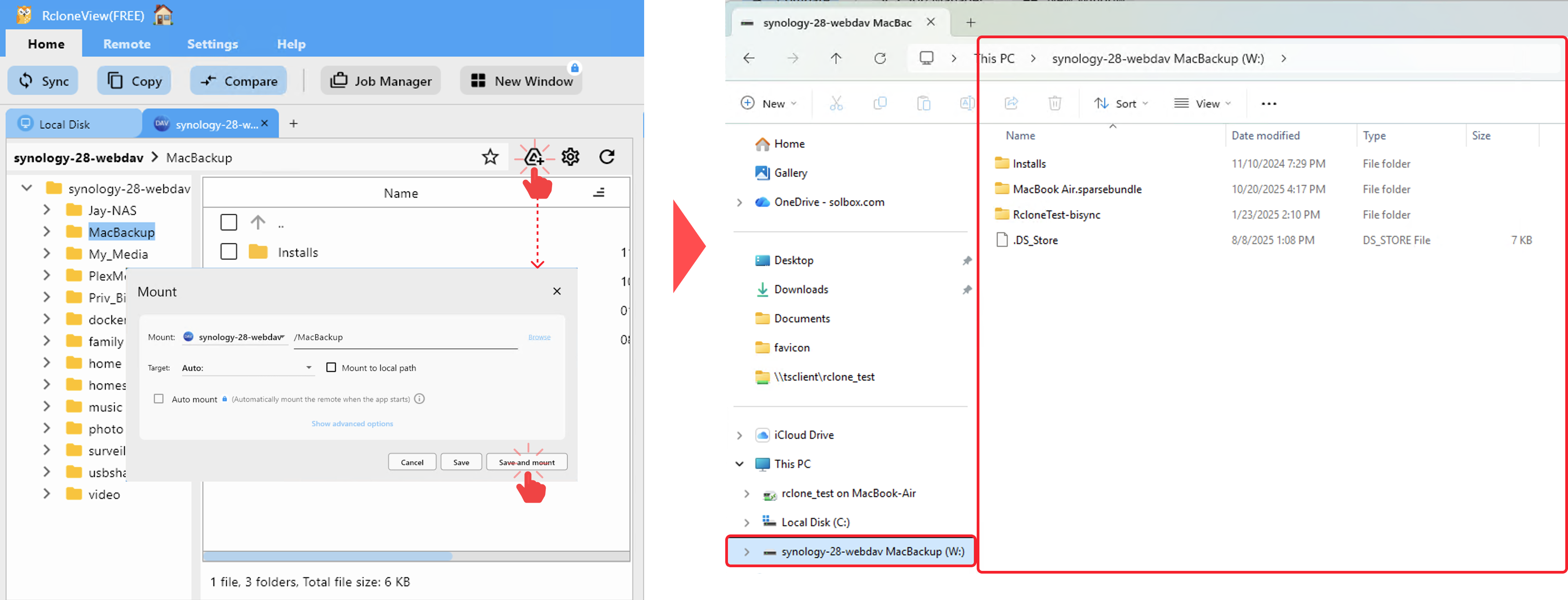
Scope control: mount less, not more
Avoid root mounts
Mounting entire drives or buckets maximizes risk. One mistake affects everything.
Prefer folder-level mounts
Mount only the project or team folder you need.
Read-only vs read-write mounts
Read-only should be default
Most disasters come from writes. Read-only prevents mass deletion.
When read-write makes sense
- controlled workflows
- limited users
- tested before production

Performance fundamentals
Latency is unavoidable. Performance comes from mitigation, not elimination:
- VFS cache
- read ahead
- sane cache limits
VFS cache: the heart of mount performance
Cache keeps cloud files locally for faster access.
- off: slow, fragile
- minimal: small cache, limited reads
- writes: safe uploads
- full: closest to local disk
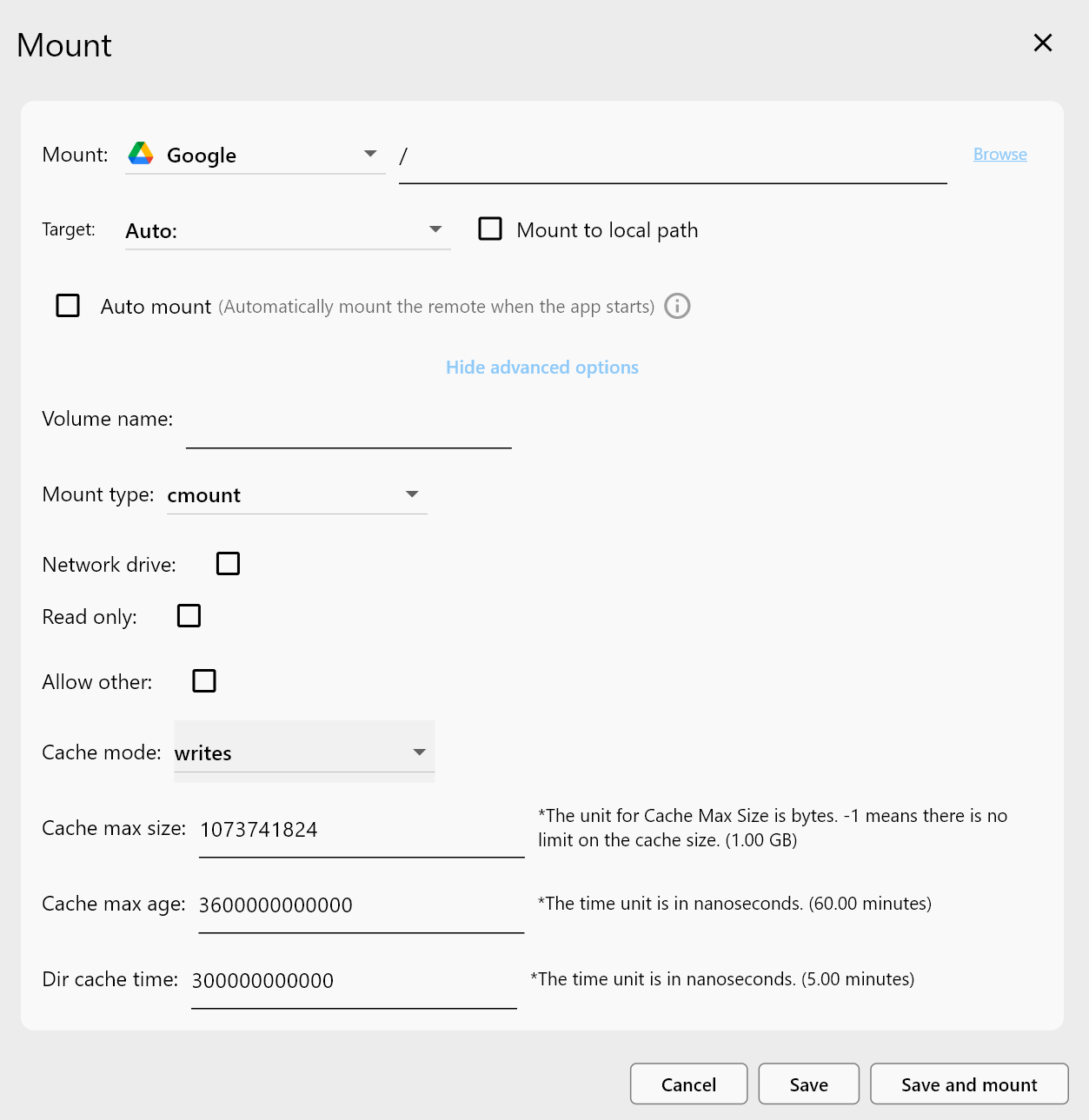
Read ahead
Read ahead is essential for media files and large sequential reads. Too low causes stutter, too high wastes bandwidth.
Cache size and expiry
Small cache = repeated downloads. Huge cache = disk pressure. Set a realistic size and age.
Mount security: prevent catastrophic mistakes
The #1 disaster is a local delete that propagates to cloud instantly. You need safety layers:
- read-only mounts where possible
- restricted mount scope
- user permissions and group separation
Multi-user NAS environments
Shared mounts increase risk. Best practice:
- per-team mount points
- least-privilege write access
- audit via Job logs or monitoring
Operational patterns that work
Pattern 1: Read-only cloud mount
For browsing and access without modification risk.
Pattern 2: Controlled write mount
Admin-only, time-limited, and tested workflows.
Pattern 3: Mount + Copy hybrid
Mount for discovery, Copy for real work.
Monitoring and maintenance
Signs of misconfiguration:
- performance degrades over time
- cache usage spikes
- intermittent errors during access
Check cache health and review logs regularly.
Common anti-patterns
- treating cloud mount like local RAID
- one mount for everything
- heavy write workloads on object storage
When you should NOT use cloud mount
- database workloads
- real-time systems
- high-frequency small file writes
In these cases, Sync or Copy workflows are safer.
Conclusion: a cloud mount is an interface, not a shortcut
Cloud mount can make NAS more powerful, but only if you design it like a system. RcloneView makes that practical with visual settings and safer defaults. Mount less, tune smart, and treat cloud mounts as a strategic interface, not a quick fix.