Transfer Files Between OneDrive and Google Drive with RcloneView
Switch clouds without re-downloading gigabytes. RcloneView gives you a two-pane Explorer, Compare, Sync, and scheduled Jobs so OneDrive ↔ Google Drive moves stay fast and predictable—no CLI required.

Manage & Sync All Clouds in One Place
RcloneView is a cross-platform GUI for rclone. Compare folders, transfer or sync files, and automate multi-cloud workflows with a clean, visual interface.
- One-click jobs: Copy · Sync · Compare
- Schedulers & history for reliable automation
- Works with Google Drive, OneDrive, Dropbox, S3, WebDAV, SFTP and more
Free core features. Plus automations available.
Why use RcloneView for OneDrive ↔ Google Drive?
- Secure OAuth logins for both clouds; no tokens to paste.
- Resumable transfers with progress logging, retries, and bandwidth limits.
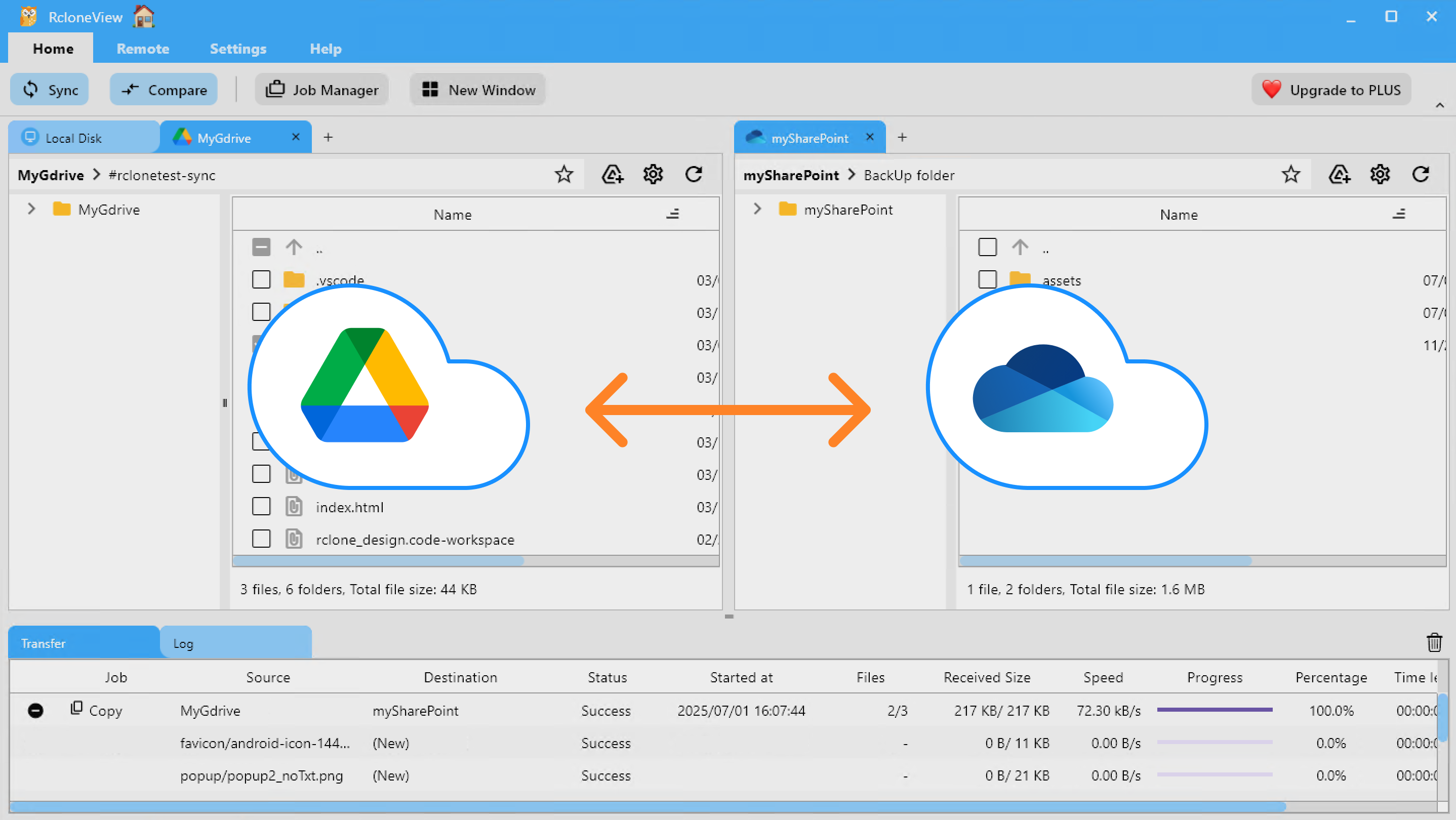
- Two-pane Explorer for drag-and-drop moves without scripts.
- Compare to highlight new/changed files before copying.
- One-way or two-way Sync plus reusable Jobs and scheduling.
- Optional dry-run and filters to control exactly what moves.
RcloneView layers a guided UI on top of rclone, so even large migrations stay reliable while engineers still get advanced switches when needed.
Before you start
- Sign in to both OneDrive and Google Drive accounts.
- Install RcloneView from the latest build: Download.
- Check cloud quotas and per-day API limits (Google Drive enforces 750 GB/day per user for uploads).
- For best throughput, keep RcloneView running during long jobs and prefer wired networks.
Step 1: Connect both cloud remotes
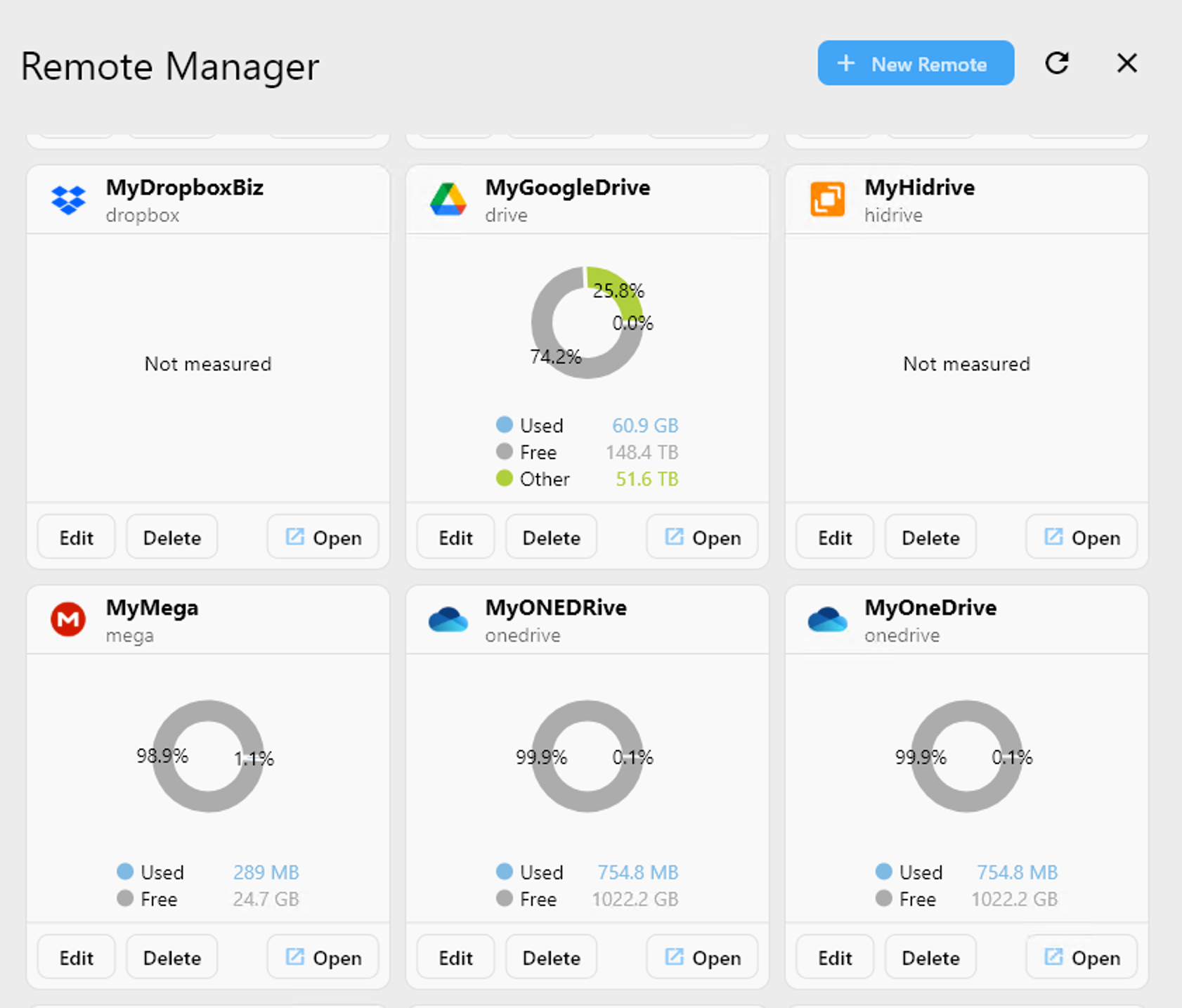
- Open Remote → + New Remote.
- Under Provider, pick OneDrive, then click Connect to complete the Microsoft OAuth sign-in.
- Repeat for Google Drive and finish the OAuth flow.
- Confirm both remotes appear in Remote Manager.
👉 Learn more: Add Google Drive Remote
Step 2: Open both remotes in the Explorer pane
- Go to the Browse tab.
- In the left pane, click + and open your OneDrive remote.
- In the right pane, click + and open your Google Drive remote.
- Browse into the source and destination folders you plan to sync.
Four ways to move files
Method 1: Drag & drop between Explorer panes
- Select files or folders in the OneDrive pane.
- Drag them into the Google Drive pane (or the opposite direction).
- Watch progress in the Transfer tab; pause/resume if needed.
👉 More details: Browse & Manage Remote Storage

Method 2: Compare, then copy or delete
- Open the source folder on the left and destination on the right.
- Click Compare on the toolbar.
- RcloneView highlights unique files, size mismatches, and matches.
- Select items to move, then choose Copy → or ← Copy.
- Use Delete with caution to clean up old data.
👉 Learn more: Compare Folder Contents

Method 3: Sync or save as a Job
- Select your OneDrive source and Google Drive destination.
- Click Sync and choose one-way (OneDrive → Google Drive) or two-way.
- Review the preview, adjust filters (include/exclude), then start.
- Click Save to Jobs to reuse the same sync later.
👉 Learn more:
Method 4: Schedule automatic sync jobs
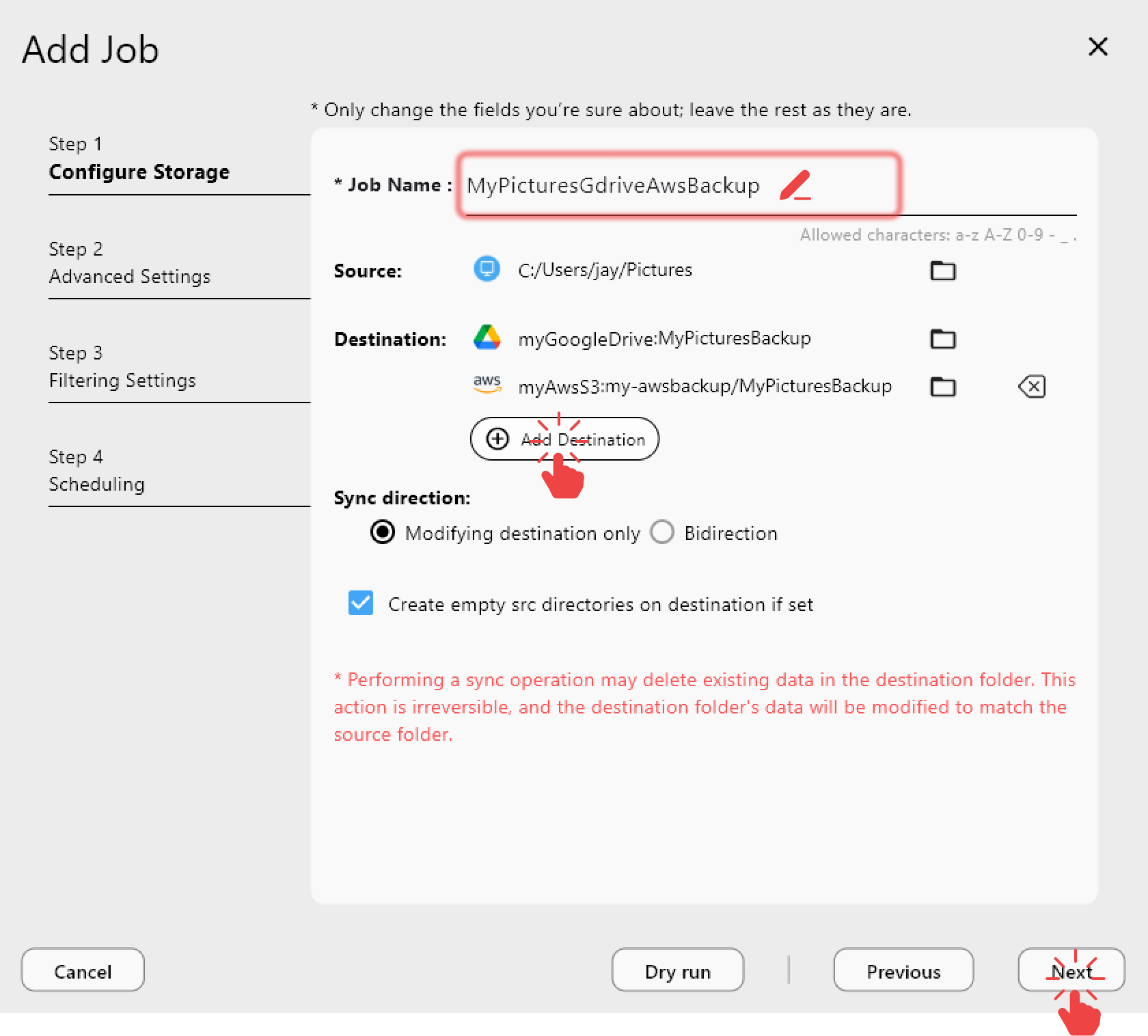
- Open Job Manager → Add Job.
- Set OneDrive as source and Google Drive as destination (or reverse).
- Choose a schedule (hourly, daily, weekly, or cron-style).
- Save and enable the job; RcloneView will run it automatically.
- Review logs and history for verification.
👉 Learn more: Job Scheduling and Execution

Tips for smooth multi-cloud transfers
- Use dry-run before large syncs to confirm what will change.
- For shared OneDrive/Drive folders, ensure you have edit permissions on both sides.
- Use bandwidth limits during work hours to avoid throttling.
- If Google Drive hits the 750 GB/day cap, split the job across days or accounts.
- Keep the Transfer tab open to track retries and throughput.
Summary
RcloneView removes the download/re-upload shuffle between OneDrive and Google Drive. With side-by-side browsing, Compare, Sync, reusable Jobs, and scheduling, you can execute one-off moves or recurring backups with confidence—no command line required.
Supported Cloud Providers





























