Use rclone on Synology NAS with a GUI: No SSH Required
Synology users want rclone power without SSH or CLI risk. RcloneView gives you visual control, safer backups, and repeatable automation in one workspace.
DSM tools are a good starting point, but many NAS users eventually hit limits: cloud support gaps, weak controls, and unclear cost or security tradeoffs. rclone is the obvious upgrade, but the traditional path requires SSH and command-line skills. This guide shows a GUI-first architecture that keeps rclone's power while removing the CLI burden.

Manage & Sync All Clouds in One Place
RcloneView is a cross-platform GUI for rclone. Compare folders, transfer or sync files, and automate multi-cloud workflows with a clean, visual interface.
- One-click jobs: Copy · Sync · Compare
- Schedulers & history for reliable automation
- Works with Google Drive, OneDrive, Dropbox, S3, WebDAV, SFTP and more
Free core features. Plus automations available.
Why "Synology rclone" is such a popular search
Synology NAS users usually want three things:
- Broader cloud support than DSM tools offer
- File-level control for Copy, Sync, and filters
- Freedom from vendor lock-in and opaque backup formats
rclone delivers all of that, but most guides assume SSH and CLI. The real search intent is simple: use rclone without a terminal.
rclone is powerful, but CLI-only is a barrier
Typical NAS rclone setup means:
- Enable SSH
- Connect by terminal
- Edit or manage
rclone.conf - Run commands manually or via cron
For many NAS users, that creates real risk:
- Typos can delete data
- No visual preview before Sync
- Logs are hard to trace after failures
A better architecture: NAS does storage, GUI does control
Key idea:
- NAS remains the data engine
- RcloneView becomes the control center
You still use rclone under the hood, but you manage it through a visual, safe interface.
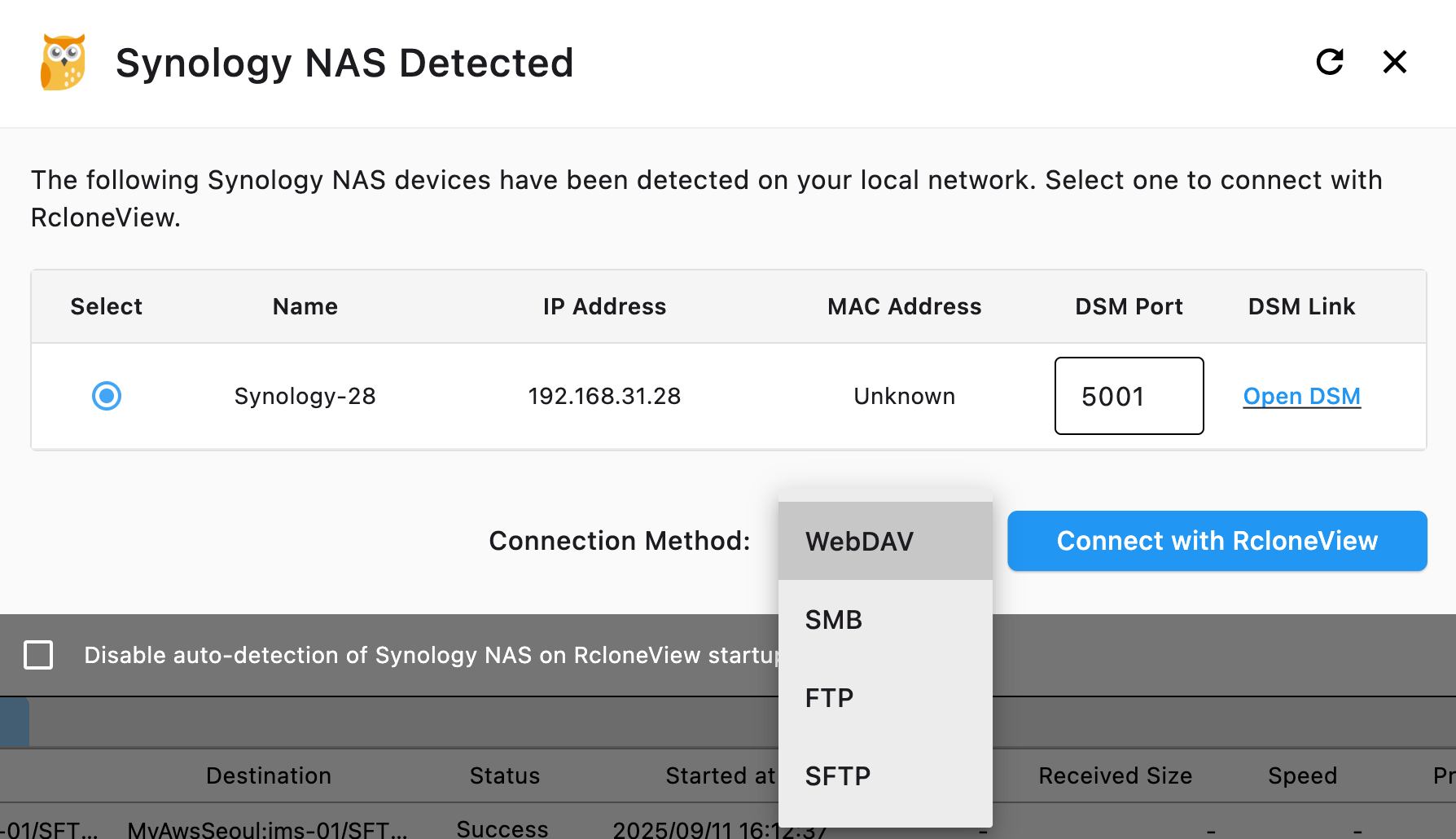
What RcloneView changes for Synology workflows
- Remote setup without SSH
- Visual Compare before any transfer
- Job history and logs in one place
- GUI scheduling instead of cron
RcloneView does not replace your NAS. It makes your NAS cloud-ready without CLI friction.
Typical setup options (no SSH-centric workflow)
Option 1: NAS as source, RcloneView as controller
- NAS shared folders -> cloud targets
- All Copy/Sync/Compare controlled in RcloneView
Option 2: Hybrid model
- NAS stores data locally
- RcloneView handles Compare, encryption, and scheduling
Step-by-step flow without SSH dependency
Step 1: Identify NAS data to protect
- Skip entire volumes by default
- Pick critical shared folders
- Separate by project or user
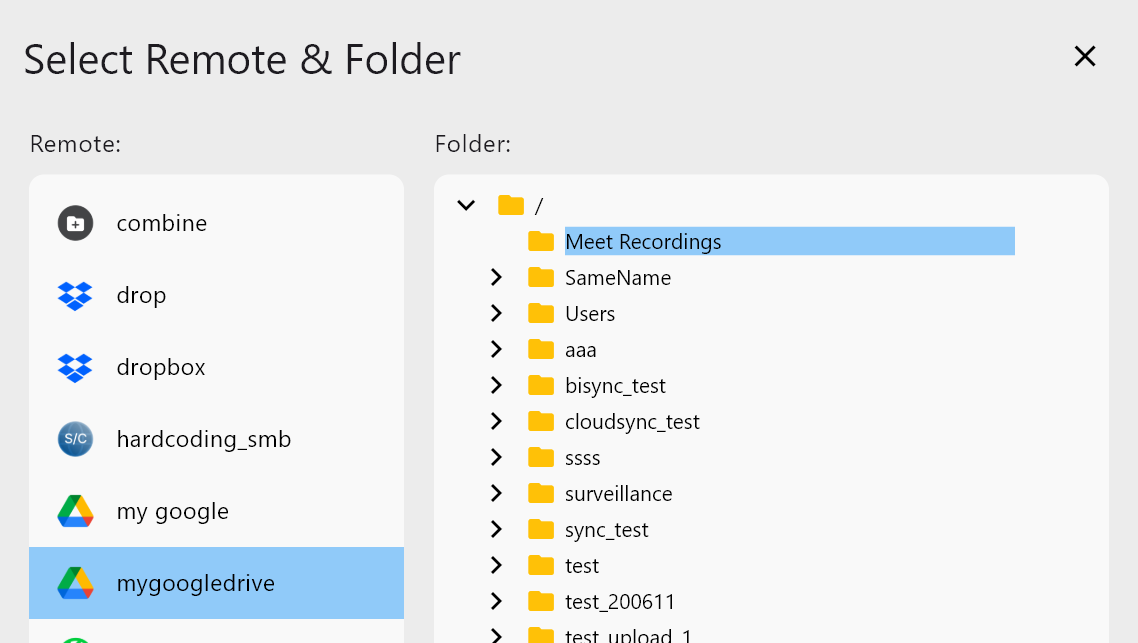
Step 2: Add cloud remotes in RcloneView
- Google Drive, OneDrive, S3, Wasabi, Backblaze
- OAuth or key-based setup

Step 3: Treat NAS folders as sources
- Use mapped or mounted NAS paths
- Keep read/write permissions explicit
Why GUI matters for NAS + rclone
Visual safety
- Copy vs Sync is explicit
- Direction errors are easier to catch
Compare before transfer
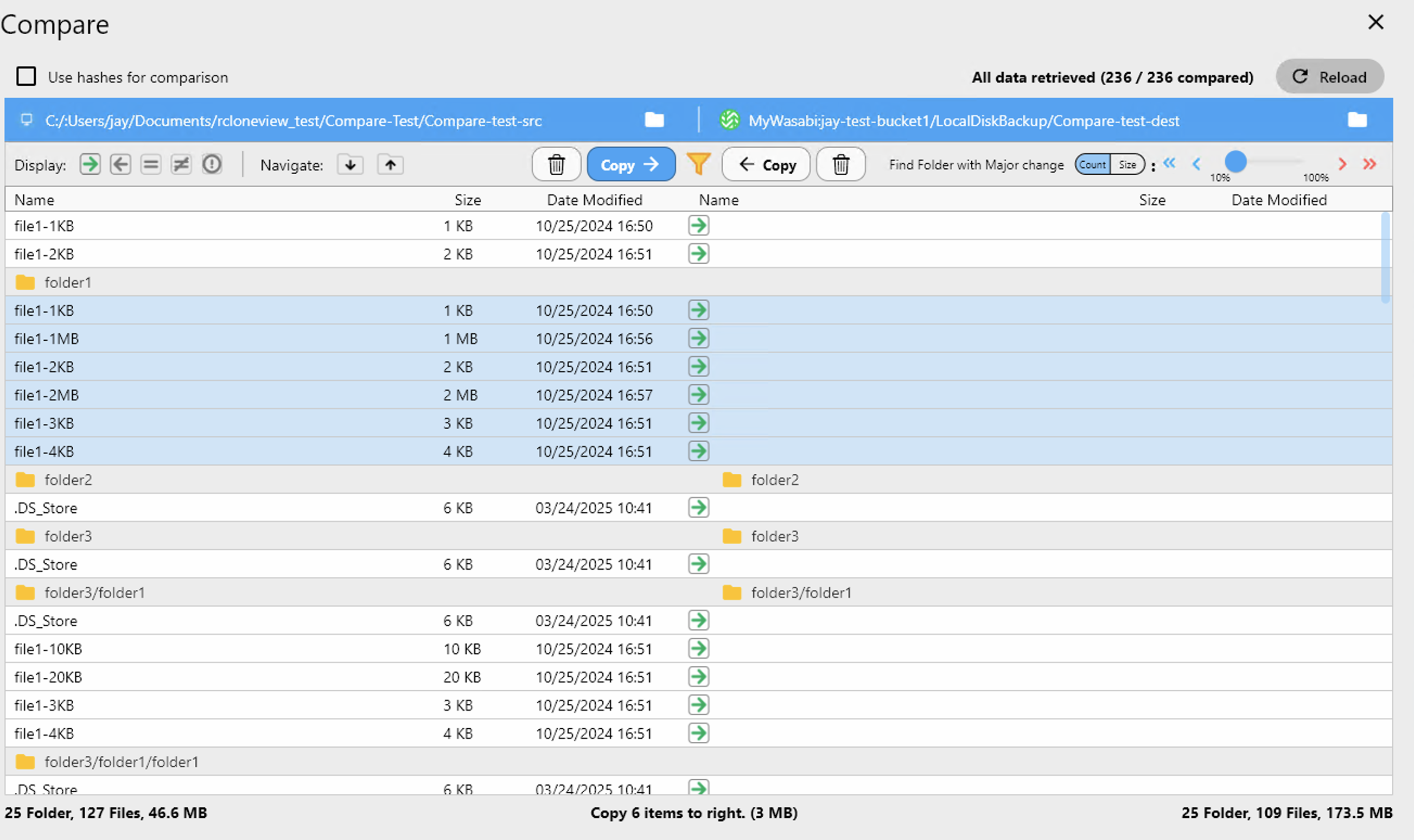
- See the exact delta before moving data
- Filter NAS noise like temp or cache files

Lower risk for non-experts
- No CLI syntax to remember
- Less room for destructive mistakes
Using Compare with NAS data
NAS folders often contain:
@eaDir- temp caches
- package-generated files
Compare helps you identify real changes and avoid unnecessary uploads. It also gives cost visibility before each backup run.
Copy vs Sync for NAS backups
Copy (recommended default)
- No deletions on the destination
- Safest for backups
- Easy to roll back
Sync (advanced use only)
- Only for controlled mirrors
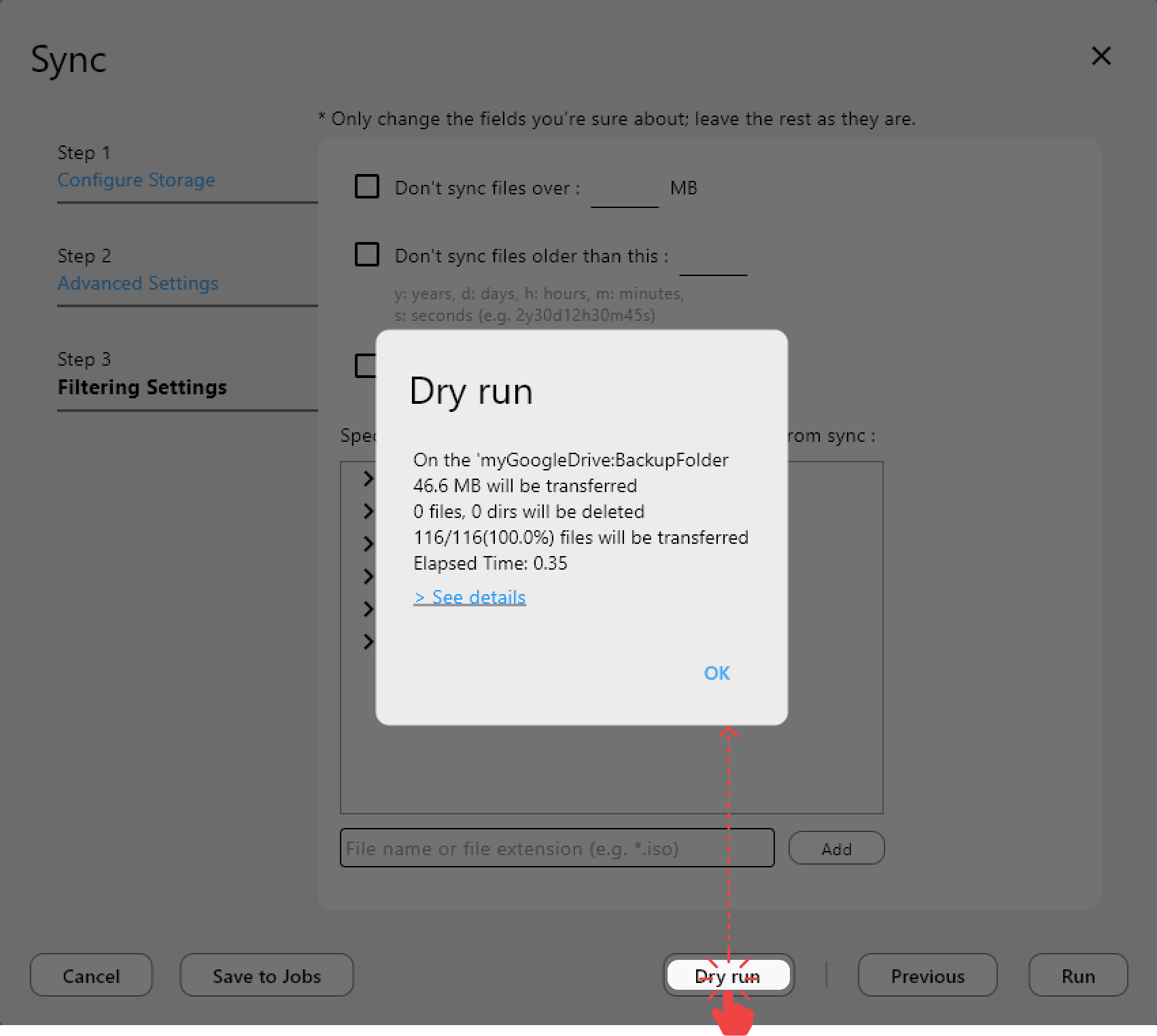
- Always run Dry Run first
Encrypt NAS data before upload (Crypt Remote)
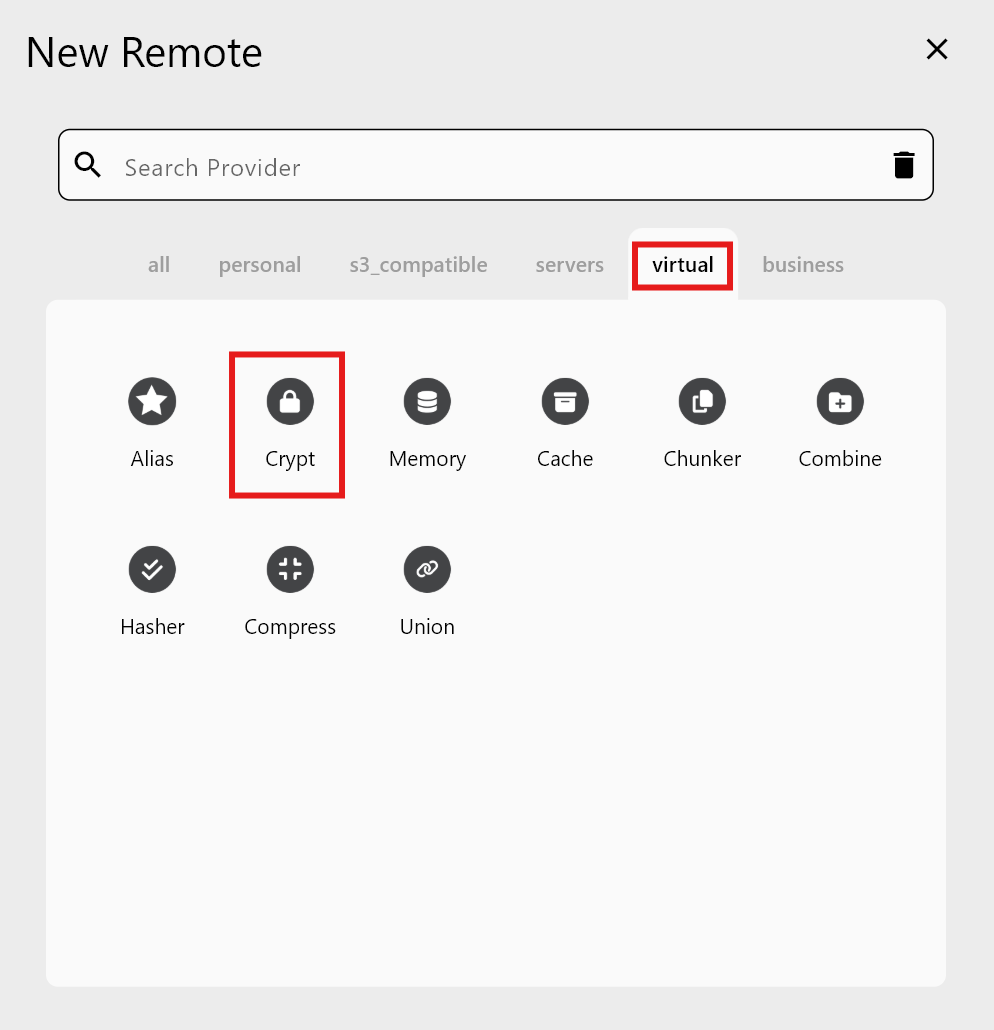
NAS encryption does not protect data once it leaves the NAS. Crypt Remote gives you client-side encryption before upload.
- File content and optional filename encryption
- Zero-knowledge storage in the cloud
Scheduling and automation without cron
Save a Copy or Sync as a Job, then schedule it visually.
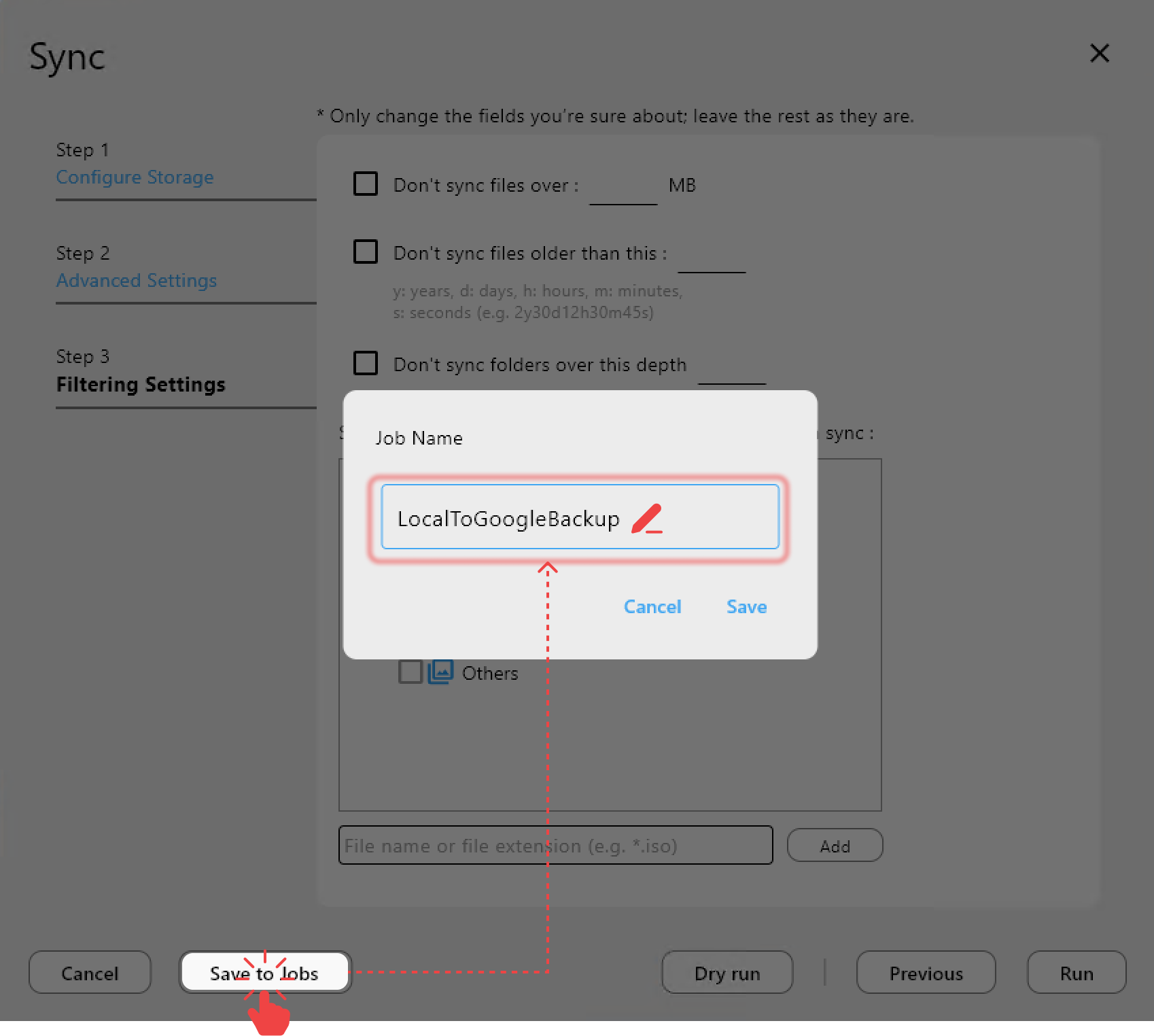
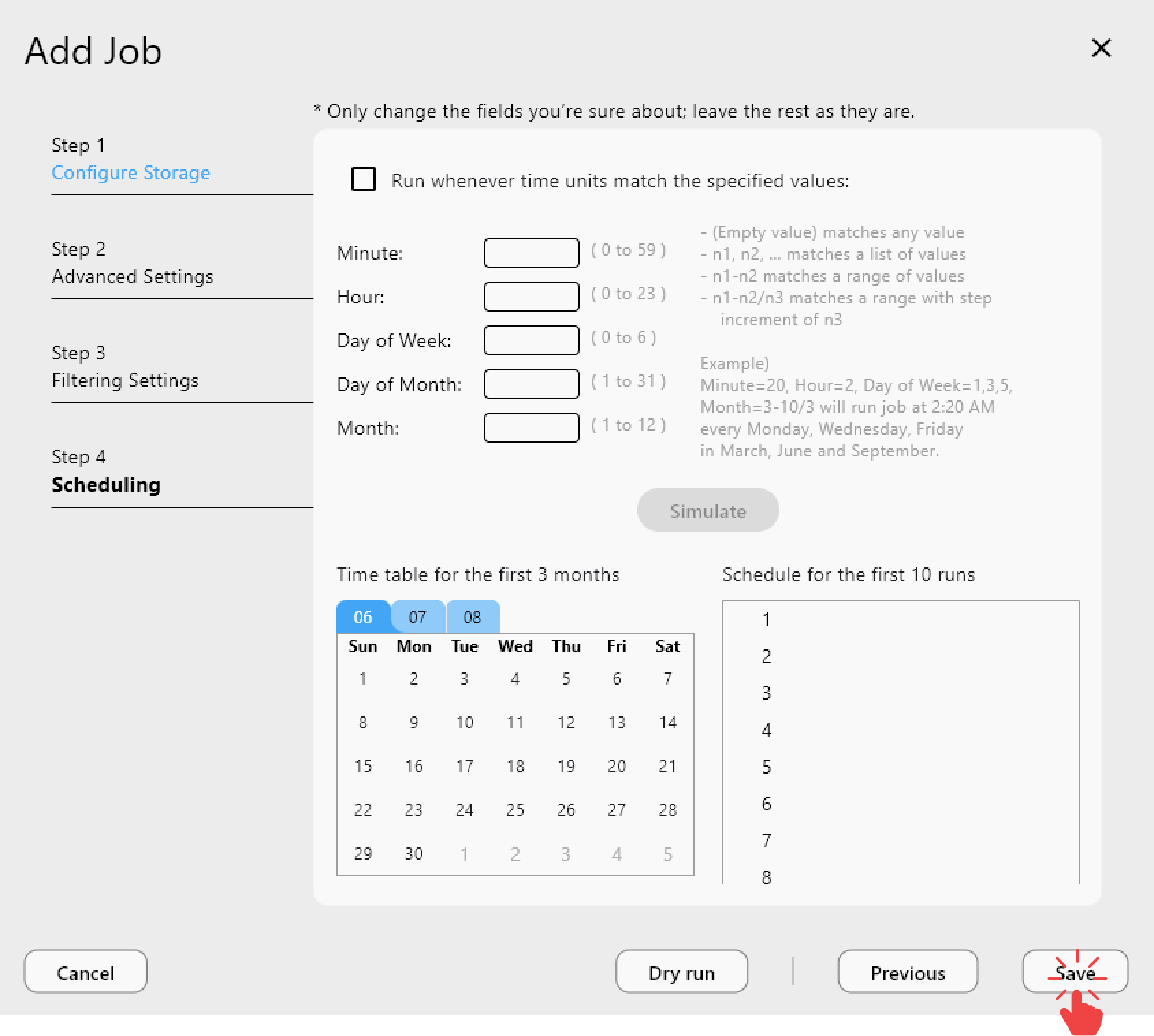
This gives you:
- Job history and failure visibility
- Repeatable configuration
- Easier handoff across teams
Real-world NAS backup scenarios
Home NAS -> Google Drive
- Photos and documents
- Fast single-file restore
Small office NAS -> S3 or Wasabi
- Predictable cost and long-term storage
- Controlled Copy jobs
Power user or IT admin
- NAS -> multi-cloud targets
- Separate jobs per department or project
Security and safety considerations
- Use read-only mounts where possible
- Separate backup jobs from sync jobs
- Test restores by opening files directly in the cloud
Common myths
"CLI is always better" Powerful, but risky on production NAS data.
"GUI is only for beginners" GUI improves operational safety and auditability.
Conclusion: rclone is powerful, control is everything
Synology users choose rclone for flexibility. RcloneView keeps that power while removing SSH and CLI friction. You get safer workflows, better visibility, and backups you can trust.
If you want rclone on Synology without the terminal, this is the simplest path.