How to Upload Large Files to Google Drive Without Errors: Sync with RcloneView
Large Google Drive uploads fail for the same reasons: unstable sessions, weak resume, and browser limits. The fix is simple: stop uploading and start syncing.
Google Drive is everywhere, but browser uploads were never built for 10 GB, 50 GB, or 200 GB files. Most failures come from unstable sessions, timeouts, or slowdowns over long transfers. This guide shows a safer model: use Sync instead of Upload, powered by rclone inside RcloneView.

Manage & Sync All Clouds in One Place
RcloneView is a cross-platform GUI for rclone. Compare folders, transfer or sync files, and automate multi-cloud workflows with a clean, visual interface.
- One-click jobs: Copy · Sync · Compare
- Schedulers & history for reliable automation
- Works with Google Drive, OneDrive, Dropbox, S3, WebDAV, SFTP and more
Free core features. Plus automations available.
Why large Google Drive uploads fail so often
Common search phrases say it all:
- "google drive upload limit"
- "google drive large file slow"
- "google drive upload failed"
Typical frustrations:
- Upload freezes at 90 percent
- Browser tab closes and the upload restarts
- 50 GB files take hours and fail at the end
Google Drive limits: official vs real-world
Google Drive supports huge files, but real-world limits are different:
- Network hiccups break long browser sessions
- API throttling slows sustained uploads
- Browser memory and timeouts stop uploads mid-stream
This is why large uploads feel unreliable even on fast connections.
Why browser uploads are the wrong tool
Browsers are not transfer engines:
- Sessions are fragile
- Resume logic is inconsistent
- Long-running transfers are not stable
For large files, browser upload is the most failure-prone option.
A better model: Sync, not Upload
Upload is one-time and fragile.
Sync is stateful and resilient:
- Remembers what already transferred
- Resumes after failures
- Updates only what changed
This is why Sync is ideal for large files.
Why rclone-based Sync is more reliable
rclone is built for large data moves:
- Strong retry logic
- Chunked upload handling
- Reliable resume after interruptions
The problem is the CLI learning curve. RcloneView removes that barrier and makes Sync visual and safe.
How RcloneView makes large file uploads safer
RcloneView is not an "upload" button. It is a Sync engine with a GUI:
- Local to Drive Sync with resume
- Clear status and logs
- Dry Run for safety
- Job-based automation
Step-by-step: large file upload via Sync
Step 1: prepare a dedicated folder
Keep large files in a clean folder to avoid noise:
- Separate uploads from temp files
- Exclude caches and previews
Step 2: connect Google Drive
Add a Google Drive remote using OAuth:

Step 3: run a Local -> Drive Sync
Select the local folder on the left and Google Drive on the right, then Sync:
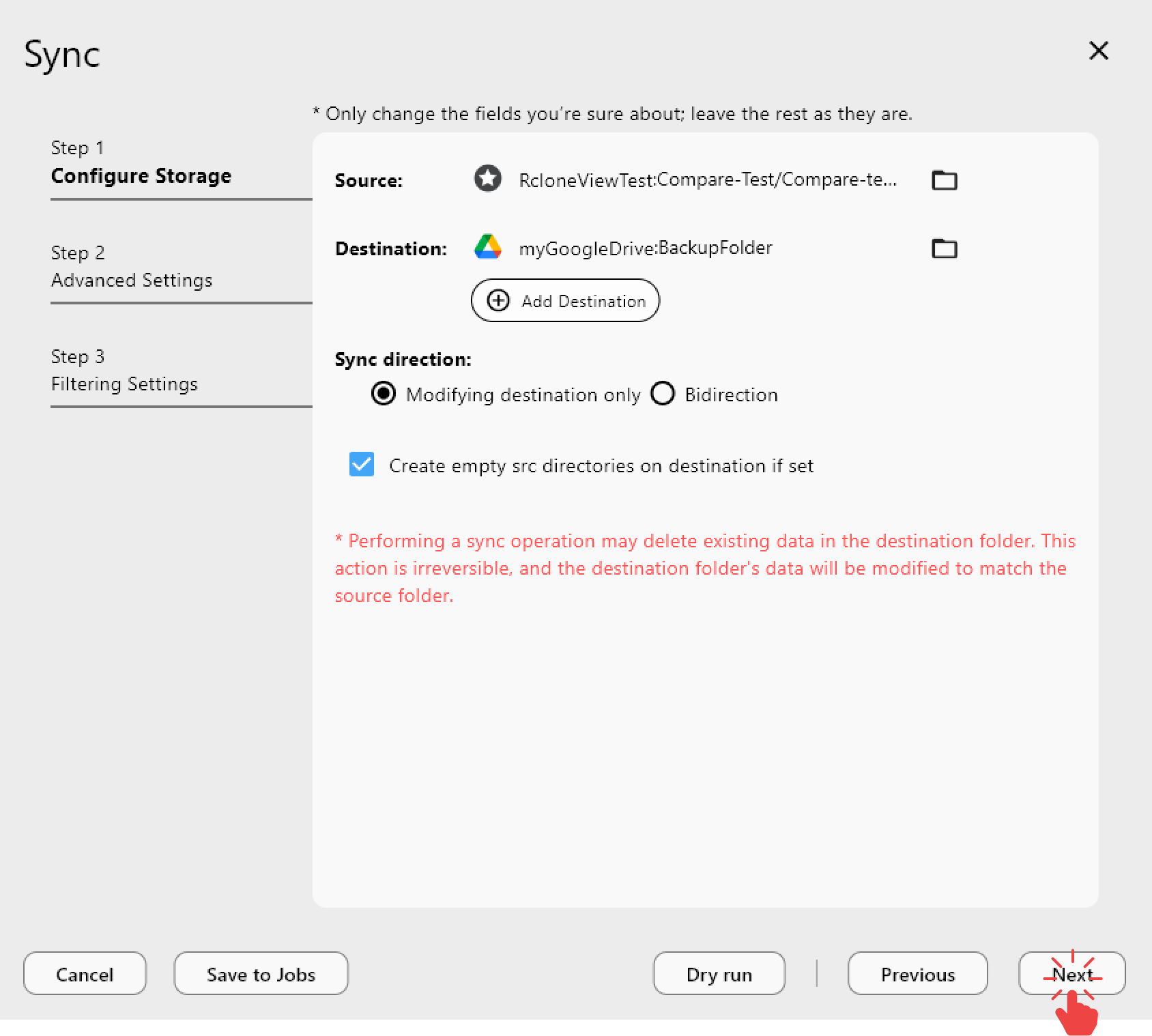
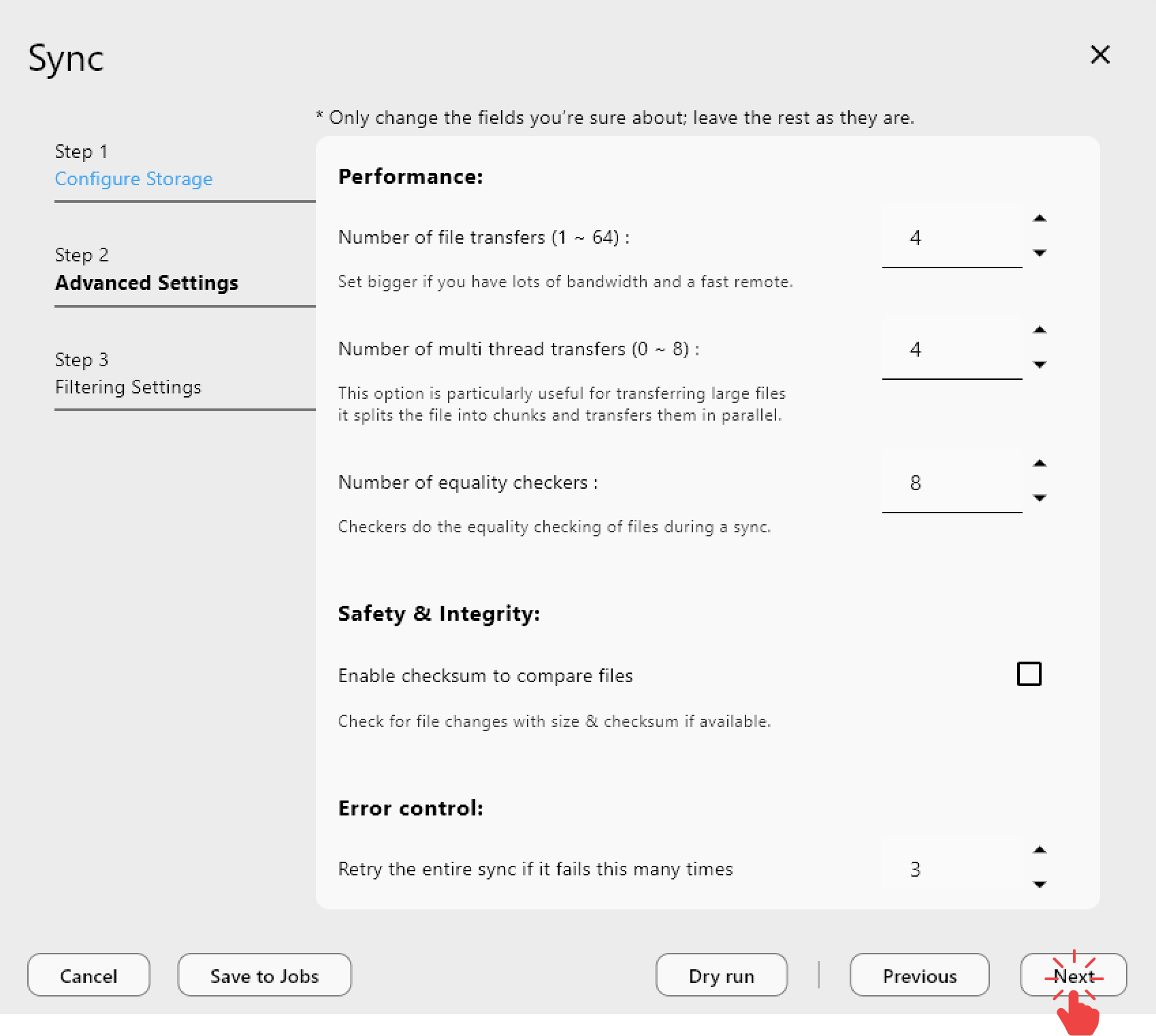
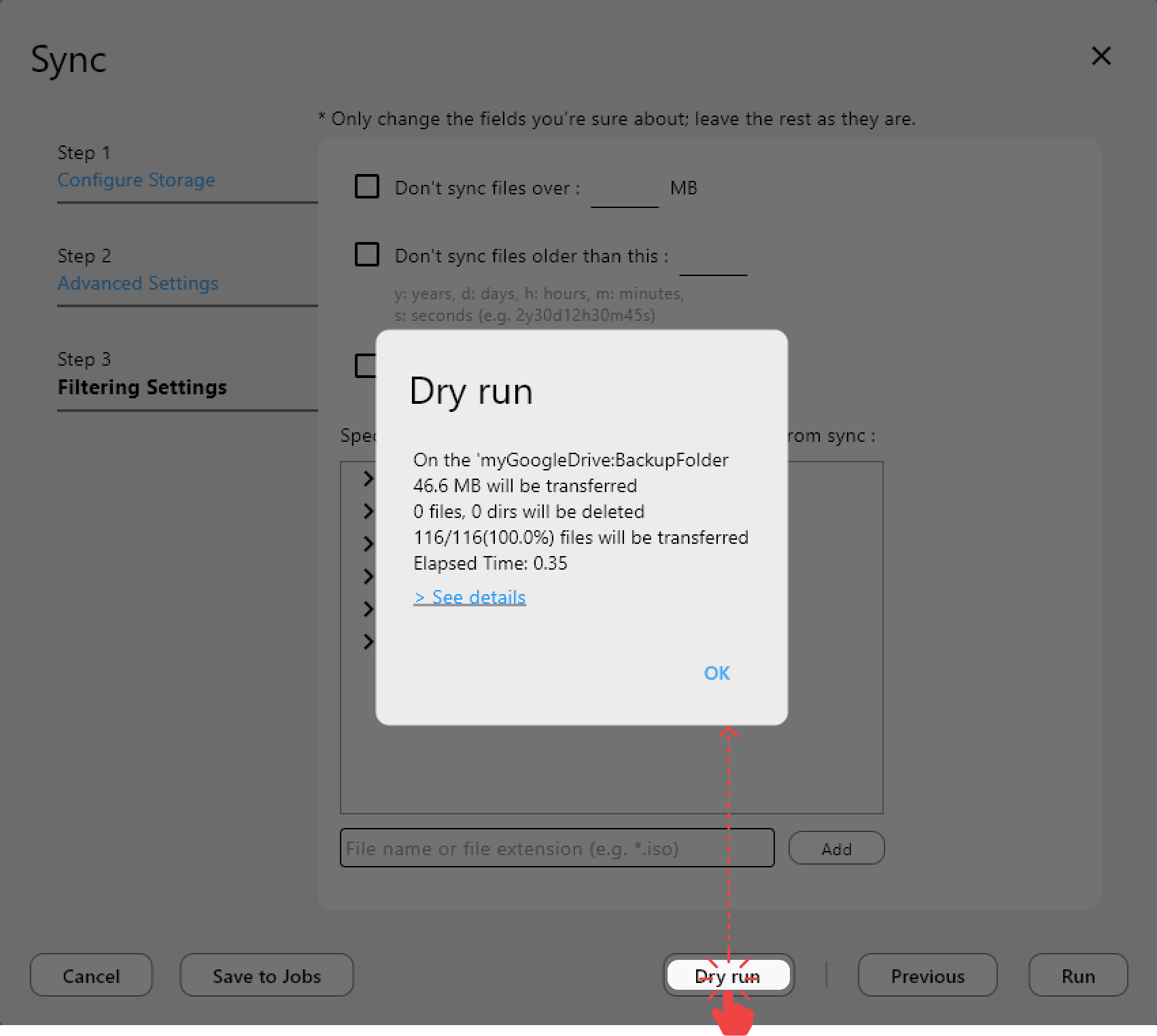
For safety, run Dry Run first:
Why Sync beats Copy and Upload
Sync is stateful:
- Resumes from failure
- Skips already-completed data
- Updates only changed files
Copy is better than upload, but Sync wins for large, repeated transfers because it manages state continuously.
Handling very large files (10 GB, 100 GB+)
rclone handles large files using chunked uploads. That means:
- Transfers are broken into manageable parts
- Network errors do not force full restarts
- You can resume even after a reboot
This is the key difference from browser uploads.
Speed optimization tips
- Avoid peak hours when Google APIs throttle
- Prefer stable networks over short speed bursts
- Let the job run uninterrupted
RcloneView makes this visible with progress logs and status history.
Preventing duplicate uploads and conflicts
Browser uploads often create duplicates: "file (1).mp4", "file (2).mp4".
Sync avoids this:
- Same files are skipped
- Only changed files re-upload
Automation for large file workflows
Save your Sync as a Job for repeat use:
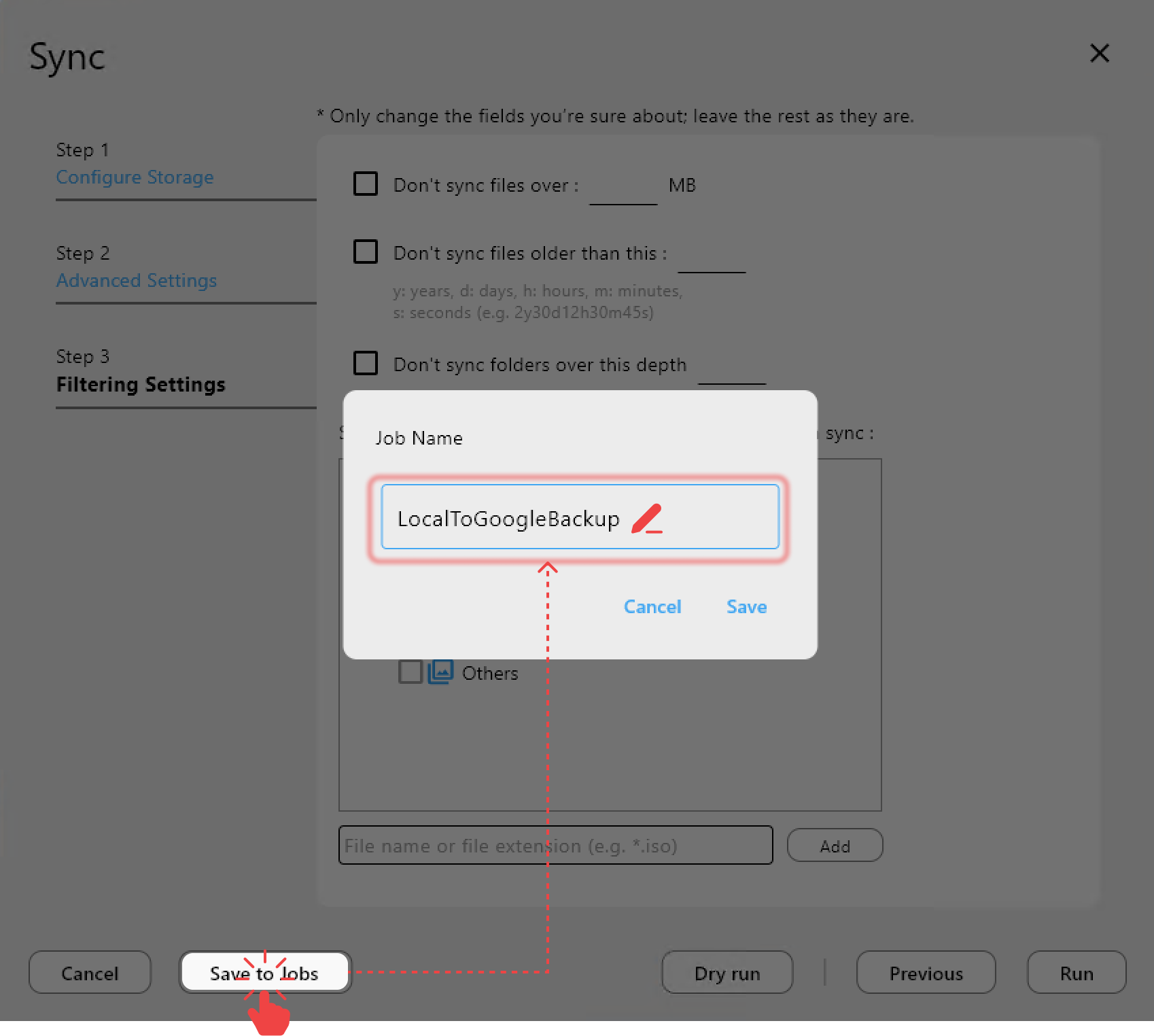
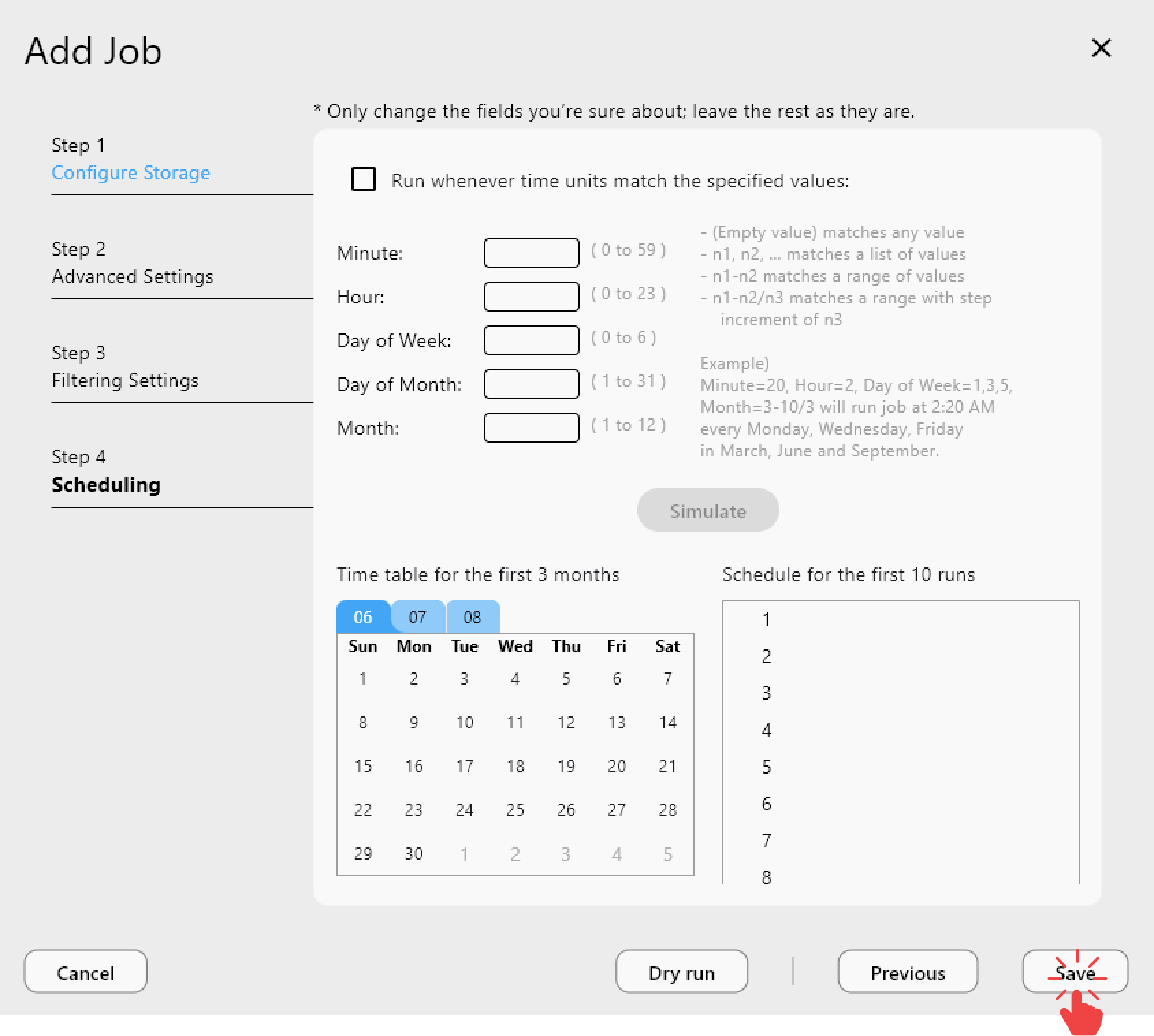
This is ideal for nightly or weekly large uploads without supervision.
Real-world scenarios
Video creators
- 30 GB to 200 GB uploads
- Browser fails, Sync succeeds
NAS backups to Drive
- Large archives
- Stable long transfers without rework
Project archive migrations
- Hundreds of GB moved in phases
- Sync resumes over multiple days
Common myths
"Google Drive is slow" Often it is the upload method, not Drive itself.
"One-time upload is enough" For large files, failure rates are too high.
Best practices checklist
- Do not use browser upload for large files
- Use Sync with Dry Run first
- Keep a dedicated upload folder
- Test resume after interruption
- Automate with Jobs for repeatable uploads
Conclusion: stop uploading, start syncing
Google Drive was not designed for massive browser uploads. Sync is the reliable path for large files because it is stateful, resumable, and error-tolerant. RcloneView gives you that power without CLI complexity.
If you want large uploads that finish, Sync is the answer.