RcloneView Mount Performance Tuning: Cache, Read Ahead, and VFS Settings for Smooth Cloud Drives
Cloud mounts feel slow when VFS and cache settings are misaligned. This guide explains how to tune RcloneView mounts for fast opens, smooth playback, and stable editing.
Cloud drives promise local-like access, but reality often includes slow opens, stutters, and random freezes. The problem is rarely just bandwidth. Most performance issues are caused by VFS cache mode, read-ahead, and cache size policies. This is a practical tuning guide, not a flag list.

Manage & Sync All Clouds in One Place
RcloneView is a cross-platform GUI for rclone. Compare folders, transfer or sync files, and automate multi-cloud workflows with a clean, visual interface.
- One-click jobs: Copy · Sync · Compare
- Schedulers & history for reliable automation
- Works with Google Drive, OneDrive, Dropbox, S3, WebDAV, SFTP and more
Free core features. Plus automations available.
Why cloud drives feel slow (even on fast networks)
Common symptoms:
- File open delays, even for small files
- Video playback stutters or rebuffering
- IDE and design tools freezing on random reads
- Fast at first, then slow after a while
These are classic VFS/cache misconfigurations, not just network issues.
How rclone mount works (quick mental model)
Cloud mounts are not local disks. They are a translation layer:
OS ↔ VFS ↔ rclone ↔ Cloud API
The VFS (Virtual File System) layer is where performance is won or lost.
The most important setting: VFS cache mode
VFS cache controls how much data is stored locally to avoid repeated network calls.
- off: no cache, slow and fragile. Use only for tests.
- minimal: tiny cache, limited read performance.
- writes: caches writes, more stable uploads.
- full: caches reads and writes, closest to local-disk behavior.
Recommended:
- Editing or creative work: full
- General file access: writes
- Read-only access: minimal
Read ahead: why sequential reads still stutter
Read ahead prefetches data before the app asks for it.
Too low:
- Video seeks rebuffer
- Large file scrolls lag
Too high:
- Excess traffic
- Memory spikes
Practical guidance:
- Documents or small files: low read ahead
- Media and large files: higher read ahead
- Balance with your bandwidth cap
Cache size and expiry: avoid "it was fast, then slow"
If cache is too small, files are constantly evicted and re-downloaded.
If cache expiry is too short, the system keeps invalidating useful data.
Recommended strategy:
- Desktop: larger cache, moderate expiry
- Server or limited disk: capped cache size, shorter expiry
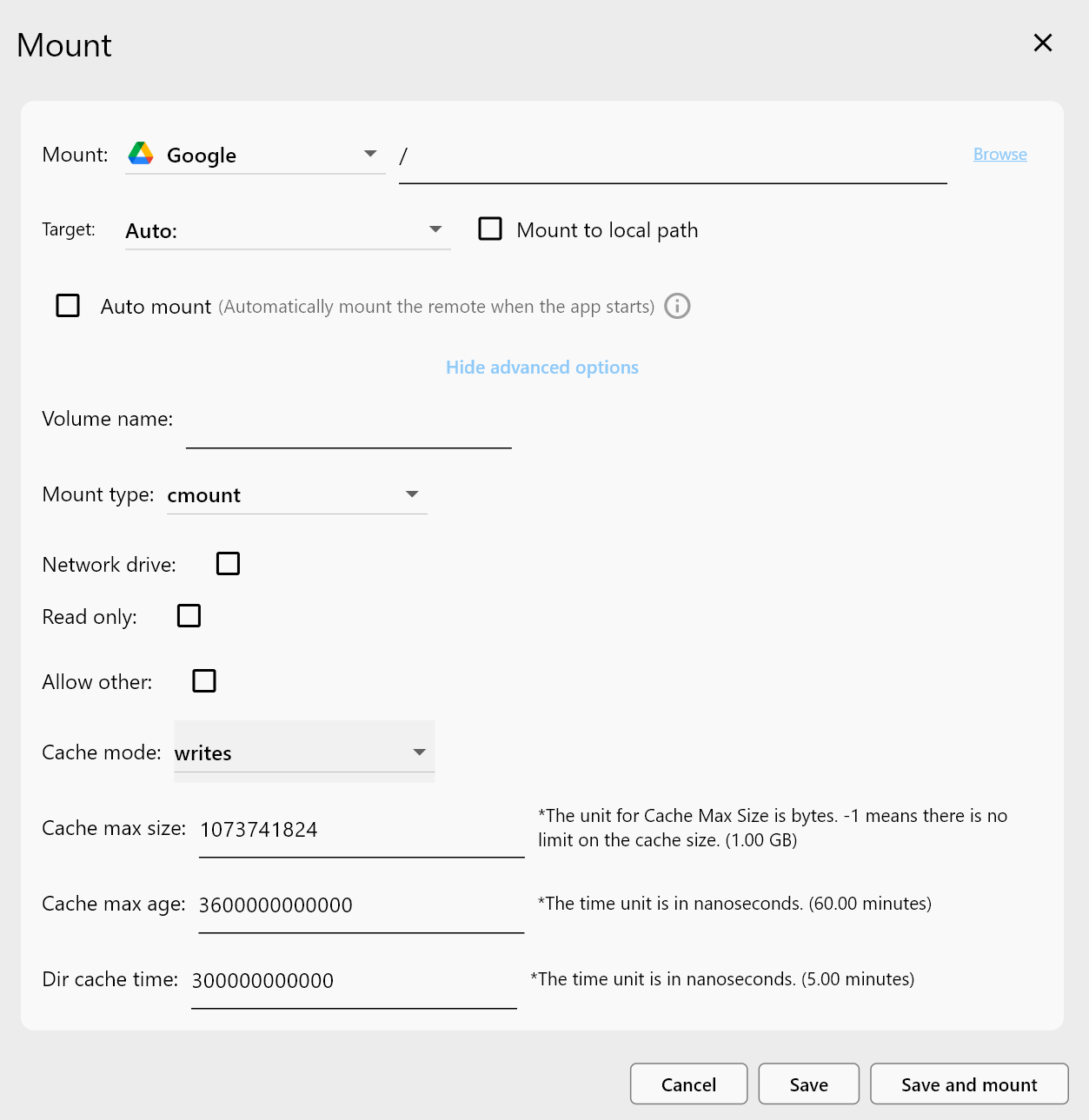
How RcloneView simplifies mount tuning
No CLI flags to memorize:
--vfs-cache-mode--vfs-read-ahead--vfs-cache-max-size--vfs-cache-max-age
RcloneView exposes these in the Mount UI so you can see all interactions in one place.

Guide: /support/howto/rcloneview-basic/mount-cloud-storage-as-a-local-drive
Practical mount performance profiles
Profile 1: General office work
- VFS cache: writes
- Read ahead: low to medium
- Cache size: moderate
Profile 2: Media and content creation
- VFS cache: full
- Read ahead: high
- Cache size: large
Profile 3: Server or NAS-like usage
- VFS cache: writes
- Read ahead: low
- Cache size: capped and predictable
Provider considerations (S3 vs Drive)
S3-compatible storage
API calls are cost-sensitive. Cache tuning reduces repeated reads and API costs.
Drive-based storage
Metadata-heavy operations benefit more from read-ahead and caching.
Default settings are conservative to avoid risk across all environments. Tuning is how you unlock real performance.
Measuring improvements
Track before and after:
- File open time
- Sequential read speed
- App responsiveness on random I/O
The goal is not peak speed. It is consistent, predictable response.
Common mistakes in mount tuning
- "Cache is always good" (unlimited cache can fill disks)
- "One setting fits all" (workloads differ)
- "Network speed is everything" (I/O patterns and cache matter more)
Best practices summary
- Use VFS cache in almost all real workloads.
- Increase read ahead for media-heavy use.
- Manage cache size and expiry intentionally.
- Use separate mount profiles per workload.
Conclusion: treat cloud mounts like systems, not shortcuts
Cloud mounts are powerful, but they need tuning to behave like local drives. With RcloneView, you get the performance options in a clear GUI instead of a wall of CLI flags. Tune once, and your cloud drive becomes stable, fast, and predictable.