Complete Cloud-to-Cloud Data Migration Guide Using RcloneView
Shift terabytes between Dropbox, OneDrive, S3, or NAS without touching the CLI. RcloneView lets you Compare, copy, sync, and schedule migrations so you avoid duplicates, catch missing files, and validate integrity end-to-end.

Manage & Sync All Clouds in One Place
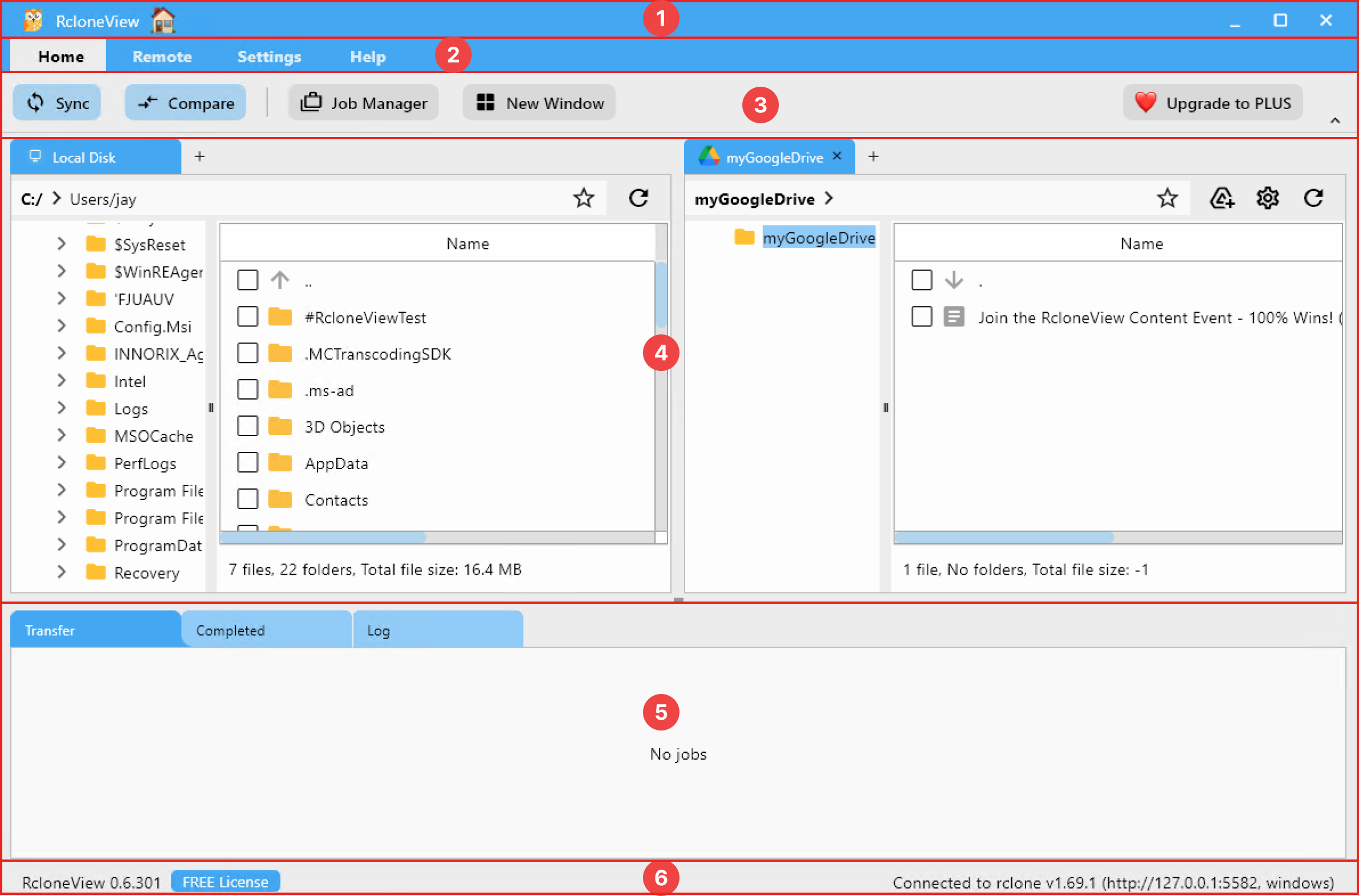
RcloneView is a cross-platform GUI for rclone. Compare folders, transfer or sync files, and automate multi-cloud workflows with a clean, visual interface.
- One-click jobs: Copy · Sync · Compare
- Schedulers & history for reliable automation
- Works with Google Drive, OneDrive, Dropbox, S3, WebDAV, SFTP and more
Free core features. Plus automations available.
1) Why cloud data migration is hard
- APIs differ across providers (Drive vs. Dropbox vs. S3), so flags and limits vary.
- Manual download → upload wastes bandwidth and disk; interruptions corrupt partial copies.
- Folder structures and permissions don’t match between accounts.
- Versioning and naming collisions (FINAL, FINAL_FINAL) create duplicates.
- Large transfers risk timeouts; you need resume, retry, and checksums.
2) Why RcloneView is ideal for migration
- GUI over rclone’s proven engine—no command flags to memorize.
- Compare shows missing/changed/matching files before and after.
- Resume/retry plus checksums reduce corruption risk on big moves.
- Cloud-to-cloud direct: avoid staging on local disks.
- Supports Dropbox, Google Drive, OneDrive/SharePoint, S3/Wasabi/R2/B2, SFTP/SMB/NAS in one place.
3) Prepare your migration plan
- Audit source: total size, object count, depth, and special folders (Shared, Team Drives).
- Audit target: quotas, API limits (e.g., Google Drive 750 GB/day/user), permissions.
- Set priority by project; migrate critical teams first.
- Decide archive strategy for cold data (Wasabi/S3) vs. active collaboration (Drive/OneDrive).
- Communicate freeze windows if needed to prevent mid-migration edits.
4) Step-by-step migration with RcloneView
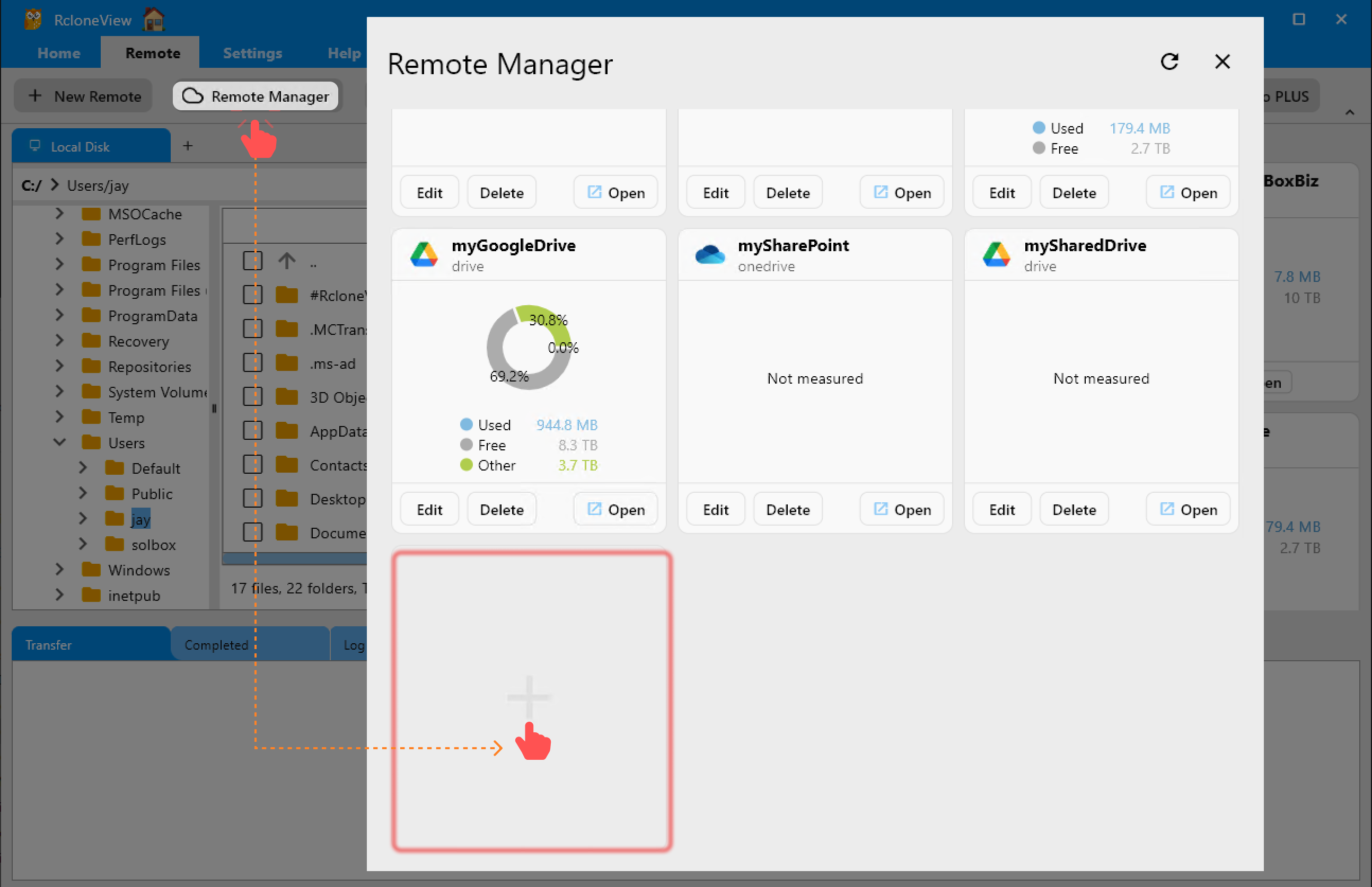
a. Register remotes
- Open Remote → + New Remote.
- Select the provider (Dropbox, OneDrive, Google Drive, S3, or SFTP/SMB/NAS).
- OAuth for Drive/Dropbox/OneDrive, or enter keys for S3.
- Save both source and destination remotes.
b. Open both services side-by-side
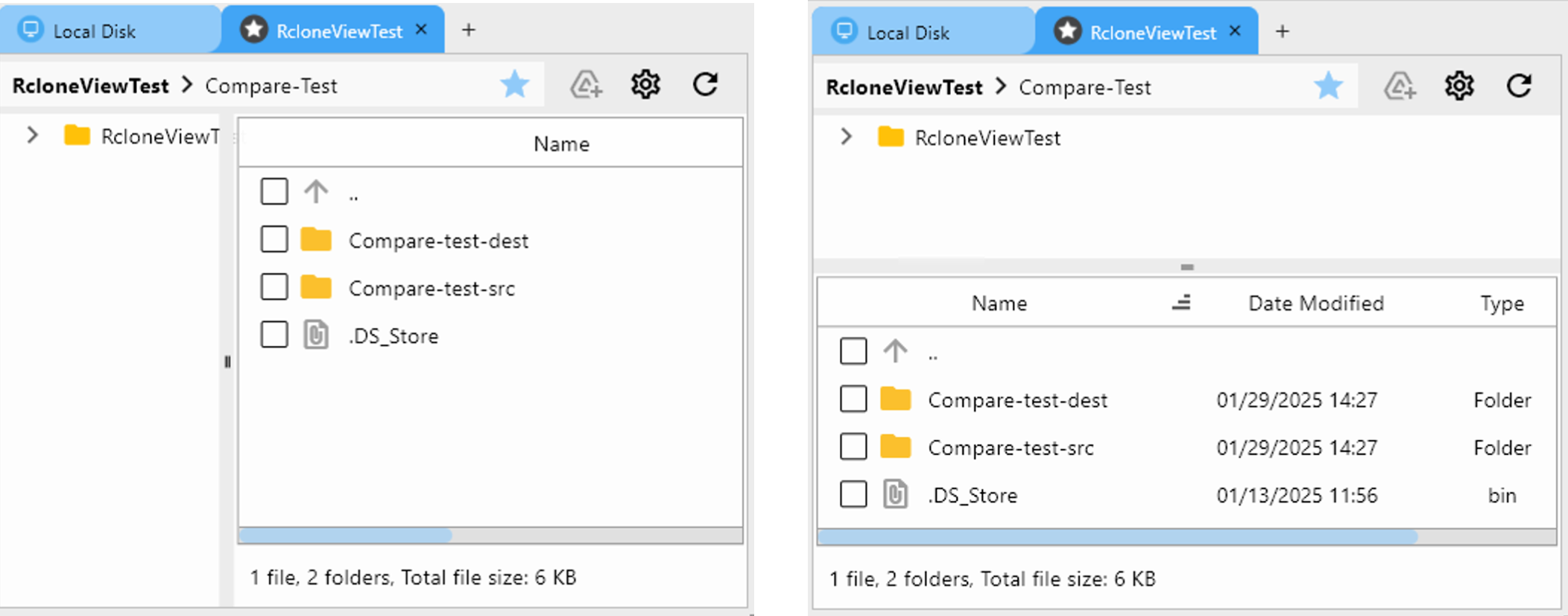
- Go to Browse.
- Left pane: open source (e.g., Dropbox).
- Right pane: open destination (e.g., Google Drive or S3).
- Navigate to matching folders (e.g.,
/Projects/2025).
c. Compare to find gaps before copying
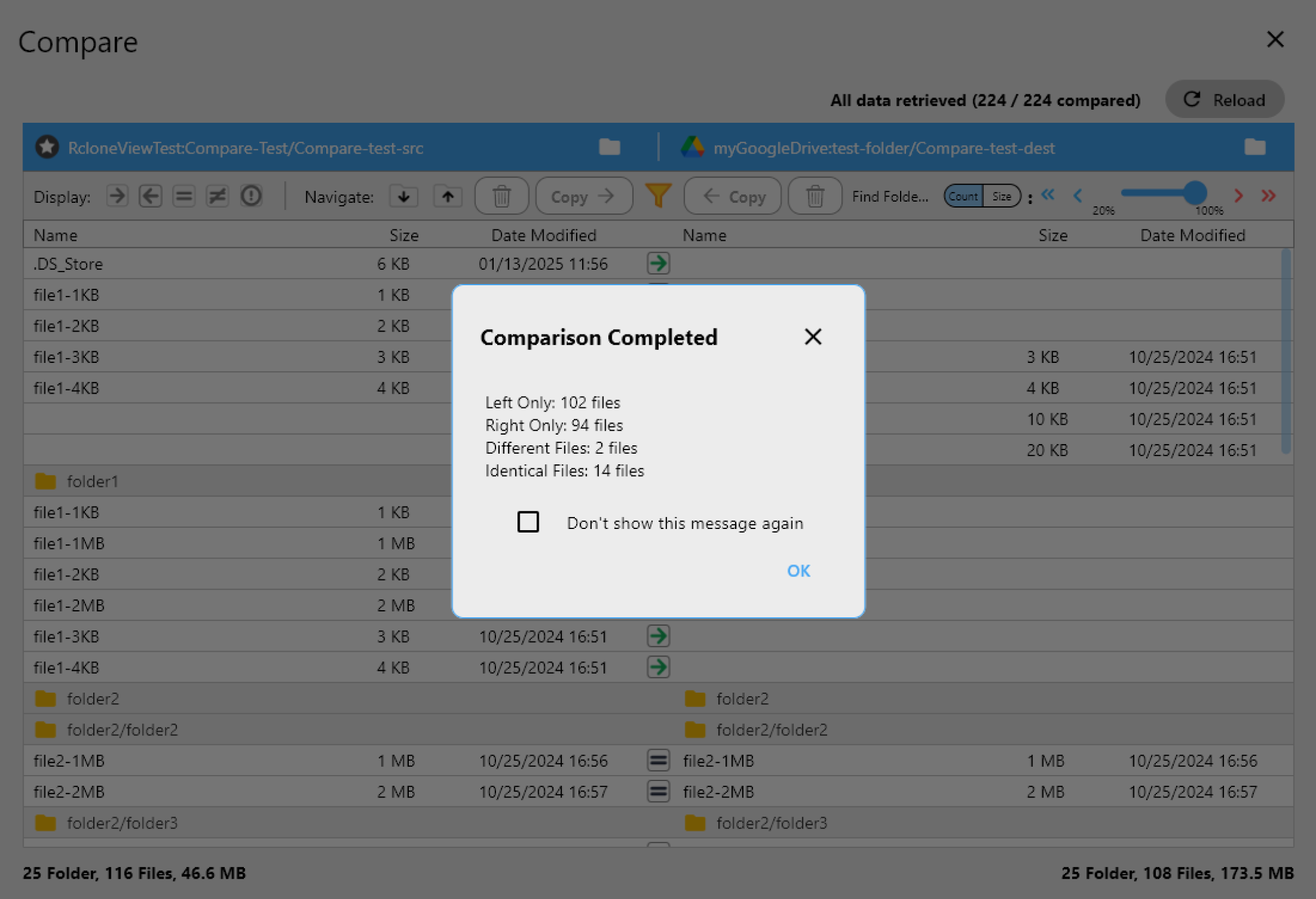
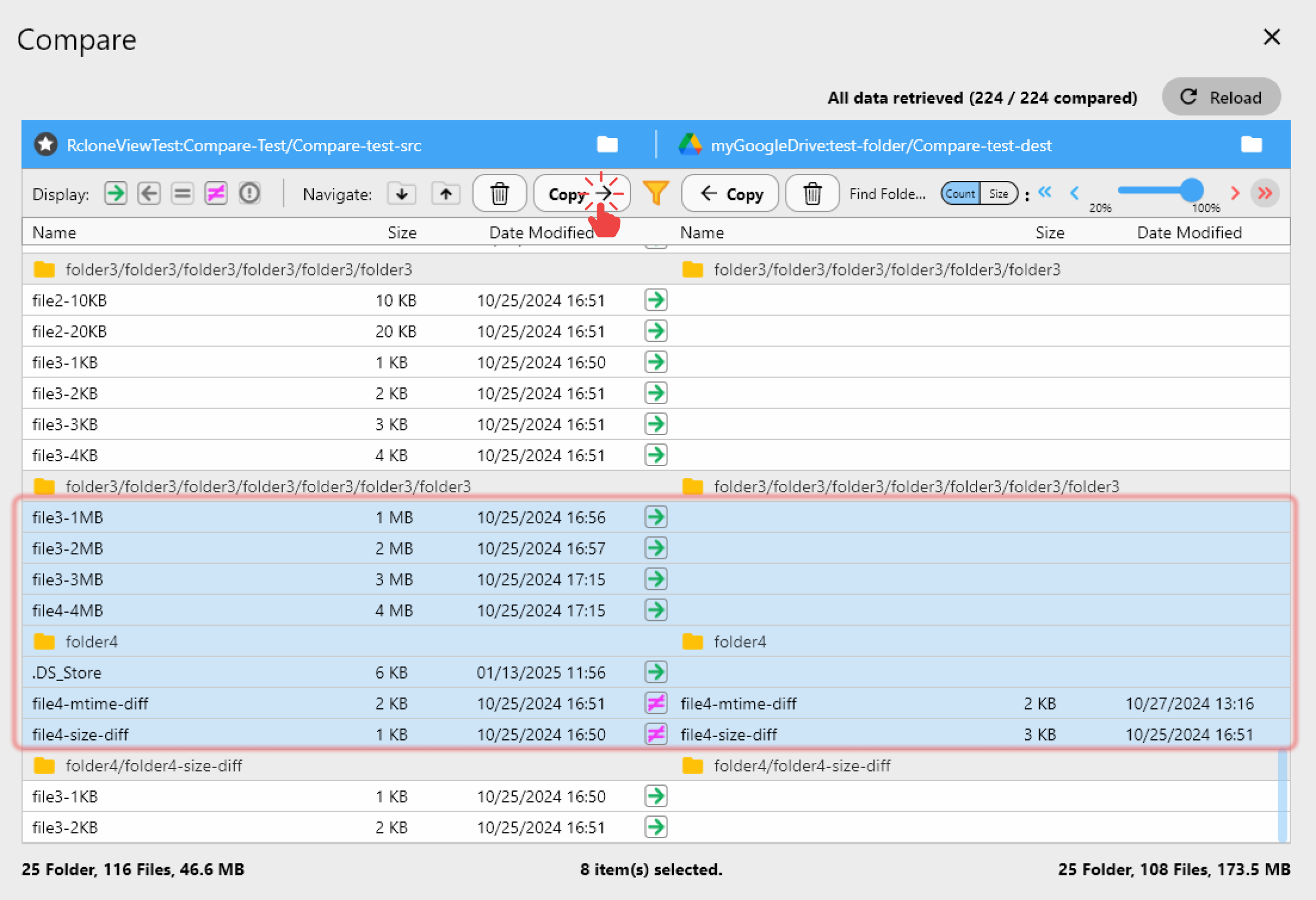
- Click Compare to highlight missing, size-different, and matching files.
- Resolve naming collisions (rename on source or target) before bulk copies.
- Use Copy → or ← Copy to move only the delta.
d. Copy and sync with safe options
- Start with one-way copy to avoid deletes on the target.
- For big libraries, enable checksum where supported (S3/Wasabi/B2).
- Tune concurrency if throttled; lower threads for WAN or rate-limited APIs.
- Keep Transfer tab open to monitor retries and throughput.
e. Resume and retry automatically
- If a session drops, rerun the same Copy/Sync; unchanged files are skipped.
- For Drive/Dropbox API hiccups (429/5xx), reduce bandwidth and retry.
5) Handle version conflicts and folder structures
- Standardize a template:
Project/RAW,EDIT,EXPORT,ARCHIVE. - Move EXPORT to collaboration clouds; keep RAW on S3/NAS for fidelity.
- For client shares, recreate permissions after data lands; log who needs access.
- If filenames clash, keep a
conflicts/folder on the destination, then merge manually. - For Team Drives/SharePoint, map source folders to destination libraries before copying.
6) Automate migration with Sync Jobs
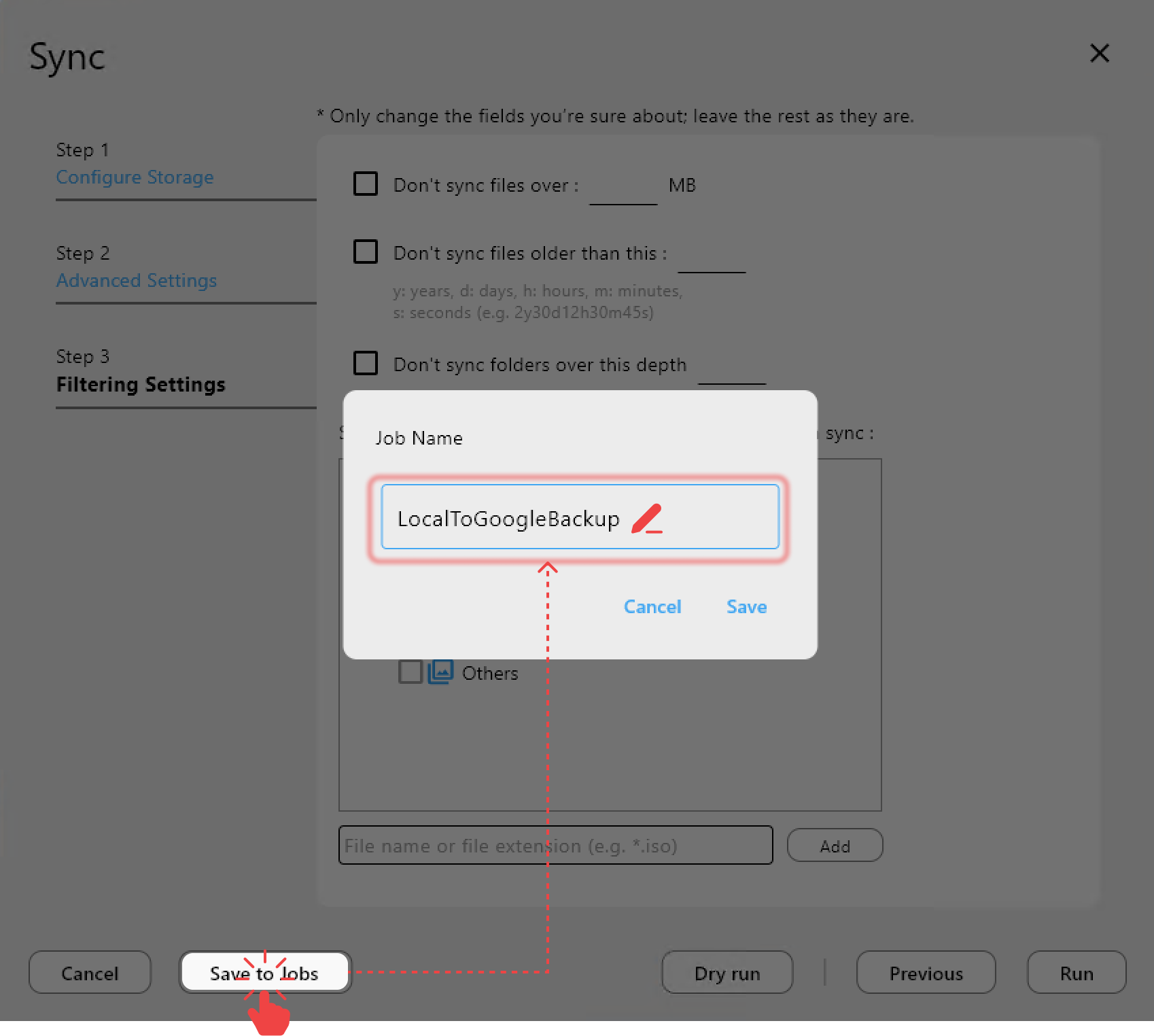
- Convert your Copy/Sync into a Job to rerun safely.
- Use one-way sync for phased migrations; avoid delete until validation passes.
- For huge object counts, split by project (
/Projects/A-M,/Projects/N-Z) and schedule separately. - Enable dry-run first to confirm planned actions.

7) Validate and fix errors
- Review Job History/Logs for failures (403/429/5xx).
- Re-run jobs; only missing/changed files transfer.
- Use Compare after completion—expect zero missing or size-different entries.
- For stubborn files, try a smaller concurrency or copy them in a micro-batch folder.
8) Finalize your cloud transition
- Archive the old source (or set to read-only) after validation.
- Update permissions and sharing links on the new cloud.
- Adjust integrations (apps, webhooks) to point to the new storage.
- Document the new folder map and retention rules.
9) Best practices cheat sheet
- Prefer one-way copy first; add deletes only after validation.
- Compare before/after every major batch.
- Checksum where supported; for Drive/Dropbox, rely on size/time plus retries.
- Bandwidth limits during office hours; full speed overnight.
- Chunk size: increase cautiously on high-latency links; decrease if rate-limited.
- Versioning on S3/Wasabi for rollback; keep an
archive/tier for cold data.
Real-world migration scenarios
Dropbox → Google Drive (team space)
- Source: Dropbox team folders; Destination: Google Drive Shared Drive.
- Compare to spot extra copies from user folders; copy only deltas to Shared Drive.
- Recreate sharing in Drive; store FINAL exports there, keep RAW in S3.
OneDrive → S3 cold archive
- Source: OneDrive project folders; Destination: S3 bucket with versioning.
- One-way copy with checksum; lifecycle rules move older versions to infrequent access.
- Keep a monthly Compare to ensure archives stay aligned.
NAS → Dropbox/Drive for collaboration
- Source: SMB/SFTP NAS; Destination: Dropbox or Drive.
- Mount NAS for local apps; run one-way sync nightly to cloud for distributed teams.
- Exclude caches/proxies; include masters and project files.
S3 → OneDrive (licensing change)
- Source: S3 bucket; Destination: OneDrive library.
- Throttle concurrency to respect OneDrive API limits; run in batches by prefix.
- Compare after each batch; keep S3 read-only until sign-off.
Troubleshooting quick list
- 429/Rate limit: lower concurrency, add bandwidth caps, retry.
- 403/Permission: re-auth remote, check bucket policies/share ACLs.
- Name collisions: move conflicts to a staging folder; reconcile manually.
- Stalled mount: stop/start in Mount Manager (if using mounts for staging).
- Partial runs: rerun the same job; unchanged files skip automatically.
Checklist for a safe migration
- Remotes added (source/destination) and browsable in Explorer.
- Folder template agreed and mirrored.
- Pilot Compare run completed.
- One-way copy performed; deletes disabled initially.
- Job saved and scheduled (off-hours).
- Logs reviewed; errors retried.
- Final Compare clean; permissions recreated; old system archived or read-only.
Summary
RcloneView removes the risk and guesswork from cloud-to-cloud migrations. With Compare, checksum-aware transfers, retries, Jobs, and schedules, you can move from Dropbox, OneDrive, S3, or NAS to new clouds without losing data—or forcing teams into the command line. Standardize your folder map, validate each batch, and flip the switch with confidence.
Supported Cloud Providers





























