Zero-CLI Encryption with RcloneView Crypt Remote: Protect Any Cloud Folder
Cloud storage is convenient, but convenience is not the same as privacy. RcloneView's Crypt Remote lets you encrypt files before upload, without CLI commands or complex flags.
More teams are choosing encrypt-before-upload as the default strategy. It protects against unintended exposure from account compromise, internal audits, regional compliance scans, or false-positive security reviews. The challenge has always been complexity. RcloneView removes that barrier with a simple Crypt Remote workflow.

Manage & Sync All Clouds in One Place
RcloneView is a cross-platform GUI for rclone. Compare folders, transfer or sync files, and automate multi-cloud workflows with a clean, visual interface.
- One-click jobs: Copy · Sync · Compare
- Schedulers & history for reliable automation
- Works with Google Drive, OneDrive, Dropbox, S3, WebDAV, SFTP and more
Free core features. Plus automations available.
What is a Crypt Remote in RcloneView?
A Crypt Remote is an encrypted view layered on top of an existing remote.
- Base Remote: where the encrypted data actually lives (Drive, S3, WebDAV, etc.)
- Crypt Remote: the view you work in (decrypted for you)
RcloneView automatically encrypts file contents, and optionally file names, before upload.
[Crypt Remote]  -> decrypted view for you
        |
        v
[Base Remote]   -> encrypted data stored in the cloud
To the provider, the files are unreadable and filenames look like random strings.
When should you use Crypt?
Sensitive business documents
Contracts, finance data, client files, or internal plans should not be readable by a provider.
Personal archives and long-term backups
Family photos, identity documents, and private records deserve encryption by default.
Shared or third-party storage
Company-owned accounts, external vendor storage, or NAS + cloud hybrids are safer with an encryption layer.
Step-by-step: create a Crypt Remote (no CLI)
1) Open New Remote
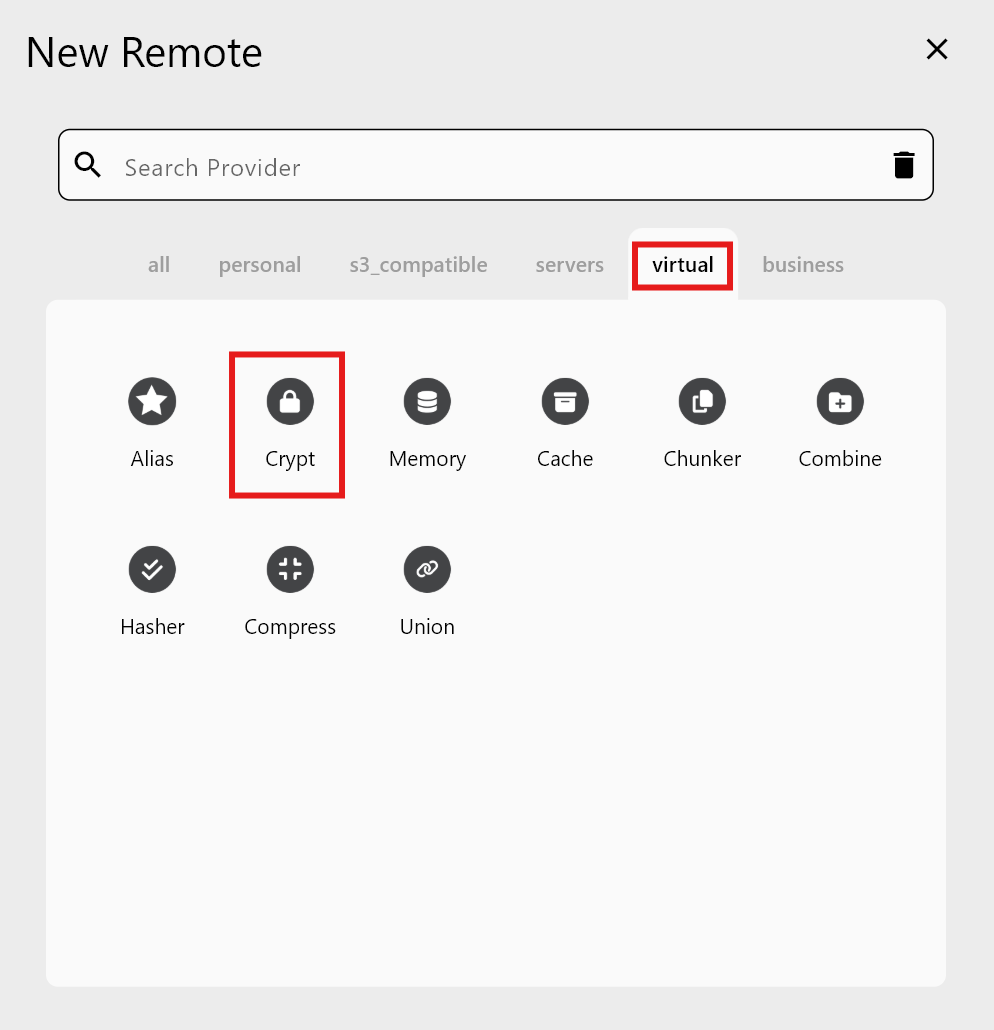
Go to Remote Manager → New Remote, then choose Virtual → Crypt.
2) Select the base remote
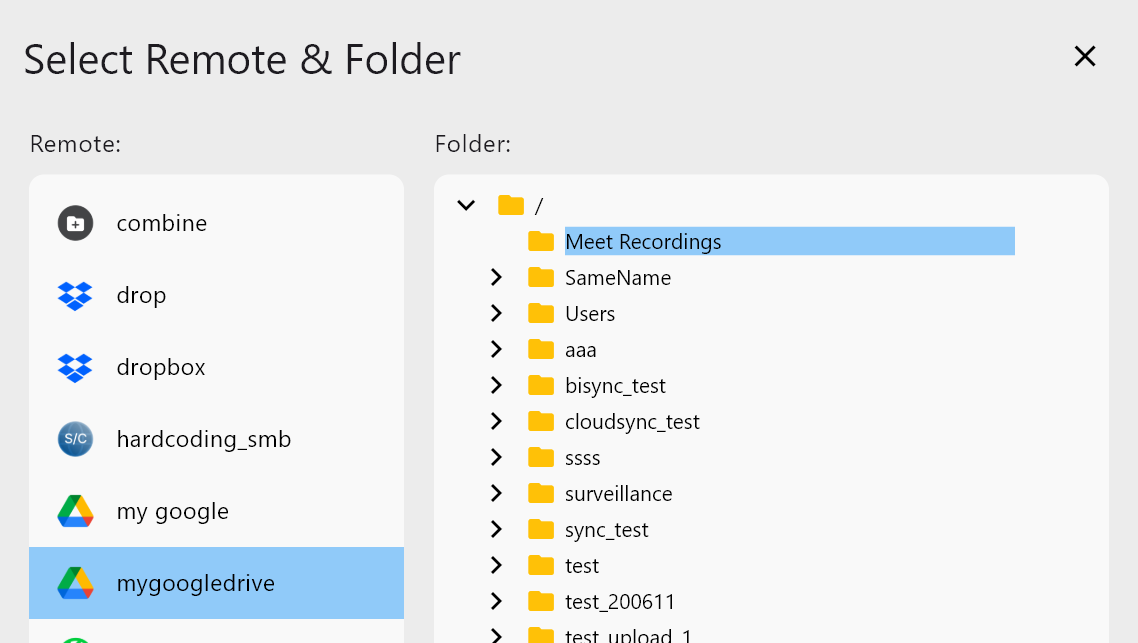
Pick the remote and folder you want to encrypt. You can target a specific folder to keep encrypted data separated.
3) Set encryption passwords
- Data Password: required
- Filename Password: optional, use this to hide file names too
These passwords are not recoverable. Store them securely.
4) Confirm and finish
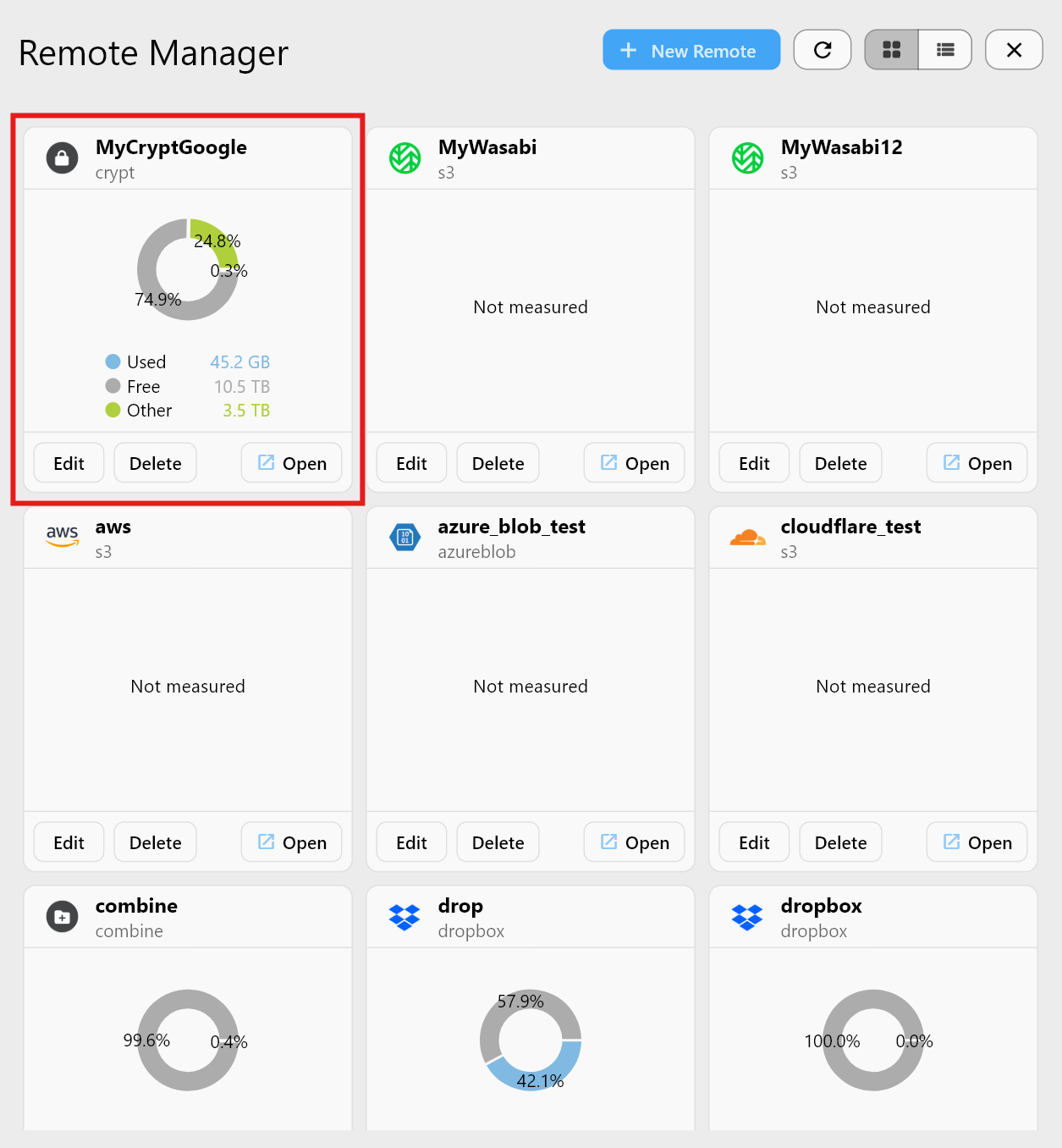
The new Crypt Remote appears in Remote Manager while the base remote remains unchanged.
Guide: /support/howto/remote-storage-connection-settings/crypt-remote
Understanding the two views (very important)
Base Remote view
Encrypted filenames and unreadable binary data. This is expected.
Crypt Remote view
Decrypted files and normal names. This is where you should work.
If the Crypt view looks empty, you likely uploaded files directly to the base remote. Always upload through the Crypt Remote.

Using Crypt in real RcloneView workflows
Crypt remotes behave like normal remotes:
- Drag & Drop into Crypt to encrypt on upload
Guide: /support/howto/rcloneview-basic/browse-and-manage-remote-storage - Compare & Sync for encrypted backups
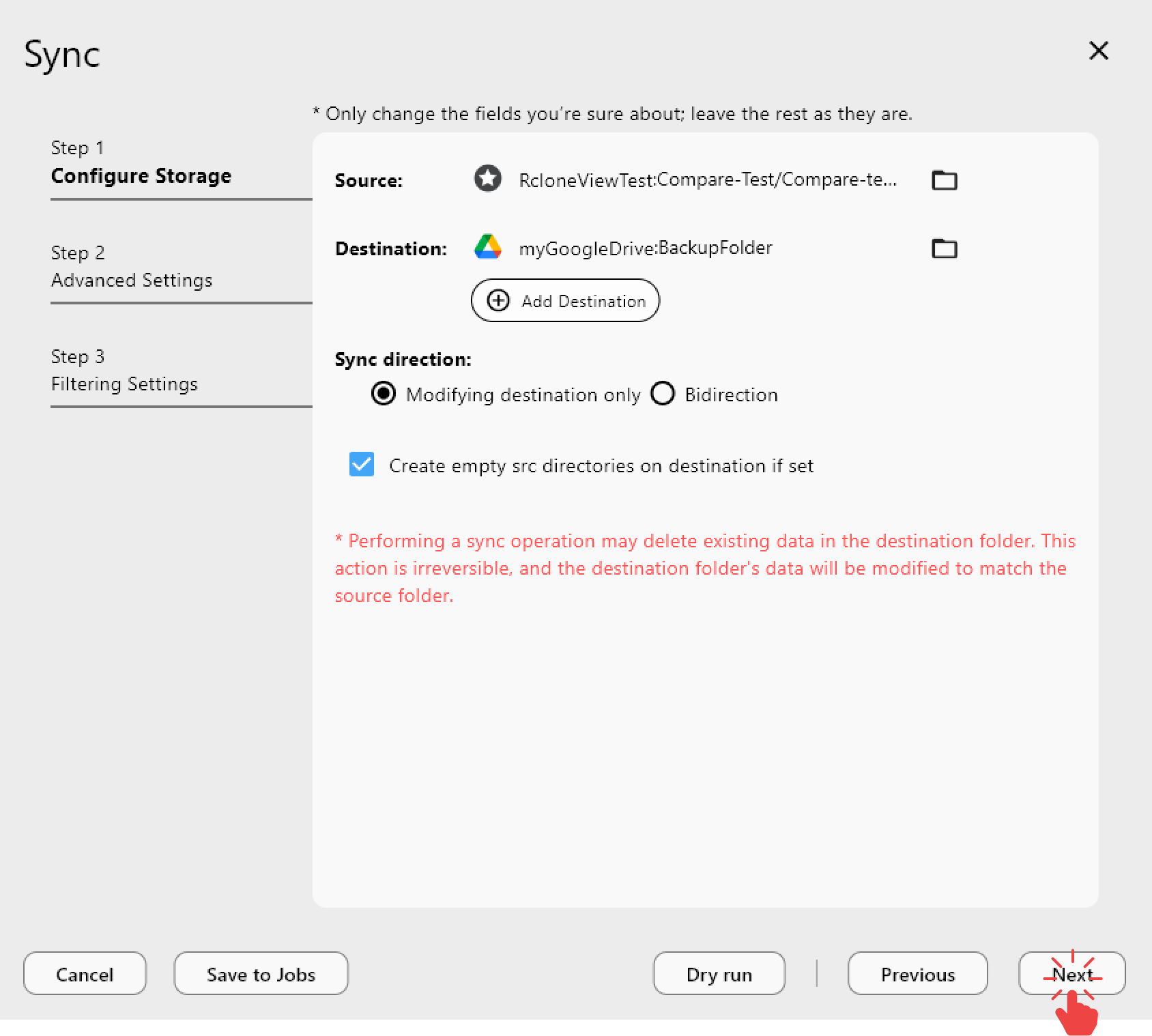
Guides: /support/howto/rcloneview-basic/compare-folder-contents, /support/howto/rcloneview-basic/synchronize-remote-storages - Scheduled jobs with Crypt as the target
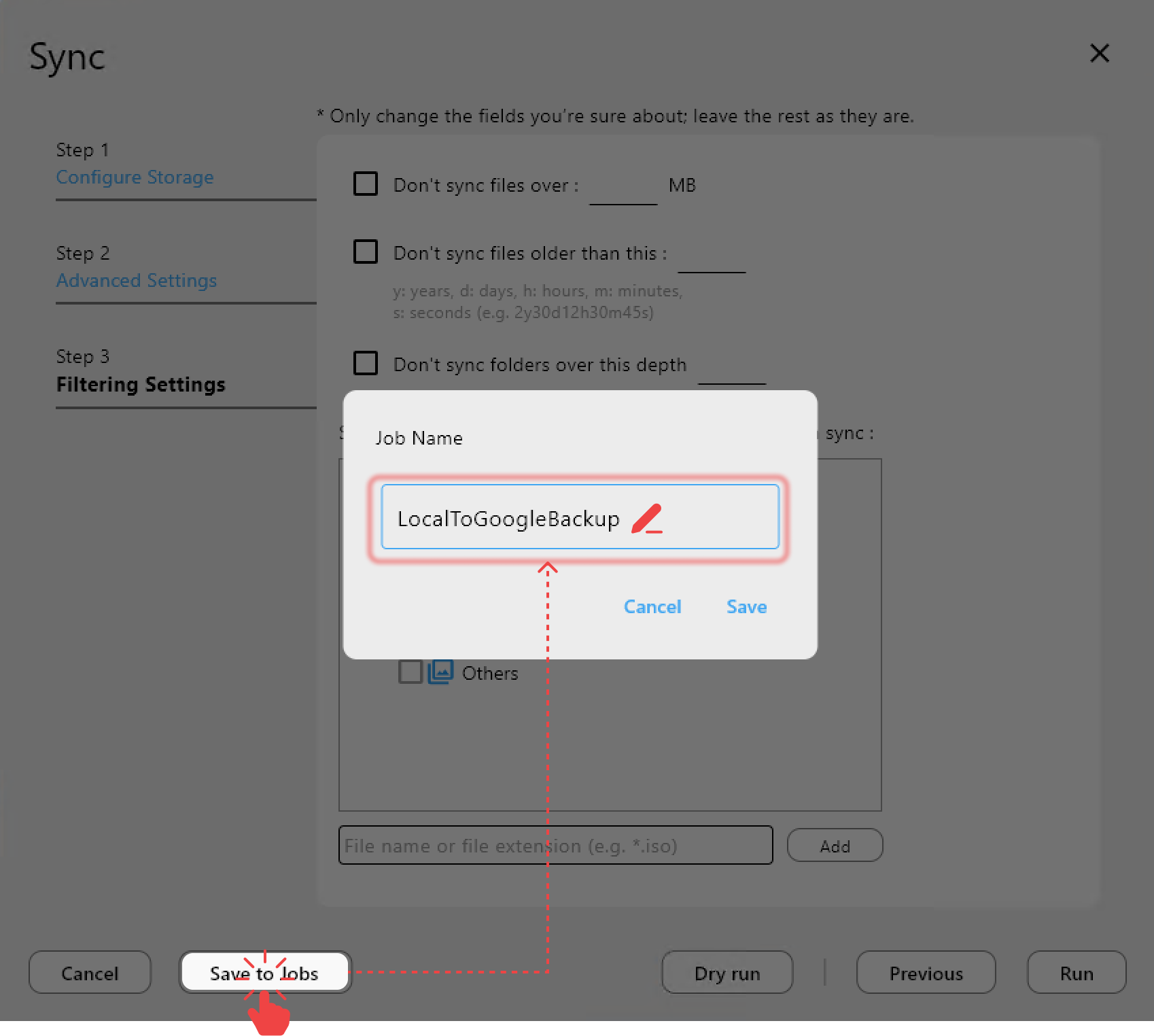
Guide: /support/howto/rcloneview-basic/create-sync-jobs


Best practices and warnings
- Passwords are unrecoverable: use a password manager.
- Back up
rclone.conf: it contains crypt keys. - Do not mix plain and encrypted files in the same folder.
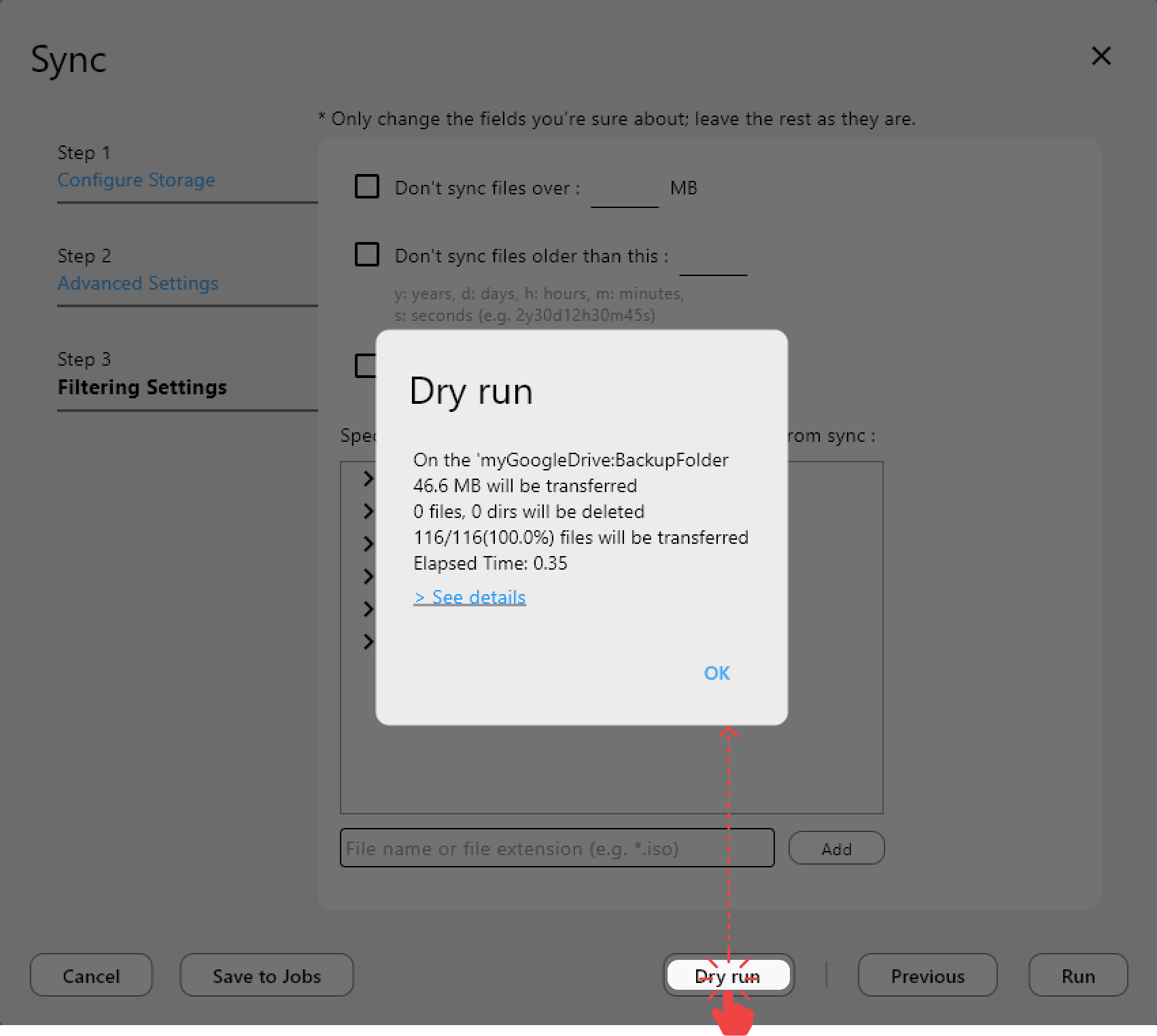
- Test first with a small folder and a dry run.
FAQ
Does encryption slow transfers?
There is some CPU overhead, but network speed is usually the bottleneck.
Can I decrypt outside RcloneView?
Yes. Any rclone client with the same crypt config and passwords can decrypt.
What if I lose the password?
Data is not recoverable. This is the tradeoff of zero-knowledge security.
Conclusion
Encrypt first, then automate. RcloneView’s Crypt Remote gives you privacy-first backups without the CLI. Set it once, use Compare/Sync/Jobs as usual, and keep control of your data.