RcloneView + iCloud Drive: Secure Apple Cloud Backups with Built-In Terminal
iCloud Drive is popular, but enterprise-grade backup workflows are not built in. RcloneView bridges the gap by letting you add iCloud via the built-in Terminal, then manage everything visually with Compare, Sync, and Jobs.
If you want a reliable way to back up iCloud Drive to Google Drive, S3, or a local disk, you need two things: rclone's iCloud backend and a GUI for safe, repeatable workflows. RcloneView delivers both in one place.

Manage & Sync All Clouds in One Place
RcloneView is a cross-platform GUI for rclone. Compare folders, transfer or sync files, and automate multi-cloud workflows with a clean, visual interface.
- One-click jobs: Copy · Sync · Compare
- Schedulers & history for reliable automation
- Works with Google Drive, OneDrive, Dropbox, S3, WebDAV, SFTP and more
Free core features. Plus automations available.
Why iCloud backups are tricky
- iCloud requires interactive Apple ID login and 2FA.
- Native tools lack cross-cloud backup or scheduling.
- CLI-only setups are powerful but easy to misconfigure.
RcloneView solves this by letting you run the required CLI steps in its built-in Terminal, then manage everything in the GUI afterward.
Step 1: Open the RcloneView Terminal
Use the built-in Terminal to run rclone commands without opening an external shell.
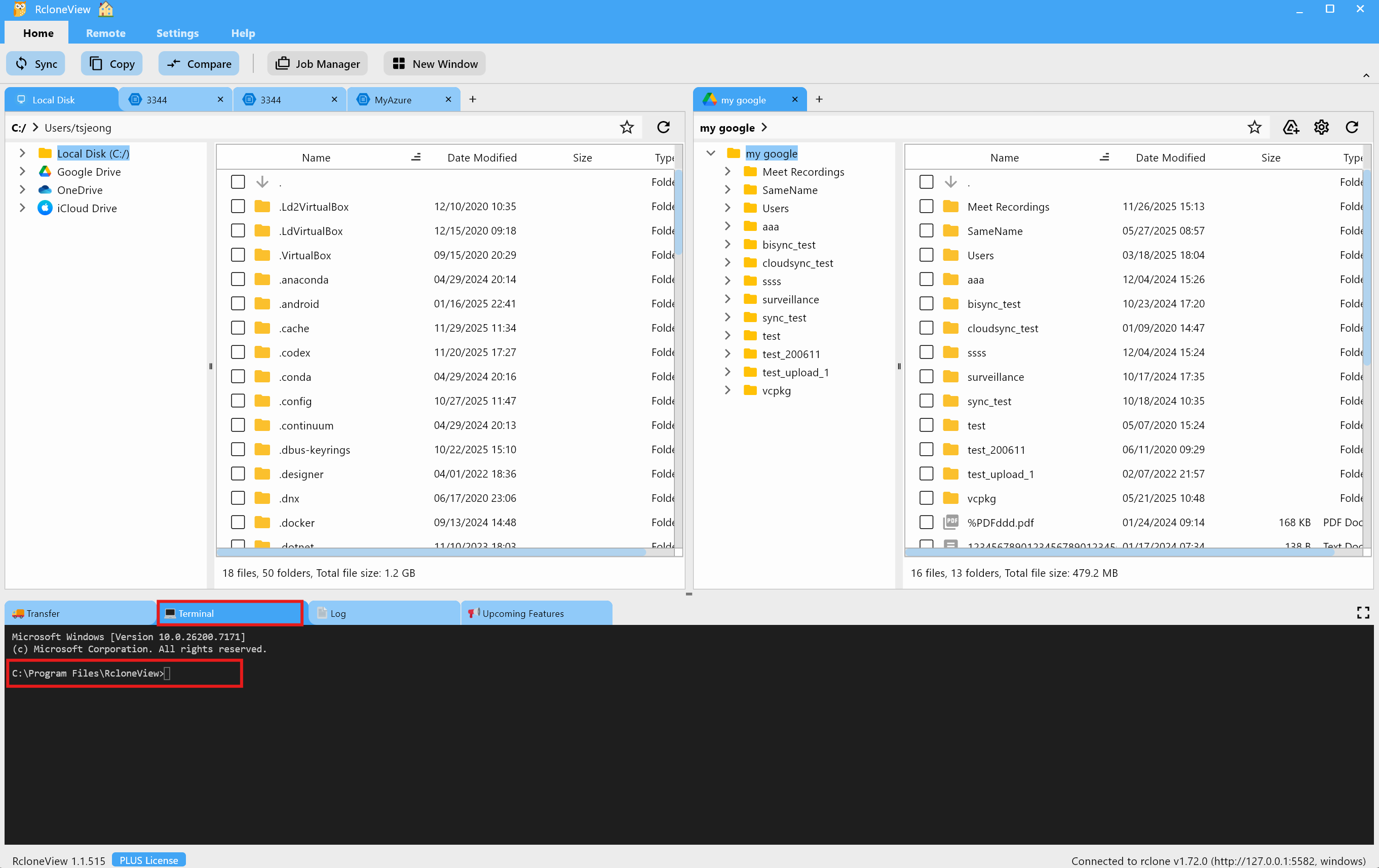
Step 2: Add iCloud Drive using rclone config
iCloud currently requires CLI configuration due to Apple 2FA. Run rclone config inside the Terminal and follow the prompts:
rclone config
Key prompts you will see:
- Storage: select
iclouddrive(or its number) - Apple ID: your iCloud email
- Password: your Apple ID password
- 2FA code: enter the code sent to your trusted device
Reference guide (screenshots + full steps):
/support/howto/remote-storage-connection-settings/connect-using-cli/add-icloud-drive
Step 3: Confirm the new remote in RcloneView
Once the remote is created, it appears in Remote Manager automatically.
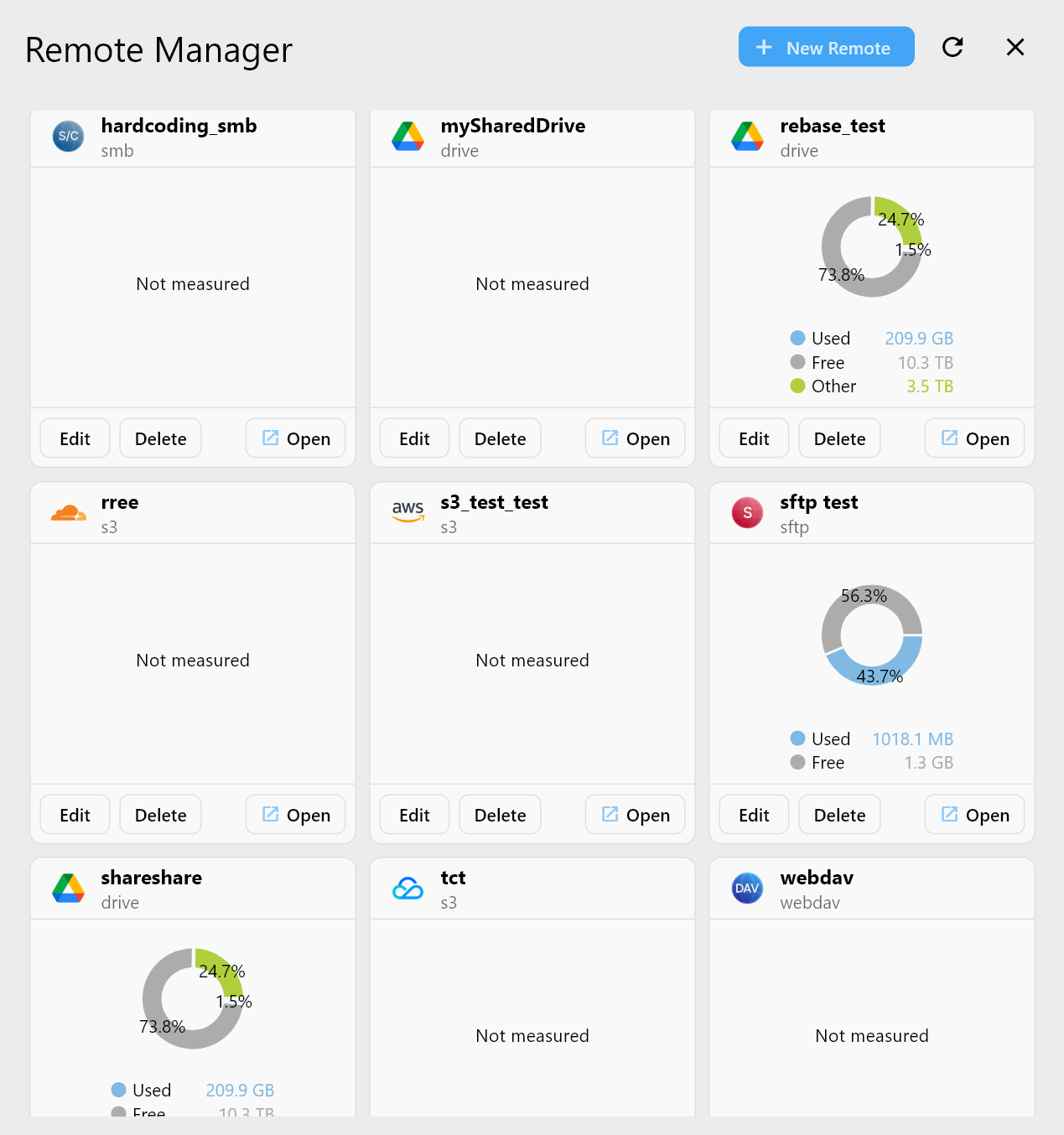
From here, you can open it in Explorer and use the normal GUI workflow.
Step 4: Use GUI tools for safe backups
Compare before you Sync
Run Compare to see what will change before a sync touches your data.

Guide: /support/howto/rcloneview-basic/compare-folder-contents
Sync iCloud to another cloud
Select iCloud as the source and your backup target (Drive, S3, external disk) as destination.
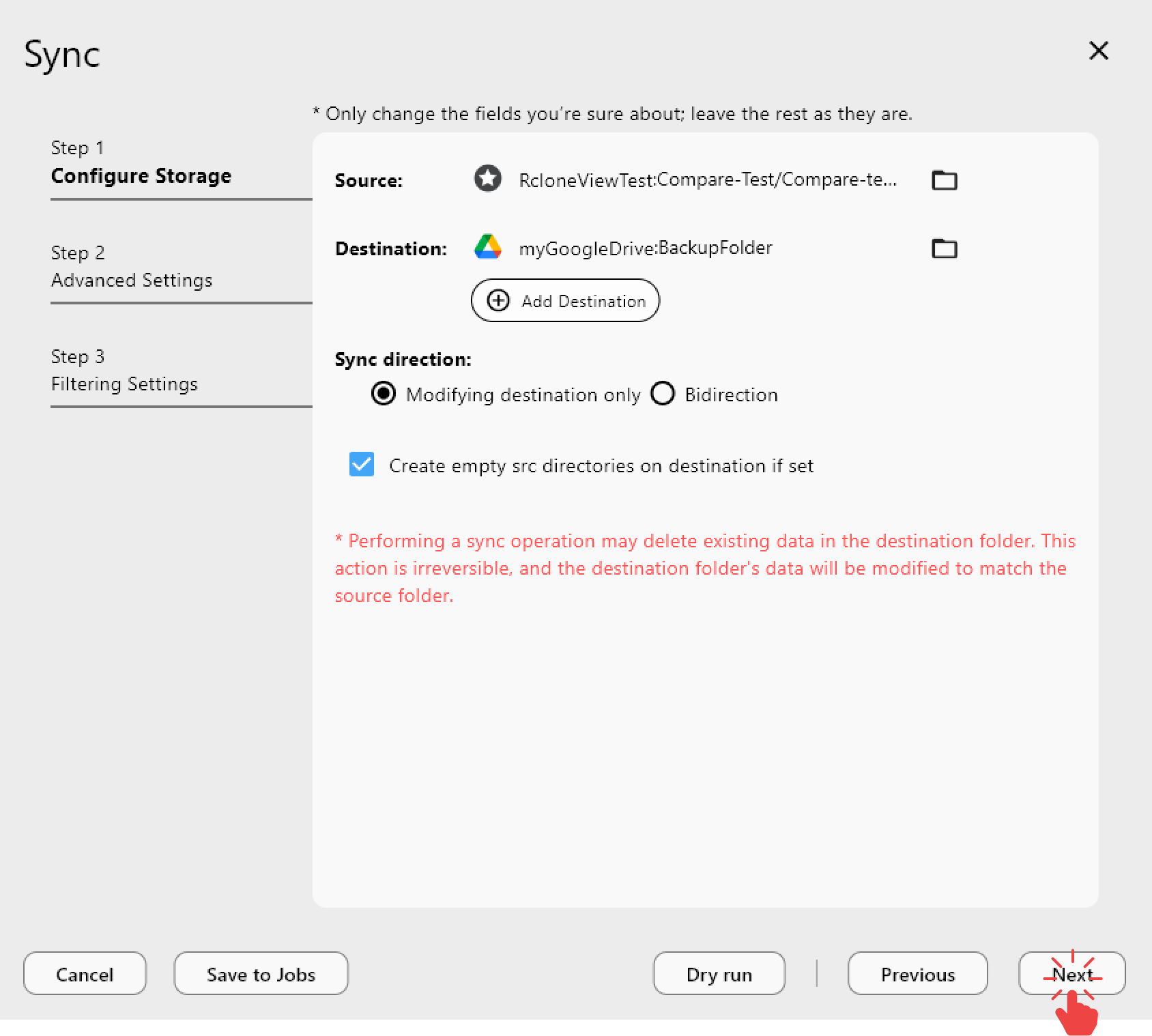
Guide: /support/howto/rcloneview-basic/synchronize-remote-storages
Save as a Job and schedule it
Save the Sync as a Job for recurring backups (Plus license).
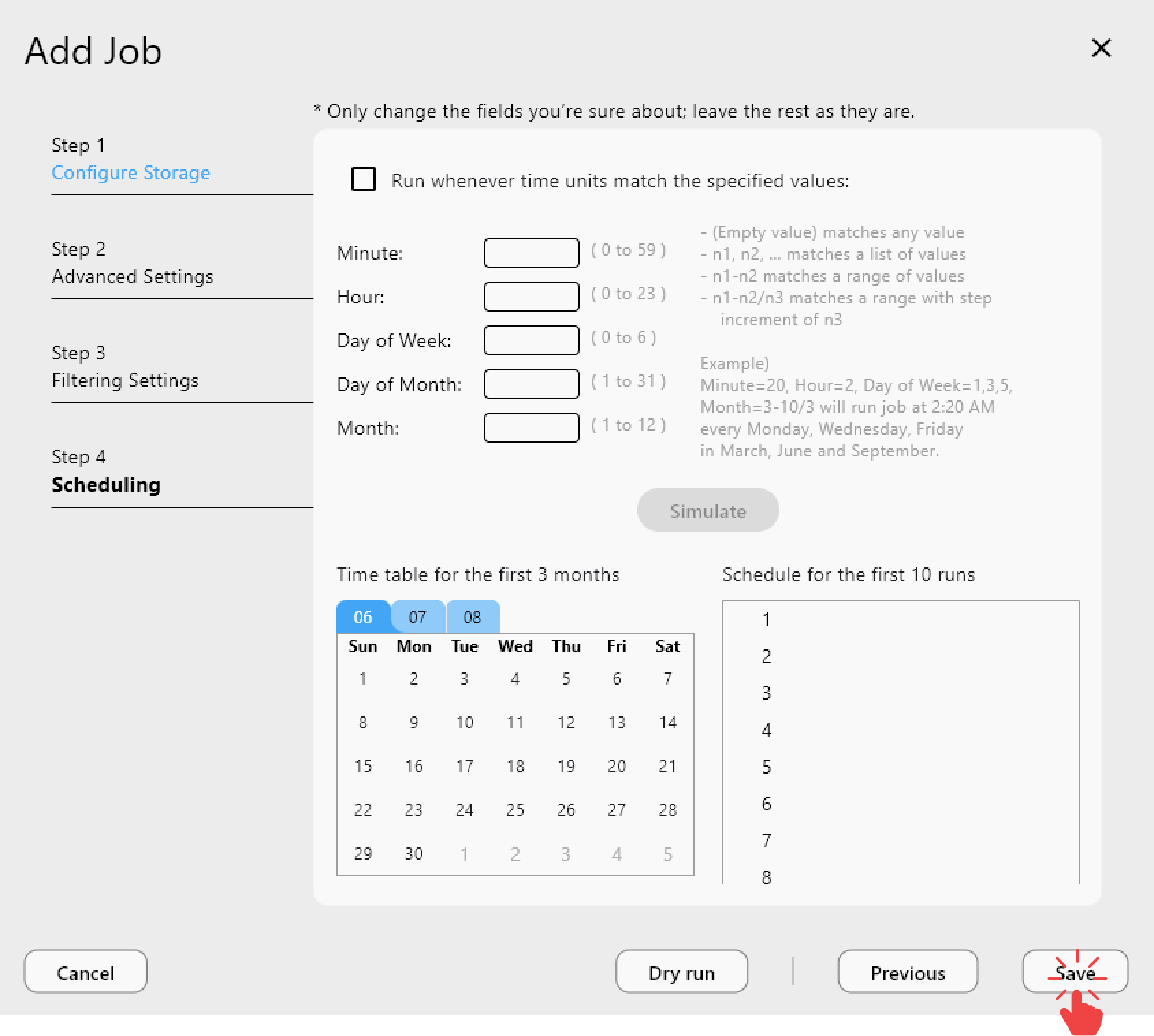

Guides: /support/howto/rcloneview-basic/create-sync-jobs, /support/howto/rcloneview-advanced/job-scheduling-and-execution
Best practices for iCloud backups
- Use a dedicated destination folder to keep backups organized.
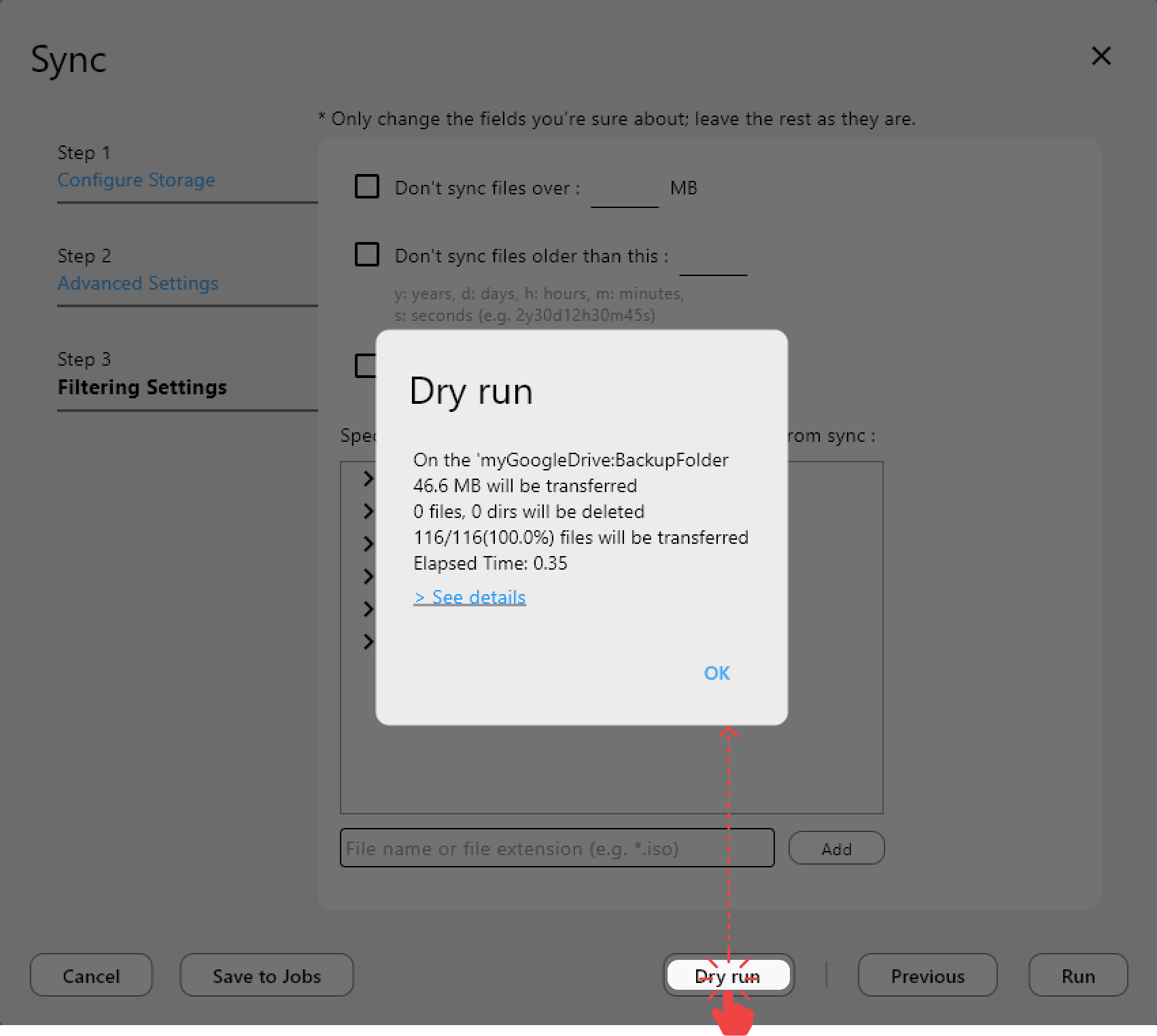
- Start with a dry run to validate the sync direction.
- Keep Apple ID 2FA ready during initial setup.
- Monitor Job History to detect failures early.

Who this workflow is for
- Beginners who want a visual safety net.
- Engineers who need CLI flexibility but prefer GUI operations.
- IT admins who want repeatable, auditable backup jobs.
Conclusion
iCloud Drive can be backed up safely and repeatedly when you combine rclone CLI with a visual control layer. Use the RcloneView Terminal once to set up iCloud, then run everything else in the GUI for speed, safety, and clarity.