RcloneView Compare-First Workflow: Prevent Wrong-Way Syncs and Costly Cloud Migration Mistakes
Sync is powerful, but one wrong direction can delete thousands of files. Compare-first turns sync into a safe, visual decision instead of a blind command.
Cloud sync is one of the fastest ways to migrate or back up data. It is also one of the easiest ways to make an irreversible mistake. The issue is not Sync itself. The issue is sync without confirmation. RcloneView fixes that by making Compare a natural first step.

Manage & Sync All Clouds in One Place
RcloneView is a cross-platform GUI for rclone. Compare folders, transfer or sync files, and automate multi-cloud workflows with a clean, visual interface.
- One-click jobs: Copy · Sync · Compare
- Schedulers & history for reliable automation
- Works with Google Drive, OneDrive, Dropbox, S3, WebDAV, SFTP and more
Free core features. Plus automations available.
Why “Sync is dangerous” is a misunderstood truth
Sync is not dangerous. Blind sync is.
The common causes of data loss are simple:
- Direction mistakes (source and destination flipped)
- No preview of what will change
- Assuming “it should be the same”
RcloneView’s Compare-first workflow prevents those mistakes before they happen.
What Compare really does in RcloneView
Compare is not just a preview. It is a safety layer between you and a destructive sync.
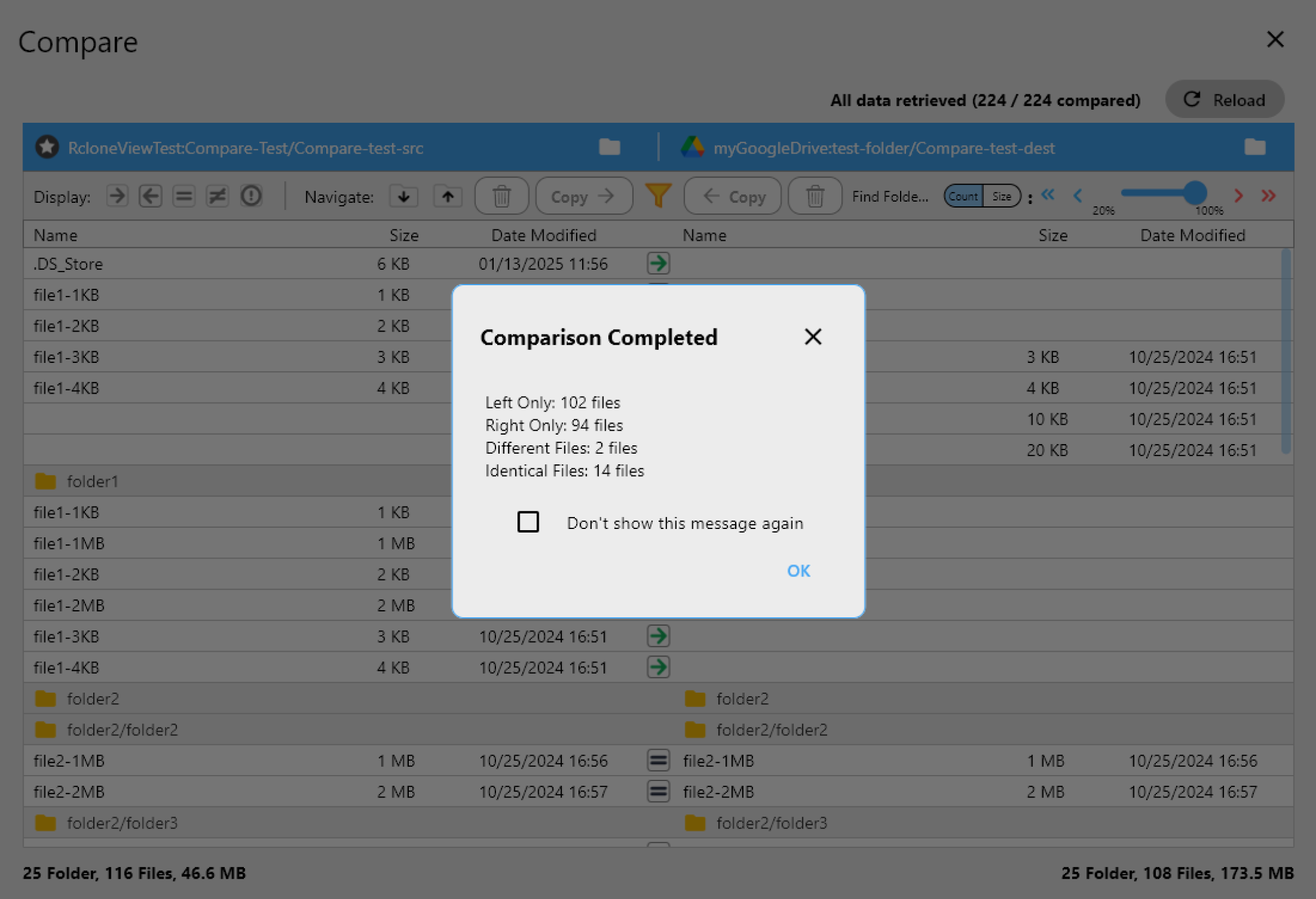
- Visualizes new, changed, and missing files on both sides
- Highlights files that would be deleted or overwritten
- Lets you verify direction before any action

Advanced filtering: see only what matters
Large migrations often include noise. Compare filters help you focus on meaningful changes:
- Hide identical files
- Show only size or date differences
- Filter by extension or path
This turns Compare into a decision tool: “Should I sync this?”
The Compare → Copy → Sync workflow (safe by design)
Step 1: Compare first (always)
Run Compare before any sync. Confirm the changes match your intent.
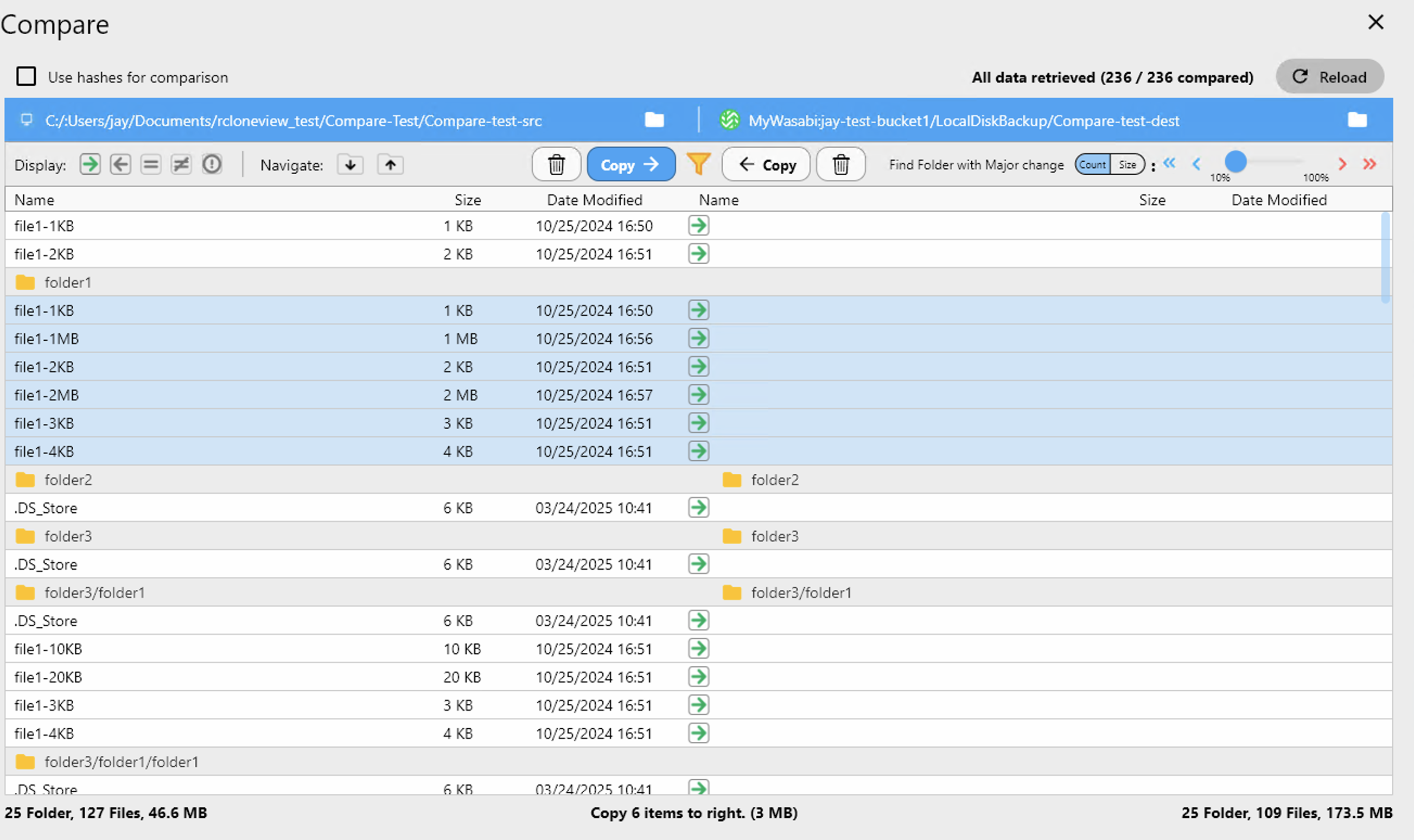
Step 2: Copy only what you need
Before a full sync, copy a subset to validate:
- Critical folders
- Sample sets
- Recent changes only
Step 3: Sync with confidence
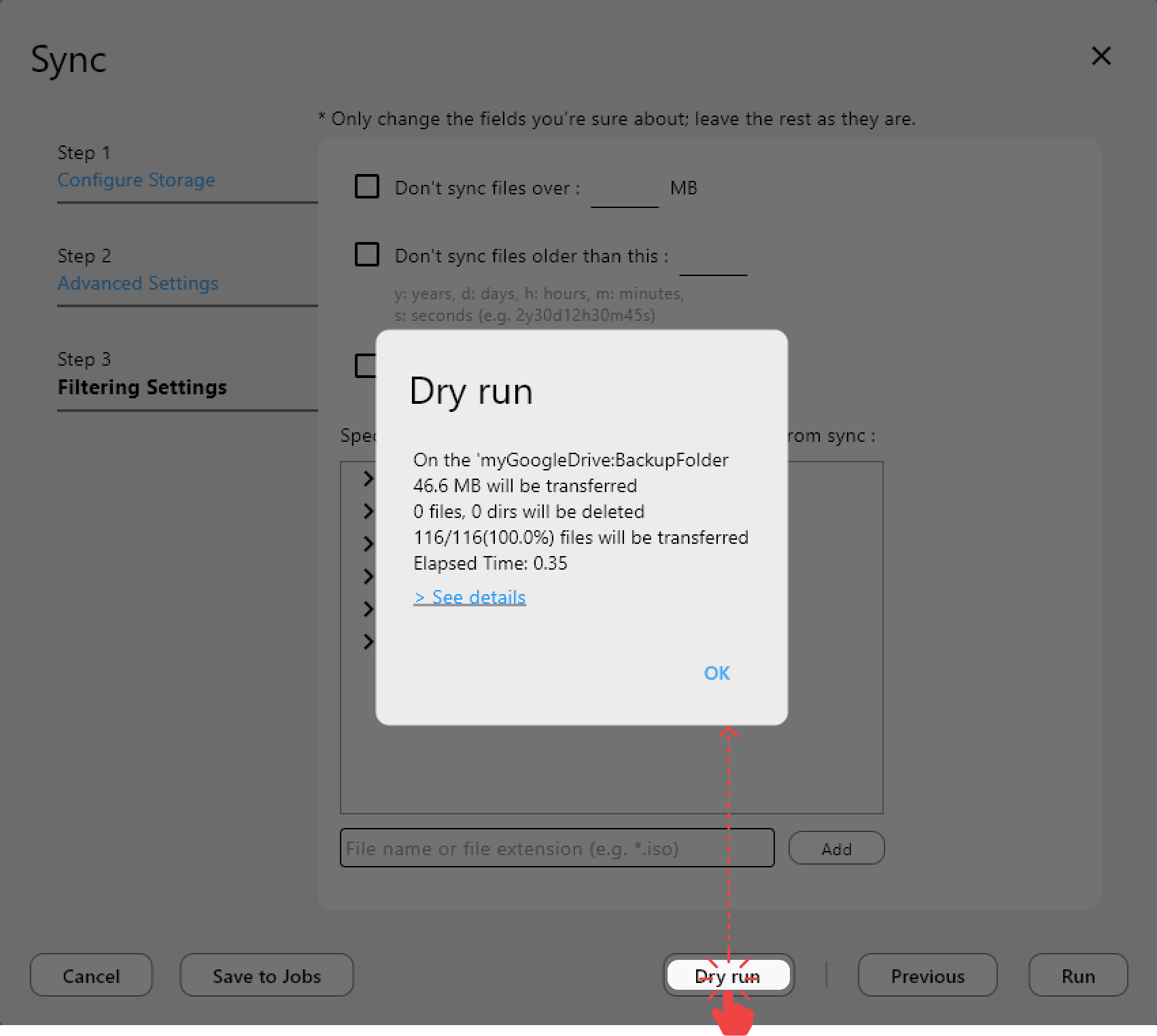
Only run Sync after Compare matches expectations. Add Dry Run for an extra safety net.
Guide: /support/howto/rcloneview-basic/synchronize-remote-storages
Real accident scenarios (and how Compare prevents them)
Scenario 1: Wrong-way sync
Syncing an empty cloud to a full local disk can wipe everything. Compare would show thousands of deletions before it happens.
Scenario 2: Old backup overwrites new data
An outdated NAS sync overwrites fresh cloud files. Compare exposes the older timestamps first.
Scenario 3: Cost explosion on cloud providers
Repeated full syncs trigger excessive API calls and traffic. Compare limits changes to only what moved, reducing cost on S3, Wasabi, or GCS.
Why Compare-first matters in enterprise environments
- Compliance: you need to review what will change before it changes.
- Shared responsibility: cloud providers do not protect your mistakes.
- Team workflows: Compare provides a shared verification step.
Best practices for safer migrations
- Always use Dry Run with Sync for high-risk moves.
- Make Compare a habit, not an option.
- Treat Compare as a checkpoint before any Job runs.
Guide: /support/howto/rcloneview-basic/compare-folder-contents

Compare-first vs CLI-first workflows
CLI-first
Fast, but risky. Even experts misread logs.
Compare-first with RcloneView
Visual confirmation, lower error rates, safer for teams and beginners.
Conclusion: Sync is safe — if you Compare first
Sync remains the fastest way to move data. The safest workflow is simple:
- Compare to confirm
- Copy to validate
- Sync to finalize
RcloneView makes that workflow natural, repeatable, and safe.