Troubleshooting rclone Errors with RcloneView: Fix API Limits, Permissions, Timeouts, and More
Rclone is powerful, but errors like 403 rate limits, timeouts, or "permission denied" can stall a migration. RcloneView combines CLI visibility with GUI context so you can spot the cause faster and fix it safely.
If you have ever stared at a wall of rclone output wondering why a job failed, RcloneView can shorten the loop. The built-in Terminal, verbose logs, and Job History help you reproduce issues, isolate failing files, and adjust performance or authentication settings without leaving the app.

Manage & Sync All Clouds in One Place
RcloneView is a cross-platform GUI for rclone. Compare folders, transfer or sync files, and automate multi-cloud workflows with a clean, visual interface.
- One-click jobs: Copy · Sync · Compare
- Schedulers & history for reliable automation
- Works with Google Drive, OneDrive, Dropbox, S3, WebDAV, SFTP and more
Free core features. Plus automations available.
Why rclone errors happen
- API limits and quotas: 403 or 429 responses from Google Drive, OneDrive, Dropbox, etc.
- Authentication scope issues: expired tokens or missing permissions.
- Path and permission mismatches: shared drives, external folders, or wrong root paths.
- Network conditions: timeouts, throttling, or unstable links.
- Integrity checks: checksum mismatches when providers alter uploads.
Common errors and what they mean
| Error | What it usually means | Quick next step |
|---|---|---|
| 403: Rate Limit Exceeded / 429 Too Many Requests | Provider throttled requests | Lower --transfers, add --tpslimit, retry with backoff |
| Failed to copy: permission denied | Missing access to folder or file | Verify path, check shared drive permissions, re-auth with correct scope |
| Failed to refresh token | OAuth token expired or invalid | Reconnect the remote via RcloneView OAuth flow |
| Directory not found | Path typo or wrong root | Confirm path using rclone lsf remote: |
| Timeout waiting for connection | Network instability or firewall | Reduce parallelism, retry with --retries and --low-level-retries |
| Upload failed: corrupted on transfer | Integrity check failed | Re-run with --checksum or rclone check |
Use the RcloneView Terminal to reproduce and inspect errors
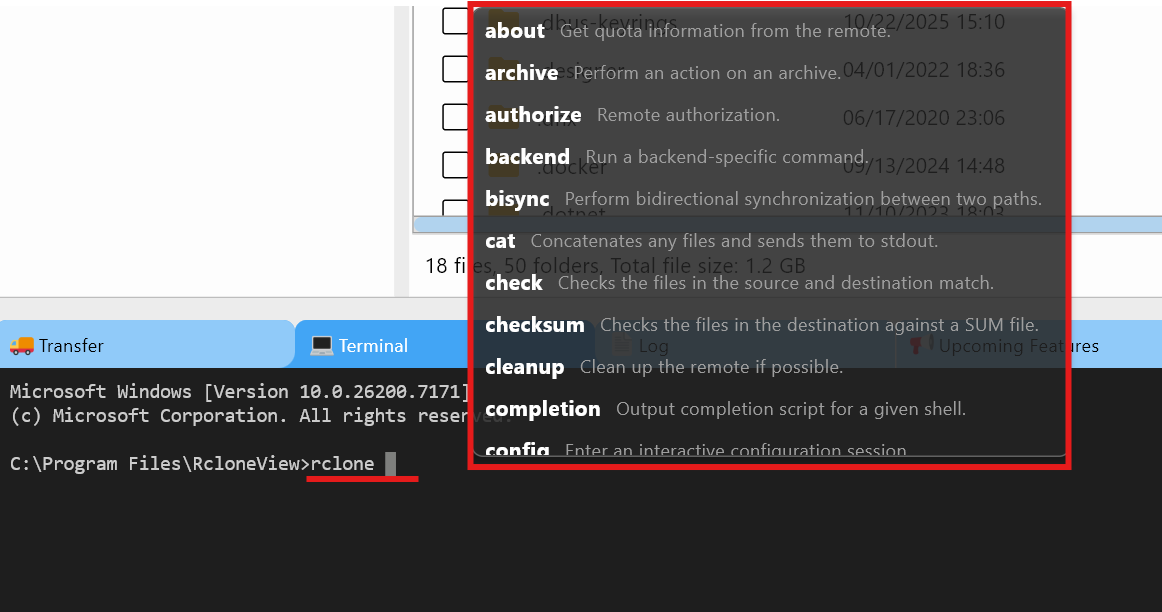
Re-run the failing command inside the built-in Terminal to remove variables like wrong working directories or configs.
- Open the Terminal tab and type
rcloneto see all commands (autocomplete). Guide - Add
-vvto capture verbose output you can copy or share.
Examples:
rclone about myremote: -vv
rclone lsf myremote:path -vv --dirs-only --recursive
rclone sync src: dst: -vv --transfers=8
Check Job Logs and History to find patterns
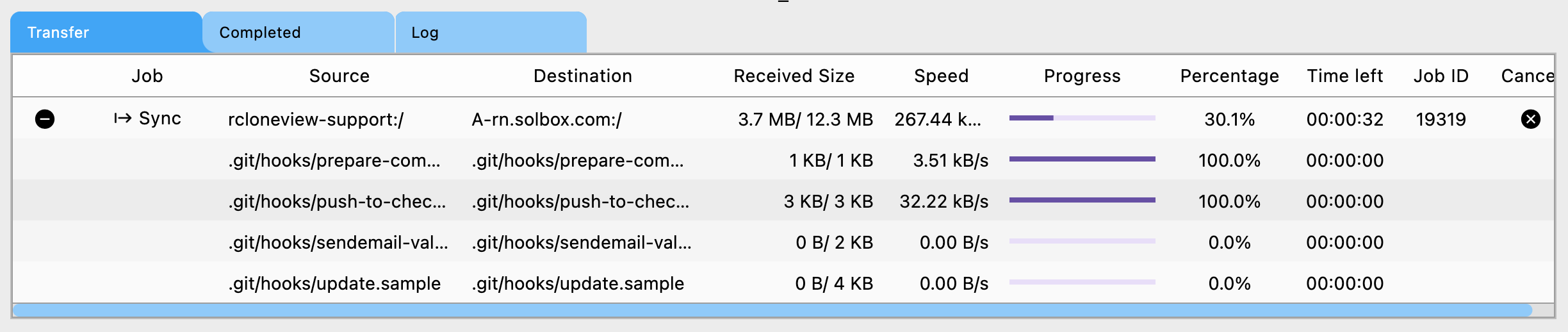
The Job Monitor and History views show which files failed and how often.
- Job Monitor: live Transfer tab for active jobs, plus Completed/API logs for finished runs. See steps
- History: open a specific job’s History from the Job Manager to review per-file outcomes. See steps
Fix API rate limit and quota errors
- Lower concurrency: reduce
--transfersand--checkersin the job options or command flags. - Add polite throttling: use
--tpslimitand--tpslimit-burstfor providers with strict APIs. - Split big jobs: run folder-by-folder or schedule during off-peak hours via Job Manager.
- Use incremental runs: combine Compare + Sync to move only changed files and reduce calls.
Fix authentication and OAuth issues
- Re-authenticate the remote with the correct scope using RcloneView’s OAuth prompts.
- If a token is expired or revoked, recreate the remote or refresh it via the Terminal with
rclone config reconnect remote:. - For shared drives or delegated accounts, confirm the remote is set with the right drive or tenant IDs.
Fix permission denied errors
- Confirm the path exists and you have access:
rclone lsf remote:folderin Terminal. - For Google shared drives or Dropbox shared folders, ensure the remote uses the correct root or drive ID.
- If copying into a shared drive, verify you have write permissions; otherwise choose a destination you own.
Fix timeouts and unstable connections
- Reduce parallelism for fragile links:
--transfers=2 --checkers=2. - Increase retry behavior:
--retries=10 --retries-sleep=5s --low-level-retries=20. - For large files, enable multi-thread streaming:
--multi-thread-streams=4 --multi-thread-cutoff=64M. - Test reachability from the Terminal with a lightweight command before large syncs:
rclone lsf remote: --max-depth 1 --fast-list -vv
Fix data integrity and checksum errors
- Verify sources and destinations with a dry run:
--dry-runon Sync or Copy jobs. - Use
rclone checkto compare checksums between two remotes:
rclone check source:folder dest:folder --one-way --size-only
- Enable checksum comparison on supported providers to detect silent corruption.
When to use GUI vs Terminal
- GUI: create jobs, schedule recurring backups, Compare before syncing, drag-and-drop across clouds.
- Terminal: diagnose errors quickly, test backend flags, or run ad-hoc commands with full
-vvlogs. - Use both: prototype in Terminal, then save stable commands as reusable jobs.
Quick troubleshooting checklist
- Reproduce the error in Terminal with
-vvand copy logs. - Check Job Monitor and History for failing files and frequency.
- Apply the fix category: rate limits (lower concurrency), auth (re-auth), permissions (verify path/root), network (reduce threads, increase retries), integrity (run
check). - Re-run with
--dry-runbefore making changes.
Conclusion
RcloneView turns rclone debugging into a guided workflow: autocomplete to avoid syntax mistakes, in-app logs to see what failed, and GUI controls to tune concurrency or schedules. Use the Terminal and Job History together to resolve errors faster and keep transfers moving.
Supported Cloud Providers





























