Run RcloneView on AWS EC2 for Server-Side Cloud Sync
Running RcloneView on an AWS EC2 instance gives you server-grade bandwidth for cloud transfers, 24/7 operation for scheduled jobs, and eliminates the need to route data through your local machine.
When migrating terabytes between cloud providers, your local internet connection becomes the bottleneck. An AWS EC2 instance with gigabit networking can transfer data between cloud services at speeds your home or office connection cannot match. Running RcloneView on EC2 also means transfers continue 24/7 without keeping a local machine running, and data moving between S3 and other AWS services stays within Amazon's network — often at no egress cost.

Manage & Sync All Clouds in One Place
RcloneView is a cross-platform GUI for rclone. Compare folders, transfer or sync files, and automate multi-cloud workflows with a clean, visual interface.
- One-click jobs: Copy · Sync · Compare
- Schedulers & history for reliable automation
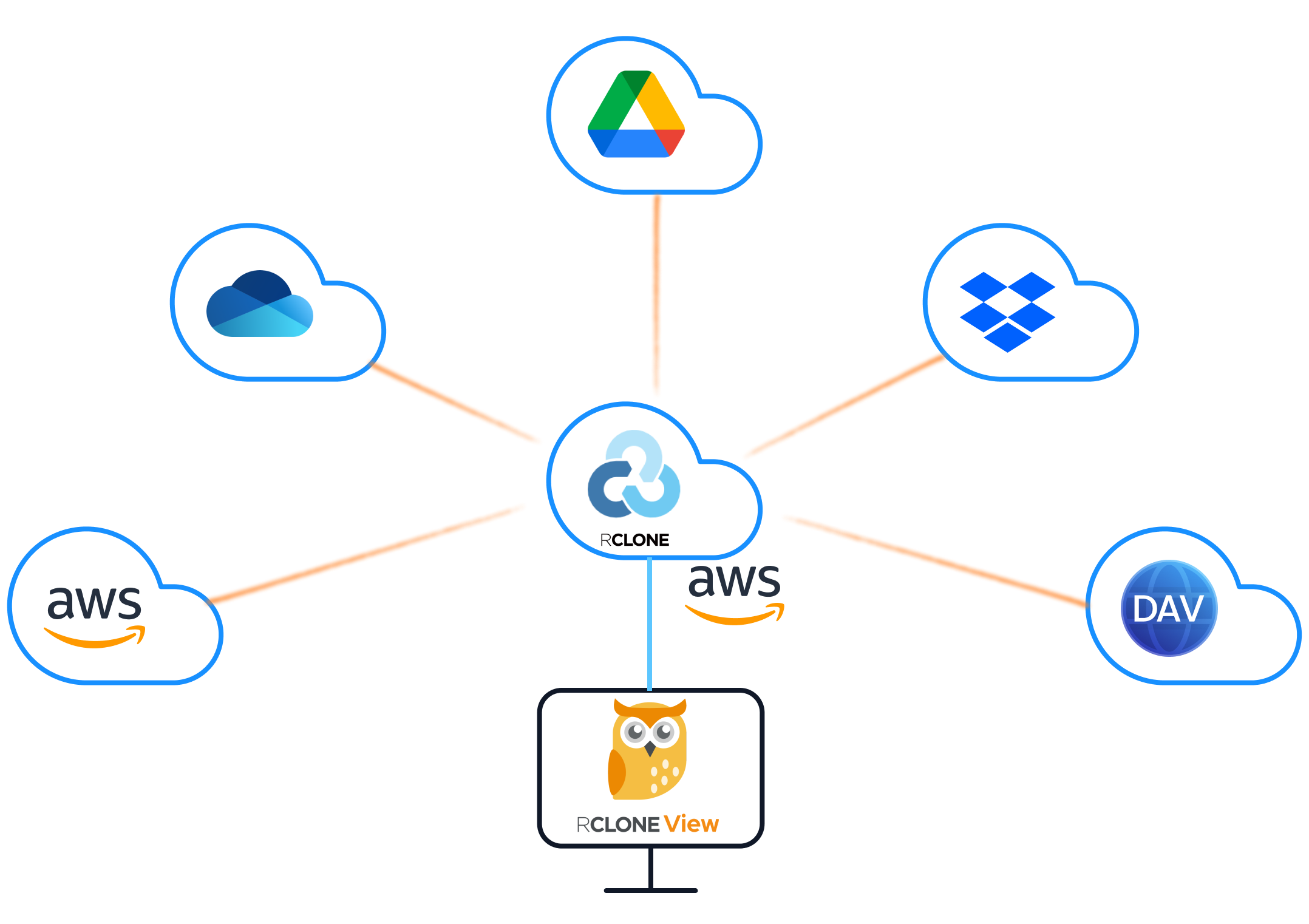
- Works with Google Drive, OneDrive, Dropbox, S3, WebDAV, SFTP and more
Free core features. Plus automations available.
Why Run RcloneView on EC2
- Speed: EC2 instances in AWS data centers have multi-gigabit network connections. Transfers between S3 and external providers leverage this bandwidth instead of your local connection.
- Free S3 transfer: Data transfer between EC2 and S3 within the same region is free. For large S3-to-cloud migrations, running on EC2 eliminates the biggest cost — local egress.
- 24/7 operation: Scheduled jobs run continuously without keeping a desktop machine on. The EC2 instance handles nightly backups, weekly migrations, and ongoing sync jobs.
- Proximity to data: If your source data is in AWS (S3, EBS, EFS), running RcloneView on EC2 puts it next to the data for minimum latency.
- Team access: Multiple team members can access the same RcloneView instance remotely, sharing configurations and job histories.
Setting Up an EC2 Instance
Instance Selection
For most RcloneView workloads, a small to medium instance is sufficient:
- t3.medium (2 vCPU, 4 GB RAM): Suitable for light sync jobs and small migrations.
- m5.large (2 vCPU, 8 GB RAM): Better for concurrent transfers and large file operations.
- c5.xlarge (4 vCPU, 8 GB RAM): For heavy migration workloads with many parallel transfers.
Choose an instance in the same region as your S3 buckets to avoid cross-region transfer costs.
Operating System
Launch the instance with Ubuntu Server LTS or Amazon Linux 2. Both support RcloneView without issues. Install a lightweight desktop environment for the GUI:
# Ubuntu
sudo apt update && sudo apt install -y xfce4 xrdp

# Amazon Linux 2
sudo yum install -y xrdp xfce
Enable and start the RDP service so you can connect to the GUI remotely.
Security Group Configuration
Open the following ports in your EC2 security group:
- Port 3389 (RDP): For remote desktop access to the GUI. Restrict to your IP address.
- Port 22 (SSH): For terminal access. Restrict to your IP address.
- Port 53682 (optional): If you need to run OAuth flows from the EC2 instance, this is rclone's default OAuth callback port. Alternatively, use headless OAuth configuration.
Installing RcloneView on EC2
SSH into the instance and download RcloneView:
- Download the Linux AppImage or .deb package from rcloneview.com.
- Make the AppImage executable:
chmod +x RcloneView-*.AppImage - Connect via RDP and launch RcloneView from the desktop environment.
Headless OAuth for Cloud Providers
EC2 instances typically do not have a local browser for OAuth flows. For providers that require OAuth (Google Drive, OneDrive, Dropbox), use headless authentication:
- On your local machine, run
rclone authorize "drive"(or the relevant provider) to complete the OAuth flow. - Copy the resulting token.
- On the EC2 instance, paste the token into RcloneView's remote configuration.
Alternatively, configure RcloneView with an external rclone instance and set up the OAuth token through the RcloneView connection manager.
Configuring S3 Access
For S3 access from EC2, use an IAM instance role instead of static access keys. Attach an IAM role with S3 permissions to the EC2 instance, and rclone will use the instance metadata service to obtain temporary credentials automatically. This is more secure than storing access keys on the instance.
In RcloneView's S3 remote configuration, leave the access key and secret key fields empty and set the environment auth to use the instance profile.
Running Large Migrations
With EC2's bandwidth, large migrations that would take days on a home connection complete in hours:
- 1 TB Google Drive to S3: Approximately 2-4 hours at sustained speeds.
- 10 TB S3 to Backblaze B2: Approximately 1-2 days depending on B2 API throttling.
- Cross-region S3 replication: Near line-speed within AWS.
RcloneView's multi-threaded transfers take full advantage of EC2's network capacity. Set transfers to 16-32 and checkers to 16 for maximum throughput on larger instances.

Scheduling Server-Side Jobs
RcloneView's built-in scheduler handles recurring jobs. Configure nightly backups from Google Drive to S3, weekly sync between S3 and Backblaze B2, or daily replication to a DR region. The EC2 instance runs these jobs regardless of whether you are connected via RDP.
Keep the EC2 instance running continuously for scheduled jobs, or use a start/stop schedule (via AWS Instance Scheduler or a Lambda function) to run the instance only during backup windows.

Cost Management
EC2 costs vary by instance type and runtime:
- t3.medium on-demand: ~$0.042/hour ($30/month if running 24/7)
- Spot instances: Up to 90% cheaper for interruptible workloads like one-time migrations.
- Reserved instances: Lower hourly rate for long-running server-side sync setups.
For one-time migrations, use a spot instance — launch it, run the migration, verify, and terminate. For ongoing scheduled backups, a reserved t3.small or t3.medium is cost-effective.
Remember: S3 data transfer within the same region from EC2 is free. Data transfer out to the internet (e.g., to Backblaze B2 or Google Drive) incurs standard AWS egress charges.
Getting Started
- Launch an EC2 instance with Ubuntu or Amazon Linux and a desktop environment.
- Download RcloneView from rcloneview.com and install on the instance.
- Configure remotes using headless OAuth for cloud providers and IAM roles for S3.
- Run migrations and schedule backup jobs leveraging EC2's bandwidth.
- Terminate or stop the instance when not needed to control costs.
Running RcloneView on EC2 gives you the speed of AWS's data center network, the convenience of a GUI for managing transfers, and 24/7 operation for scheduled jobs — the ideal setup for large-scale cloud migrations and ongoing server-side sync.
Related Guides:
Supported Cloud Providers





























