Control RcloneView Remotely with the Rclone RC API
Unlock programmatic control over your cloud storage operations using rclone's built-in RC API, integrated seamlessly with RcloneView.
Rclone ships with a powerful REST API called the RC (Remote Control) interface. This API exposes nearly every rclone operation as an HTTP endpoint, allowing you to start transfers, monitor progress, manage mounts, and query statistics from any programming language or automation tool. RcloneView leverages this same RC API under the hood for its GUI operations, which means anything you can do in the interface can also be done programmatically. This guide covers the RC API from first principles through advanced automation, giving you the knowledge to build custom integrations, monitoring dashboards, and automated workflows around your cloud storage operations.

Manage & Sync All Clouds in One Place
RcloneView is a cross-platform GUI for rclone. Compare folders, transfer or sync files, and automate multi-cloud workflows with a clean, visual interface.
- One-click jobs: Copy · Sync · Compare
- Schedulers & history for reliable automation
- Works with Google Drive, OneDrive, Dropbox, S3, WebDAV, SFTP and more
Free core features. Plus automations available.
Understanding the Rclone RC Architecture
The rclone RC API is a JSON-based REST API that runs as an HTTP server embedded within the rclone process. When you start rclone with the --rc flag or use the rclone rcd command, it opens a port (default 5572) and listens for HTTP requests.
How RcloneView uses the RC API:
RcloneView communicates with rclone exclusively through this RC interface. When you click a button in the GUI to start a sync, browse a directory, or check transfer progress, RcloneView sends HTTP requests to the rclone RC API behind the scenes. This architecture means:
- RcloneView can control rclone instances running on remote machines
- Multiple clients can connect to the same rclone instance
- All operations are stateless and can be automated
- The GUI and programmatic access use the same underlying mechanism
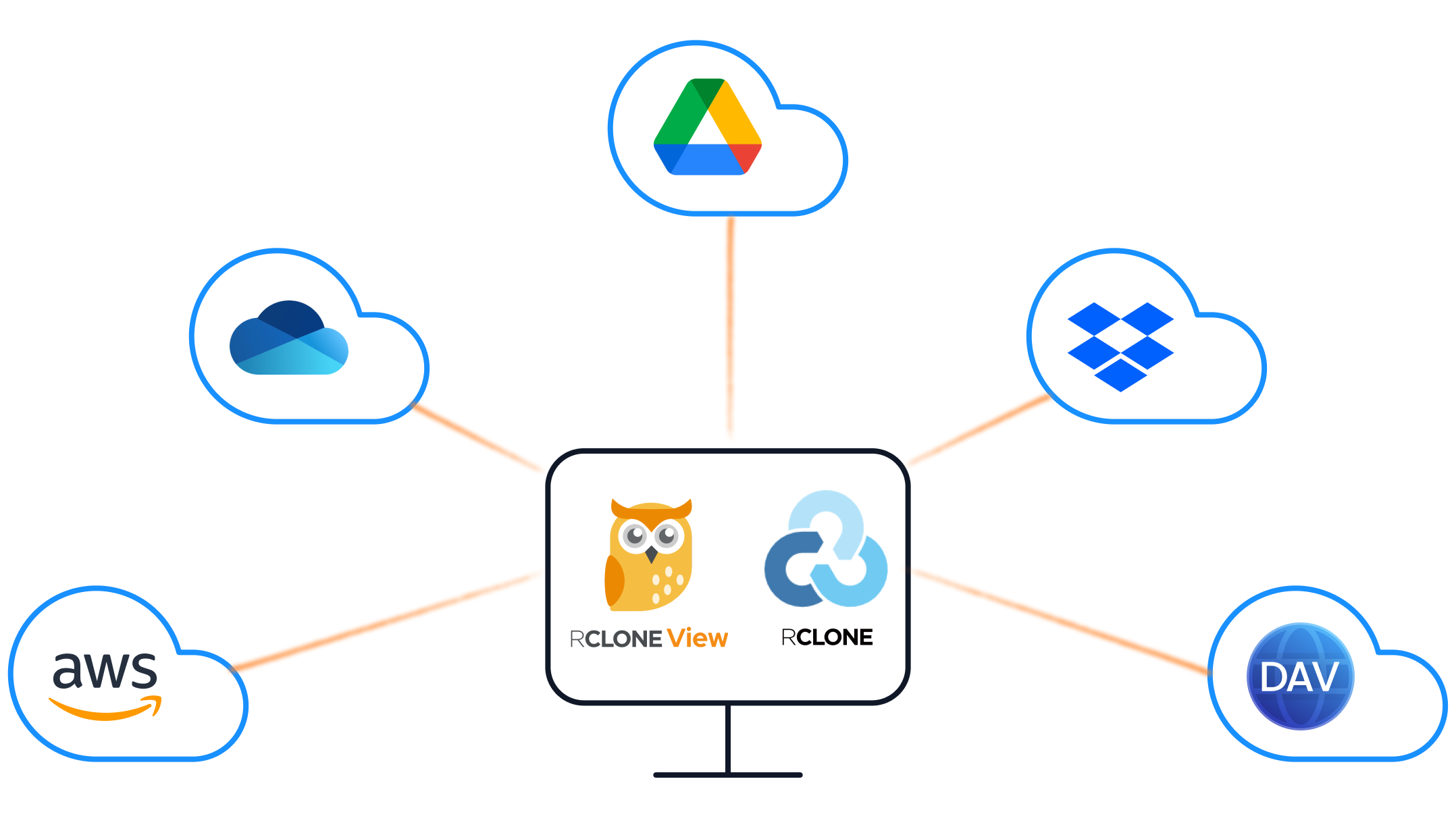
Embedded vs. external rclone:
In embedded mode, RcloneView starts its own rclone process and manages the RC connection automatically. In external mode, you start rclone separately and point RcloneView at it. External mode is essential for remote management scenarios, such as controlling an rclone instance running on a NAS or cloud server.
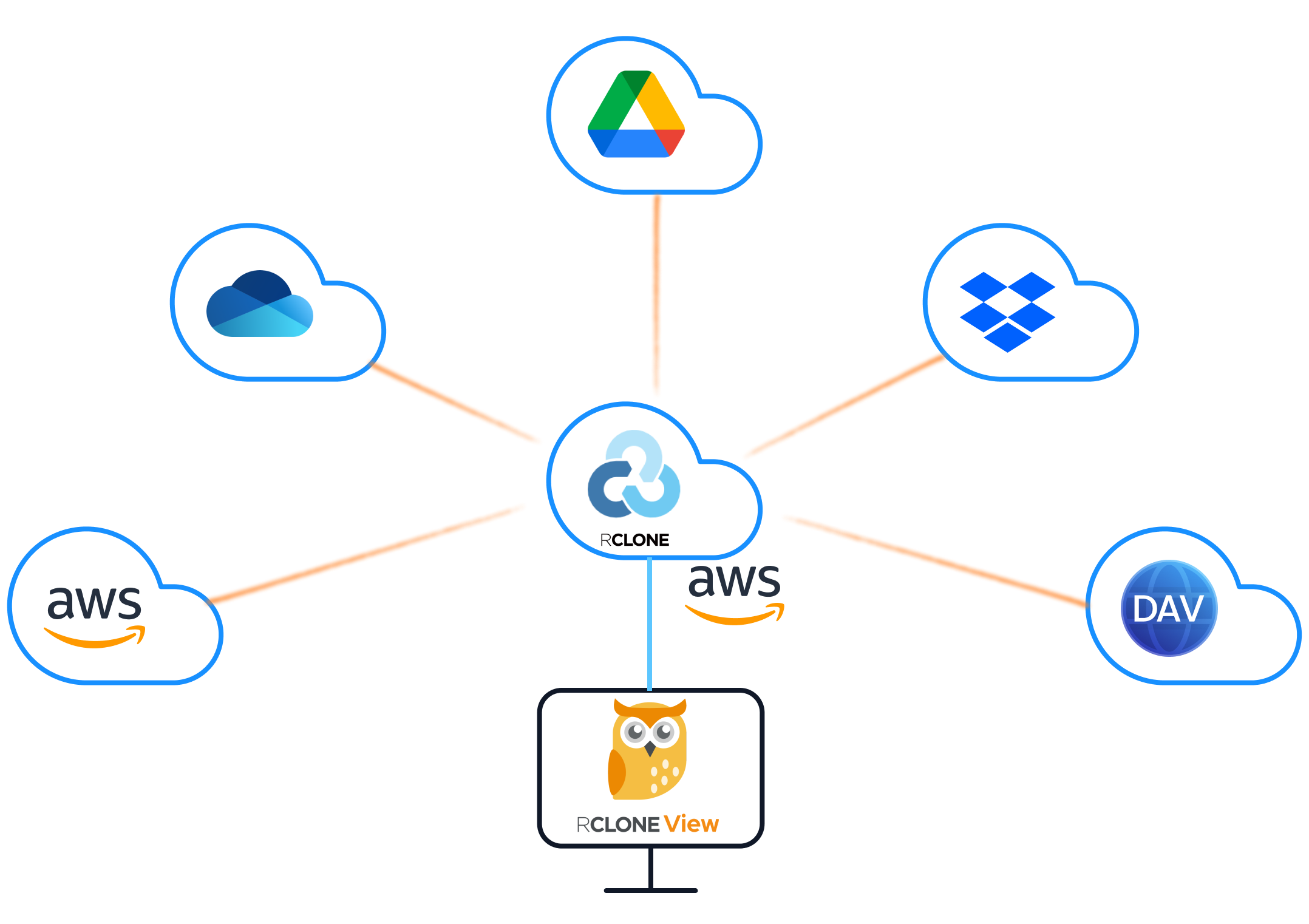
Starting the RC Daemon
To use the RC API, you need an rclone instance running with the RC interface enabled.
Basic startup:
rclone rcd --rc-addr :5572
This starts the RC daemon listening on all interfaces on port 5572 with no authentication. This is suitable for local development only.
Authenticated startup (recommended):
rclone rcd --rc-addr :5572 --rc-user admin --rc-pass your-secure-password
With TLS encryption:
rclone rcd --rc-addr :5572 \
  --rc-user admin \
  --rc-pass your-secure-password \
  --rc-cert /path/to/cert.pem \
  --rc-key /path/to/key.pem
With web GUI enabled:
rclone rcd --rc-addr :5572 --rc-web-gui --rc-user admin --rc-pass your-secure-password
Common startup flags:
| Flag | Purpose |
|---|---|
--rc-addr | Address and port to listen on |
--rc-user / --rc-pass | Basic authentication credentials |
--rc-allow-origin | CORS origin for browser-based access |
--rc-serve | Serve remote objects via the RC API |
--rc-no-auth | Disable authentication (local use only) |
--rc-cert / --rc-key | TLS certificate and private key |
Verifying the daemon is running:
curl http://localhost:5572/rc/noop
# Expected response: {}
If authentication is enabled:
curl -u admin:your-secure-password http://localhost:5572/rc/noop
Essential API Endpoints
The RC API provides dozens of endpoints organized by category. Here are the most important ones for daily use.
Core operations:
# Get rclone version and build info
curl -X POST http://localhost:5572/core/version

# Get current transfer statistics
curl -X POST http://localhost:5572/core/stats

# Get memory statistics
curl -X POST http://localhost:5572/core/memstats

# Trigger garbage collection
curl -X POST http://localhost:5572/core/gc

# Gracefully shut down rclone
curl -X POST http://localhost:5572/core/quit
Sync and copy operations:
# Copy files from source to destination
curl -X POST http://localhost:5572/sync/copy \
  -H "Content-Type: application/json" \
  -d '{"srcFs": "gdrive:/Documents", "dstFs": "s3:my-bucket/documents"}'

# Sync (mirror) source to destination
curl -X POST http://localhost:5572/sync/sync \
  -H "Content-Type: application/json" \
  -d '{"srcFs": "gdrive:/Photos", "dstFs": "b2:photo-backup"}'

# Move files from source to destination
curl -X POST http://localhost:5572/sync/move \
  -H "Content-Type: application/json" \
  -d '{"srcFs": "local:/tmp/uploads", "dstFs": "s3:incoming-bucket"}'
File operations:
# List files in a directory
curl -X POST http://localhost:5572/operations/list \
  -H "Content-Type: application/json" \
  -d '{"fs": "gdrive:", "remote": "Documents"}'

# Get information about a specific file
curl -X POST http://localhost:5572/operations/stat \
  -H "Content-Type: application/json" \
  -d '{"fs": "gdrive:", "remote": "Documents/report.pdf"}'

# Delete a file
curl -X POST http://localhost:5572/operations/deletefile \
  -H "Content-Type: application/json" \
  -d '{"fs": "gdrive:", "remote": "temp/old-file.txt"}'

# Create a directory
curl -X POST http://localhost:5572/operations/mkdir \
  -H "Content-Type: application/json" \
  -d '{"fs": "gdrive:", "remote": "NewFolder"}'

# Get disk usage info
curl -X POST http://localhost:5572/operations/about \
  -H "Content-Type: application/json" \
  -d '{"fs": "gdrive:"}'
Mount operations:
# Mount a remote as a local drive
curl -X POST http://localhost:5572/mount/mount \
  -H "Content-Type: application/json" \
  -d '{"fs": "gdrive:", "mountPoint": "/mnt/gdrive"}'

# List active mounts
curl -X POST http://localhost:5572/mount/listmounts

# Unmount
curl -X POST http://localhost:5572/mount/unmount \
  -H "Content-Type: application/json" \
  -d '{"mountPoint": "/mnt/gdrive"}'
Monitoring Transfers Programmatically
One of the most valuable uses of the RC API is real-time transfer monitoring.
Polling for transfer stats:
curl -X POST http://localhost:5572/core/stats
This returns a JSON object containing:
{
  "bytes": 1234567890,
  "checks": 150,
  "deletedDirs": 0,
  "deletes": 0,
  "elapsedTime": 45.2,
  "errors": 0,
  "eta": 120,
  "fatalError": false,
  "renames": 0,
  "speed": 27434842,
  "totalBytes": 9876543210,
  "totalChecks": 500,
  "totalTransfers": 200,
  "transferTime": 42.1,
  "transfers": 85,
  "transferring": [
    {
      "bytes": 52428800,
      "eta": 30,
      "group": "sync/copy",
      "name": "Photos/vacation-2025/IMG_4521.jpg",
      "percentage": 65,
      "size": 80530636,
      "speed": 1048576,
      "speedAvg": 983040
    }
  ]
}

Job management:
Every async operation (sync, copy, move) creates a job that you can track:
# List all running jobs
curl -X POST http://localhost:5572/job/list

# Get status of a specific job
curl -X POST http://localhost:5572/job/status \
  -H "Content-Type: application/json" \
  -d '{"jobid": 1}'

# Stop a running job
curl -X POST http://localhost:5572/job/stop \
  -H "Content-Type: application/json" \
  -d '{"jobid": 1}'

Building a simple monitoring script:
import requests
import time
import json

RC_URL = "http://localhost:5572"
AUTH = ("admin", "your-secure-password")

def get_stats():
    resp = requests.post(f"{RC_URL}/core/stats", auth=AUTH)
    return resp.json()

def monitor_transfers(interval=5):
    while True:
        stats = get_stats()
        speed_mb = stats.get("speed", 0) / 1024 / 1024
        transferred = stats.get("transfers", 0)
        total = stats.get("totalTransfers", 0)
        errors = stats.get("errors", 0)

        print(f"Speed: {speed_mb:.1f} MB/s | "
              f"Progress: {transferred}/{total} | "
              f"Errors: {errors}")

        if transferred >= total and total > 0:
            print("Transfer complete!")
            break

        time.sleep(interval)

monitor_transfers()
Building Automation Scripts
The RC API enables powerful automation scenarios that go beyond what a GUI alone can provide.
Automated backup with error handling:
#!/bin/bash
RC_URL="http://localhost:5572"
AUTH="admin:your-secure-password"

# Start backup
RESPONSE=$(curl -s -u "$AUTH" -X POST "$RC_URL/sync/sync" \
  -H "Content-Type: application/json" \
  -d '{"srcFs": "gdrive:/Important", "dstFs": "b2:backup-bucket/important", "_async": true}')

JOBID=$(echo "$RESPONSE" | jq -r '.jobid')
echo "Started backup job: $JOBID"

# Monitor until complete
while true; do
  STATUS=$(curl -s -u "$AUTH" -X POST "$RC_URL/job/status" \
    -H "Content-Type: application/json" \
    -d "{\"jobid\": $JOBID}")

  FINISHED=$(echo "$STATUS" | jq -r '.finished')
  SUCCESS=$(echo "$STATUS" | jq -r '.success')

  if [ "$FINISHED" = "true" ]; then
    if [ "$SUCCESS" = "true" ]; then
      echo "Backup completed successfully"
    else
      ERROR=$(echo "$STATUS" | jq -r '.error')
      echo "Backup failed: $ERROR"
      # Send alert notification
      curl -X POST "https://hooks.slack.com/services/YOUR/WEBHOOK/URL" \
        -d "{\"text\": \"Backup job $JOBID failed: $ERROR\"}"
    fi
    break
  fi

  sleep 10
done
Multi-remote sync orchestration:
import requests
import time

RC_URL = "http://localhost:5572"
AUTH = ("admin", "your-secure-password")

SYNC_JOBS = [
    {"srcFs": "gdrive:/Documents", "dstFs": "s3:backup/documents"},
    {"srcFs": "gdrive:/Photos", "dstFs": "b2:photo-archive"},
    {"srcFs": "onedrive:/Work", "dstFs": "s3:backup/work"},
]

def start_sync(src, dst):
    resp = requests.post(f"{RC_URL}/sync/sync", auth=AUTH,
                        json={"srcFs": src, "dstFs": dst, "_async": True})
    return resp.json().get("jobid")

def wait_for_job(jobid):
    while True:
        resp = requests.post(f"{RC_URL}/job/status", auth=AUTH,
                            json={"jobid": jobid})
        status = resp.json()
        if status.get("finished"):
            return status.get("success", False)
        time.sleep(5)

# Run all syncs sequentially
for job in SYNC_JOBS:
    print(f"Syncing {job['srcFs']} -> {job['dstFs']}")
    jobid = start_sync(job["srcFs"], job["dstFs"])
    success = wait_for_job(jobid)
    print(f"  Result: {'Success' if success else 'Failed'}")
Storage usage reporting automation:
#!/bin/bash
RC_URL="http://localhost:5572"
AUTH="admin:your-secure-password"

REMOTES=("gdrive:" "s3:my-bucket" "b2:my-bucket" "onedrive:")

echo "Storage Usage Report - $(date)"
echo "================================"

for REMOTE in "${REMOTES[@]}"; do
  RESULT=$(curl -s -u "$AUTH" -X POST "$RC_URL/operations/about" \
    -H "Content-Type: application/json" \
    -d "{\"fs\": \"$REMOTE\"}")

  TOTAL=$(echo "$RESULT" | jq -r '.total // "unlimited"')
  USED=$(echo "$RESULT" | jq -r '.used // "unknown"')
  FREE=$(echo "$RESULT" | jq -r '.free // "unknown"')

  echo "$REMOTE: Used=$USED, Free=$FREE, Total=$TOTAL"
done
Webhook Integrations and Notifications
Combine the RC API with webhooks to create event-driven workflows.
Slack notifications on transfer completion:
import requests
import time

RC_URL = "http://localhost:5572"
RC_AUTH = ("admin", "your-secure-password")
SLACK_WEBHOOK = "https://hooks.slack.com/services/YOUR/WEBHOOK/URL"

def notify_slack(message):
    requests.post(SLACK_WEBHOOK, json={"text": message})

def run_sync_with_notification(src, dst, label):
    # Start sync
    resp = requests.post(f"{RC_URL}/sync/sync", auth=RC_AUTH,
                        json={"srcFs": src, "dstFs": dst, "_async": True})
    jobid = resp.json().get("jobid")
    notify_slack(f"Started: {label} (Job #{jobid})")

    # Wait for completion
    while True:
        status = requests.post(f"{RC_URL}/job/status", auth=RC_AUTH,
                              json={"jobid": jobid}).json()
        if status.get("finished"):
            # Get final stats
            stats = requests.post(f"{RC_URL}/core/stats", auth=RC_AUTH).json()

            if status.get("success"):
                notify_slack(
                    f"Completed: {label}\n"
                    f"Files: {stats.get('transfers', 0)} | "
                    f"Size: {stats.get('bytes', 0) / 1024 / 1024:.1f} MB | "
                    f"Errors: {stats.get('errors', 0)}"
                )
            else:
                notify_slack(f"FAILED: {label}\nError: {status.get('error')}")
            break
        time.sleep(10)

run_sync_with_notification(
    "gdrive:/Backups", "b2:disaster-recovery",
    "Nightly Google Drive Backup"
)
Health check endpoint for uptime monitoring:
You can use the RC API as a health check endpoint for monitoring tools like Uptime Kuma or Healthchecks.io:
# Simple health check - returns 200 if rclone is running
curl -s -o /dev/null -w "%{http_code}" http://localhost:5572/rc/noop
Integrate this into your monitoring stack to receive alerts if the rclone daemon goes down.
Security Best Practices
When exposing the RC API, especially over a network, security is critical.
Authentication: Always use --rc-user and --rc-pass in production. Never run with --rc-no-auth on a network-accessible interface.
TLS encryption: Use --rc-cert and --rc-key to encrypt API traffic. Self-signed certificates work for internal use; use Let's Encrypt for public-facing instances.
Network restrictions: Bind to localhost when only local access is needed:
rclone rcd --rc-addr 127.0.0.1:5572
For remote access, use a reverse proxy (nginx, Caddy) with proper TLS termination and rate limiting rather than exposing rclone directly.
Firewall rules: Restrict access to the RC port:
# Allow only specific IPs
sudo ufw allow from 192.168.1.0/24 to any port 5572
Token-based auth alternative: For scripts, consider placing credentials in environment variables rather than hardcoding them:
export RCLONE_RC_USER="admin"
export RCLONE_RC_PASS="your-secure-password"
Getting Started
The rclone RC API transforms RcloneView from a standalone application into a platform for building cloud storage automation. Whether you need simple transfer monitoring, complex multi-remote orchestration, or integration with your existing DevOps toolchain, the RC API provides the foundation. Start by enabling the RC daemon, experiment with core/stats and operations/list to understand the response format, then gradually build up to automated workflows that handle your routine cloud storage tasks without manual intervention.
Related Guides:
Supported Cloud Providers





























