RcloneView on macOS Ventura — Cloud Storage Sync and Backup

Mount, sync, and back up 90+ cloud storage providers on macOS Ventura from one native Flutter app — no Homebrew formula and no terminal required.
Ventura users juggling Google Drive, Dropbox, OneDrive, and an S3 bucket usually end up with a Finder sidebar full of separate sync clients, each with its own login screen and its own quirks. RcloneView replaces that pile with a single window: mount any remote as a local volume, run scheduled backups, and compare folders side by side, all on the same Ventura install. It installs as a signed, notarized Universal binary, so the same download runs natively on both Intel and Apple Silicon Macs.

Manage & Sync All Clouds in One Place
RcloneView is a cross-platform GUI for rclone. Compare folders, transfer or sync files, and automate multi-cloud workflows with a clean, visual interface.
- One-click jobs: Copy · Sync · Compare
- Schedulers & history for reliable automation
- Works with Google Drive, OneDrive, Dropbox, S3, WebDAV, SFTP and more
Free core features. Plus automations available.
Installing RcloneView on Ventura
RcloneView ships only as a .dmg disk image from rcloneview.com — there is no Homebrew cask and no App Store listing, so drag-and-drop from the mounted image into Applications is the correct install path. macOS Ventura (12.7 and later is the documented minimum, with Ventura, Sonoma, and Sequoia all confirmed working) is covered by the Sparkle-based in-app auto-updater, so once installed you'll get update prompts without re-downloading the disk image each time. Unlike mount-only tools, RcloneView also syncs and compares folders — on the FREE license, with no separate app needed for backup jobs.

Mounting Cloud Drives on Ventura
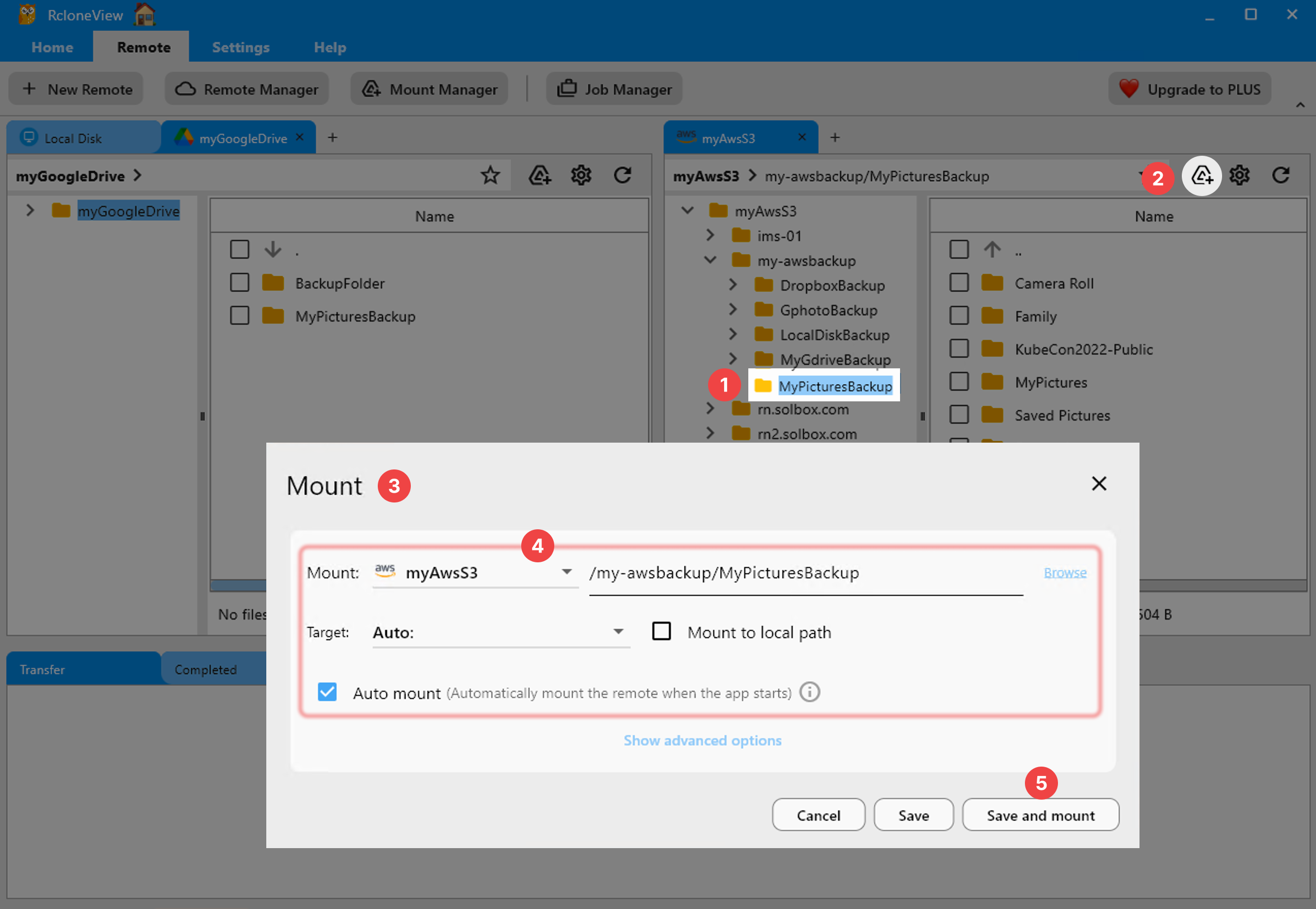
macOS mounts use nfsmount by default, giving you a Finder-visible volume backed by whichever remote you choose — Google Drive, a Backblaze B2 bucket, an SFTP server, whatever. Set a custom mount point, choose the VFS cache mode (writes is the default, balancing responsiveness with reliability), and the drive behaves like local storage for any app that expects a folder path. Mount it from the Remote Explorer panel toolbar for a one-off session, or register it in Mount Manager if you want it available every time you open RcloneView.
Fixing Ventura's Permission and File-Limit Quirks
Two Ventura-specific issues catch new users. First, Desktop, Documents, and Downloads can appear empty inside RcloneView until you grant access in System Settings > Privacy & Security > Files & Folders (or add RcloneView to Full Disk Access) and restart the app. Second, macOS's default file descriptor limit (256–1024) causes errors on large transfers; raising both soft and hard limits to 524288 requires creating a LaunchDaemon plist at /Library/LaunchDaemons/limit.maxfiles.plist and rebooting. Neither issue is unique to RcloneView, but both are worth fixing before your first large sync job.

Getting Started
- Download RcloneView from rcloneview.com — grab the Universal
.dmg. - Drag RcloneView into Applications, then grant Files & Folders access when macOS prompts you.
- Add your first remote (Remote tab > New Remote) and mount it or run a one-time sync to confirm everything reads correctly.
- Set up a recurring backup job once you've verified paths and permissions.
Once permissions and file limits are sorted, Ventura runs RcloneView as smoothly as any native Mac app — cloud storage stops feeling like a separate errand.
Related Guides:
- RcloneView on macOS Sonoma — Cloud Storage Sync and Backup
- RcloneView on macOS Sequoia — Cloud Storage Sync and Backup
- Mount Cloud Storage as a Local Drive — Complete Guide
Supported Cloud Providers





























